Selling digital products is booming. If you store eBooks, music, courses, or software in Google Drive, knowing how to sell Google Drive Files Through WooCommerce lets you offer them without moving large files to your hosting server. This reduces costs, speeds up your site, and removes the hassle of uploads.
A WordPress Plugin like Integration for Google Drive by CodeConfig makes syncing files simple, secures downloads, and manages access directly from your dashboard. Your files stay protected, customers get instant delivery, and your store can grow smoothly without server strain.
Step-by-Step Guide to How To Sell Google Drive Files Through WooCommerce
Let’s take a look at how to sell Google Drive files through WooCommerce by setting everything up so you can start. We will use the “Integration for Google Drive by CodeConfig” plugin, which is available for free on the CodeConfig website. This plugin makes integration easy and effective.
Step 01: Install and Activate the Plugin
- Go to the plugin page and click Free Download (a ZIP file will be downloaded)
- In your WordPress dashboard, go to Plugins → Add New → Upload Plugin
- Click Choose File and select the downloaded ZIP file
- Click Install Now, then Activate
- Click Allow & Continue to complete setup
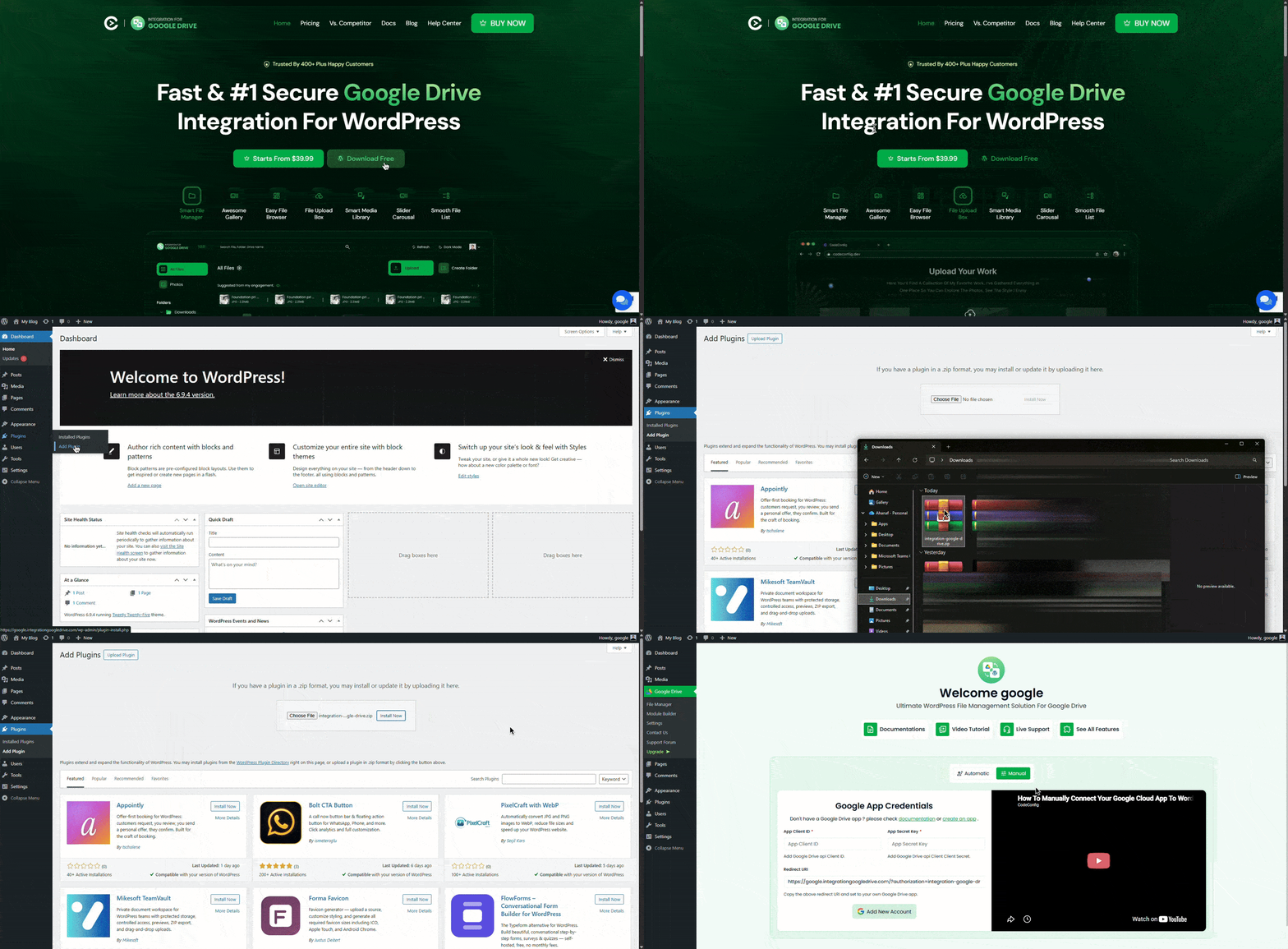
Download Free Plugin
Step 02: Enable WooCommerce Integration
It’s easy to get started. No coding required.
- Go to the plugin’s Settings tab.
- Open Integrations.
- Find WooCommerce, and turn on the toggle.
- Click Save Settings.
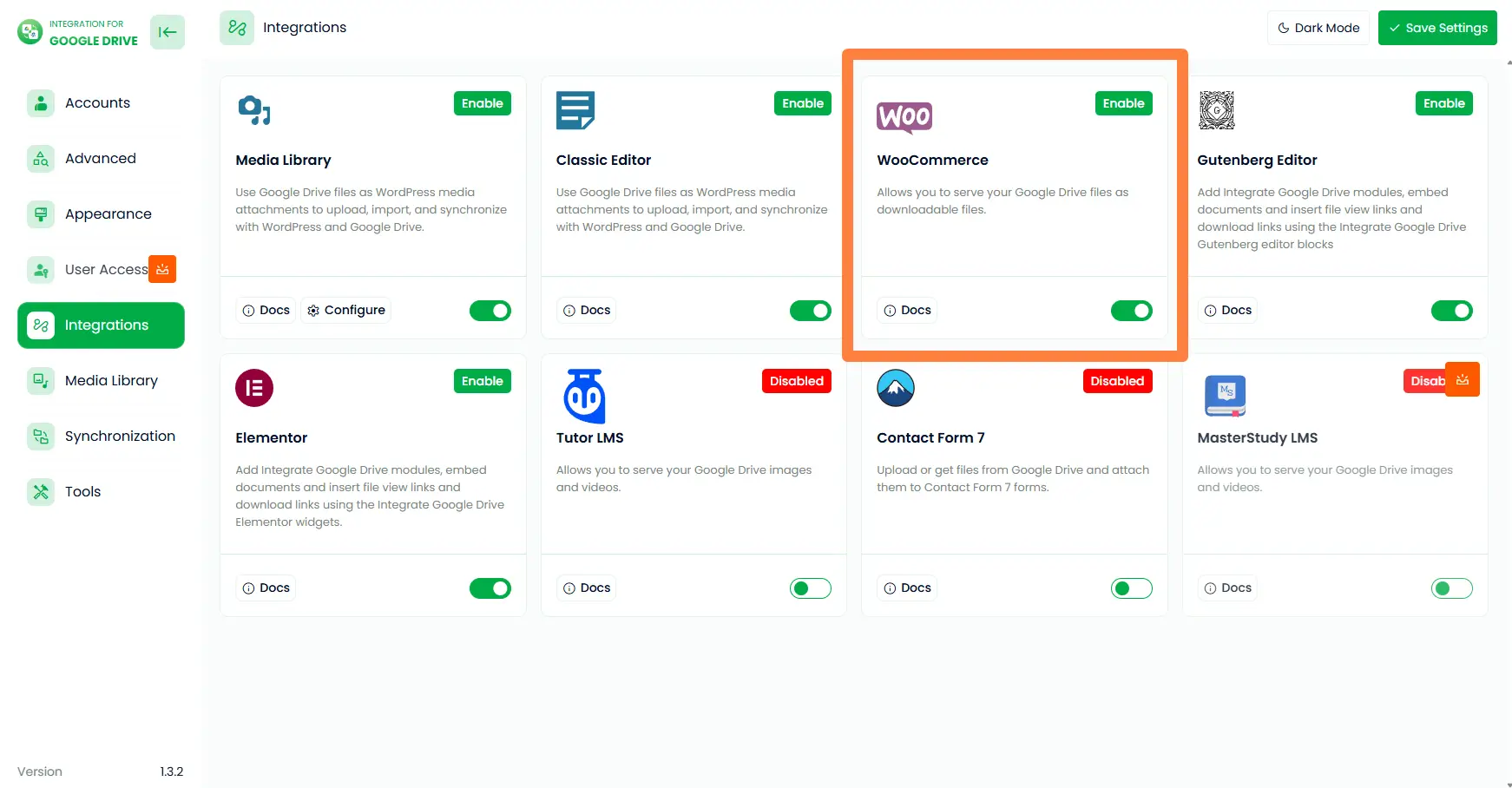
Your WooCommerce store is now connected to Google Drive. You can start using Drive files in your WooCommerce store as part of how to sell Google Drive files through WooCommerce.
Step 03: Enable Google Drive WordPress Media Library Integration
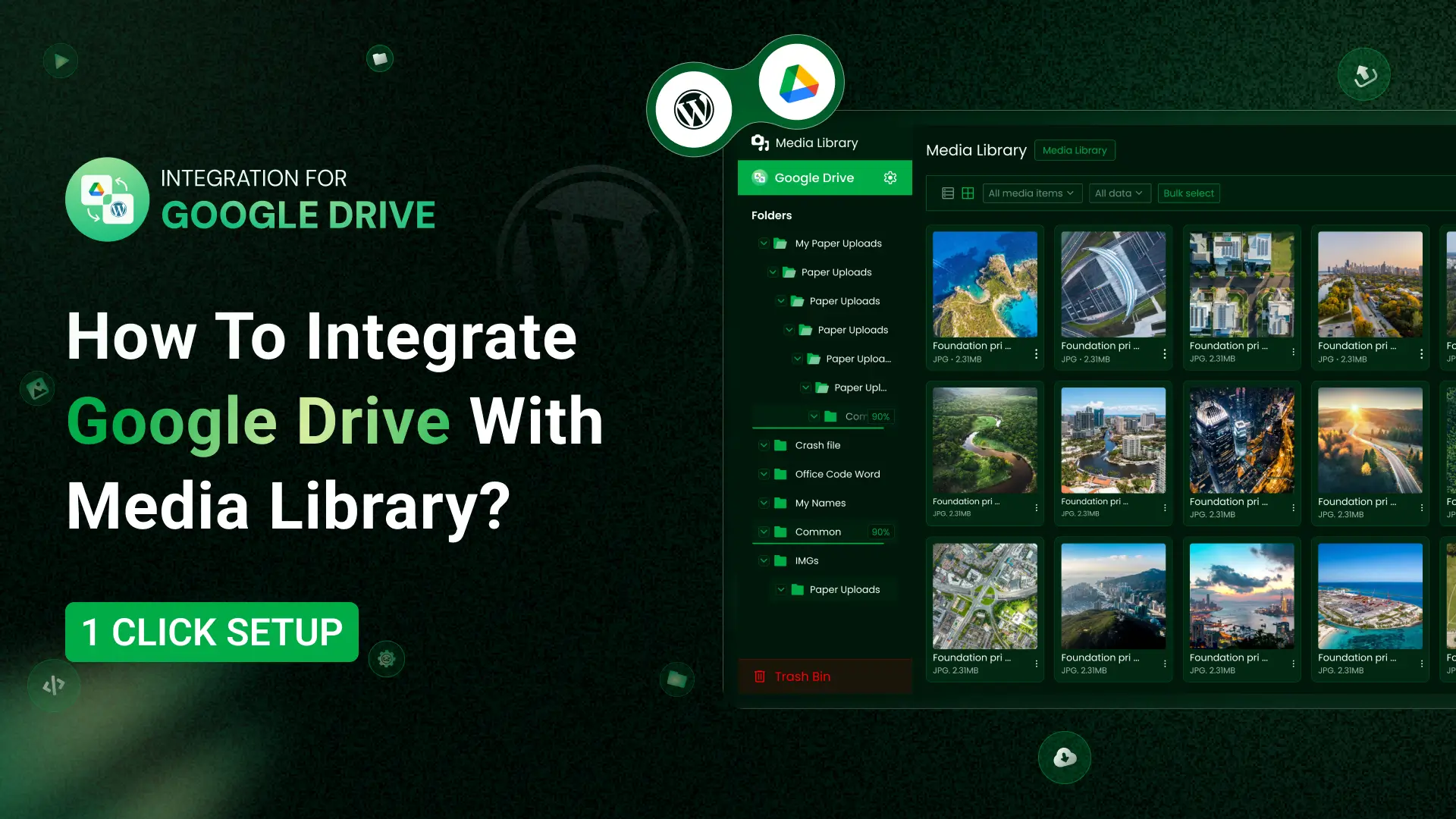
To enable the integration, navigate to Google Drive > Settings > Integrations and toggle the switch to enable the Media Library Integration. And select your desired folders. 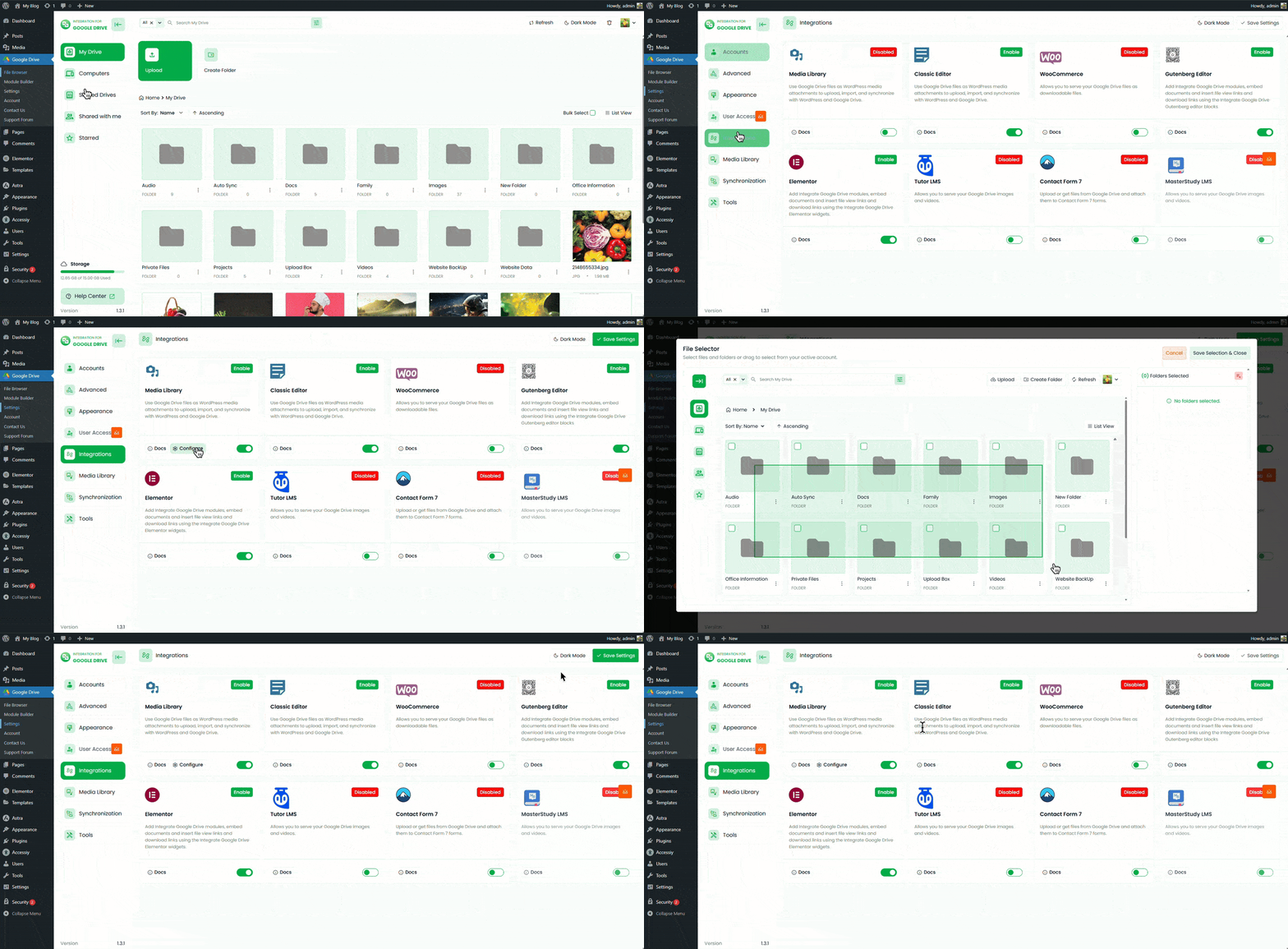
Step 04: Add Drive Files to WooCommerce Products
- Go to Products > Add New or edit an existing one.
- Check the Downloadable box in the product data section.
- Click Add File, then click Choose File, select your file from Google Drive, and confirm.
- Set the price, add a description, complete the product details, and publish.
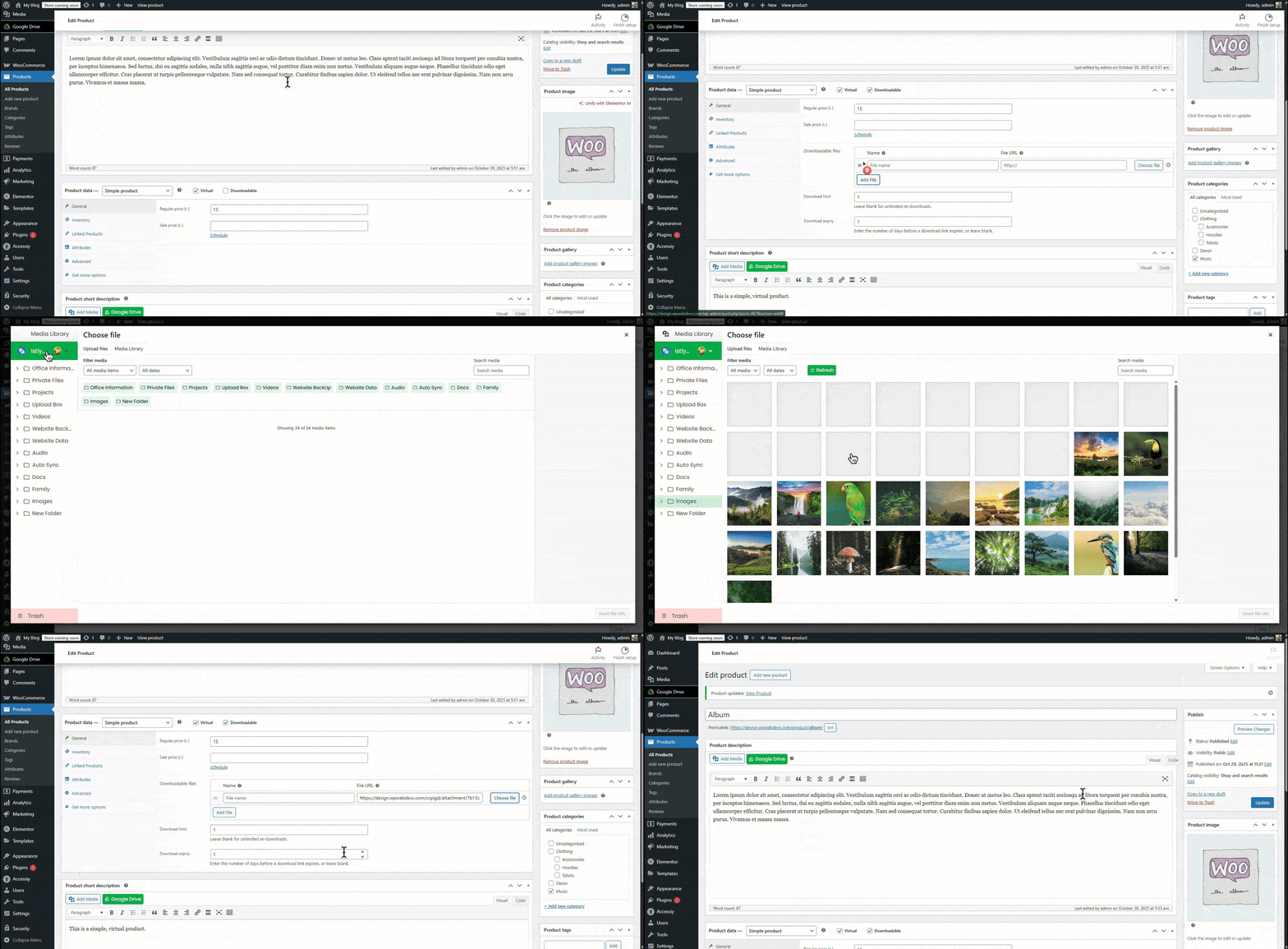
Your product is now live and linked to Google Drive, completing a key step in selling Google Drive files through WooCommerce.
🎁GIFT: And here’s a gift for you. If you’re planning to buy this plugin, you can use
the
EARLY20OFF coupon to
get a 20% discount.
Useful Tips for How To Sell Google Drive Files Through WooCommerce
- Use Google Drive for large files. If you sell large digital products like eBooks, video games, music albums, or movies on your WooCommerce store, using Google Drive storage is a smart move. It reduces the load on your server, improves site speed, and can help lower hosting costs.
- Use your own Google Cloud Console app. You should always use your own app created in the Google Cloud Console. This gives you full control over API limits, security settings, and access permissions. It also protects your store from service disruptions that can happen when using shared credentials.
Conclusion
How to Sell Google Drive Files Through WooCommerce is simple when you choose the right WordPress plugin. You get secure cloud storage, smooth file delivery, and WooCommerce’s built-in eCommerce tools without slowing down your server. Just install the plugin, connect to Google Drive, and publish your products. Keep files organized, review permissions, and update everything regularly. Follow this approach, and you can scale your digital store with confidence and reliable performance.












Written By
Ahanaf Istiyad
Hey, I'm Istiyad! As a UI/UX and product designer, I’m passionate about building sleek, user-friendly experiences that make navigating digital products feel effortless and fun!
Express Your Opinion