If you want a simple way to sell ebooks, music, software, or other downloads, How to Use Dropbox and WordPress to Sell Digital Files is a smart place to start. By connecting Dropbox with WordPress, you can store files in the cloud and keep your website fast and secure.
It also works smoothly with tools like Easy Digital Downloads and WooCommerce, so that you can manage payments and file delivery without extra hassle. The result is simple: secure downloads for your customers and less technical stress for you.
Connecting WordPress and Dropbox
To get started, connect Dropbox to WordPress using the File Manager for Dropbox plugin by CodeConfig. It lets you manage your Dropbox files right from your WordPress dashboard, saves server space, and keeps your workflow simple and organized.
Step: Install and Activate the Plugin
- Go to the plugin page and click Free Download (a ZIP file will be downloaded)
- In your WordPress dashboard, go to Plugins → Add New → Upload Plugin
- Click Choose File and select the downloaded ZIP file
- Click Install Now, then Activate
- Click Allow & Continue to complete setup.
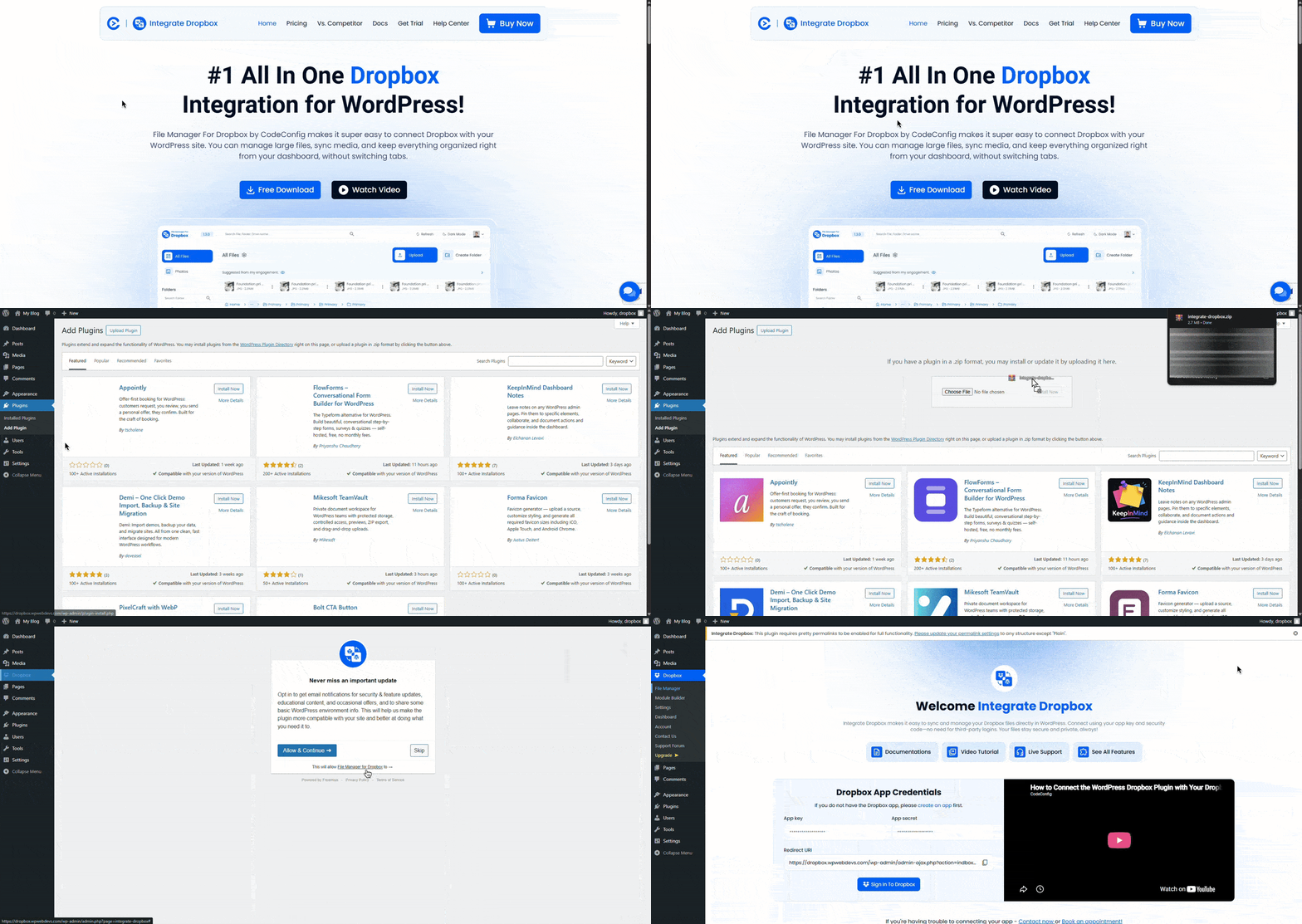
That’s it, the foundation for connecting your Dropbox account to WordPress is ready.
Download Free Plugin
Selling with WooCommerce
If you want a more flexible store setup, WooCommerce is a solid choice for selling digital files from Dropbox. There’s no official Dropbox add-on, but you can easily use direct links or a Dropbox integration plugin to connect everything and deliver files smoothly.
Step 01: Enable WooCommerce Integration
Go to your WordPress Dashboard and navigate to Dropbox
- Go to the plugin’s Settings tab.
- Open Integrations.
- Find WooCommerce, and turn on the toggle.
- Click Save Settings.
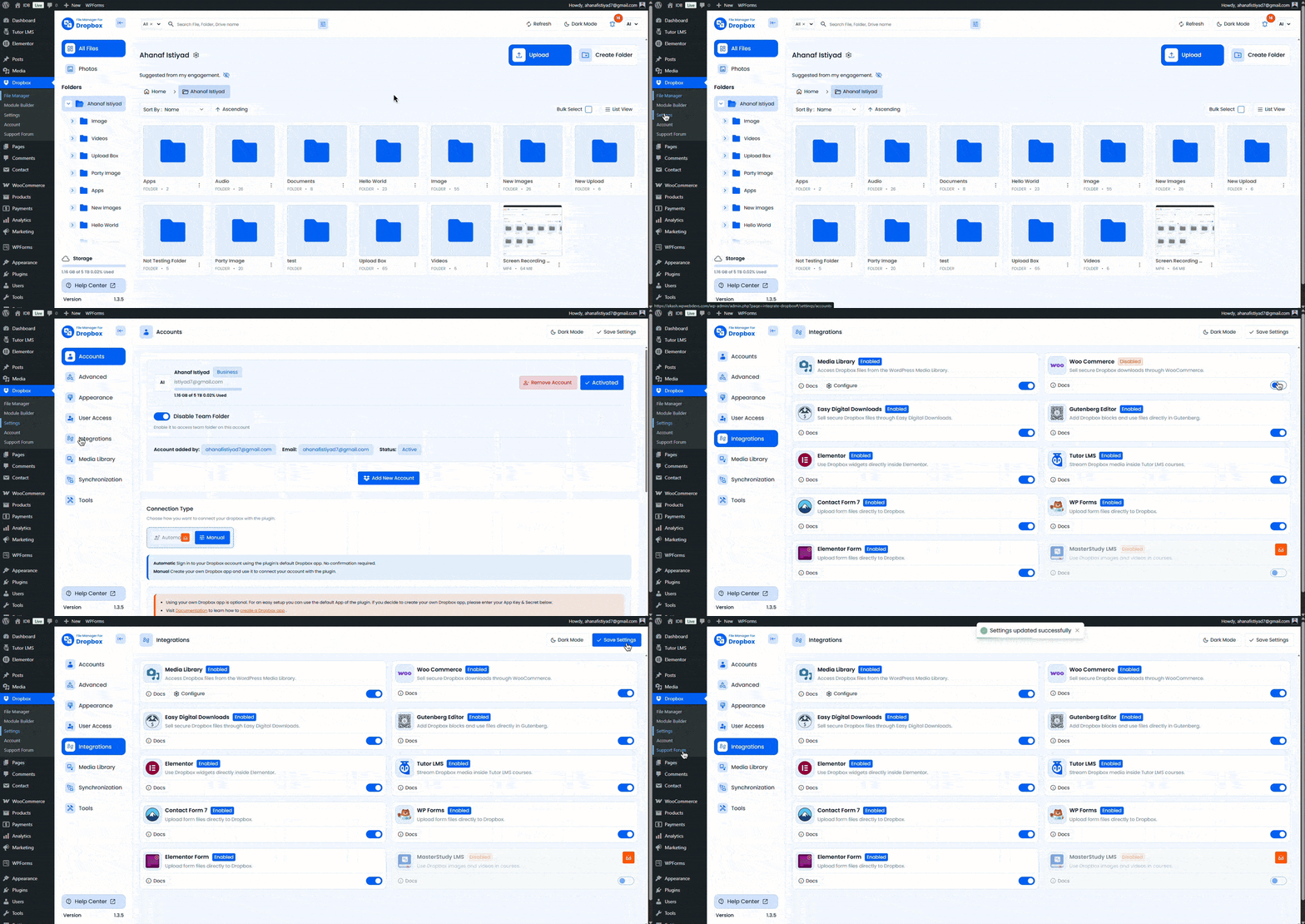
Step 02: Add Dropbox Files to WooCommerce Products
Follow these steps to use Dropbox files as downloadable products in WooCommerce:
- Go to Products > Add New or edit an existing one.
- Check the Downloadable box in the product data section.
- Click Add Dropbox File, choose your file from Dropbox, and confirm.
- Set the price, add a description, complete the product details, and publish.
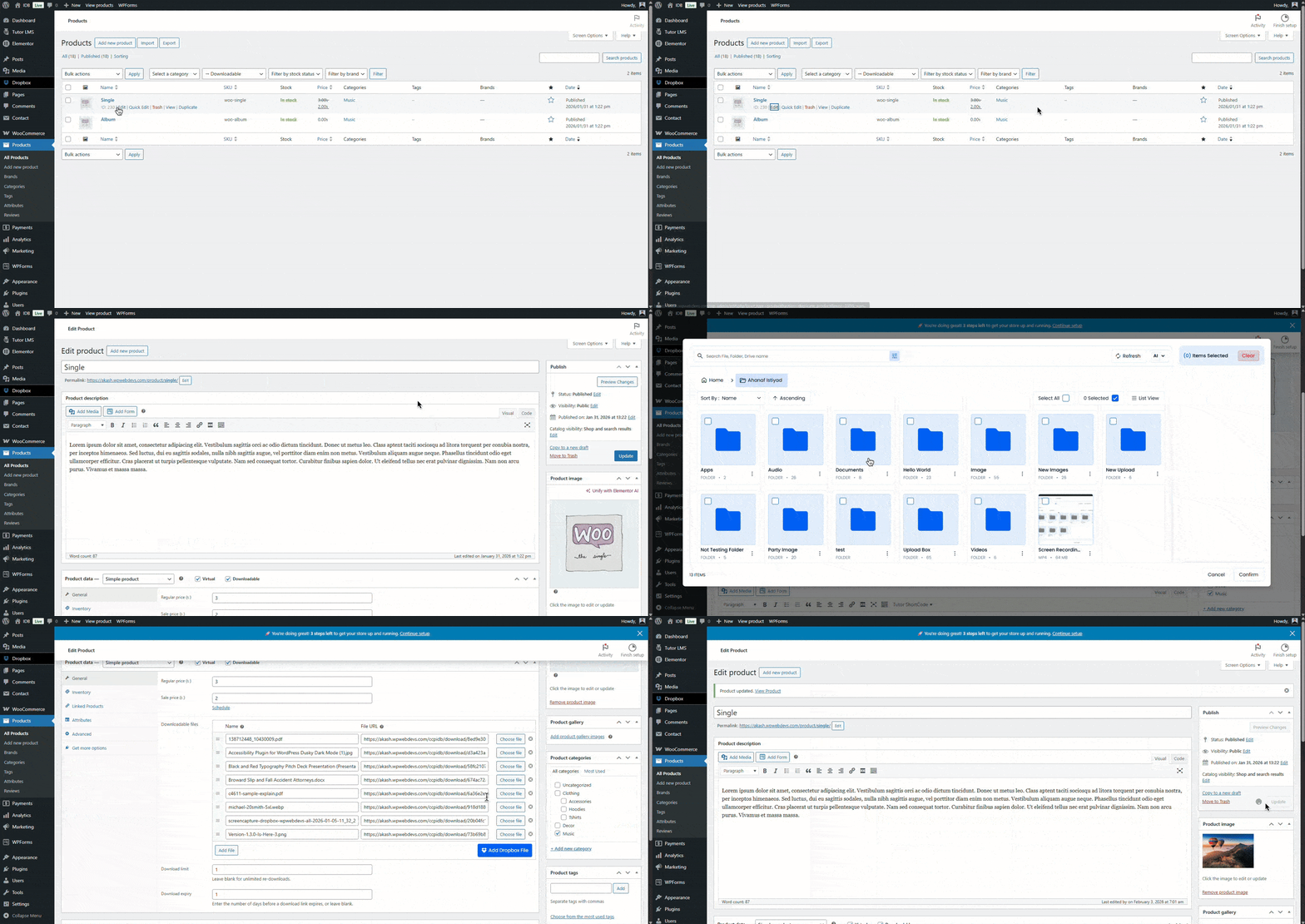
Your product is now live and connected to Dropbox. This setup keeps your WordPress site lightweight while using Dropbox for secure, reliable file delivery through WooCommerce.
Pro Tip: Test the process with a sample purchase to ensure everything works.
Selling with Easy Digital Downloads
For digital products, Easy Digital Downloads works great with Dropbox. Use CodeConfig’s Dropbox file manager to keep your files in Dropbox and deliver them securely through EDD.
Step 01: Enable Easy Digital Download Integration
Go to your WordPress Dashboard and navigate to Dropbox
- Go to the plugin’s Settings tab.
- Open Integrations.
- Find Easy Digital Downloads, and turn on the toggle.
- Click Save Settings.
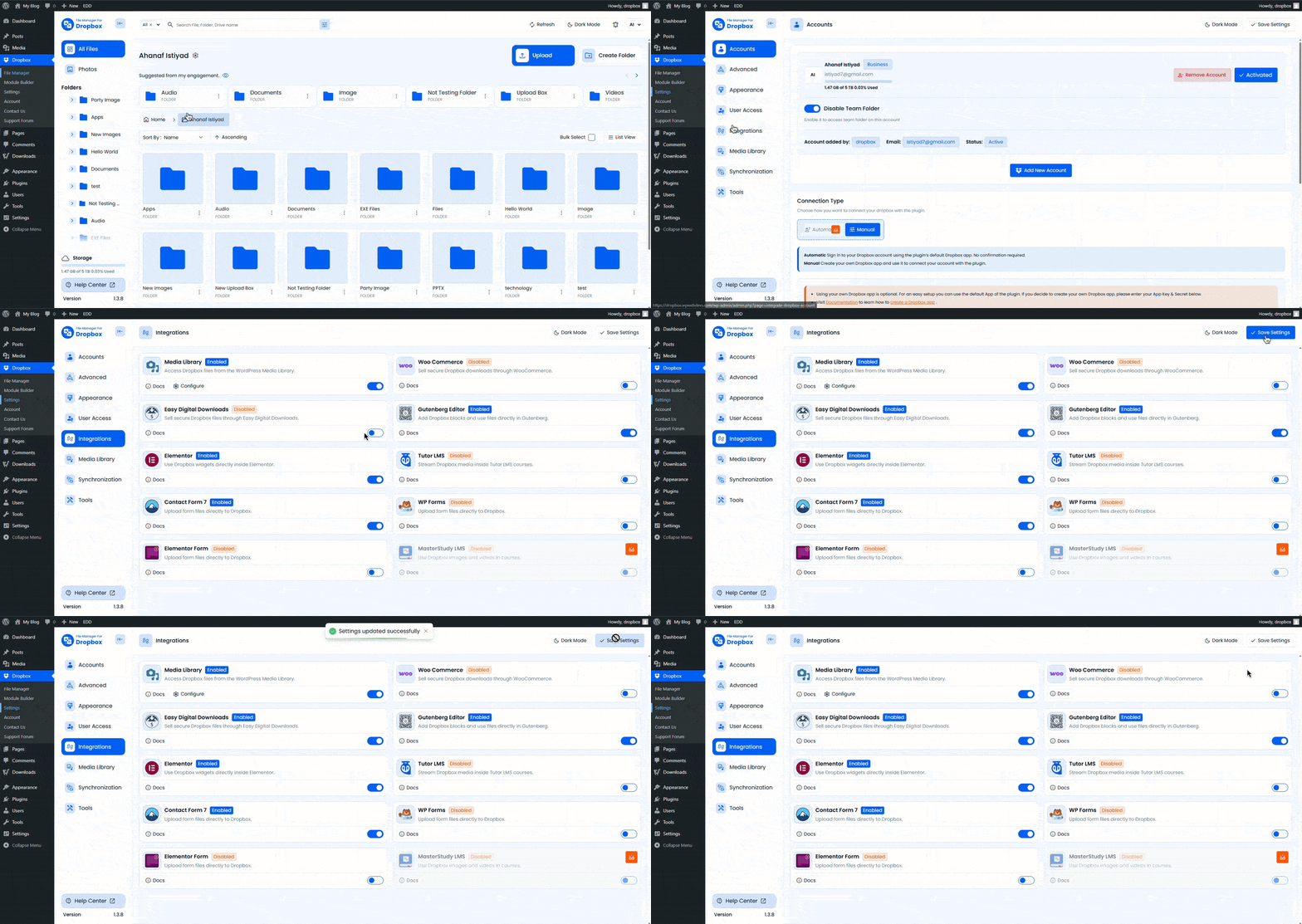
Step 02: Enable Media Library Integration
Go to your WordPress Dashboard and navigate to Dropbox
- From the Integrations > Enable Media Library, also by toggling,
- Now click Configure and select the folder, then confirm.
- Navigate to Media > Library, check your selected file
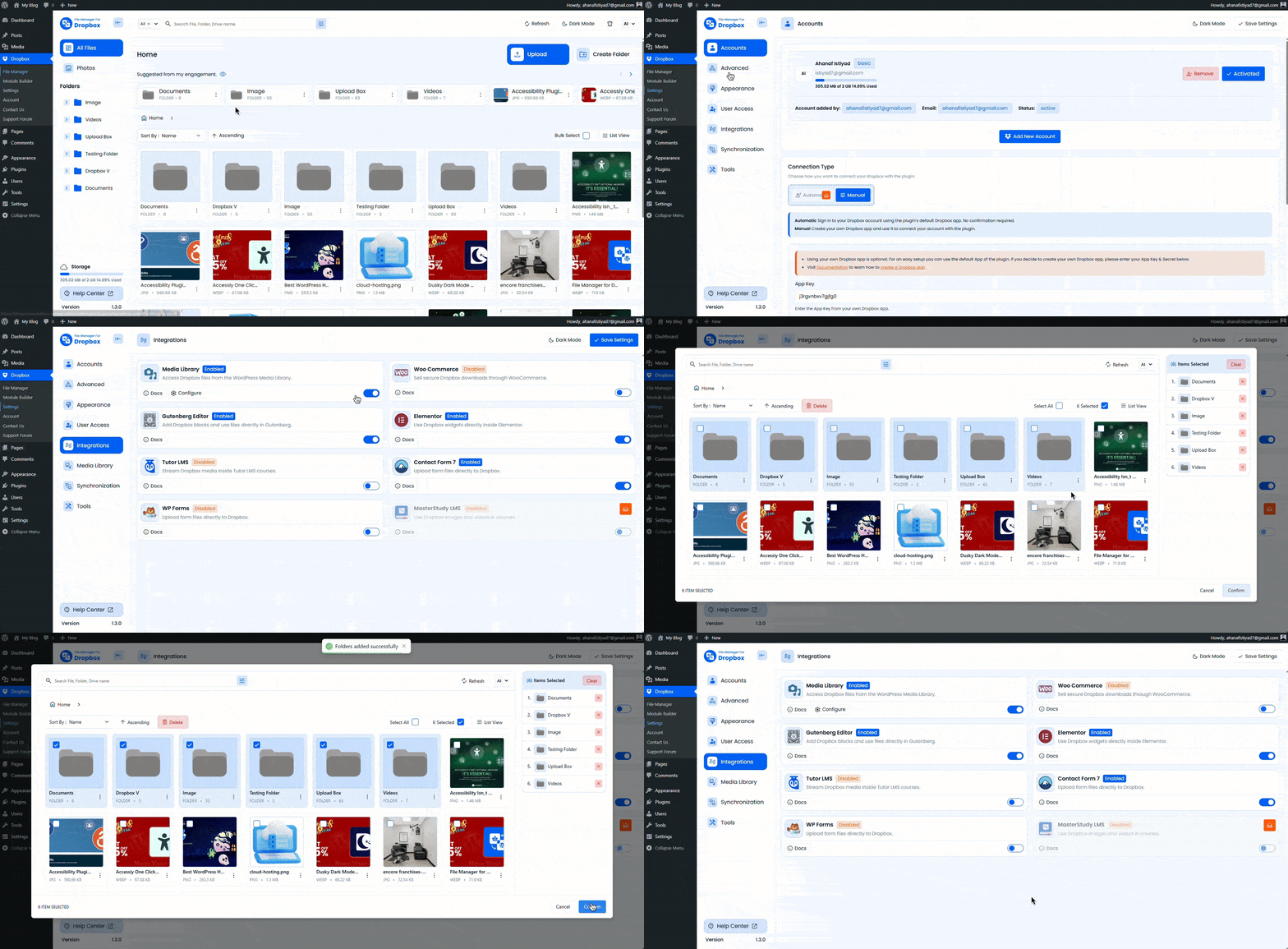
Step 03: Add Dropbox Files to the Easy Digital Download Product
- Go to Downloads > Add Download or edit an existing one.
- Check Download Details > Navigate Files
- Click Insert, choose your file from Dropbox Media Library, then save.
- Set the price, description, and complete other details, then publish.
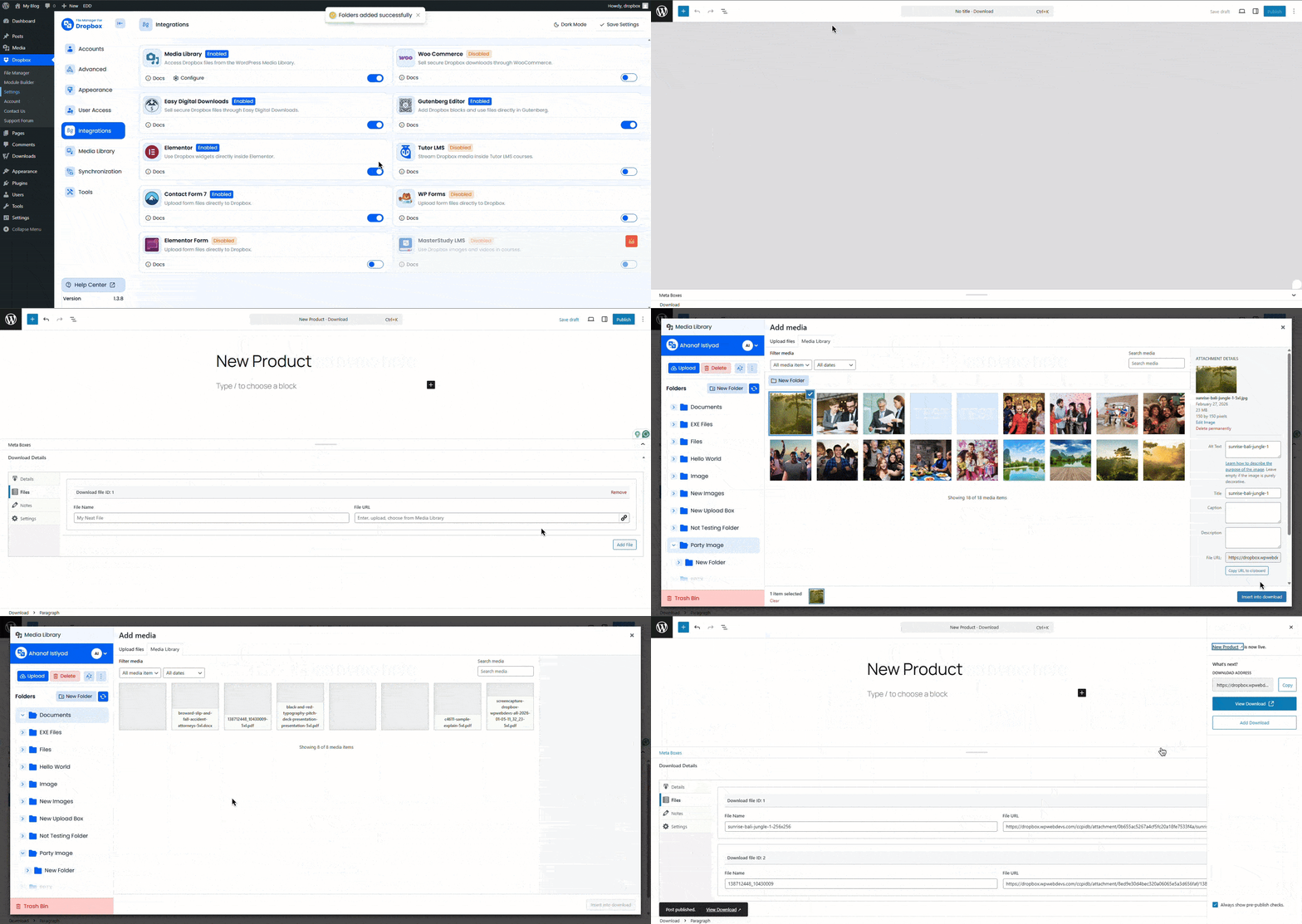
Dropbox takes the pressure off your server, delivers files faster through its global network, and adds an extra layer of security to protect your downloads.
Pro Tip: Test the process with a sample purchase to ensure everything works.
Benefits and Scaling Tips for
Integrating Dropbox with WordPress offers practical advantages for selling digital files.
- Reduced Server Strain: Store files in Dropbox to avoid maxing out your hosting bandwidth or storage limits, especially with large products like video courses.
- Faster File Delivery: Dropbox’s content delivery network ensures quick downloads worldwide, improving customer satisfaction and reducing bounce rates.
- Secure Download Management: Use expiring links and access controls to protect your files from piracy, with easy revocation if needed.
Scaling Tips for How to Use Dropbox and WordPress to Sell Digital Files
Start by organizing your Dropbox folders by product type so everything is easy to find. Use sales data from Easy Digital Downloads or WooCommerce to see what’s selling best and create bundles.
Keep your files backed up, test downloads regularly, and use email marketing tools to promote your products. If you need more space or team access, upgrading to Dropbox Business can help.
Conclusion
Mastering how to use Dropbox and WordPress to sell digital files unlocks a scalable, cost-effective way to build your online business. With secure storage, easy integrations, and tools like EDD or WooCommerce, you can deliver value to customers without technical hurdles. Set this up today to start earning from your digital creations, install the plugins, connect your accounts, and watch your sales grow. Ready to get started? Head to your WordPress dashboard and begin integrating now!












Written By
Ahanaf Istiyad
Hey, I'm Istiyad! As a UI/UX and product designer, I’m passionate about building sleek, user-friendly experiences that make navigating digital products feel effortless and fun!
Express Your Opinion