Managing documents across different platforms can be a logistical headache. If you frequently update reports, whitepapers, or collaborative guides in Google Docs, manually copying that content into WordPress every time a change is made is a massive time-sink.
The solution is to sync your cloud storage directly with your site. In this guide, we’ll show you exactly how to embed Google Drive docs in WordPress so your website stays updated automatically whenever you edit your source files.
Instead of using clunky “Publish to web” frames, this plugin gives you a faster, cleaner, and more secure way to embed Google Drive files in WordPress.
- Use Secure OAuth 2.0 authentication.
- You can use large files without slowing down the site.
- Gutenberg, Elementor, and shortcode builder support.
- Media library integration and auto-sync options.
It’s a reliable and beginner-friendly solution for embedding Google Docs and other Drive files in WordPress.
Step-by-Step Guide: How to Embed Google Drive Docs in WordPress
Follow these straightforward steps to embed your documents in minutes.
Step 1: Install and Activate the “Integration for Google Drive” Plugin
- Go to the plugin page and click Free Download (a ZIP file will be downloaded)
- In your WordPress dashboard, go to Plugins → Add New → Upload Plugin
- Click Choose File and select the downloaded ZIP file
- Click Install Now, then Activate
- Click Allow & Continue to complete setup.
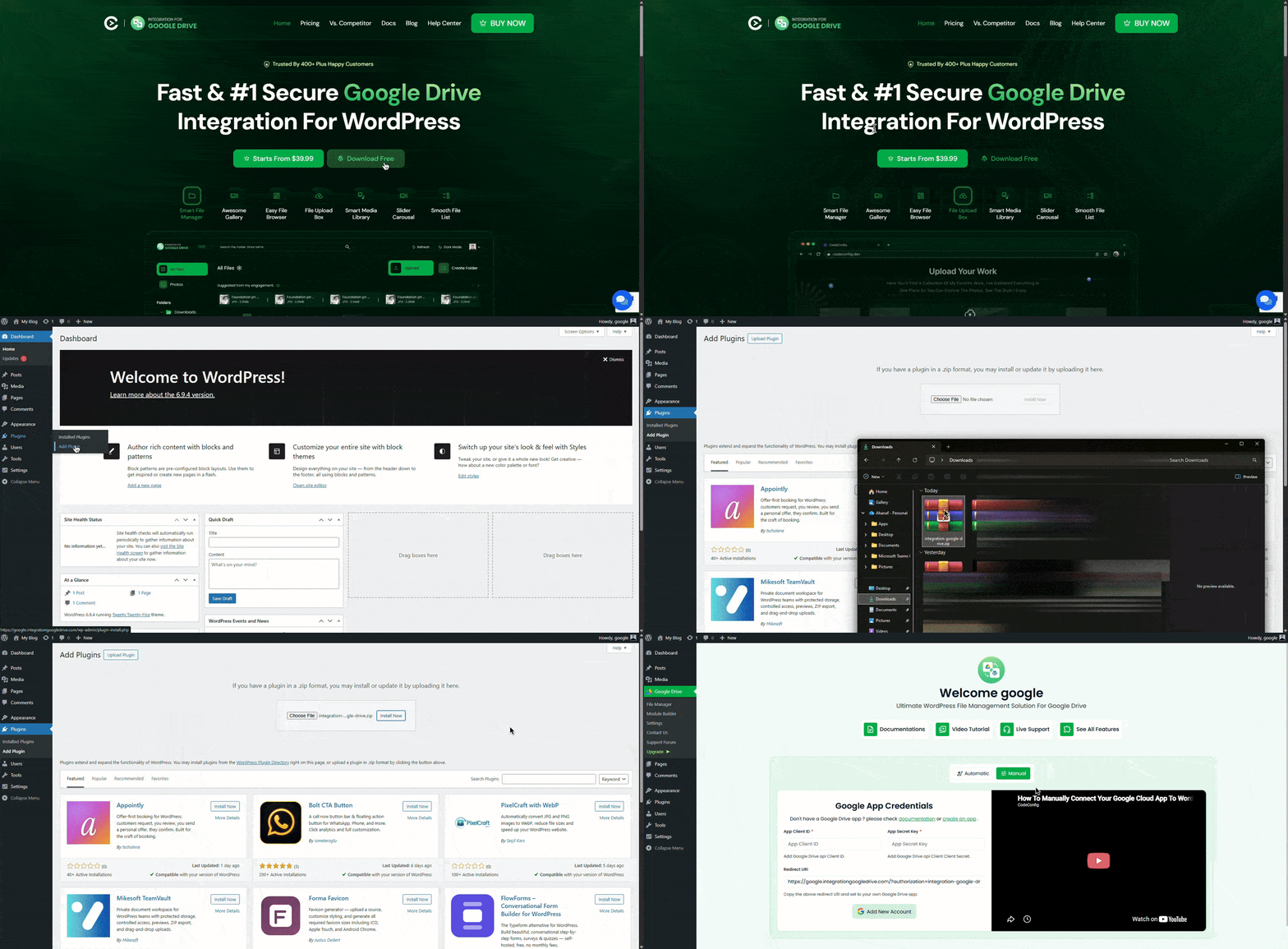
Download Free Plugin
Step 2: Connect Your Google Drive Account
- Go to the Google Drive section in your WordPress dashboard.
- Copy the Redirect URL shown on the login screen.
- Open the Google Cloud Console, create or select a project → Create Client ID.
- Add the Redirect URI to the Authorized Redirect URI when creating the OAuth Client ID.
- Copy the Client ID and Client Secret.
- Return to the plugin screen, paste the Client ID and Client Secret, and click Sign in with Google.
Once connected, your Google Drive folders and files will appear inside the WordPress dashboard for easy management.
If you’re not sure how to create a Google Cloud Console app,
click here to learn.
Method 1: Use Shortcodes
Shortcodes provide flexible placement anywhere on your site.
- In the dashboard, go to Google Drive → Module Builder.
- Click Add New Module and select the appropriate module type (Embed Document).
- Choose your Google Docs or files.
- Configure options such as Filters, Advanced, and permissions settings.
- Click Save and Close to create the shortcode → copy the shortcode.
- Paste the shortcode into any post, page, or widget to display the document.
This plugin makes it easy to Embed Google Drive Docs in WordPress using shortcodes, and its inline preview feature ensures a smooth viewing experience for your documents.
Method 2: Media Library Integration
For an even smoother workflow:
- Go to the plugin’s Settings tab.
- Navigate to Integrations and enable the Media Library toggle.
- Click Configure and select the specific Google Drive folders.
- Visit Media → Library → Click your Google Account, check your selected folders.
- Insert them directly using the WordPress editor, Gutenberg blocks, or page builders.
This converts Google Drive Docs and files into fully usable media items within your WordPress media library.
Benefits of Using Google Drive Docs in WordPress
Integrating your documents directly into your website offers several strategic advantages:
- Real-Time Updates: Any changes you make in Google Docs reflect immediately on your WordPress site.
- Storage Efficiency: Reduce server load by storing large files and documents on Google Drive instead of your WordPress hosting, saving bandwidth and improving performance.
- Better performance: External hosting means faster page loads. Visitors enjoy quick access without waiting for heavy files to download from your server.
- Improved Collaboration: Your team can continue working in the familiar Google Workspace environment while the public sees the finished product.
- Professional Presentation: Provide users with a clean, readable document viewer rather than just a download link.
These benefits make it clear why many businesses, educators, bloggers, and teams choose to embed Google Drive Docs in WordPress when working with dynamic, frequently updated content.
Common Problems and Solutions
Permission errors are the most common issue when you embed Google Drive Docs in WordPress. If you see “Access Denied,” double-check your OAuth scopes in Google Cloud Console. For missing files or sync delays, clear the plugin cache or reconnect your account. The Integration for Google Drive plugin helps reduce these issues by handling links and permissions automatically, but if problems continue, check the documentation or contact support.
Conclusion
Learning how to embed Google Drive docs in WordPress is a game-changer for content managers and businesses that rely on dynamic documentation. By using a dedicated Google Doc embedder, such as the Integration for Google Drive plugin, you save time, reduce manual errors, and provide a better experience for your readers
Stop copying and pasting—start syncing!
Have questions about the process? Feel free to drop a comment below. I’m happy to help!












Written By
Ahanaf Istiyad
Hey, I'm Istiyad! As a UI/UX and product designer, I’m passionate about building sleek, user-friendly experiences that make navigating digital products feel effortless and fun!
Express Your Opinion