


- WordPress
The Importance of WordPress Security: 7 Critical Hardening Rules & Checklist
Saiful Islam6 min read
Loading page…
Loading page…
Loading page…
Is Elementor stuck on loading screen? Discover 6 proven developer fixes to resolve PHP memory limits, plugin conflicts, admin-ajax blocks, and restore access.
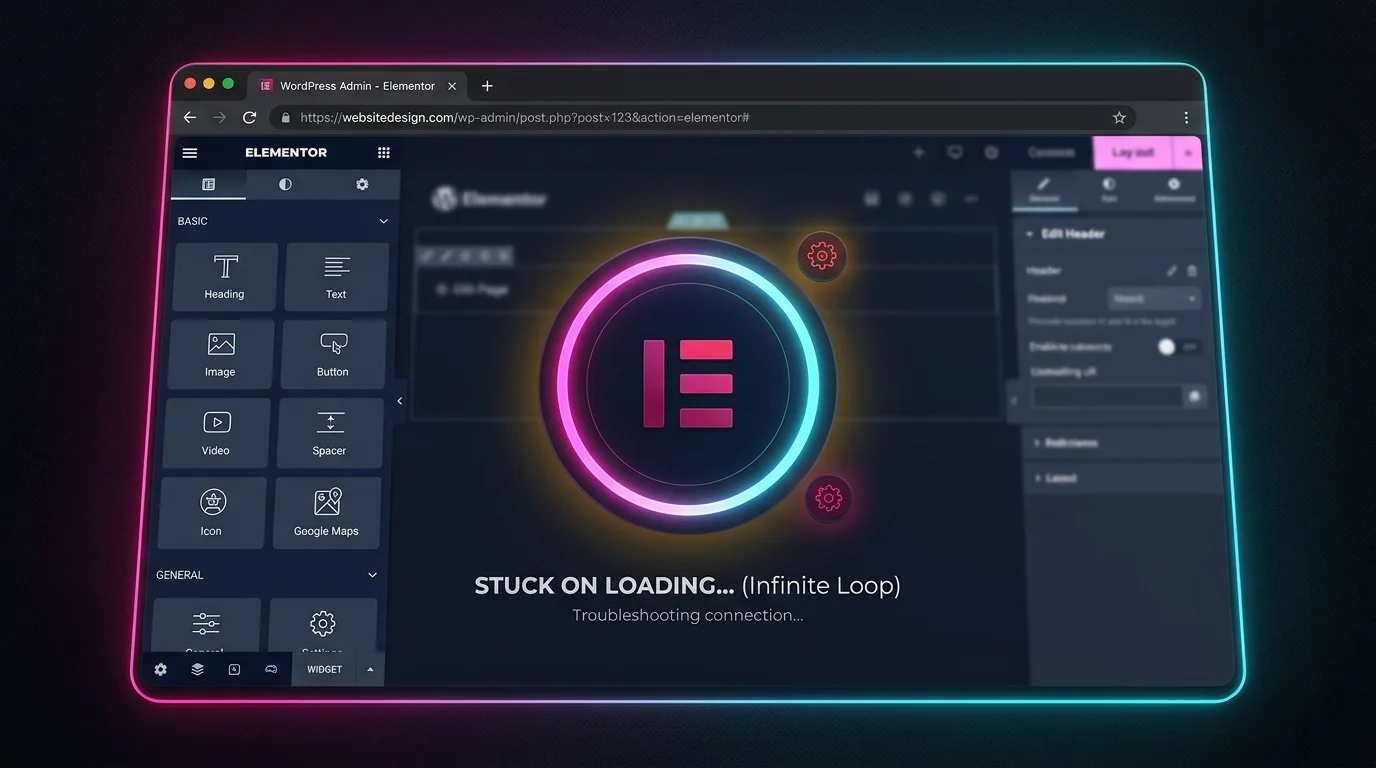
Opening a page only to find Elementor stuck on loading screen with an endless gray spinner can instantly paralyze your design workflow. This common error occurs when the front-end builder fails to synchronize with your WordPress server environment. Fortunately, resolving this issue does not require reinstalling your website. In this developer guide, we cover the exact root causes and six proven methods to restore your Elementor editor in minutes.
The Elementor editor relies on a high-throughput communication pipeline between the browser’s JavaScript engine, WordPress REST API endpoints, and server PHP workers. According to the official Elementor System Requirements, an interruption in any of these components causes the builder canvas to hang indefinitely.
The six primary triggers behind the loading freeze include:

Configure Safe Mode, Switch Editor Loader Method, and Regenerate CSS & Data in the Elementor settings dashboard.
| Visible Symptom | Likely Root Cause | Primary Recommended Fix |
|---|---|---|
| Endless gray spinner, blank sidebar panel | Depleted PHP memory limit (< 256MB) | Increase WP_MEMORY_LIMIT in wp-config.php |
| Sidebar loads widgets, canvas stays white | Fatal JavaScript conflict in active theme/addon | Activate Elementor Safe Mode & isolate addon |
| HTTP 403 or 401 in browser DevTools Network tab | Security firewall blocking admin-ajax.php | Whitelist admin-ajax and REST API endpoints |
| “Server Error (500)” modal popup | PHP fatal error / server execution timeout | Inspect debug.log and switch Editor Loader Method |
| Canvas loads once, fails on refresh | Corrupted CSS transient cache | Regenerate CSS & Data under Elementor Tools |
Before modifying core server files, ensure you take a safety snapshot. Using automated tools like Integration for Google Drive allows you to create an instant off-site backup so you can test server configurations without risk of downtime.
When you encounter Elementor stuck on loading screen, the most frequent culprit is a depleted PHP memory limit. WordPress defaults to 40MB for single sites, whereas Elementor requires a minimum of 256MB (and 512MB for WooCommerce or complex sites).
To increase your memory limit, connect via FTP or cPanel File Manager and edit your wp-config.php file right before the “That’s all, stop editing!” line:
// Increase PHP memory allocation for Elementor
define( 'WP_MEMORY_LIMIT', '512M' );
define( 'WP_MAX_MEMORY_LIMIT', '512M' );
If your web host restricts wp-config memory definitions, apply the change inside your root .htaccess file:
# Increase PHP Memory in .htaccess
php_value memory_limit 512MIf your Elementor stuck on loading screen error began after a recent core or add-on update, a third-party extension conflict is likely triggering a fatal JavaScript exception. Elementor includes a built-in diagnostic tool called Safe Mode.
Safe Mode creates a pristine debugging environment by temporarily bypassing your active theme and third-party plugins solely for logged-in administrators—your public visitors experience zero changes.
Certain shared web hosting environments utilize security proxies or strict HTTP request header handlers that disrupt Elementor’s default iframe loading mechanism. Elementor includes an alternate loader mechanism designed specifically for these server setups.
Elementor stores compiled widget layouts, inline breakpoints, and stylesheet metadata in cached server files under /wp-content/uploads/elementor/css/. If an update corrupts these cached files or creates permission locks (similar to upload permission errors explained in our guide on WordPress file permissions & uploads), the editor cannot render.
Another overlooked trigger that leaves Elementor stuck on loading screen is blocked background network requests. Cloudflare, Wordfence, or host-level ModSecurity firewalls can flag Elementor’s continuous background autosaves as false-positive brute force attempts.
Open your browser’s developer tools (press F12 or right-click → Inspect) and switch to the Console and Network tabs. Look for red entries with status codes 403 Forbidden or 401 Unauthorized pointing to admin-ajax.php or /wp-json/elementor/v1/:
/wp-admin/*).Elementor relies on WordPress clean URL rewrite structures. If your permalink transient tables become out of sync or if your site has an insecure SSL configuration, the editor iframe will fail security origin checks, as outlined in the WordPress Core Server Troubleshooting Documentation.
To flush your rewrite rules, go to Settings → Permalinks in your WordPress dashboard, ensure Post name is selected, and click Save Changes twice without modifying any fields. Furthermore, confirm under Settings → General that both your WordPress Address (URL) and Site Address (URL) strictly match your https:// protocol.
256M or 512M in WordPress Site Health.403 or 500 network errors on admin-ajax.php.Resolving an Elementor stuck on loading screen error comes down to systematic diagnosis rather than guesswork. In over 80% of real-world scenarios, bumping your server PHP memory to 512MB and isolating conflicting extensions via Safe Mode will get your builder running immediately. Always keep an automated off-site cloud backup active so you can troubleshoot with total peace of mind.
This post is by Saiful Islam, a member of the CodeConfig team who is always working to find solutions for our users and improve our services.
Thank you for reading and for your kind words and good wishes for us. We truly appreciate your support! ❤️
Whether you're just getting started or scaling fast, we've got you covered. Access helpful guidance.

