

- Release
- WordPress
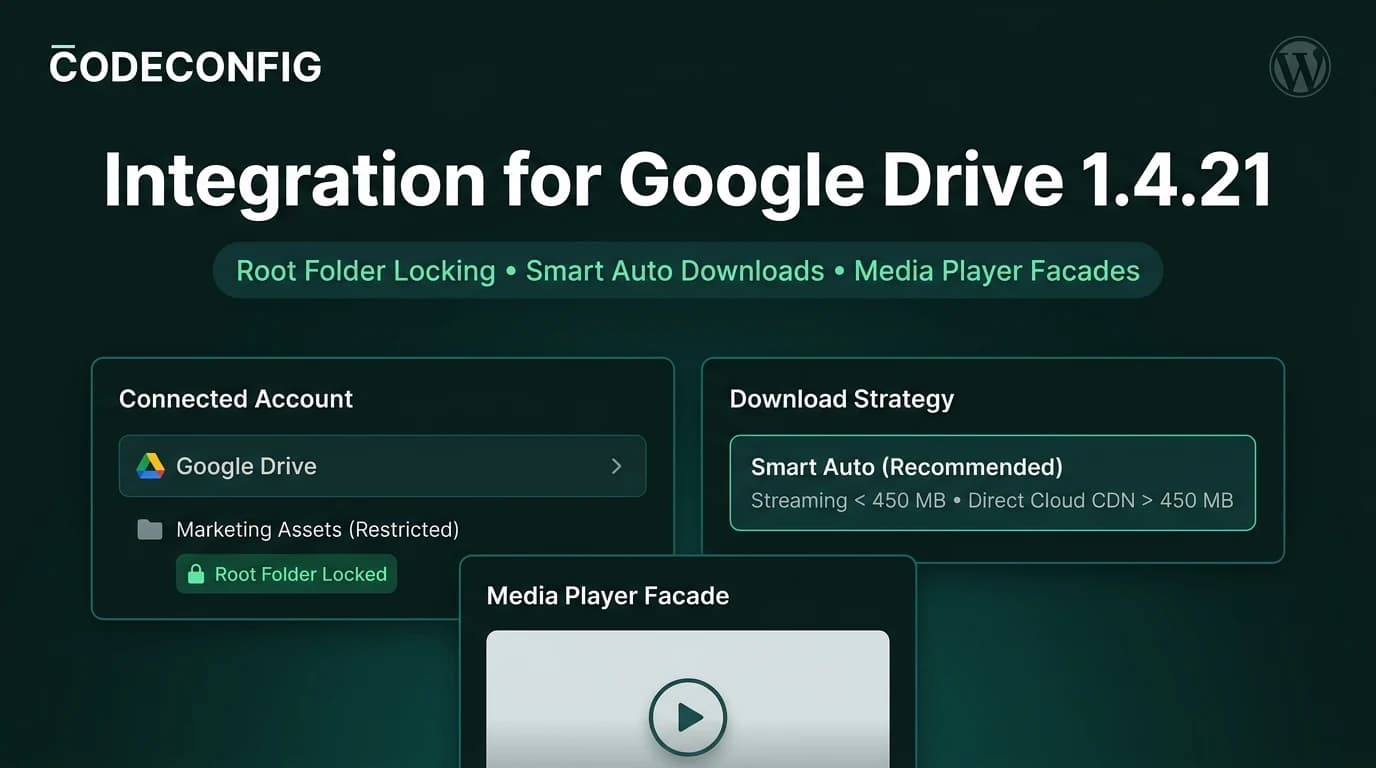
Integration for Google Drive 1.4.21 & 1.4.20: Root Folder Locking, Smart Downloads & PHP 8.4 Polish
Tanin Ahmed9 min read
Loading page…
Loading page…
Loading page…
Learn how to offload media in Elementor to Google Drive and Dropbox. Stream videos seamlessly, protect server bandwidth, and boost PageSpeed without lag.
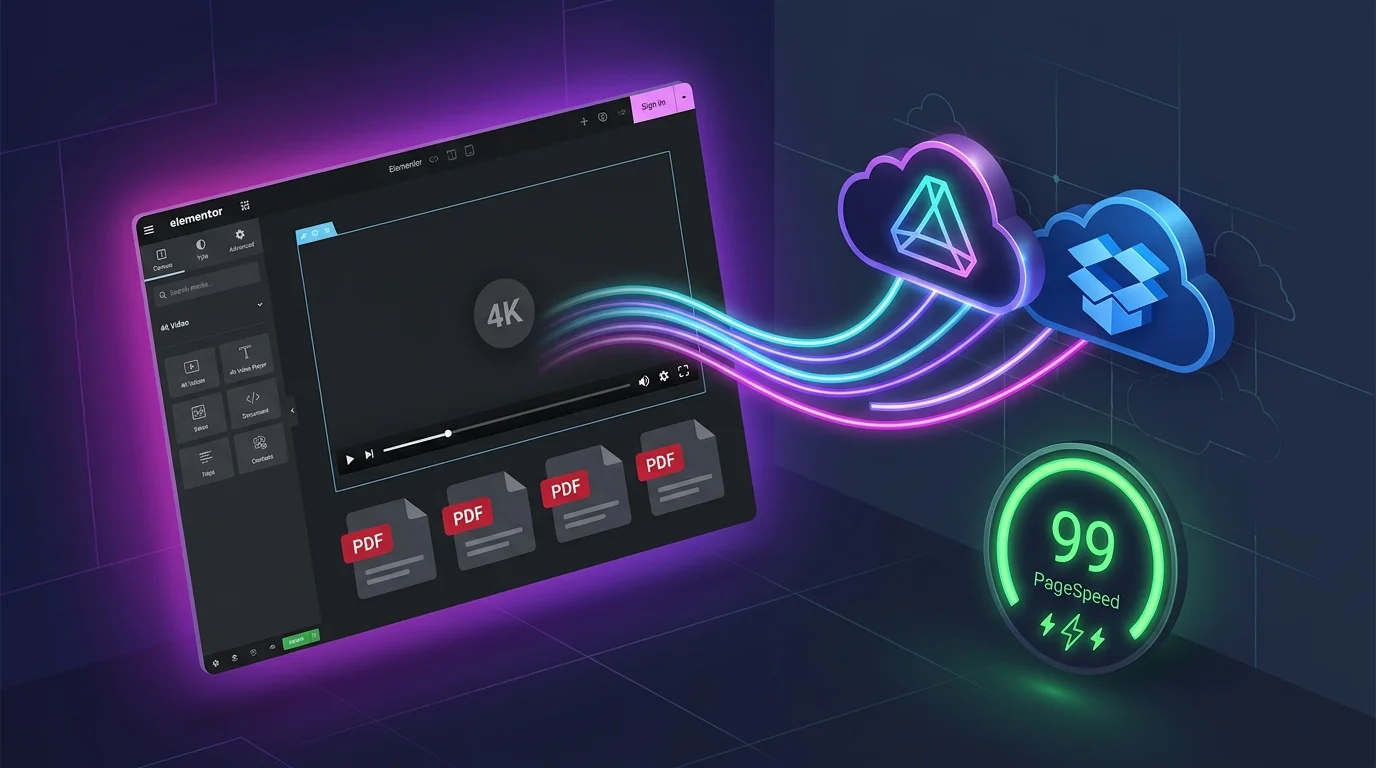
High-resolution hero videos, digital downloads, and extensive PDF portfolios bring modern websites to life. However, hosting heavy media directly on your WordPress server triggers storage exhaustion, bandwidth throttling, and sluggish load times. Learning how to offload media in Elementor to dedicated cloud storage is the cleanest architectural strategy to maintain sub-second speeds while delivering rich interactive content.
WordPress handles blog posts and small images reliably, but self-hosting high-bitrate video and multi-megabyte PDFs introduces severe infrastructure bottlenecks. When you attempt to stream raw video files or distribute large files directly from your hosting server, you quickly encounter four crippling limitations:
Deciding to offload media in Elementor resolves these issues at the root by decoupling file storage from your web application server, preventing common WordPress website problems before they impact end users.
To see why developers choose to offload media in Elementor, consider how server resources behave under typical production traffic:

| Performance Metric | Self-Hosted Media | Cloud Storage Offloaded | Impact on Elementor Sites |
|---|---|---|---|
| Server Disk Usage | Rapid consumption (GBs of storage) | Zero hosting disk impact | Protects hosting inodes & backup size |
| PHP Worker Overhead | High (locked on byte-range streaming) | Zero (handled by cloud CDN) | Leaves PHP free for dynamic queries |
| Initial Page Weight | Heavy (embedded video preload) | Lightweight (click-to-play facade) | Protects Google Core Web Vitals |
| File Size Limits | Capped by php.ini upload limits | Direct sync up to 5 TB per file | Upload massive videos & ZIP files |
| Player Branding | YouTube ads / Vimeo logos | Clean, white-label custom player | Maintains professional brand control |
Implementing a modern cloud offload workflow allows you to combine Elementor’s visual flexibility with enterprise-grade cloud storage reliability. Here are five practical methods to offload media in Elementor for maximum performance.
One of the most effective techniques to offload media in Elementor is streaming video assets directly from Google Drive. Google’s global content delivery infrastructure handles video encoding, adaptive streaming, and worldwide CDN distribution without consuming a single byte of your WordPress server bandwidth.
With Integration for Google Drive, you can insert high-definition videos into any Elementor layout using dedicated blocks or shortcodes. Rather than settling for default Google Drive preview iframes, the plugin renders a custom HTML5 video player with subtitle tracks, playback speed toggles, resolution switchers, and zero external branding.
When used for hero background video loops, simply configure autoplay, mute, and loop parameters. The video streams smoothly from Google’s high-speed edge servers, keeping your local server load virtually at zero.
Websites offering technical whitepapers, architectural blueprints, annual reports, or course materials often struggle with bloated media libraries. Traditional WordPress PDF links force visitors to download massive 40MB files or view them in clunky browser tabs.
When you choose to offload media in Elementor for documents, files stored in Google Drive or Dropbox can be embedded as interactive inline document viewers. Visitors can search text, zoom pages, and browse multi-page documents directly within your Elementor template.
Furthermore, cloud offloading bypasses strict server upload constraints. If your hosting environment restricts uploads to 32MB or 64MB, you can upload gigabyte-sized files directly to your cloud folder and have them instantly accessible inside Elementor.
A frequent mistake when embedding video players inside Elementor sections is loading the player scripts immediately upon page request. Video player libraries, font icons, and initial buffer requests add hundreds of kilobytes of render-blocking assets, severely hurting your Largest Contentful Paint (LCP) score as documented by Google Core Web Vitals guidelines.
To preserve mobile speed while you offload media in Elementor, implement a click-to-play video facade. A facade displays a lightweight, optimized WebP poster image with an overlaid play button. The actual video stream and player runtime load only when a user intentionally clicks play.
This single optimization cuts initial page payload by over 80% on video-heavy landing pages, ensuring your design passes Core Web Vitals with flying colors. For additional layout tuning, consult our comprehensive developer guide on how to speed up Elementor.
Distributing downloadable digital products, software builds, or client deliverables directly through WordPress often runs into URL scraping and unauthorized hotlinking. Additionally, Google Drive natively flags files over 100MB with a security virus scan warning page that disrupts the user experience.
When you offload media in Elementor using a dedicated integration, you can resolve these friction points automatically:
For creative agencies, photography studios, and marketing teams that manage active client deliverables, Dropbox provides an ideal collaborative backend. Attempting to manually download client assets, optimize them, and re-upload them to the WordPress media library wastes countless hours every week.
A faster workflow to offload media in Elementor is connecting Dropbox directly via Integrate Dropbox. You can display dynamic gallery grids, folder explorers, or file lists that automatically sync with specific Dropbox folders.
When a team member or client drops new assets or video files into the designated Dropbox folder on their desktop, the Elementor file list updates automatically on the frontend. No WordPress admin logins, no media library bloat, and zero server storage consumed.
For large media-driven setups, pairing cloud offloading with modern server-side caching as recommended in the official Elementor Performance Guide ensures seamless asset delivery under high concurrent traffic.
Before launching media-intensive Elementor pages into production, follow this step-by-step audit checklist to ensure you properly offload media in Elementor:
Embedding rich multimedia should enhance your user experience, not compromise your website speed or crash your hosting account. When you offload media in Elementor to reliable cloud platforms like Google Drive and Dropbox, you eliminate server disk limits, eradicate bandwidth bottlenecks, and achieve peak PageSpeed performance.
Whether you are building video learning portals, client proofing galleries, or high-converting product pages, taking the time to offload media in Elementor provides the rock-solid foundation your WordPress projects need to scale effortlessly.
This post is by Saiful Islam, a member of the CodeConfig team who is always working to find solutions for our users and improve our services.
Thank you for reading and for your kind words and good wishes for us. We truly appreciate your support! ❤️

Whether you're just getting started or scaling fast, we've got you covered. Access helpful guidance.

