

- Release
- WordPress
File Manager for Dropbox 1.3.17 Released – New Features and Improvements
Tanin Ahmed7 min read
Loading page…
Loading page…
Loading page…
Slow WordPress site? Learn how to optimize images in WordPress the right way so your site loads faster, looks better, and ranks higher – no tech skills needed.
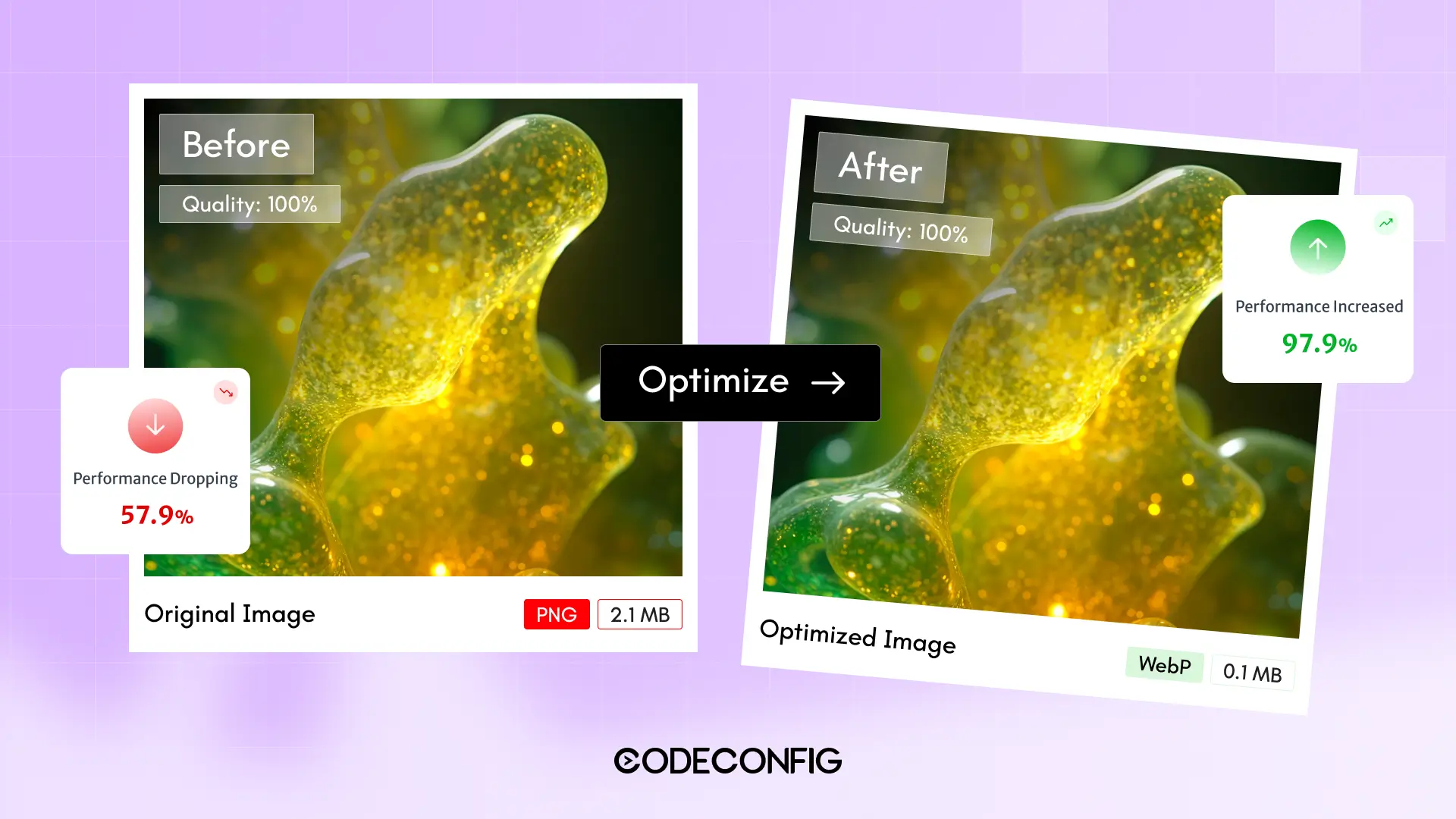
Images are the heartbeat of any stunning WordPress site. They bring your stories to life, showcase your products, and make your content shine. But here’s the downside: unoptimized images can slow your site down, frustrate visitors, and hurt your search engine rankings. If your WordPress site feels sluggish or isn’t climbing the search results, your images might be the problem.
In this guide, I’ll walk you through a simple, step-by-step plan on how to optimize images in WordPress. This isn’t just another recycled blog post—it’s a clear, actionable roadmap packed with expert tips, practical tools, and innovative strategies to make your site faster, user-friendly, and search engine-ready. Whether you’re a beginner or a WordPress pro, learning how to optimize images in WordPress will transform your site’s performance. Let’s dive in and turn your WordPress site into a fast, image-optimized powerhouse!
Before we dive into the nitty-gritty, let’s understand why image optimization is essential. Images often comprise 50-70% of a webpage’s total size. Large, unoptimized images slow down your site, leading to:
By learning how to optimize images in WordPress, you can shrink file sizes without sacrificing quality, resulting in faster load times, happier users, and better SEO rankings. With mobile traffic dominating the web, optimized images ensure your site performs flawlessly on every device.
The first step in optimizing images in WordPress is selecting the correct image format. Not all formats are equal, and your choice impacts file size and quality. Here’s a breakdown of the top options:
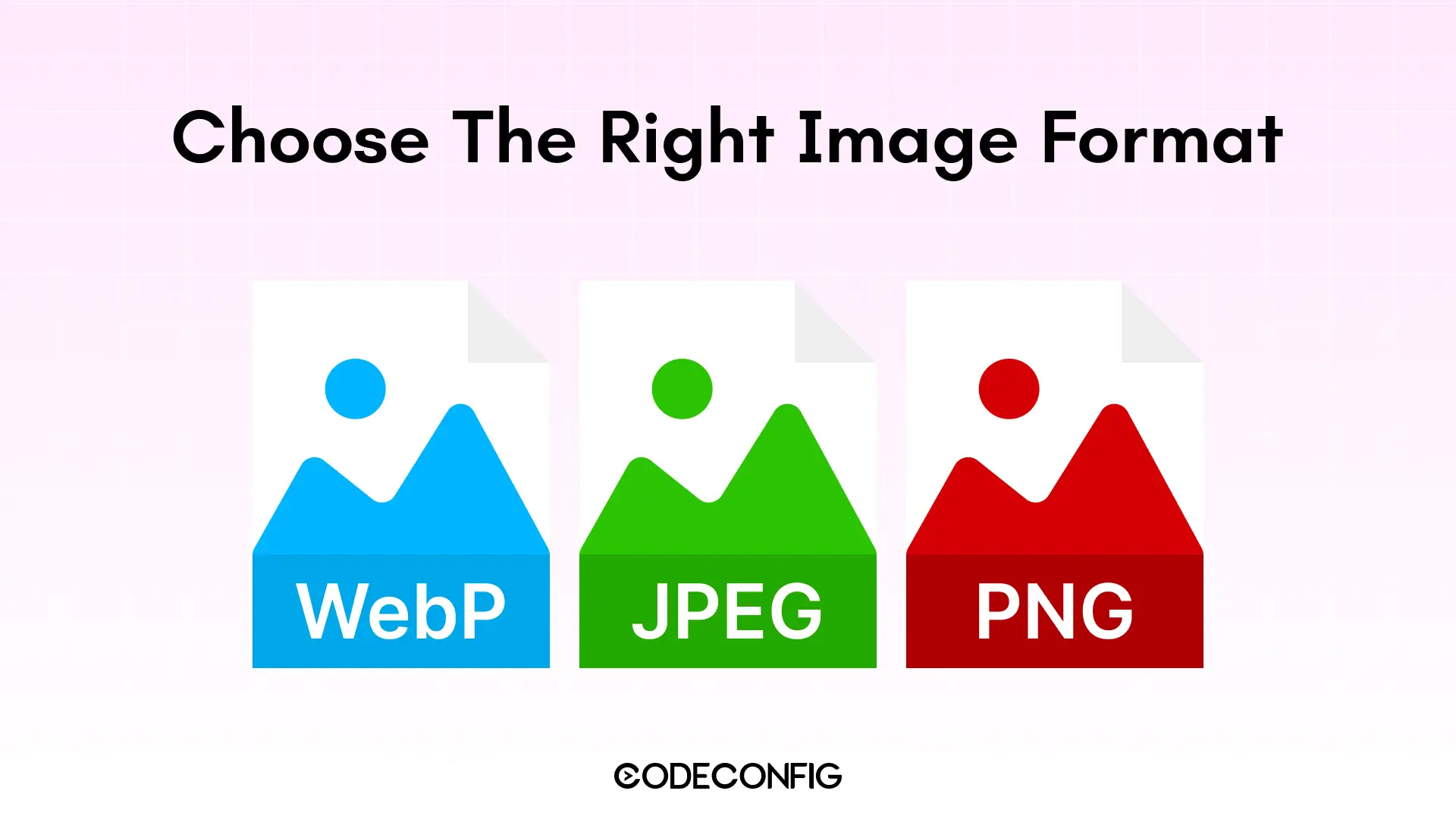
Pro Tip: Switch to WebP whenever possible. Tools like Squoosh or CloudConvert make converting to WebP a breeze. Many WordPress plugins now support WebP, making it a no-brainer for optimization.
Optimizing images before uploading is a key part of how to optimize images in WordPress. Uploading a 5MB raw photo straight from your camera is a performance killer. Here’s how to prepare images like a pro:
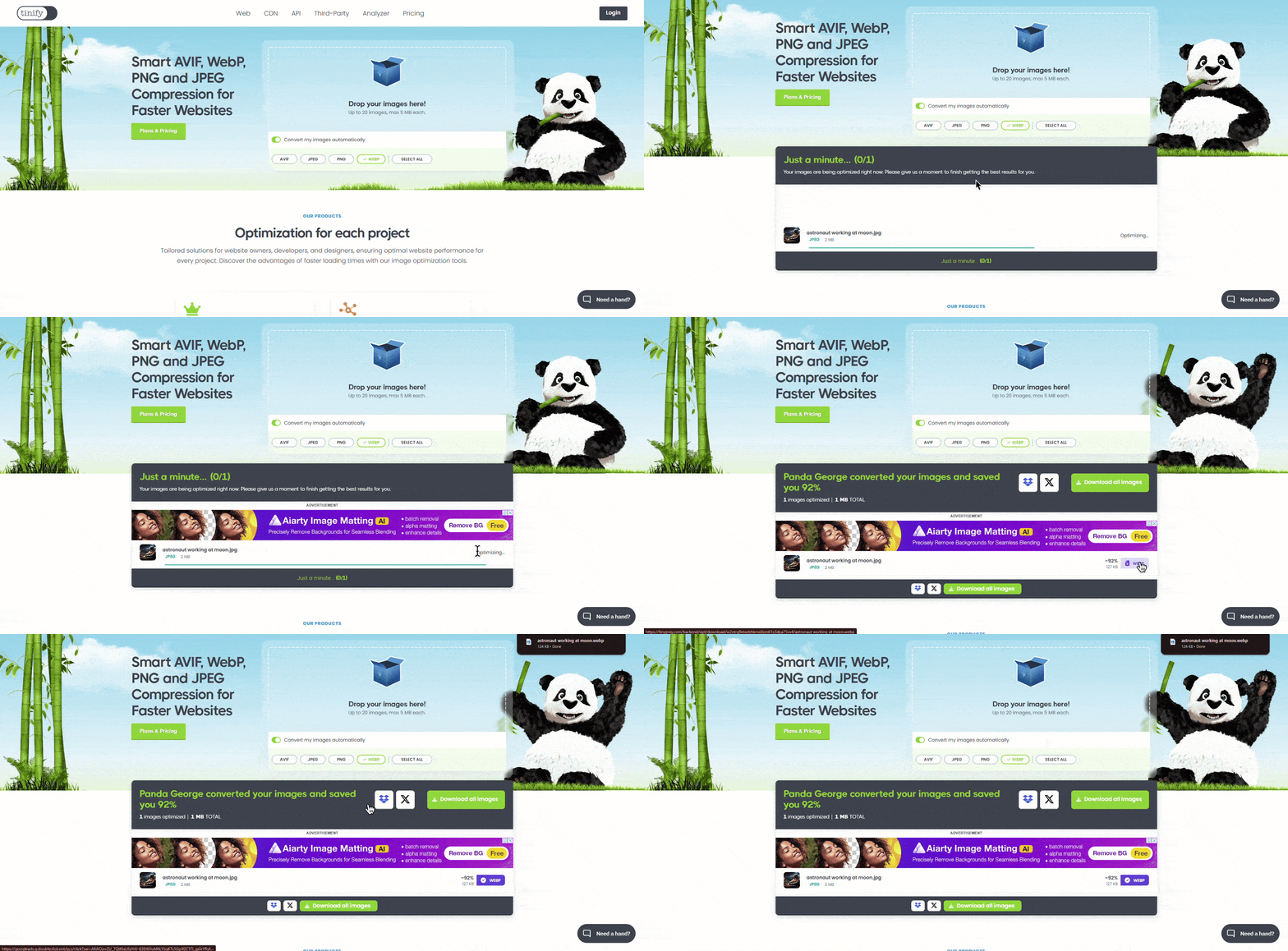
Insider Tip: Create a sizing cheat sheet for your site (e.g., 800x600px for blog posts, 300x300px for thumbnails). This will streamline your workflow and ensure consistency.
Once images are uploaded, WordPress and its plugins can take your optimization to the next level. Here’s how to master this step in how to optimize images in WordPress:
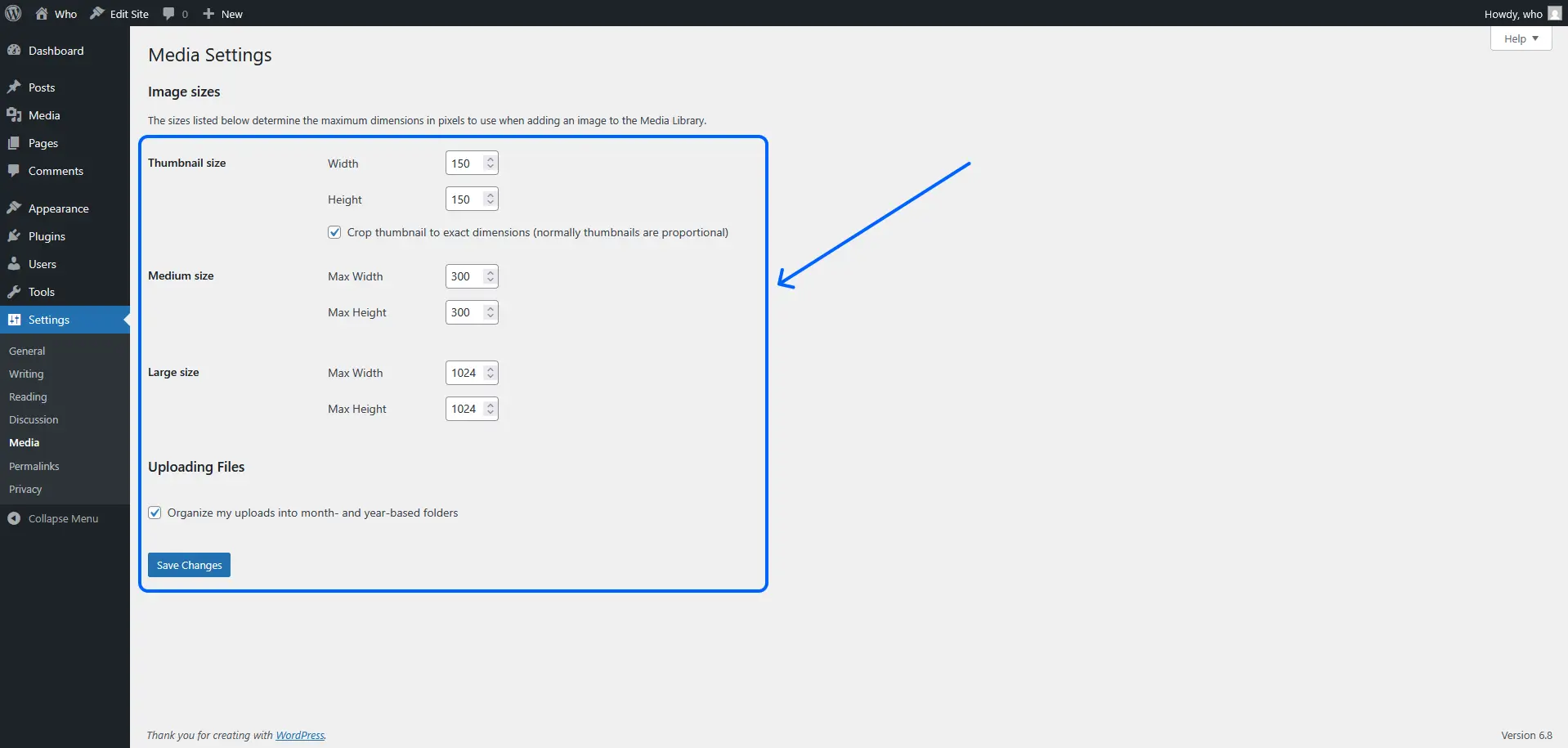
WordPress allows you to set default sizes for thumbnails, medium, and large images. Navigate to Settings > Media in your dashboard and adjust dimensions to match your theme’s layout. For instance, if your blog doesn’t need “large” images wider than 1200px, set it accordingly to avoid generating oversized files.
Plugins are essential for automating image optimization in WordPress. They compress images, convert formats, and add performance features. Here are three top choices:
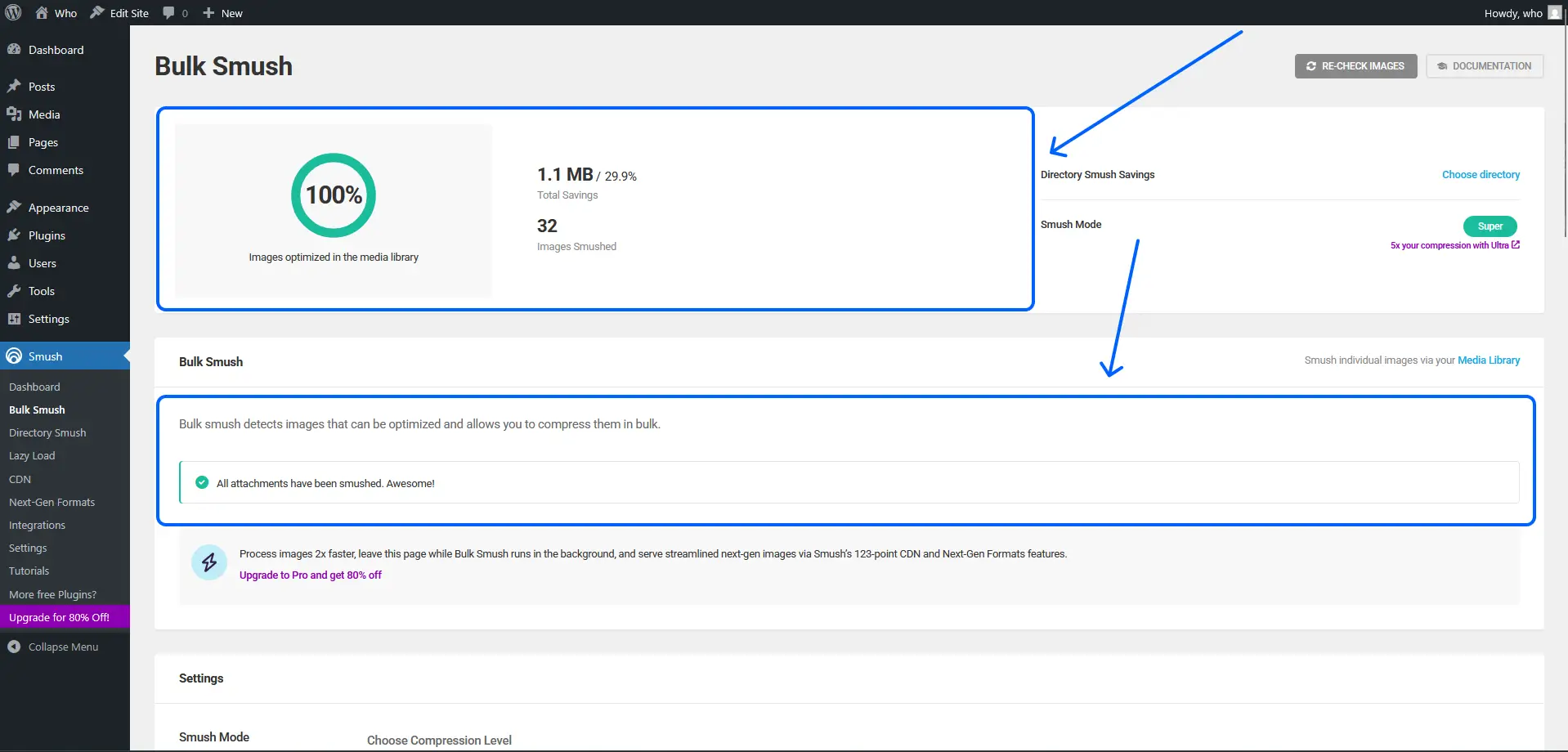
Setup Tip: Install a plugin like Smush or Image Optimizer, enable automatic optimization on upload, and run a bulk optimization for existing images. Ensure WebP support is activated for maximum efficiency.
Lazy loading is a game-changer in how to optimize images in WordPress. It delays loading images until they’re about to appear in the user’s viewport, reducing initial page load time. Since WordPress 5.5, native lazy loading is built in for images with the loading="lazy" attribute. You can enhance it with plugins like Smush or a3 Lazy Load.
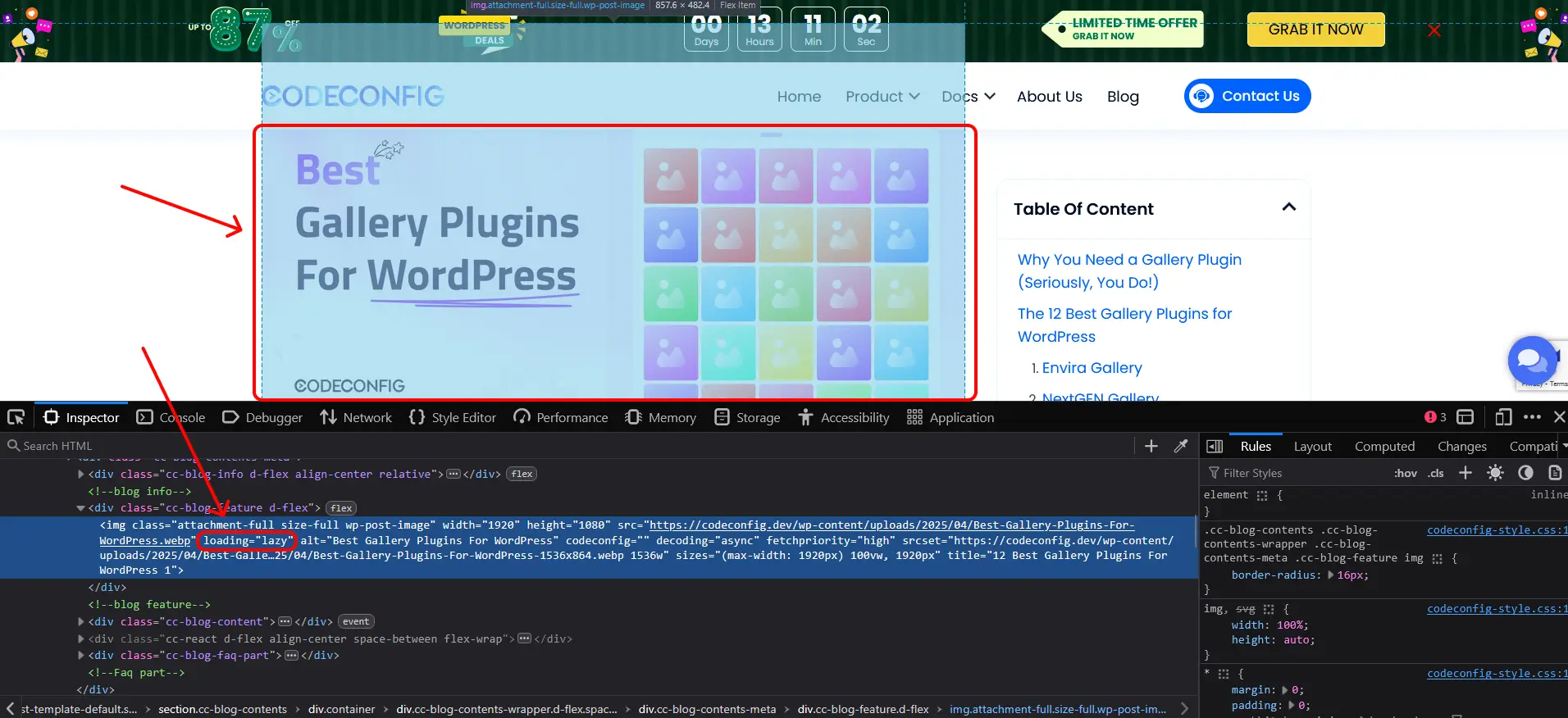
To enable lazy loading:
Pro Tip: Skip lazy loading for above-the-fold images (the first images users see). These should load instantly for a polished first impression.
Responsive images adapt to different screen sizes, ensuring your site looks great on phones, tablets, and desktops. WordPress automatically generates multiple image sizes and uses srcset sizes attributes to serve the right one based on the device. To perfect this part of how to optimize images in WordPress:
srcset is present, indicating multiple image sizes are being served.A CDN stores your images on servers worldwide, delivering them from the closest location to your visitors. This slashes load times, especially for global audiences, and is a key component of how to optimize images in WordPress. Top CDNs for WordPress include:
To set up a CDN:
Insider Tip: Combine your CDN with WebP and lazy loading for a performance trifecta. Test your setup with Pingdom to measure the speed boost.
Optimized images don’t just improve speed—they can drive traffic through search engines. Incorporate these SEO best practices into how to optimize images in WordPress:
Pro Tip: Use tools like Ahrefs or SEMrush to find low-competition keywords for alt text and file names, giving your images an edge in image search results.
Image optimization is an ongoing process. To keep your site in top shape, regularly monitor performance as part of how to optimize images in WordPress:
Insider Tip: Schedule a quarterly site audit to keep your media library lean and your site blazing fast.
Want to take how to optimize images in WordPress to the next level? Try these advanced techniques:
Mastering how to optimize images in WordPress is a game-changer for your site’s speed, user experience, and SEO. By choosing the right formats, pre-optimizing images, using plugins, and leveraging tools like lazy loading and CDNs, you can create a website that loads in a flash and ranks higher on Google. Plus, with smart SEO practices, your images can become powerful traffic drivers.
Ready to turbocharge your WordPress site? Start by auditing your media library, installing an optimization plugin, and testing your site’s speed. You’ll be amazed at the results. Share your site’s speed score in the comments or let me know how these tips worked for you—I’d love to hear your success story!
This post is by Jakir, a member of the CodeConfig team who is always working to find solutions for our users and improve our services.
Thank you for reading and for your kind words and good wishes for us. We truly appreciate your support! ❤️


Whether you're just getting started or scaling fast, we've got you covered. Access helpful guidance.

