

- Release
- WordPress
Integration for Google Drive 1.4.21 & 1.4.20: Root Folder Locking, Smart Downloads & PHP 8.4 Polish
Tanin Ahmed9 min read
Loading page…
Loading page…
Loading page…
PNG vs WebP: which image format should you use? Compare file size, quality, transparency, browser support, and SEO impact, and learn when each format works best for your website.
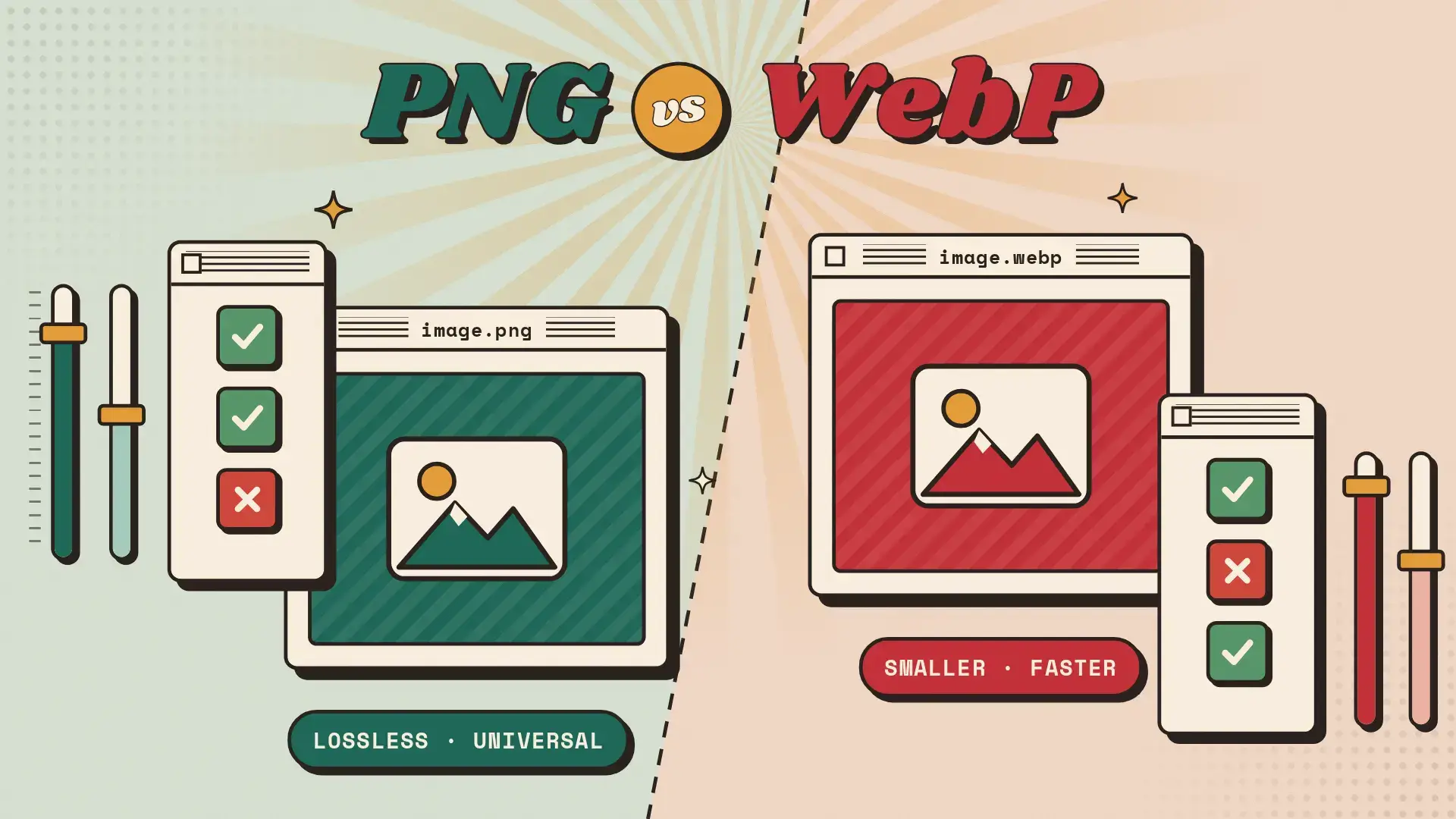
Images often make up the largest part of a web page’s total size. Picking the right format is one of the easiest ways to make a site load faster, rank better, and feel smoother for visitors. Two formats come up in this discussion more than any other: PNG and WebP.
This guide compares PNG vs WebP on file size, image quality, transparency, browser support, and SEO. It ends with clear advice on when to use each one.
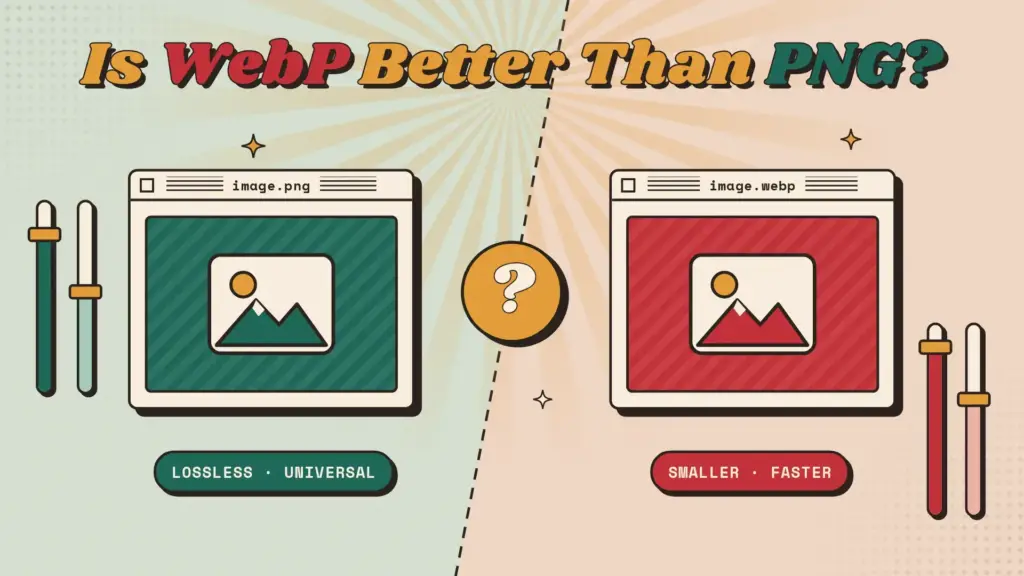
For most website images, yes. WebP is better than PNG. WebP files are usually much smaller than PNG files at the same visual quality. That means faster page loads and better Core Web Vitals scores. PNG is still the better choice for some cases: source files you plan to edit, images for email newsletters, and assets that must open in every piece of software.
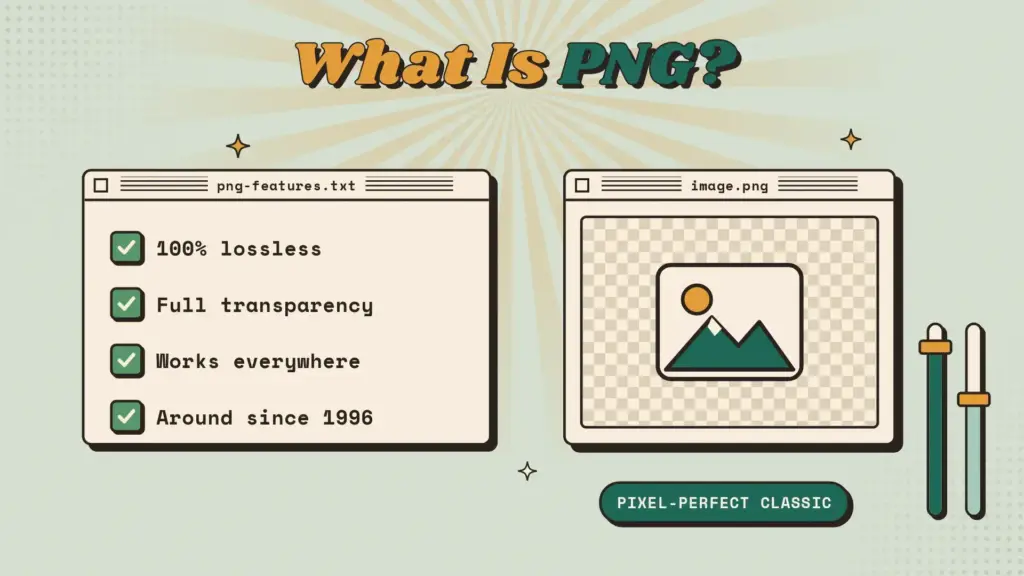
PNG (Portable Network Graphics) was introduced in 1996 as an open replacement for GIF. It is a lossless format. When you compress it, no image data is thrown away, so the image looks exactly like the original.
Key features of PNG:
The main drawback: PNG files can get very large, especially for photos and detailed images.
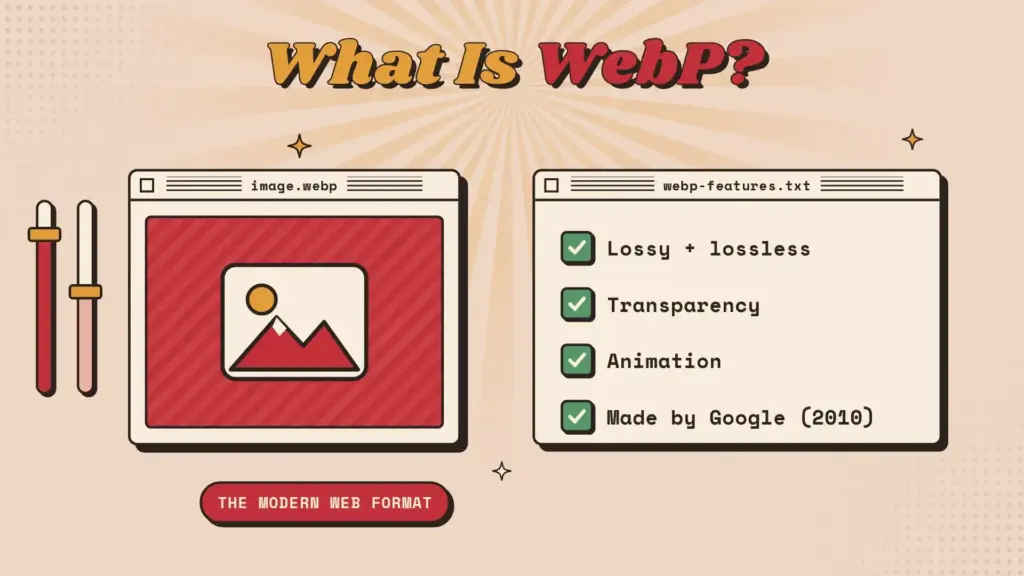
WebP is an image format Google released in 2010, designed specifically for the web. It supports both lossy and lossless compression, and one format covers transparency and animation.
Key features of WebP:
According to Google’s own tests, lossless WebP images are around 26% smaller than PNGs, and lossy WebP images are 25–34% smaller than comparable JPEGs. When you use lossy WebP with transparency, the savings compared with PNG can be even bigger.
| Feature | PNG | WebP |
|---|---|---|
| Compression | Lossless only | Lossy and lossless |
| Typical file size | Large | Small (often 25–80% smaller) |
| Transparency | Yes | Yes (in both modes) |
| Animation | No (only APNG, a separate variant) | Yes |
| Browser support | Universal | All modern browsers |
| Email client support | Excellent | Inconsistent |
| Editing software support | Universal | Good and improving |
| Best for | Source files, editing, email, print prep | Website images, speed optimization |
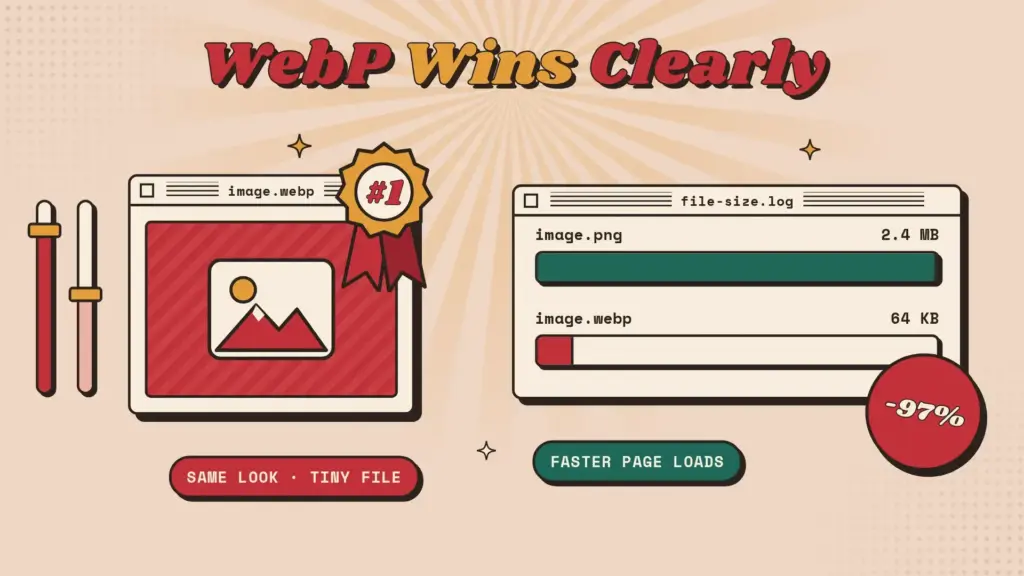
File size is where the difference between PNG and WebP matters most. A detailed hero image saved as PNG might be 1–2 MB. The same image as lossy WebP can often come in under 200 KB with no difference most viewers would notice.
Smaller images mean:
If your largest visible element is an image, switching from PNG to WebP is one of the quickest ways to improve LCP.
Lossless WebP vs PNG: Both keep every pixel exactly the same. Quality is identical, and WebP is simply smaller.
Lossy WebP vs PNG: Lossy WebP removes some data to save space. At a quality setting of around 75–85, most photos and illustrations look the same as the original to the human eye. Very sharp graphics, such as small text, thin lines, or pixel art, can show slight softness or artifacts at low quality settings. For those images, use lossless WebP or a higher quality setting.
Tip: Don’t guess. Export the image at a few quality levels, compare them at 100% zoom, and pick the smallest file that still looks clean.
PNG has long been the standard choice for transparent logos and icons. WebP supports the same full alpha transparency. Unlike PNG, it can also combine transparency with lossy compression. That makes WebP a strong choice for transparent product photos and overlays, where PNG files tend to be especially large.
A few years ago, limited browser support was the main reason to avoid WebP. That is no longer true. Chrome, Edge, Firefox, Opera, and Safari (since version 14) all support WebP, which covers the vast majority of users worldwide.
If you still need to support very old browsers, you can serve a fallback with the HTML <picture> element:
<picture>
  <source srcset="image.webp" type="image/webp">
  <img src="image.png" alt="Descriptive alt text" width="800" height="600">
</picture>
Browsers that understand WebP load the smaller file. Everything else falls back to the PNG.
Image format does not directly affect rankings. Google does not reward a file for being WebP. Format affects SEO indirectly through page speed and user experience:
Google Images indexes WebP without any problem, so switching formats won’t hurt your image search visibility. Keep the other image SEO basics in place too: descriptive file names, useful alt text, set width and height attributes, and lazy loading for images below the fold.
Choose WebP for:
Choose PNG for:
Online tools: Squoosh (by Google) lets you compare quality and file size side by side in the browser.
Command line: Google’s cwebp tool converts files in bulk:
cwebp -q 80 input.png -o output.webpDesign tools: Photoshop, Figma, and other modern editors can export directly to WebP.
WordPress: WordPress has supported WebP uploads since version 5.8. For existing media libraries, image optimization plugins can convert your PNG and JPEG files to WebP automatically and serve them with fallbacks. That way you don’t have to replace images one by one.
Shopify: Shopify’s CDN automatically serves WebP to supported browsers, even if you upload PNG or JPEG files.
For images displayed on websites, WebP is the better format in most cases. It gives you smaller files, transparency, and animation, with quality that matches PNG when you use lossless mode. PNG still has a clear role as a lossless source format and for email and wide software compatibility.
A practical workflow is to keep PNG as your master file and publish WebP on your website. You get the best of both: safe, editable originals and fast-loading pages.
This post is by Ahanaf Istiyad, a member of the CodeConfig team who is always working to find solutions for our users and improve our services.
Thank you for reading and for your kind words and good wishes for us. We truly appreciate your support! ❤️
Whether you're just getting started or scaling fast, we've got you covered. Access helpful guidance.

