

- Release
- WordPress
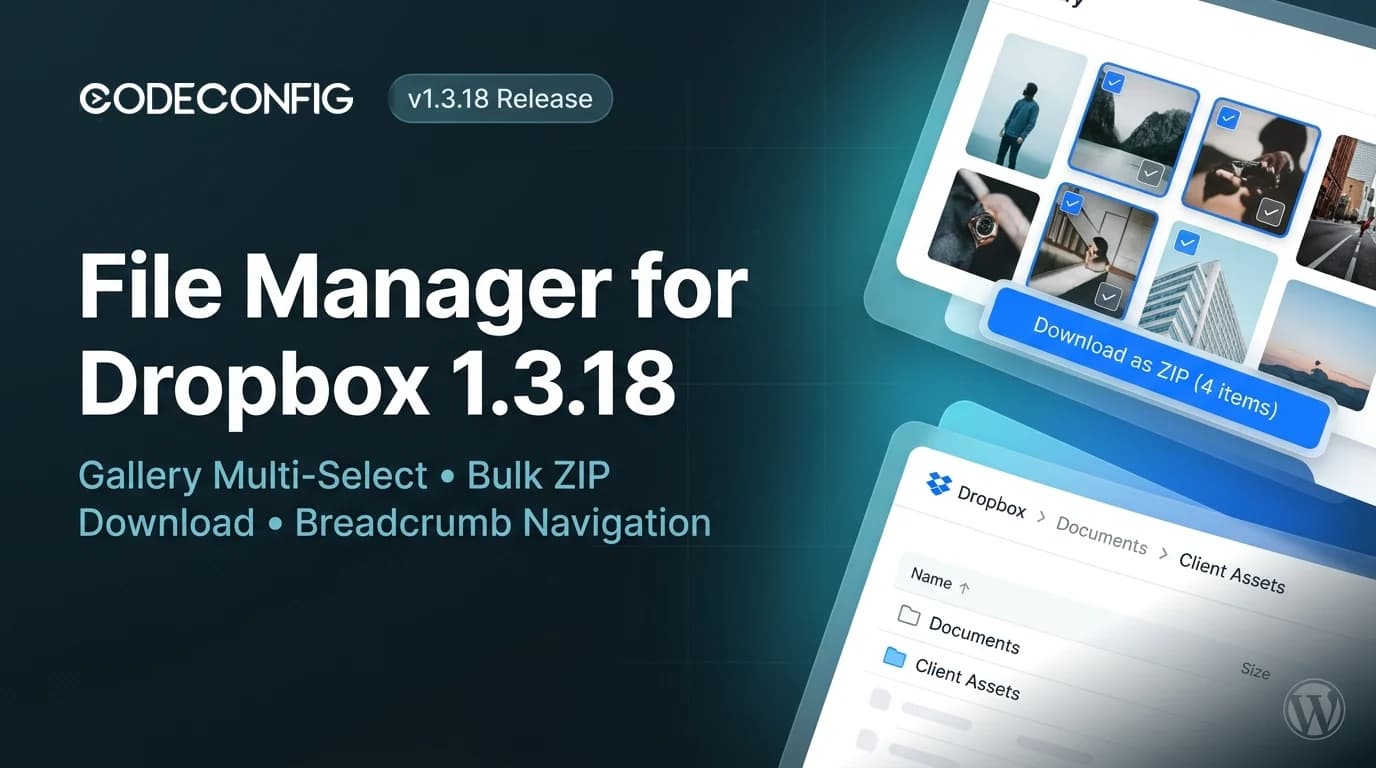
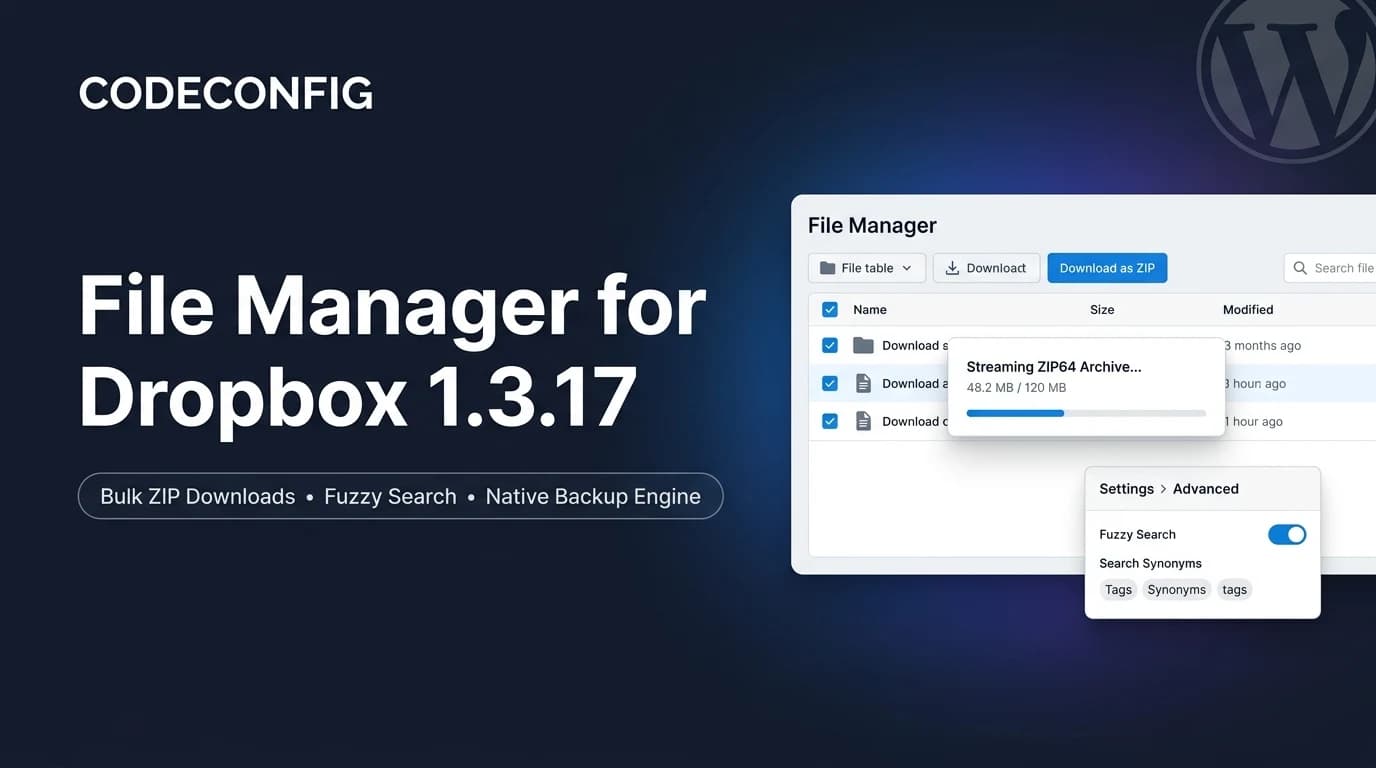
File Manager for Dropbox 1.3.18 Released – Gallery Bulk ZIP Downloads
Tanin Ahmed6 min read
Loading page…
Loading page…
Loading page…
WordPress website problems like the white screen of death, database errors, and login loops can strike without warning. This diagnostic guide shows you how to find the real cause and apply 9 proven fixes, step by step.
WordPress website problems rarely appear at a convenient time. One minute your site works, the next you see a white screen, a database error, or a login page that keeps reloading. The good news is that most WordPress website problems follow predictable patterns, and you can fix them faster when you diagnose before you change anything.
This guide takes a diagnostic approach. For each issue, you will see the symptom, the likely cause, a quick test to confirm it, and the fix. Work through it like a checklist, and you will solve most WordPress website problems without hiring anyone.
Random changes make WordPress website problems worse. Spend five minutes on this routine first.
wp-config.php. WordPress then writes errors to wp-content/debug.log instead of showing them to visitors. See the official guide to debugging in WordPress.define( 'WP_DEBUG', true );
define( 'WP_DEBUG_LOG', true );
define( 'WP_DEBUG_DISPLAY', false );
Symptom: your site or dashboard shows a blank white page.
Likely cause: a PHP fatal error, usually from a plugin or theme, or an exhausted PHP memory limit.
debug.log and look for “Fatal error”. The file path tells you which plugin or theme is responsible.wp-content/plugins through FTP or your file manager. WordPress deactivates it automatically.define( 'WP_MEMORY_LIMIT', '256M' ); to wp-config.php.
Symptom: every page shows “Error establishing a database connection”.
Likely cause: wrong credentials in wp-config.php, a crashed database server, or a corrupted database.
DB_NAME, DB_USER, DB_PASSWORD and DB_HOST match your hosting panel. Hosts sometimes use a host value other than localhost.define( 'WP_ALLOW_REPAIR', true ); to wp-config.php and visit /wp-admin/maint/repair.php. Remove the line afterward.
Symptom: “500 Internal Server Error” with no further detail.
Likely cause: a corrupted .htaccess file, a plugin conflict, or a PHP limit.
.htaccess to .htaccess-old and reload. If the site returns, go to Settings > Permalinks and click Save to generate a fresh file.wp-admin and wp-includes from WordPress.org.
Symptom: the homepage loads, but posts and pages return 404.
Likely cause: broken rewrite rules, often after a migration or plugin change.
Fix: go to Settings > Permalinks and click Save Changes without altering anything. If it persists, confirm your .htaccess contains the default WordPress rewrite block (or that Nginx has the correct try_files rule). Also check that a custom post type plugin is not registering a slug that clashes with a page.
Speed is one of the most common WordPress website problems because the causes stack up quietly.
Symptom: you enter the right password and land back on the login page, or you forgot the password and the reset email never arrives.
siteurl and home in the wp_options table match your real URL, including https.wp-login.php.wp_users and choosing MD5 for the password value, or create a temporary admin with WP-CLI: wp user create tempadmin you@example.com --role=administrator.
Symptom: the padlock disappears or the browser warns that the page is “not fully secure”.
Likely cause: images, scripts or stylesheets still load over http:// after moving to HTTPS.
Fix: set both WordPress Address and Site Address to https://, then run a search-and-replace on the database for old http:// URLs (use WP-CLI wp search-replace for serialized data safety). Open the browser console to spot any remaining insecure requests, and force HTTPS at the server level.
Symptom: the site stays on a maintenance message after an update.
Fix: an interrupted update leaves a .maintenance file in your site root. Delete it through FTP or your file manager, then rerun the update. If a plugin update failed halfway, reinstall that plugin cleanly.
Security incidents are among the most serious WordPress website problems. Signs include Google “Deceptive site” warnings, unknown admin users, spam pages, and unexpected redirects.
Follow the official WordPress hardening guide afterward to close the gap that let attackers in.
| Symptom | Most likely cause | First fix |
|---|---|---|
| Blank white page | Plugin or theme fatal error | Read debug.log, rename plugin folder |
| Database connection error | Wrong credentials or crashed DB | Check wp-config.php, repair database |
| 500 error | Corrupt .htaccess or conflict | Rename .htaccess, disable plugins |
| 404 on posts | Broken rewrite rules | Re-save permalinks |
| Slow loading | Images, plugins, no cache | Test, compress, cache |
| Login loop | URL mismatch or cookies | Fix siteurl and home values |
| Mixed content | HTTP assets on HTTPS site | Search-replace URLs |
| Maintenance message | Leftover .maintenance file | Delete the file |
| Spam or redirects | Malware | Clean, change passwords, restore |
Prevention costs far less than emergency repairs. Build these habits:
If you would rather hand off recurring WordPress website problems, the CodeConfig team provides WordPress development, troubleshooting and maintenance services, along with plugins built for performance and reliability.
Fixing WordPress website problems comes down to a repeatable process: back up, log, isolate, fix one thing, and retest. Save this checklist, and the next error will cost you minutes instead of hours.
wp-config.php or reset passwords without dashboard access.This post is by Ahanaf Istiyad, a member of the CodeConfig team who is always working to find solutions for our users and improve our services.
Thank you for reading and for your kind words and good wishes for us. We truly appreciate your support! ❤️
Whether you're just getting started or scaling fast, we've got you covered. Access helpful guidance.

