How to Link Your Own Google App in Integration For Google Drive?
The Integration for Google Drive WordPress plugin allows you to connect your site to Google Drive. By default, the plugin uses its own Google App for authentication. However, you may prefer to use your own Google Cloud app for greater control and to address organizational or security requirements. This guide provides step-by-step instructions for creating a Google Cloud project, configuring OAuth credentials, and linking your custom Google app to the plugin.
Note: Google Cloud projects start in testing mode. OAuth tokens expire after 7 days if unverified. To avoid reauthorization, submit your app for Production status. If needed, disable the “Own App” option to use the plugin’s default app.
Step 1: Prepare the Plugin for a Custom Google App
- Go to Google Drive Plugin > Settings > Accounts in WordPress
- Select Manual under Connection Type
- This redirect URI is used by Google after users authorize the app
- Copy the shown URI (e.g.,
https://yoursite.com/?authorization=integration-google-drive) and save it for your Google Cloud app setup.

Step 2: Create a New Project in Google Cloud
- Open the Google Cloud Console and log in
- Click the project selector dropdown, then New Project
- Enter a name (e.g., “My Google Drive Integration”), leave organization blank if not needed, and click Create.

Step 3: Enable the Google Drive API
- With your new project selected, go to APIs & Services > Library.
- Search for Google Drive API, click it, then click Enable.
- This allows your app to interact with Google Drive.

Step 4: Configure the OAuth Consent Screen
- Navigate to APIs & Services > OAuth consent screen. Click the “Get Started” Button:
- App name: Your app name (e.g., “My WP Google Drive Plugin”)
- User support email and Developer contact email
- Under Audience, select External. Click Next.
For more information regarding user types, refer to Google’s Exceptions to verification requirements documentation - Under Contact Information, enter your Gmail address and click Next.
- Under Finish, agree to the Google User Data Policy.
- Click Continue > Create.
Optional: Add logo and other branding. Click Save and Continue.
Optional: In the Audience section, add your Gmail address to the Test users list, then click Save and continue to keep the project in Testing status. Read the note below to learn more about publishing status.
Step 5: Add Scopes for Google Drive
- Go to the Data Access tab
- Click Add or Remove Scopes
- Search for Drive and select the scope:
https://www.googleapis.com/auth/drive - This grants full access to your Google Drive files
- Click Update, then Save and Continue

Step 6: Create OAuth Client ID Credentials
- In the Google Auth Platform, click Clients
- Click + Create Client
- In the Application type dropdown, select Web application
- Update the Name of your OAuth client to help identify it, e.g., “WordPress Google Drive Client.”
- In Authorized redirect URIs, paste the URI from Step 1, e.g.,
https://yoursite.com/?authorization=integration-google-drive - Click Create to generate credentials

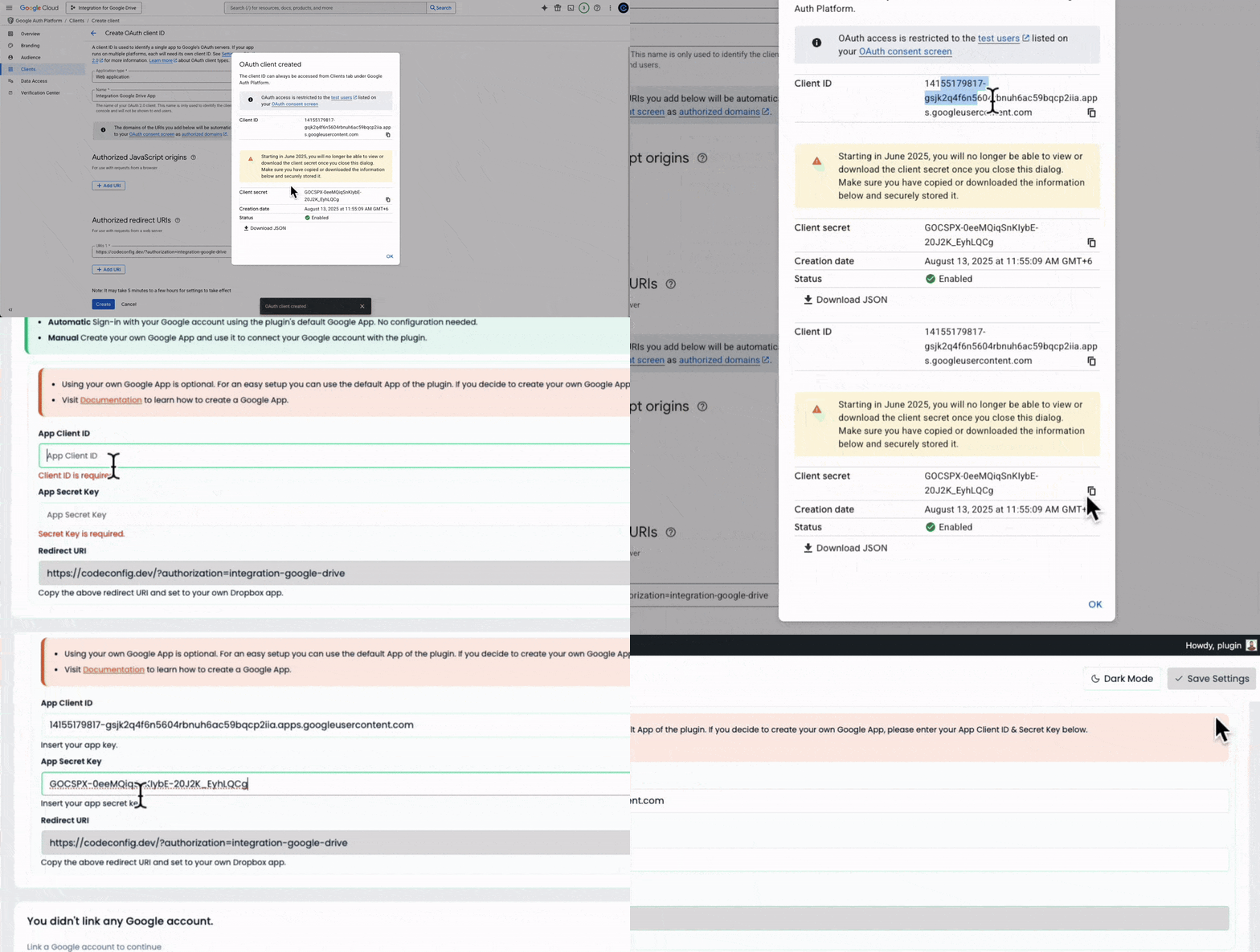
Step 7: Get Your Client ID and Client Secret
- Click the OAuth 2.0 Client you created
- Copy your Client ID and Client Secret.
Step 8: Enter Credentials into the WordPress Plugin
- Return to Google Drive Plugin > Settings > Accounts in your WordPress admin.
- In Manual mode, paste the Client ID and Client Secret into their respective fields.
- Leave the Authorized Redirect URL unchanged.
- Click Save Changes.
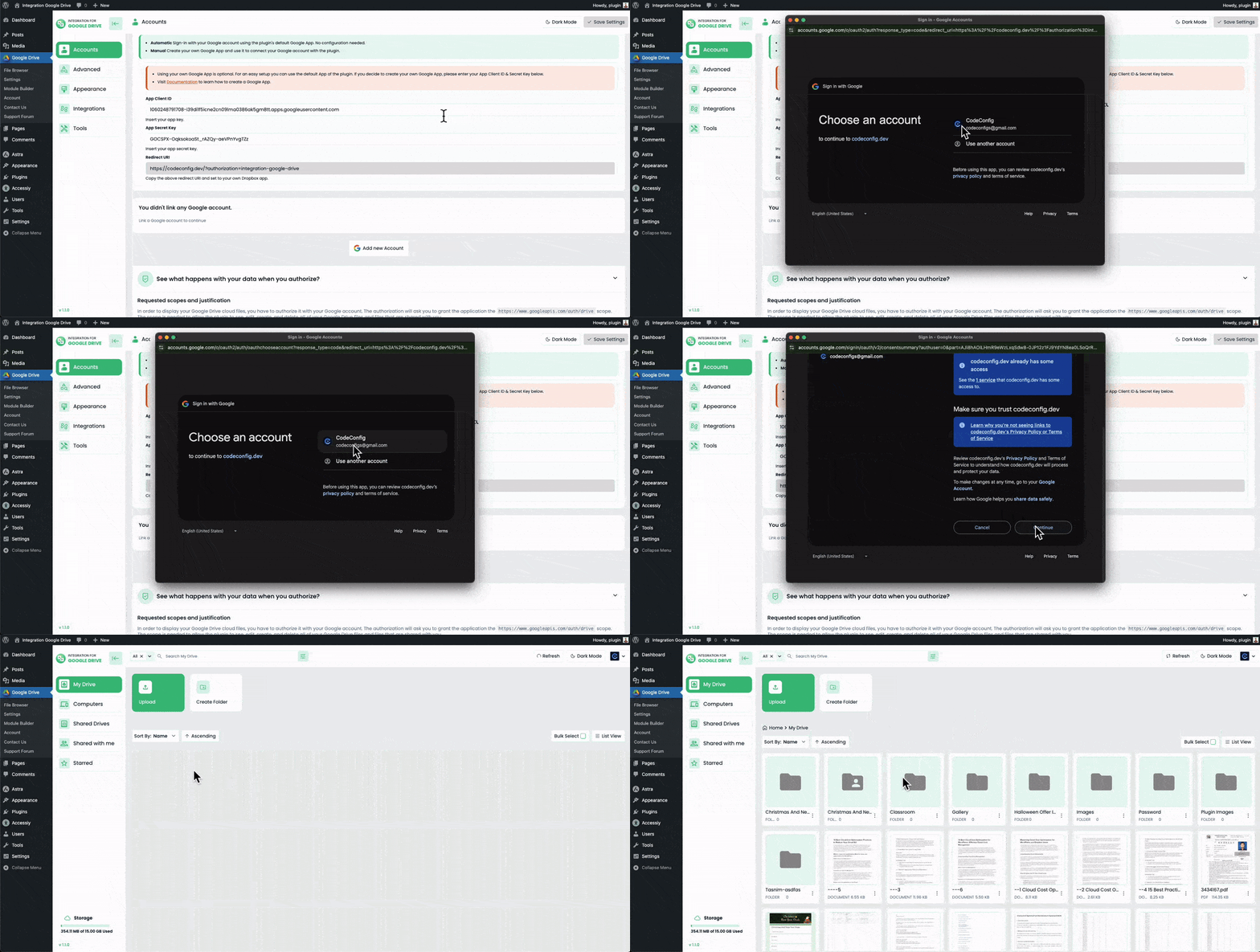
Step 9: Connect Your Google Account using the New App
- Go to the Accounts section and click Add New Account.
- A Google login window will open. Log in, review the consent screen, and allow access.
- If in testing mode, click “Advanced” → “Continue”.
- After connecting, your account will appear in the plugin dashboard.
Security Best Practices
- Keep credentials secret: Never share your Client ID or Client Secret.
- Use least privilege: Only use the scopes necessary for your use case.
- Verification: Submit for Google verification to remove test mode limits and warnings.
- Monitor activity: Regularly check your project’s API usage and revoke unused credentials.
Still stuck? Contact us now!Last Updated: September 20, 2026