The demand for digital products like eBooks, music, and software keeps growing. If you store files in Dropbox, you may be wondering how to sell Dropbox files through WooCommerce without uploading them to your server. The good news is you don’t have to. With the File Manager for Dropbox plugin, downloads are delivered directly from Dropbox, saving server space and bandwidth. Pair it with Integrate Dropbox to connect your Dropbox account to WordPress, manage files easily, secure downloads, and sell digital products without slowing down your site.
Step-by-Step Guide to How To Sell Dropbox Files Through WooCommerce
How to Sell Dropbox Files Through WooCommerce is simple when you use the right integration plugin. With the free version of File Manager for Dropbox, you can connect your account, manage files, and deliver digital products securely through WooCommerce. Follow the steps below to set everything up quickly.
Step-1: Install and Activate the Plugin
- First, log in to your WordPress dashboard.
- Go to Plugins > Add New.
- Search for “
File Manager for Dropbox.”
- Click the “Install Now” button.
- Once installed, click the “Activate” button.
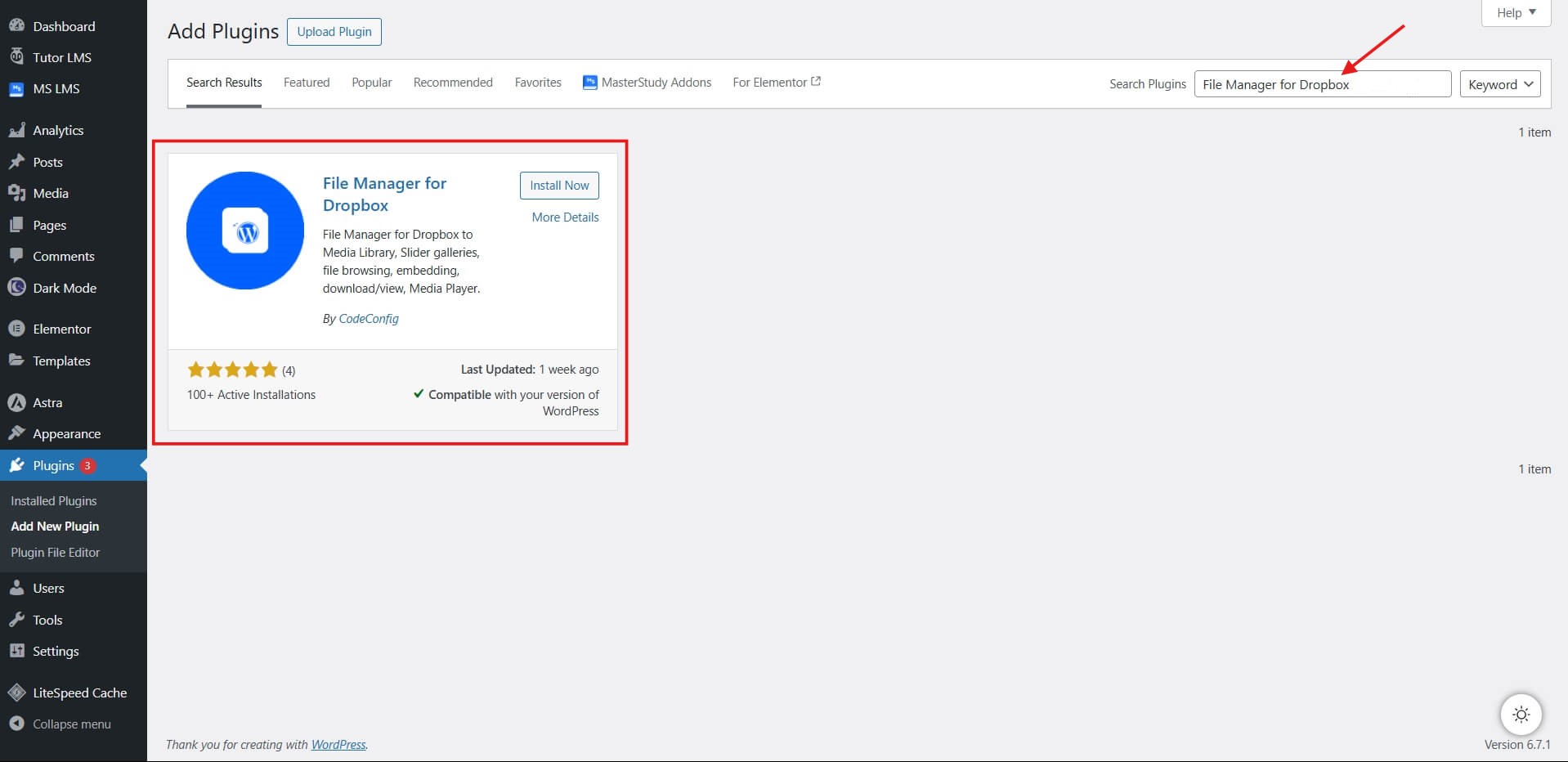
That’s it, the foundation for how to sell Dropbox files through WooCommerce is ready.
Download Free Plugin
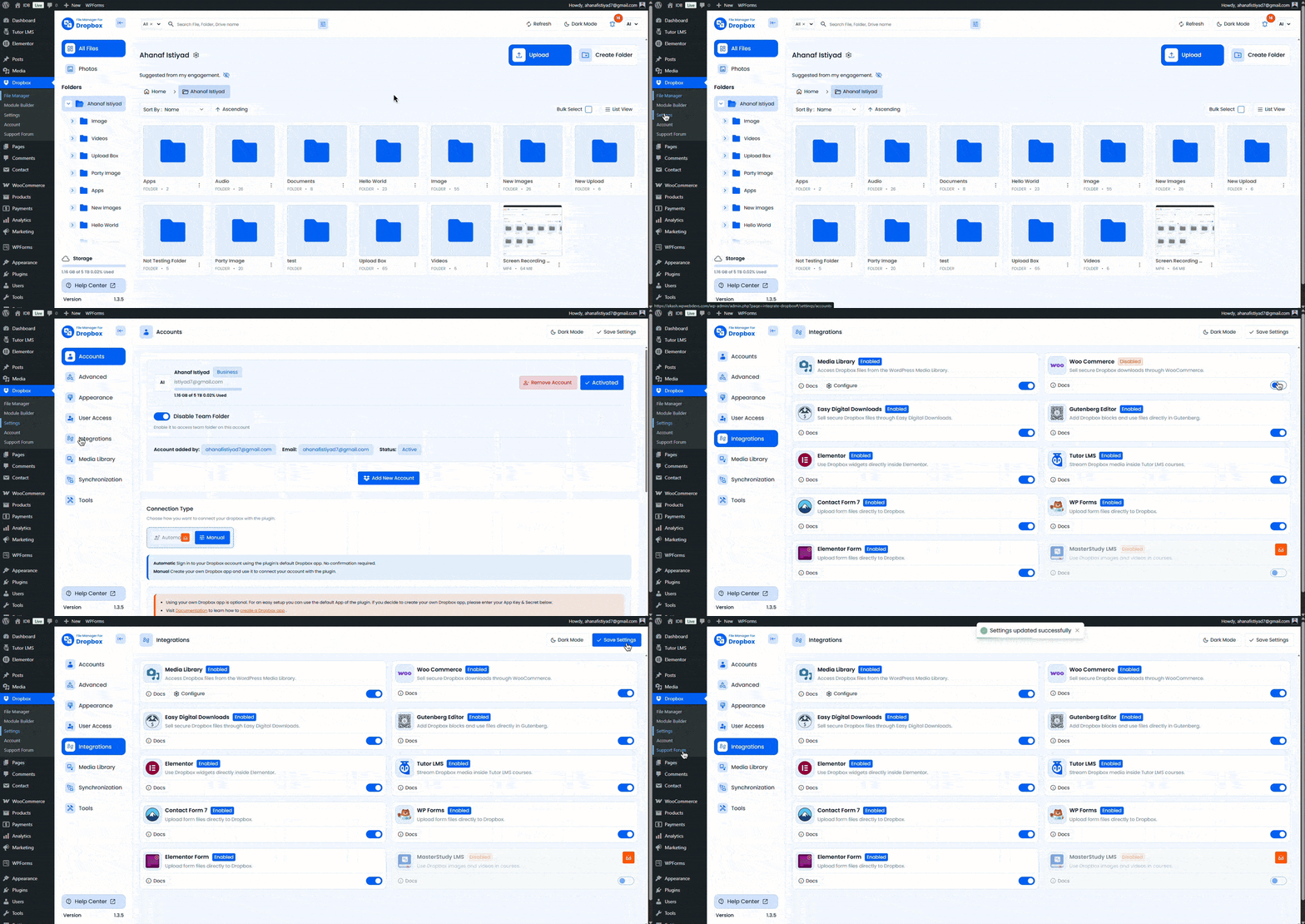
Step-2: Enable WooCommerce Integration
It’s easy to get started. No coding required.
- Go to the plugin’s Settings tab.
- Open Integrations.
- Find WooCommerce, and turn on the toggle.
- Click Save Settings.
Step-3: Add Dropbox Files to WooCommerce Products
Follow these steps to use Dropbox files as downloadable products in WooCommerce:
- Go to Products > Add New or edit an existing one.
- Check the Downloadable box in the product data section.
- Click Add Dropbox File, choose your file from Dropbox, and confirm.
- Set the price, add a description, complete the product details, and publish.
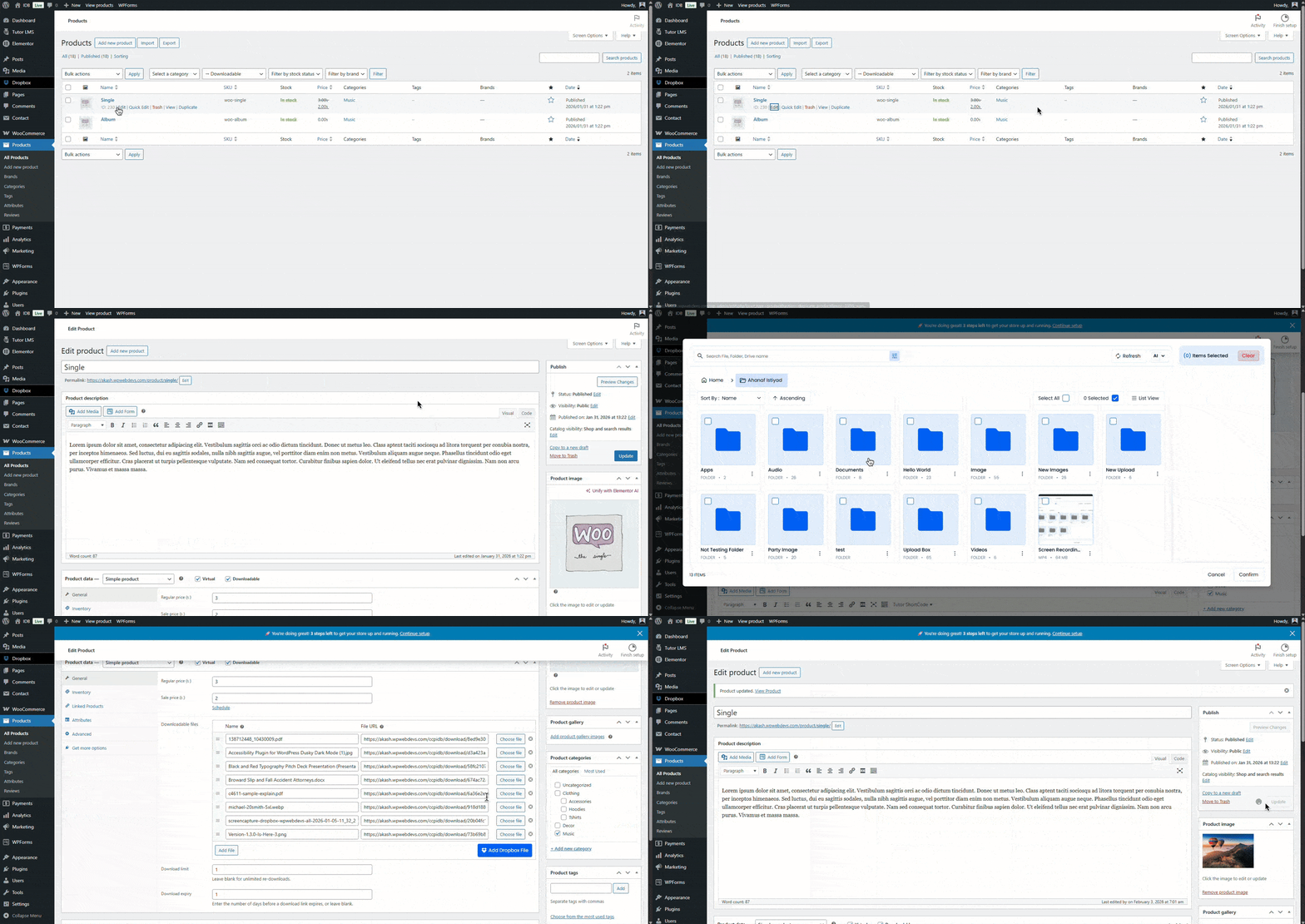
Your product is now live and linked to Dropbox, completing a key step in selling Dropbox files through WooCommerce.
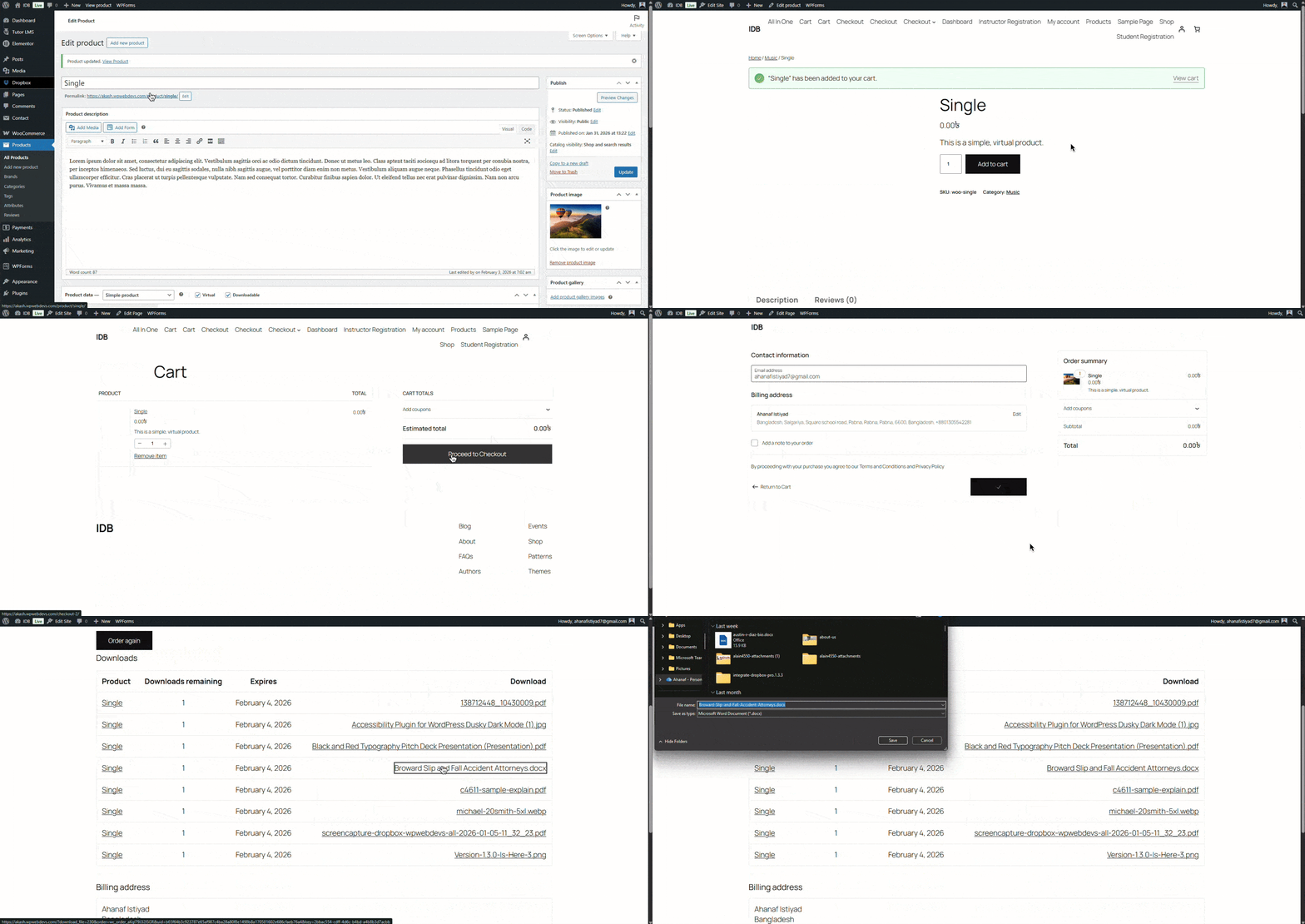
Step-4: Test the download process after all setup.
Always verify your setup. This ensures reliability when selling Dropbox files through WooCommerce.
- Create a test product and add it to your cart.
- Complete checkout with a test payment.
- Check your email or account for the download link.
- Download the file and confirm it pulls from Dropbox.
🎁GIFT: And here’s a gift for you. If you’re planning to buy this plugin, you can use the
ESPECIAL10 coupon to
get a 10% discount.
Useful Tips for How To Sell Dropbox Files Through WooCommerce
- Organize Dropbox folders smartly: Use clear names like “Ebooks-2026”, “Music-Albums”, or “Software-v2”. Create subfolders for versions (e.g., “Ebook-v1.pdf”). This makes file selection fast when using the WooCommerce integration plugin.
- Boost security: Set strong Dropbox passwords. In WooCommerce, limit download attempts or set expiry dates. The “File Manager for Dropbox (WooCommerce integration)” plugin generates secure, time-limited links automatically. Never share public Dropbox links.
These best practices make selling Dropbox files through WooCommerce scalable and professional.
Why Choose This WooCommerce Integration Plugin?
File Manager for Dropbox stands out as the top WooCommerce integration plugin because it:
- Saves server space and cost
- Delivers fast downloads
- Enhance Performance and speed
- Works with Elementor, Gutenberg, Forms, and LMS plugins
- Offers a free version with premium upgrades for advanced needs
Many store owners already use it to master how to sell Dropbox files through WooCommerce without hassle.
Conclusion
If you’re wondering how to sell Dropbox Files Through WooCommerce, the File Manager for Dropbox integration plugin makes it simple. Connect your Dropbox account, attach files to WooCommerce products, and deliver downloads securely without using your server space. This setup saves hosting resources, streamlines file management, and ensures smooth digital delivery. Try it to simplify and scale your online store.










Written By
Ahanaf Istiyad
Hey, I'm Istiyad! As a UI/UX and product designer, I’m passionate about building sleek, user-friendly experiences that make navigating digital products feel effortless and fun!
Express Your Opinion