

- Release
- WordPress
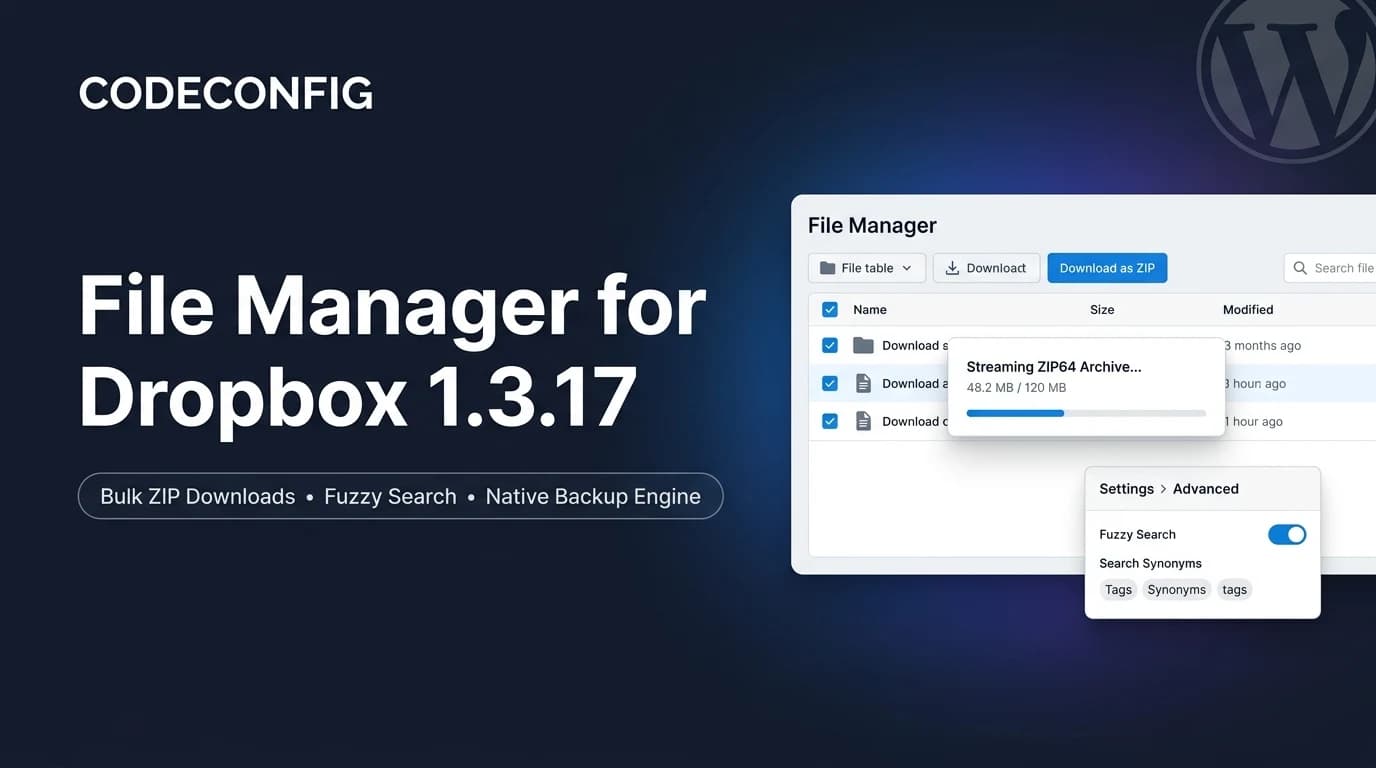
File Manager for Dropbox 1.3.17 Released – New Features and Improvements
Tanin Ahmed7 min read
Loading page…
Loading page…
Loading page…
Learn how to connect Dropbox with WordPress for enhanced security and functionality. Follow our guide to seamlessly integrate Dropbox with your WordPress site.
Connecting Dropbox with WordPress pretty easy process with File Manager for Dropbox (formerly Integrate Dropbox). Integrating Dropbox with WordPress using the right plugins can enhance your website’s capabilities in file sharing, collaboration, security, and content management, whether you need automated, easy media handling or enhanced integrations with other popular plugins.
WordPress sites need to allow users to upload files, such as resumes, photos, or documents. Integrate Dropbox for WordPress provides a secure and manageable way to handle user uploads. Manage and share your Dropbox documents and media files directly on your website. With just a few clicks, you can browse files, create galleries, download, view, and display content without any coding hassles. Sounds amazing, so let’s dive in!
Integrate Dropbox is designed to streamline the management and sharing of Dropbox files directly on a WordPress website. This integration allows users to access and display their Dropbox content easily on their WordPress website. Integrate the Dropbox plugin for WordPress, which allows you to use your Dropbox files, folders, media files, etc. in your WordPress dashboard. Follow the steps below to connect your Dropbox with WordPress. If still confused, contact us anytime.
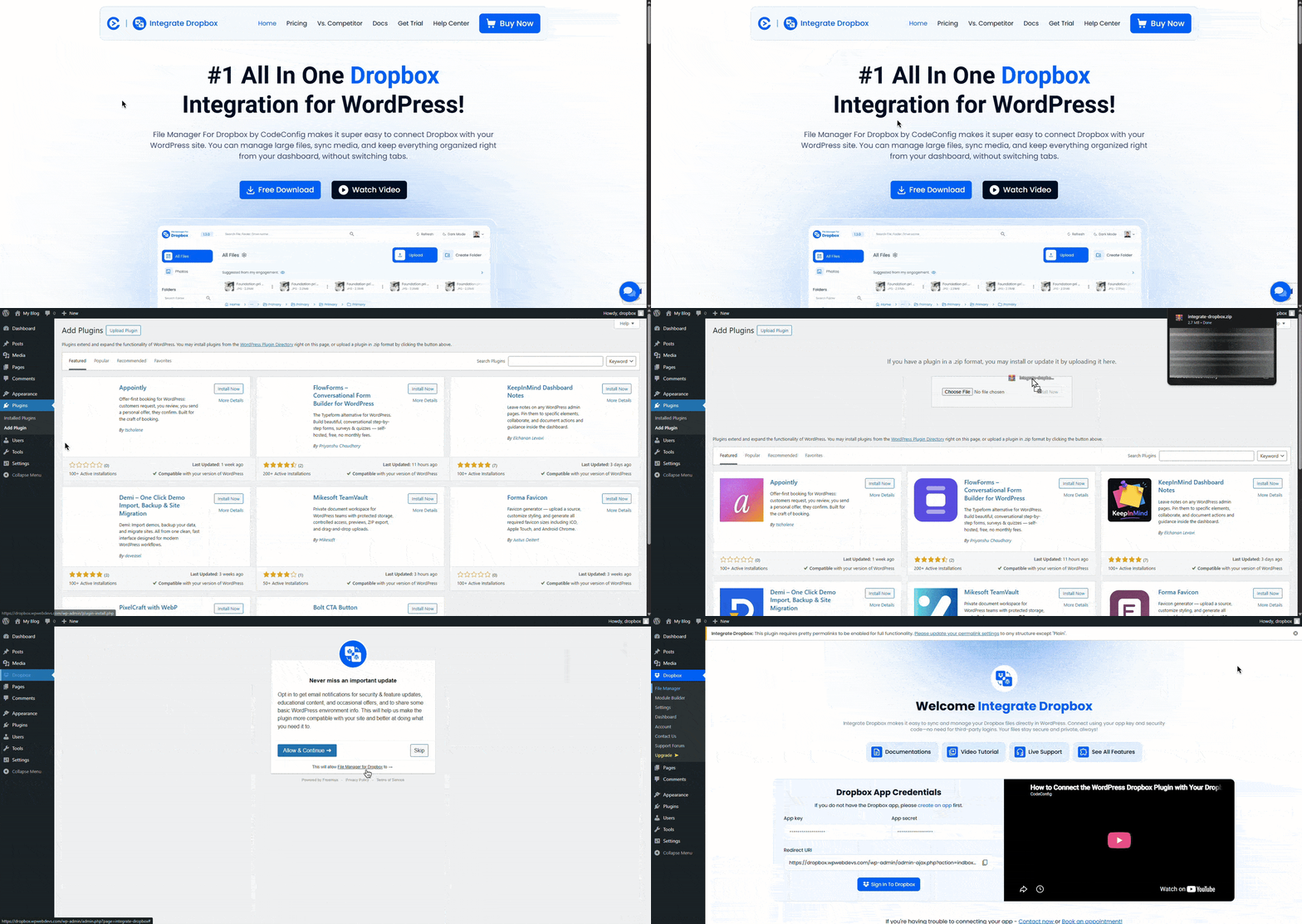
On the Getting Started page, click the Connect Dropbox button to continue, and then click on the Create an app button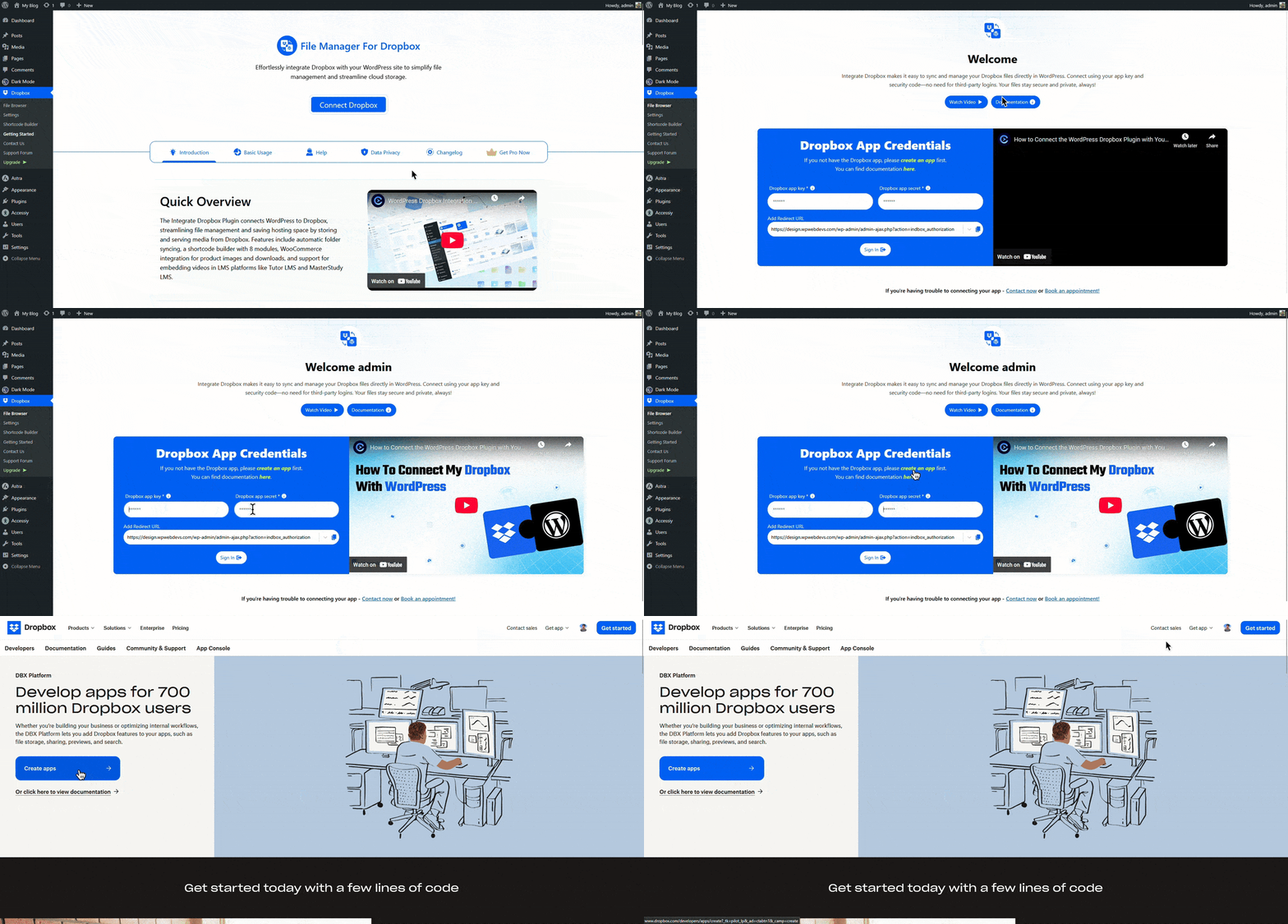
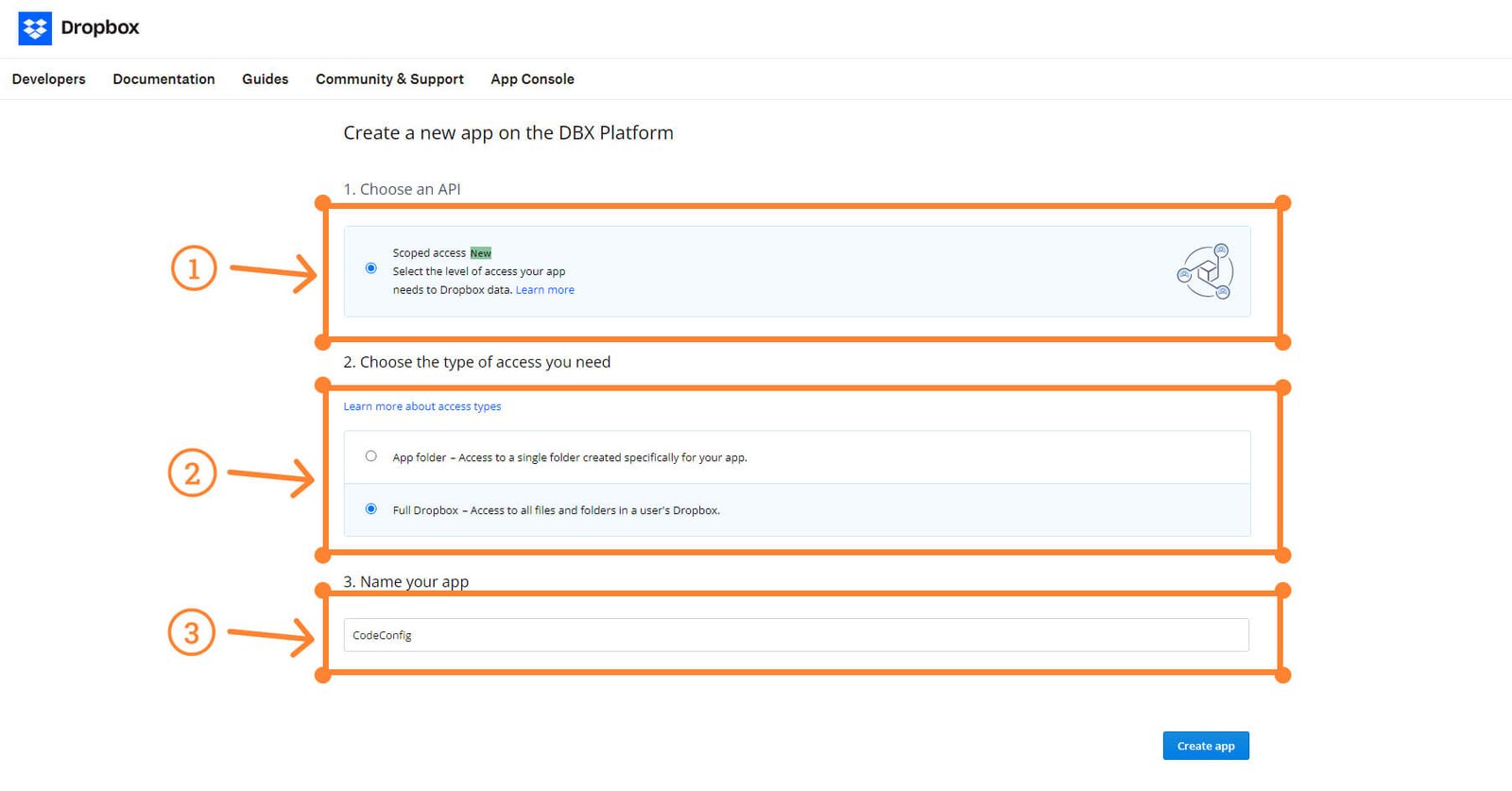
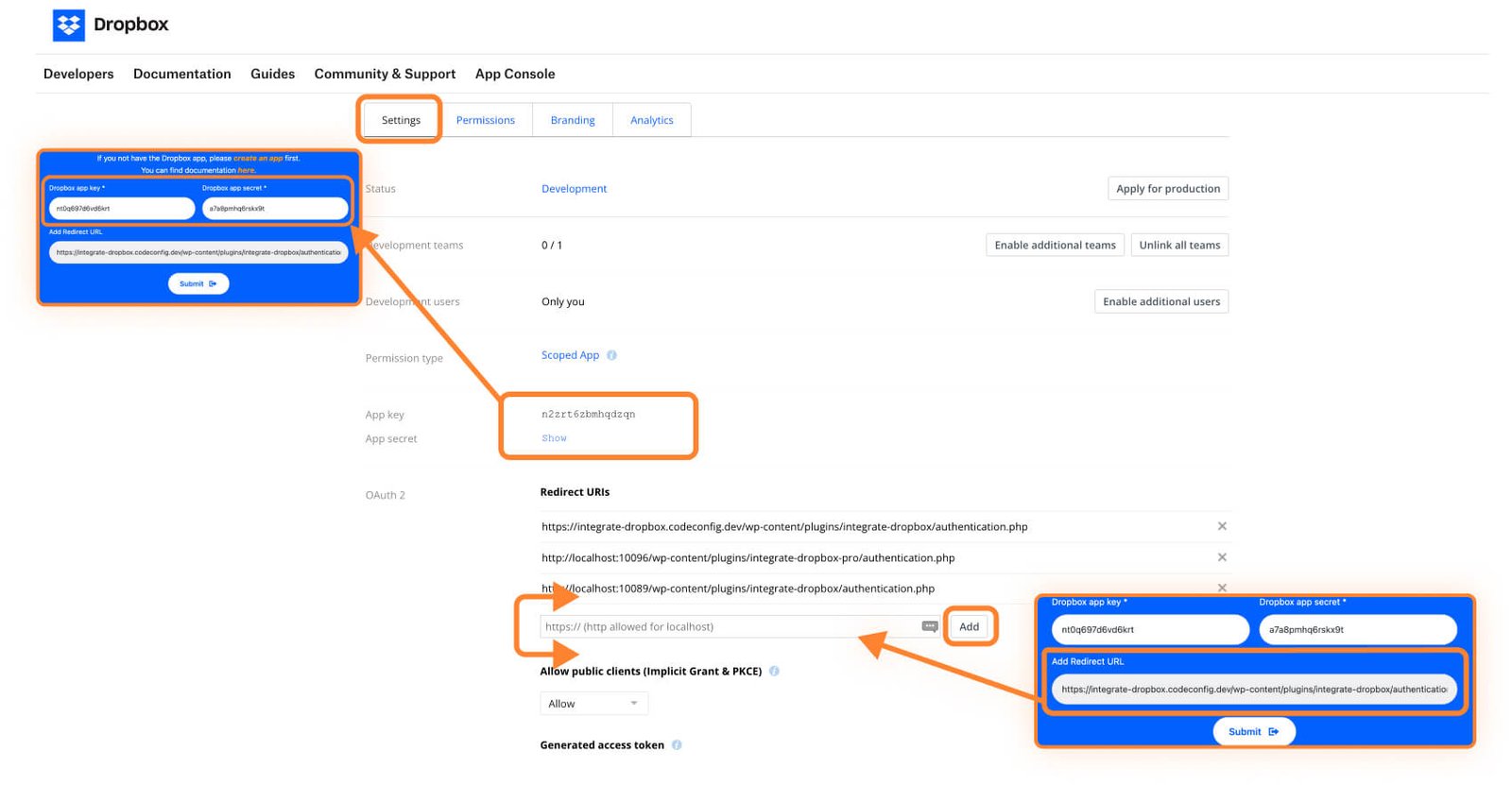
To access the files in the WordPress dashboard, please follow these steps to grant the necessary permissions:
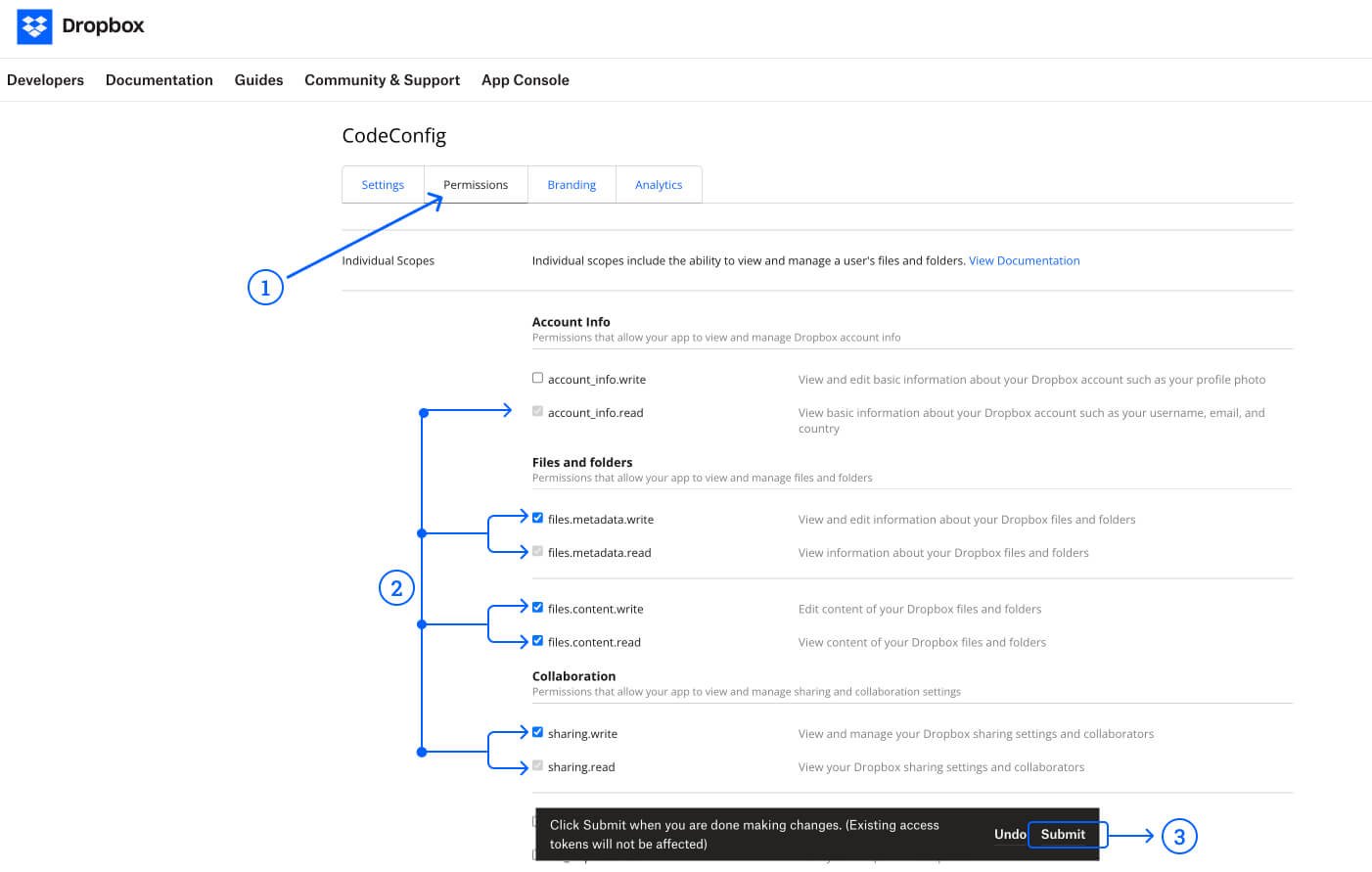
Important: All permissions are required to connect Dropbox with WordPress
Branding information is displayed in the authorization window. Please see the image below.
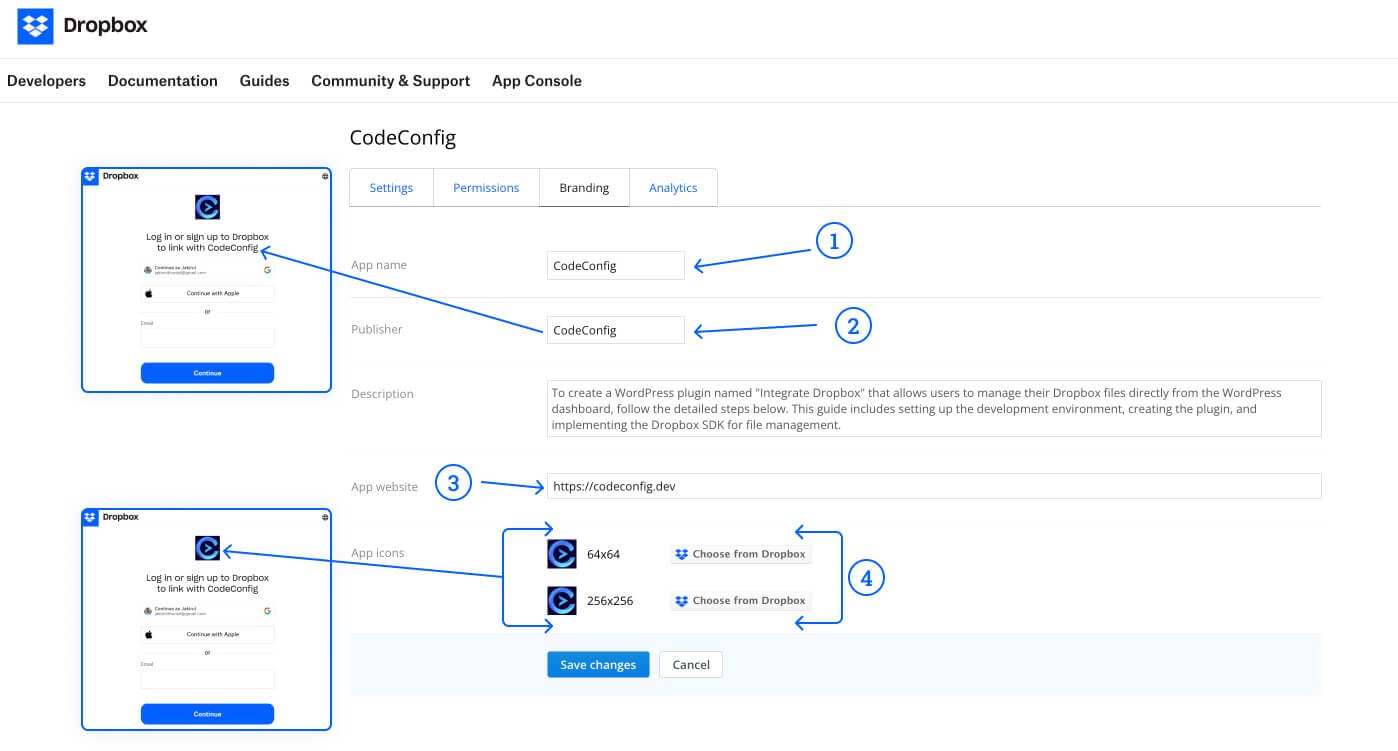
Enter API Credentials
Set Redirect URI
https://yourwebsite.com/wp-admin/admin-ajax.php?action=indbox_authorizationAuthorize the App
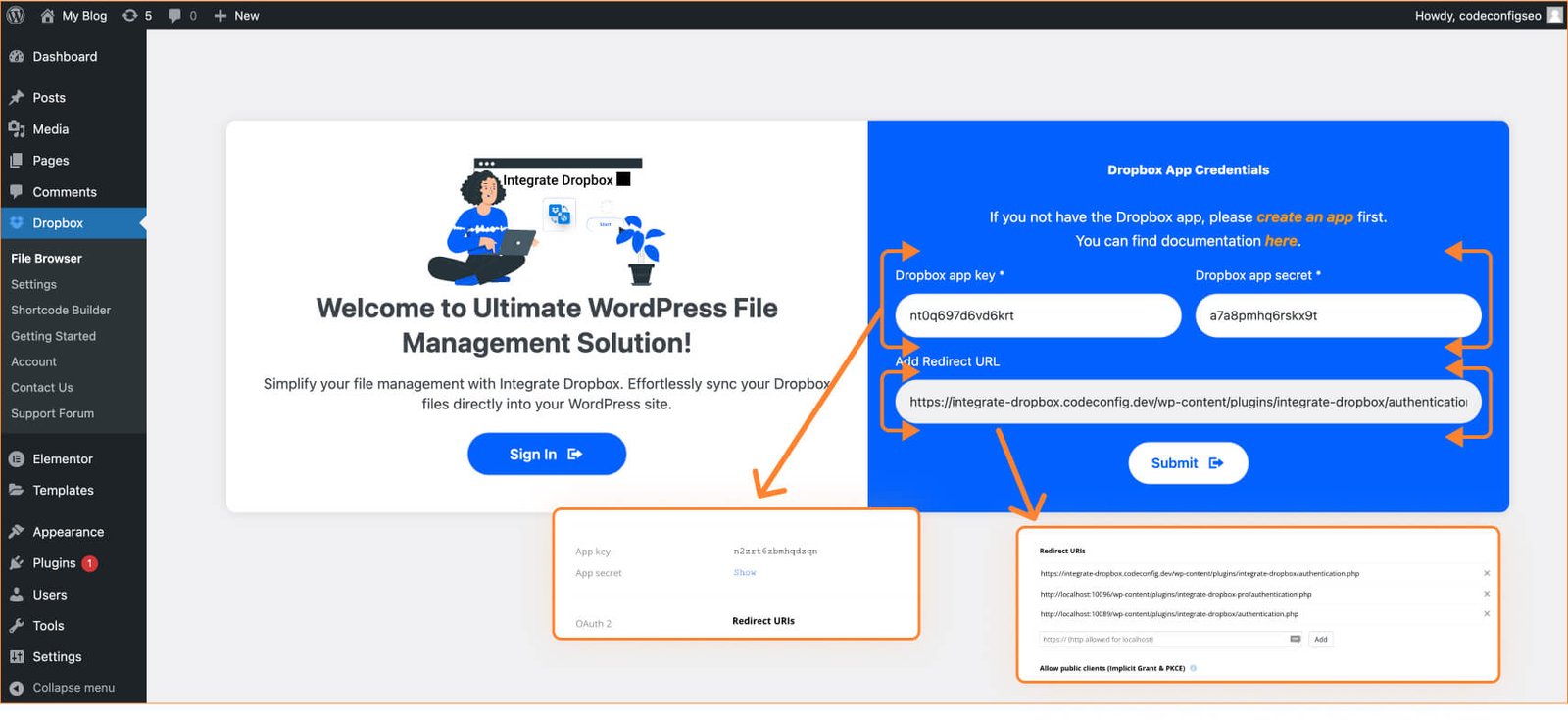
By following these steps, you have successfully linked your own Dropbox app with the WordPress plugin. This integration allows for secure and efficient interaction with your Dropbox account using your custom API credentials.
This post is by Jakir, a member of the CodeConfig team who is always working to find solutions for our users and improve our services.
Thank you for reading and for your kind words and good wishes for us. We truly appreciate your support! ❤️

Whether you're just getting started or scaling fast, we've got you covered. Access helpful guidance.

