Video content is one of the most powerful tools for engaging your audience. However, uploading large video files directly to your WordPress site can quickly eat up hosting storage and slow down page loading speeds. There is a great solution for WordPress users: using Google Drive Video.
Learning how to embed a Google Drive video in WordPress is the perfect solution. It lets you use Google’s reliable infrastructure to serve your videos while keeping your website lightweight and fast. In this guide, you will learn how to embed a Google Drive video in WordPress step by step using a simple and secure method.
Why Use CodeConfig’s Integration for Google Drive?
Instead of using clunky “Publish to web” frames, this plugin gives you a faster, cleaner, and more secure way to embed Google Drive files in WordPress.
- Use Secure OAuth 2.0 authentication.
- You can use large files without slowing down the site.
- Gutenberg, Elementor, and shortcode builder support.
- Media library integration and auto-sync options.
It’s a reliable and beginner-friendly solution for embedding Google Docs and other Drive files in WordPress.
Step-by-Step Guide: How to Embed a Google Drive Video in WordPress
Follow these clear steps to complete your Google Drive video embed in minutes.
Step 1: Install and Activate the Integration for Google Drive by CodeConfig Plugin.
- Go to the plugin page and click Free Download (a ZIP file will be downloaded)
- In your WordPress dashboard, go to Plugins → Add New → Upload Plugin
- Click Choose File and select the downloaded ZIP file
- Click Install Now, then Activate
- Click Allow & Continue to complete setup
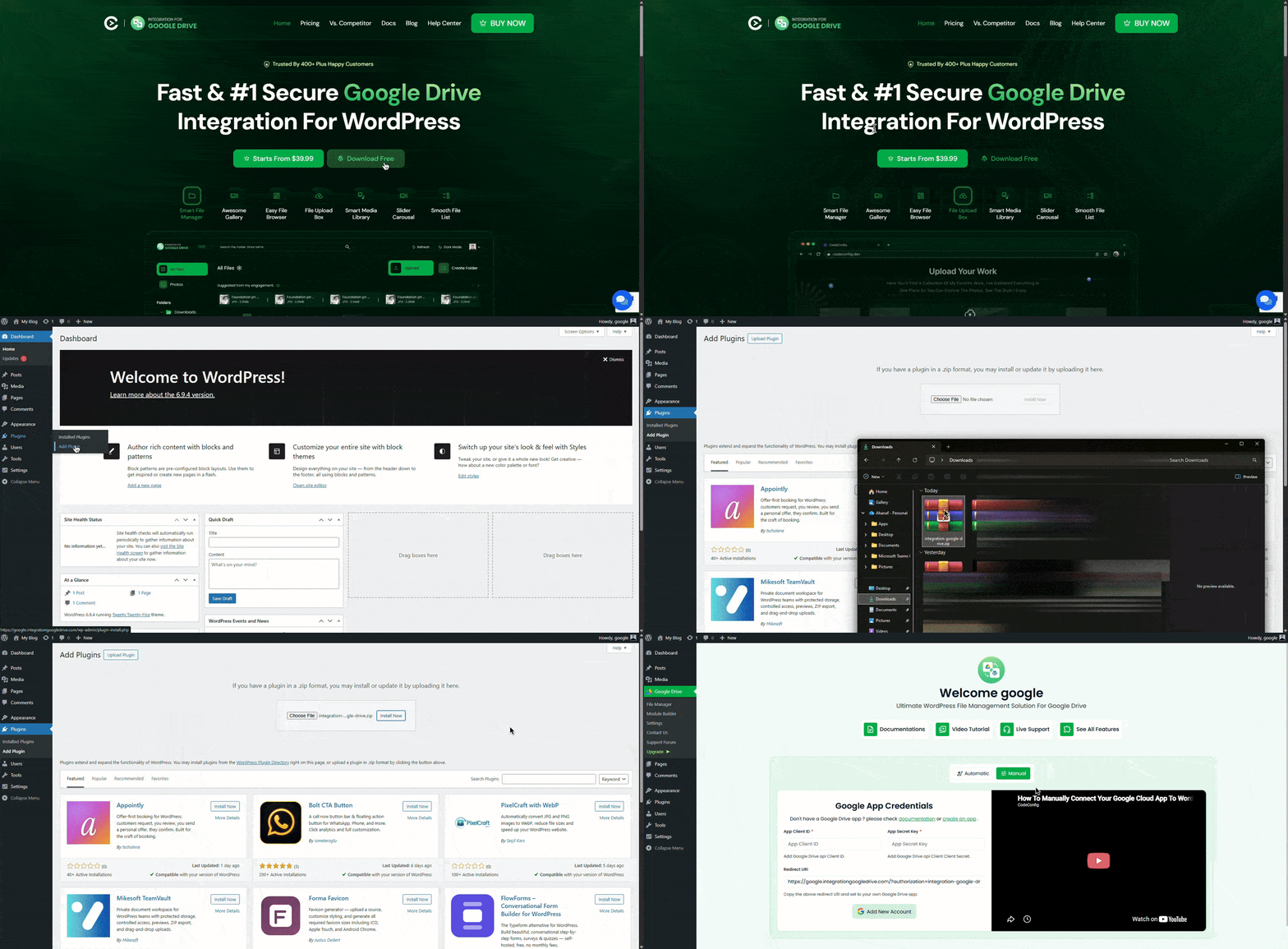
Download Free Plugin
Step 2: Connect Your Google Drive Account
- Go to the Google Drive section in your WordPress dashboard.
- Copy the Redirect URL shown on the login screen.
- Open the Google Cloud Console, create or select a project → Create Client ID.
- Add the Redirect URI to the Authorized Redirect URI when creating the OAuth Client ID.
- Copy the Client ID and Client Secret.
- Return to the plugin screen, paste the Client ID and Client Secret, and click Sign in with Google.
Once connected, your Google Drive folders and files will appear inside the WordPress dashboard for easy management.
Important: If you’re not clear about creating a new Google Cloud Console app,
click here to learn.
Step 3 (Method 1): Use Shortcodes
Use shortcodes to add videos anywhere on your site in just a few clicks.
- Go to your WordPress Dashboard.
- Navigate to the Google Drive → Module Builder tab.
- Click Add New Module → Select Media Player.
- From the source tab, select your video → click Next Button.
- Set up all features, like Advanced and Permissions, in the same way.
- Click Save and Close to complete creating the shortcode.
- Click on the shortcode to copy it.
- Paste the shortcode wherever you want to display the videos.
The plugin’s shortcode builder makes it easy to create shortcodes for single videos, file browsers, or full media players. You can place them anywhere on your site, including posts and pages.
Step 3 (Method 2): Media Library Integration
- Go to the plugin’s Settings tab.
- Navigate to Integrations → Enable Media Library.
- Now click Configure and select the folder, then confirm.
- Navigate to Media → Library, and check your selected folders.
You can now use Google Drive videos anywhere on your WordPress site with the Media Library integration feature of the Integration for Google Drive by CodeConfig plugin.
Benefits of Using Google Drive Videos in WordPress
Hosting videos directly on your WordPress site can quickly increase load times and hosting costs. Switching to Google Drive solves these issues.
Here are the main advantages:
- Reduced hosting load: Your videos stay on Google Drive servers. Your WordPress site only displays them, so you avoid large file uploads that eat up storage and bandwidth.
- Faster website performance: External hosting means quicker page loads for visitors. Google’s reliable infrastructure helps your site feel snappier.
- Easy file management: Upload, organize, and update your videos in Google Drive with a simple, familiar interface.
- Secure sharing options: Google Drive permissions let you control who can view your videos, and the plugin adds extra security like password protection for safer access.
These perks make Google Drive video embed a smart choice for tutorials, product demos, portfolios, or educational content.
Common problems and solutions
Even with proper setup, you may run into minor issues like permission or access errors. In that case, double-check your Google Cloud Console app permissions. The Integration for Google Drive plugin helps reduce these problems by handling syncing and links automatically. If the issue continues, refer to the plugin’s documentation or support resources for detailed guidance.
Conclusion
Embedding videos doesn’t have to slow down your site or complicate your workflow. With this guide, you now know how to embed a Google Drive video in WordPress using shortcodes or Media Library tools. The Integration for Google Drive by CodeConfig.dev plugin makes the process simple, secure, and efficient, helping reduce server load, improve performance, and keep your content organized. Ready to get started? Install the free plugin today and embed your Google Drive videos with confidence.
Have questions about the process? Drop a comment below. I am happy to help!













Written By
Ahanaf Istiyad
Hey, I'm Istiyad! As a UI/UX and product designer, I’m passionate about building sleek, user-friendly experiences that make navigating digital products feel effortless and fun!
Express Your Opinion