If you’re looking for a solution on how to use Google Drive images in WordPress, this blog will help you completely. In this guide, I’ve explained how you can use any image from Google Drive in WordPress, not just PNG, JPG, or WEBP. You can use any image file type, in fact, any file format that Google Drive supports, with no exclusions.
The best part is how this method works. Using this approach, you can use all your Google Drive files directly on your WordPress website. It doesn’t just make file usage easier; it also reduces hosting storage usage and cost, and keeps your website lightweight. As a result, your site loads faster than before.
Here’s the most interesting part. All your files remain accessible to Google, meaning they can be indexed properly. In practice, this setup works like a CDN for your WordPress site.
Sounds surprising? Let’s see how it works.
What is the solution, and is it secure?
Before this solution existed, there was no reliable way to use Google Drive files and images in WordPress. Now, let’s look at the solution for using Google Drive images in WordPress.
The solution is a WordPress plugin called Integration for Google Drive by CodeConfig. This plugin is powerful and easy to use. If you are worried about security, there is nothing to stress about. The plugin uses end-to-end encryption, and files are fetched using a secure, server-side-generated code. Your real file IDs or account details are never exposed, so everything stays safe and secure.
How To Use Google Drive Images In WordPress
So now, if you want to use any Google Drive image in WordPress, simply download the plugin from WordPress.org and connect your Google account.
Install the Plugin
Getting started is straightforward—no coding required.
- Log in to your WordPress dashboard.
- Navigate to Plugins > Add New.
- Search for “CodeConfig” or “Integration For Google Drive By CodeConfig“.
- Click Install Now on the plugin by CodeConfig.
- Once installed, hit Activate.
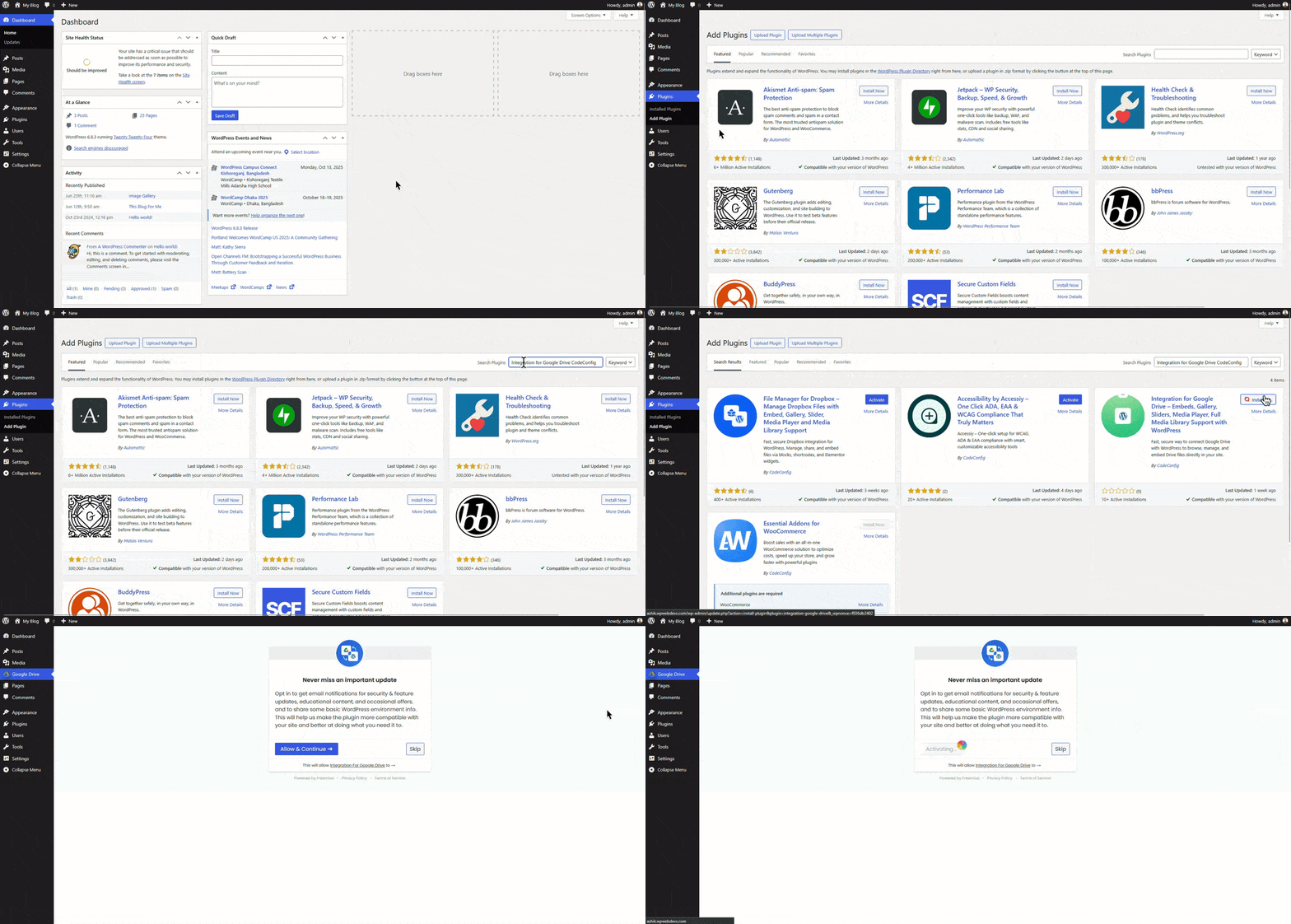
That’s it! The plugin will add a new menu item: Google Drive to your sidebar.
Also Read: Connect Google Drive to WordPress
Enable Media Library Integration
- Go to the plugin’s Settings tab.
- Open Integrations.
- Find Media Library and toggle it on.
- Click the Configure button.
- Select the folder you want to use for your images.
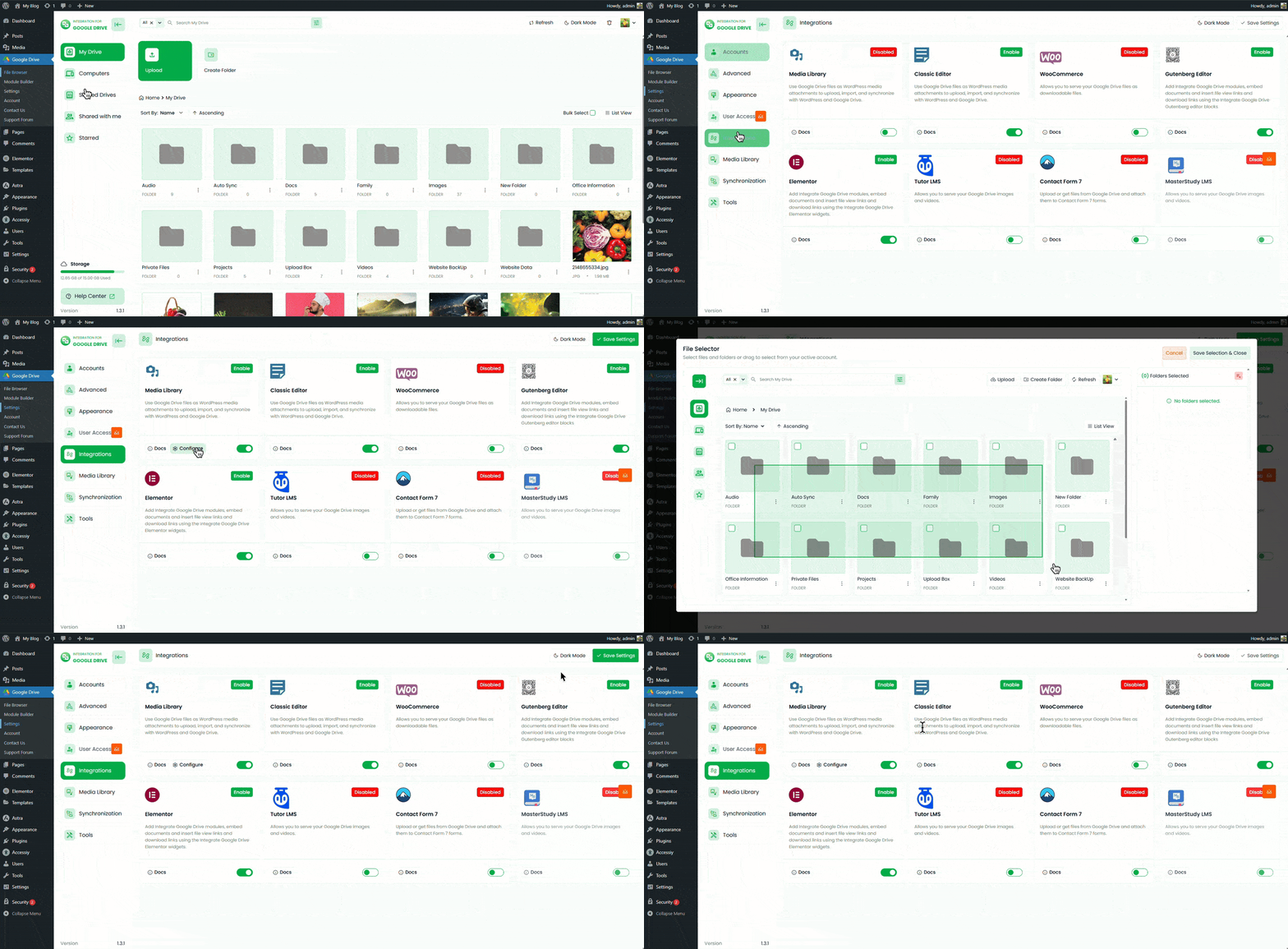
To check if all files have appeared in the Media Library, go to your Media Library—you will see all the fetched files there.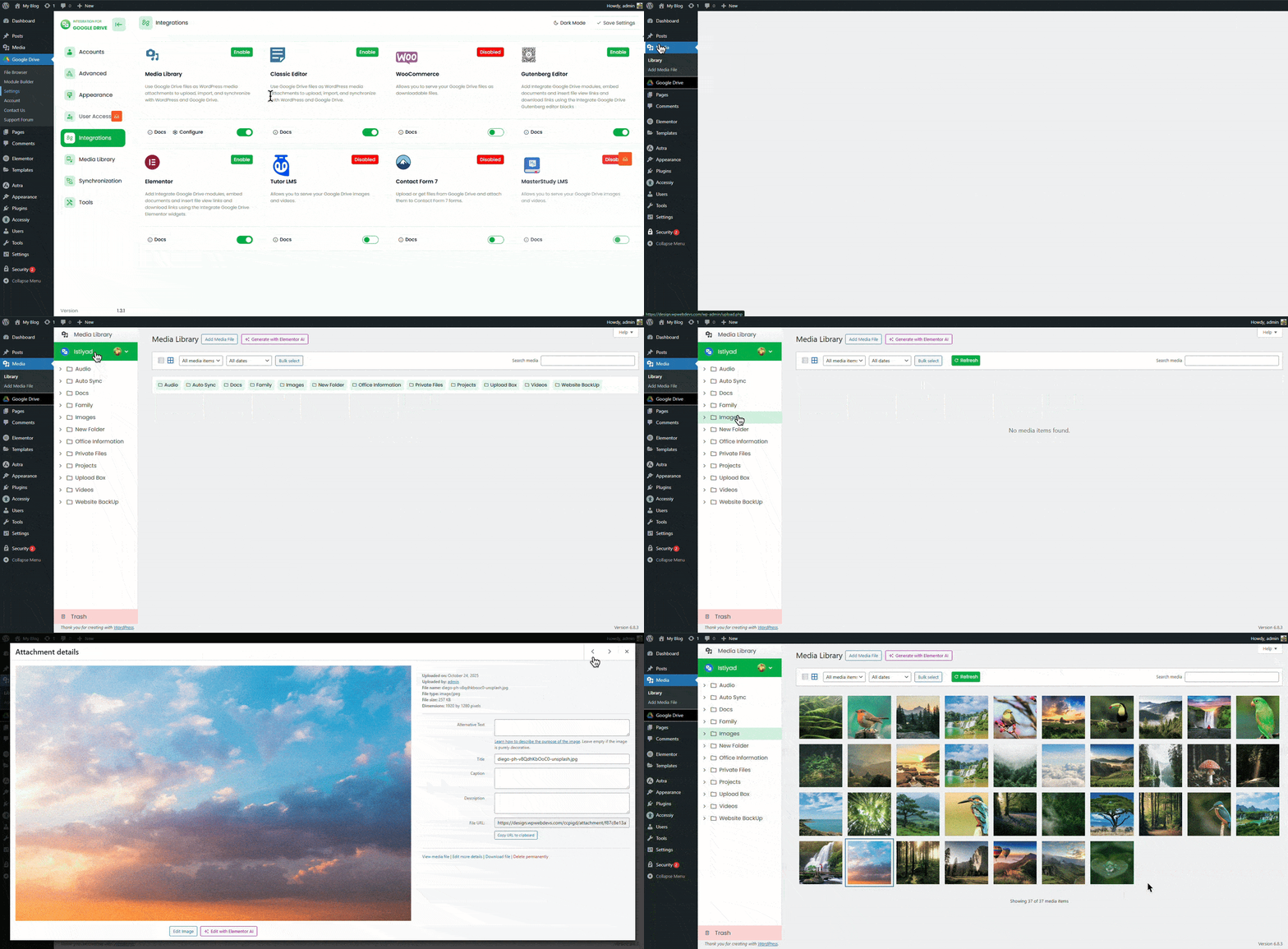
How to use the image anywhere
This plugin allows you to use any Google Drive Media Library item anywhere in WordPress where the Media Library is supported. Now, I’m going to show you how to use it in a WordPress post with the Gutenberg editor.
- Go to Posts and add a new post or edit an existing one
- Add an Image block to the post
- Click on Media Library
- At the bottom of the Media Library, you will see Google Drive Files—click on it
- All your selected Google Drive files will appear
- Choose the file you want and click Insert

🎁GIFT: And here’s a gift for you. If you’re planning to buy this plugin, you can use the
EARLY20OFF coupon to
get a 20% discount.
Conclusion
That’s it. No extra hassle, no security issues, and no extra hosting space. Just seamless integration and easy collaboration using this plugin. You are not only saving hosting space or connecting Google Drive with WordPress—you are also making your website up to 3x faster than before.
My recommendation is simple. If you are a Google Drive user and want a faster workflow and better file organization for your website, you should install this plugin. It is an excellent solution for any Google Drive user.














Written By
Ahanaf Istiyad
Hey, I'm Istiyad! As a UI/UX and product designer, I’m passionate about building sleek, user-friendly experiences that make navigating digital products feel effortless and fun!
Express Your Opinion