Selling digital products to members is one of the best ways to build recurring revenue with WordPress. But there’s a catch: large files eat up your hosting storage, downloads chew through bandwidth, and protecting those files from non-members can get complicated fast.
The good news? You can set up Google Drive downloads with WooCommerce Memberships so your files live safely in Google Drive while WooCommerce handles who’s allowed to download them. Members click a download button on your site and get the file directly and securely — without ever seeing your Google Drive account.
In this guide, we’ll walk through exactly how to set it up using the Integration for Google Drive plugin by CodeConfig, from connecting your Drive account to testing your first member download.
Why Use Google Drive for Membership Downloads?
Most membership sites start by uploading files straight to the WordPress Media Library. That works — until your course videos, design bundles, and PDF libraries start weighing gigabytes. Then backups get slow, storage bills climb, and big downloads compete with your site’s normal traffic.
Serving member downloads from Google Drive fixes all of that:
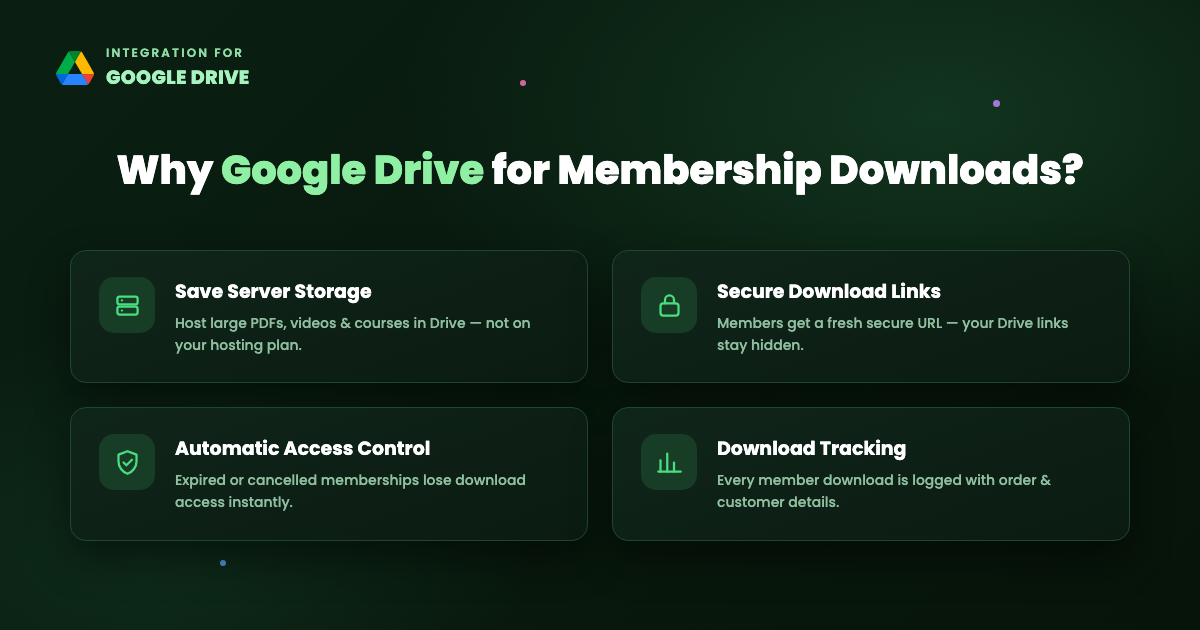
- Save server storage & bandwidth — files stay in Google Drive, so your hosting plan stays lean no matter how big your download library grows.
- Secure, direct downloads — the plugin generates a fresh secure URL for every download. Your original Google Drive links are never exposed, so members can’t share a “raw” Drive link.
- Automatic access control — WooCommerce Memberships decides who can reach the product. When a membership expires or is cancelled, download access disappears with it.
- Download tracking — every successful member download is logged with the customer, product, and order details.
What You’ll Need
Before we start, make sure you have these four things in place:
- WooCommerce — installed and activated.
- WooCommerce Memberships — the membership plugin that will gate access.
- Integration for Google Drive PRO — the WooCommerce integration is a PRO feature.
- A connected Google account — follow our installation and activation guide if you haven’t connected Google Drive yet.
How Direct Member Downloads Work
Here’s the flow behind the scenes — it’s what makes this setup both convenient and secure:
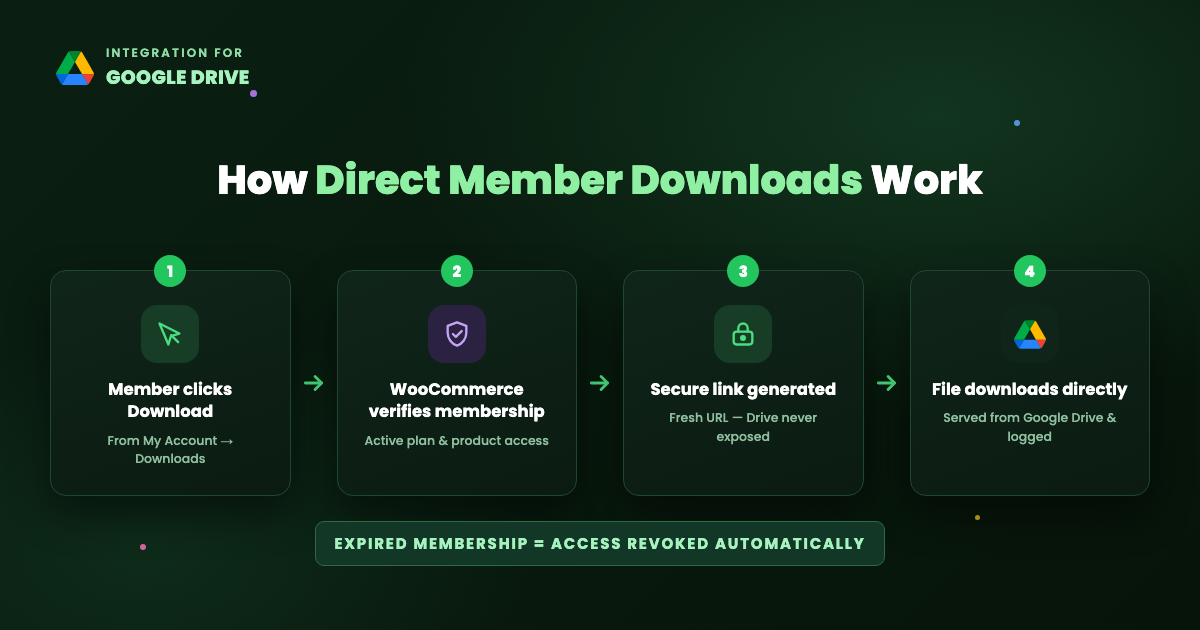
When a member clicks Download in their account, WooCommerce first checks that they still have access — an active membership and a valid order. Only then does Integration for Google Drive generate a fresh, secure download URL and redirect the browser to it. The file streams straight from Google Drive, the download gets logged, and your actual Drive links stay hidden the entire time.
If the membership has expired? WooCommerce never grants access, so the download link simply doesn’t work anymore. No cleanup required.
Step-by-Step: Set Up Google Drive Downloads for Members
The whole setup takes about 15 minutes. Here’s the short version — for every click and screenshot, see our detailed doc: How to Add Google Drive Files to WooCommerce Memberships for Direct Downloads.
Step 1: Enable the WooCommerce Integration
Go to Google Drive → Settings → Integrations in your WordPress dashboard, toggle WooCommerce on, and save. This adds Google Drive superpowers to your WooCommerce product editor.
Step 2: Attach Google Drive Files to a Downloadable Product
Create (or edit) a product, mark it Virtual and Downloadable, and look at the Downloadable files section — you’ll find a new Add Google Drive File button:
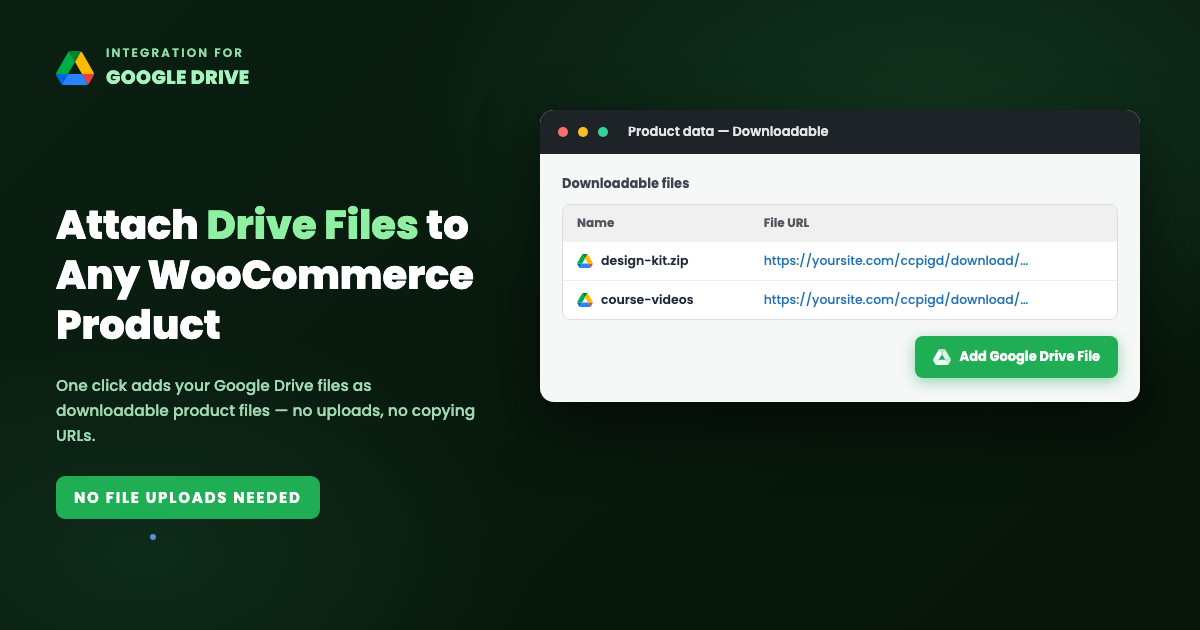
Click it, pick one or more files (or even a whole folder — members receive folders as ZIP downloads) from your Drive, and confirm. Each file lands in the downloadable files table with a secure URL already filled in. No uploading, no copying links.
Step 3: Create a Membership Plan
Head to WooCommerce → Memberships → Membership Plans and add a plan — say, Premium Downloads. Choose how people join: automatically when they buy a membership product (a subscription works great), or by manual assignment.
Step 4: Restrict the Downloads to Members
In your plan’s Restrict Products tab, add a rule targeting your downloadable product (or an entire product category). Non-members now can’t reach the product — and if you want members to grab the files without paying separately, give them a 100% member discount or make the product free but member-only to purchase.
Step 5: Test It Like a Member
Create a test account, join the plan, and check My Account → Downloads. Your Google Drive files appear as download buttons, and clicking one downloads the file directly. Then verify the other side: log out, and confirm non-members see the restriction message instead.
Bonus: Give Members a Full File Library
Per-product downloads are perfect for selling individual products. But if your membership includes an ever-growing library of resources, embed a File Browser module on a members-only page instead. Members get a browsable, searchable Google Drive folder with download buttons — and WooCommerce Memberships’ Restrict Content rule keeps the whole page members-only. Add new files to the Drive folder and they show up for members automatically.
Common Problems and Solutions
- No “Add Google Drive File” button? Check that the WooCommerce integration is enabled in the plugin settings, your PRO license is active, and the product’s Downloadable box is ticked.
- Non-members can still download? Re-check your Restrict Products rule, and always test in a private window — admin accounts bypass restrictions.
- Download errors? The Drive file was probably moved or deleted. Re-select it from the product’s downloadable files.
- Files missing from the picker? See Google Drive files and folders not showing.
Conclusion
Combining Google Drive downloads with WooCommerce Memberships gives you the best of both worlds: Google Drive’s free, reliable storage and WooCommerce’s battle-tested access control. Your members get instant, direct downloads; you get a lighter server, hidden file links, automatic access revocation, and a log of every download.
Ready to set it up? Grab Integration for Google Drive, follow the step-by-step documentation, and your members-only download store can be live today.











Written By
Md Jakirul Islam
Express Your Opinion