Integration for Google Drive is an all-in-one Google Drive solution for WordPress. With this plugin, you can manage all your Google Drive files right inside your WordPress dashboard. You can also use Google Drive images as featured images for posts, pages, or anywhere in WordPress through the Media Library integration. You don’t need to rely on any CDN because everything is fully indexable.
It also includes integrations with WooCommerce, Contact Form 7, Tutor LMS, and many more. So let’s see how to use integration for Google Drive plugin!
Why You Should Use This Plugin
Using Google Drive inside WordPress makes your workflow simple and flexible. You get
- Less hosting storage usage
- No need to upload the same file twice
- Easy media management for large sites
- Smooth workflow for bloggers, photographers, agencies, teachers, and anyone using LMS platforms
- Support for multiple folders and file types
It’s a practical tool for anyone who needs a clean and fast way to manage a lot of media
How To Install the Plugin
- Go to the plugin page and click Free Download (a ZIP file will be downloaded)
- In your WordPress dashboard, go to Plugins → Add New → Upload Plugin
- Click Choose File and select the downloaded ZIP file
- Click Install Now, then Activate
- Click Allow & Continue to complete setup
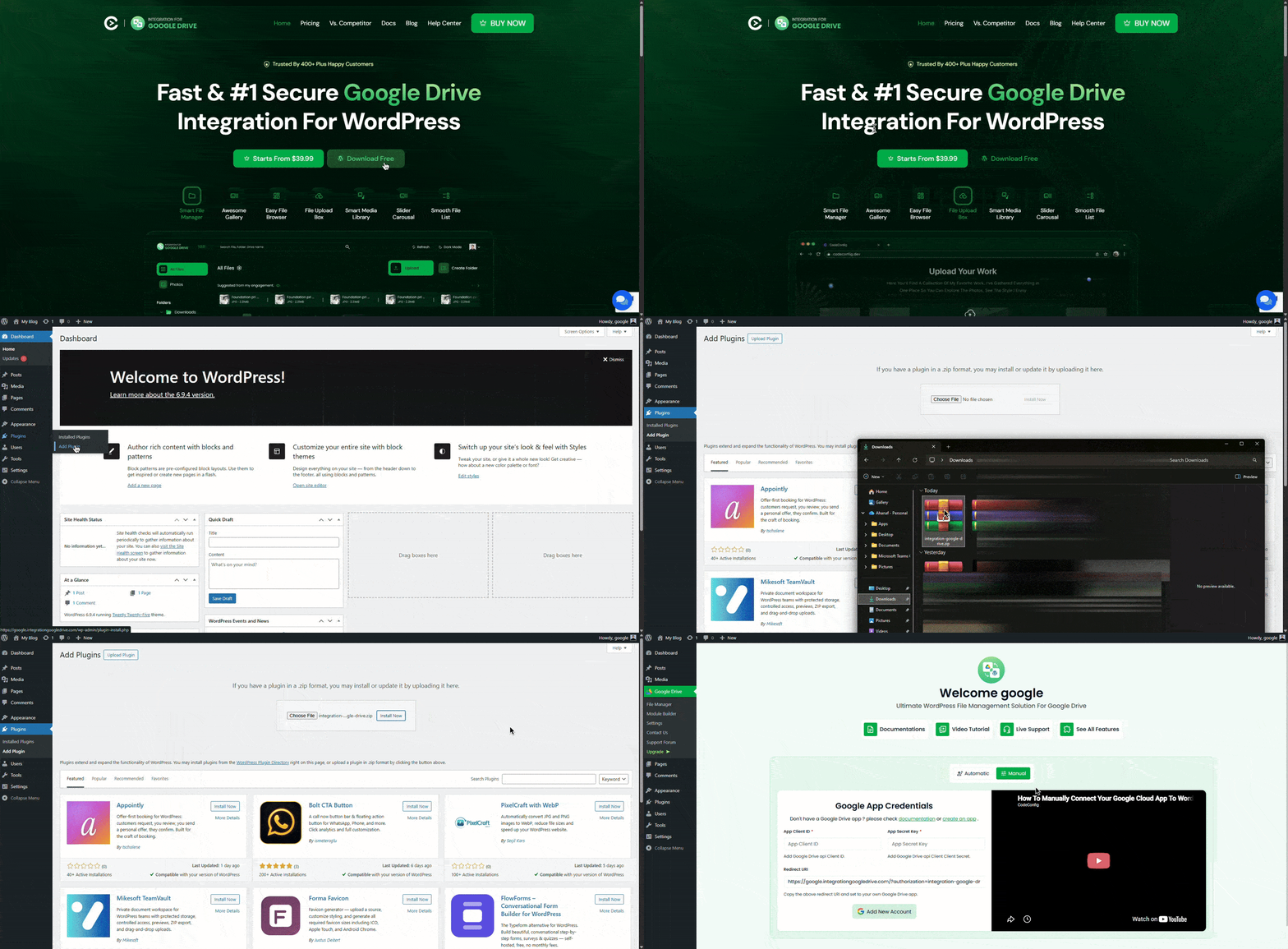
Once it’s active, you’ll see a new plugin panel inside your dashboard
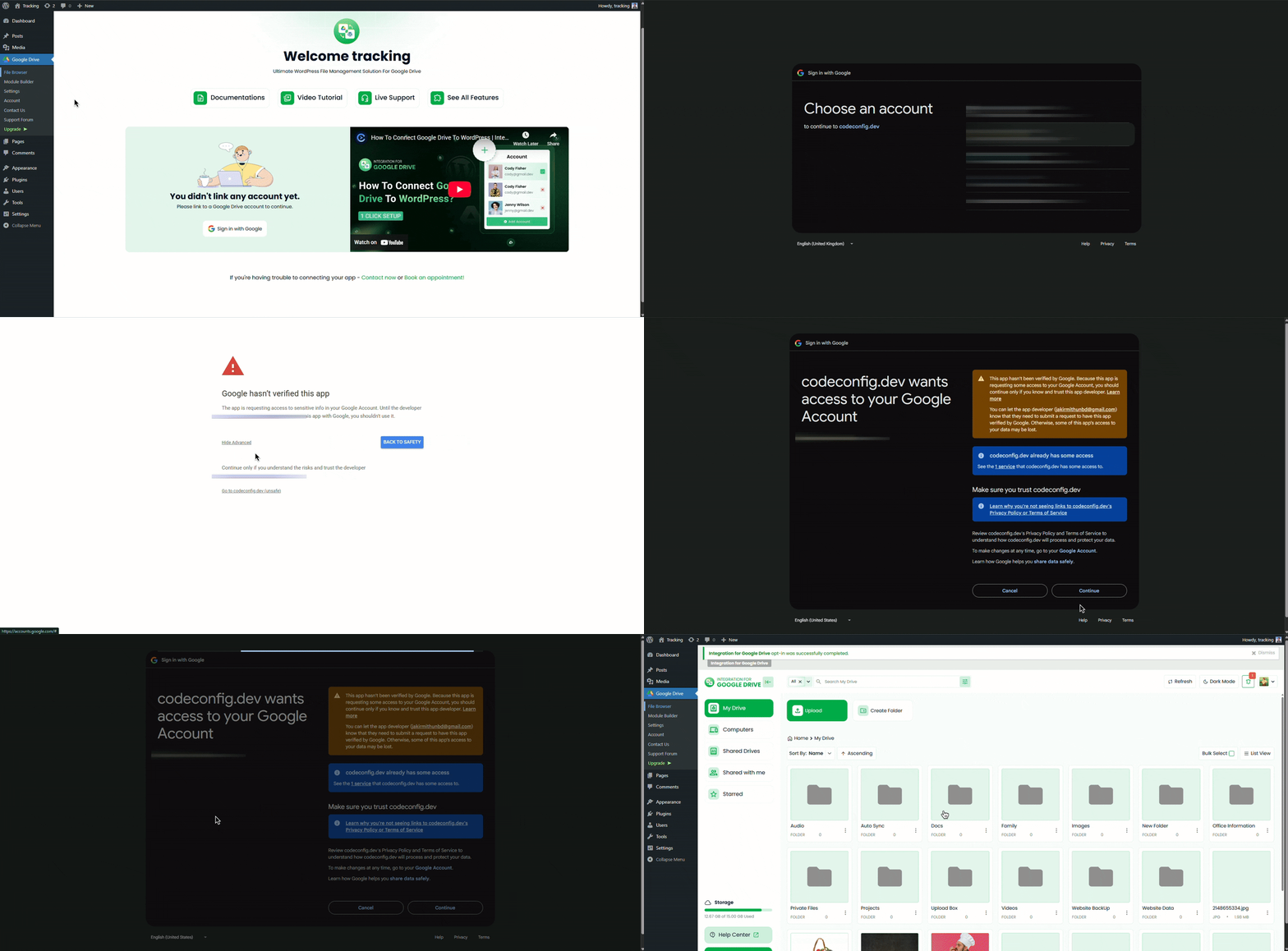
The first step is to link your Google account
- Open the plugin dashboard
- Click the Sign in With Google Button
- A Google OAuth window will appear
- Pick your Google account
- Allow permissions
- You’re connected
You can switch accounts anytime if you use multiple Google Drive profiles
How To Use Integration For Google Drive Plugin
Explore the Plugin Dashboard
Inside the plugin, you’ll find a clean File Manager where you can browse your Drive folders, upload files, rename items, delete old ones, and preview photos and videos. It works like a mini version of Google Drive built inside WordPress, so you don’t need to keep switching tabs.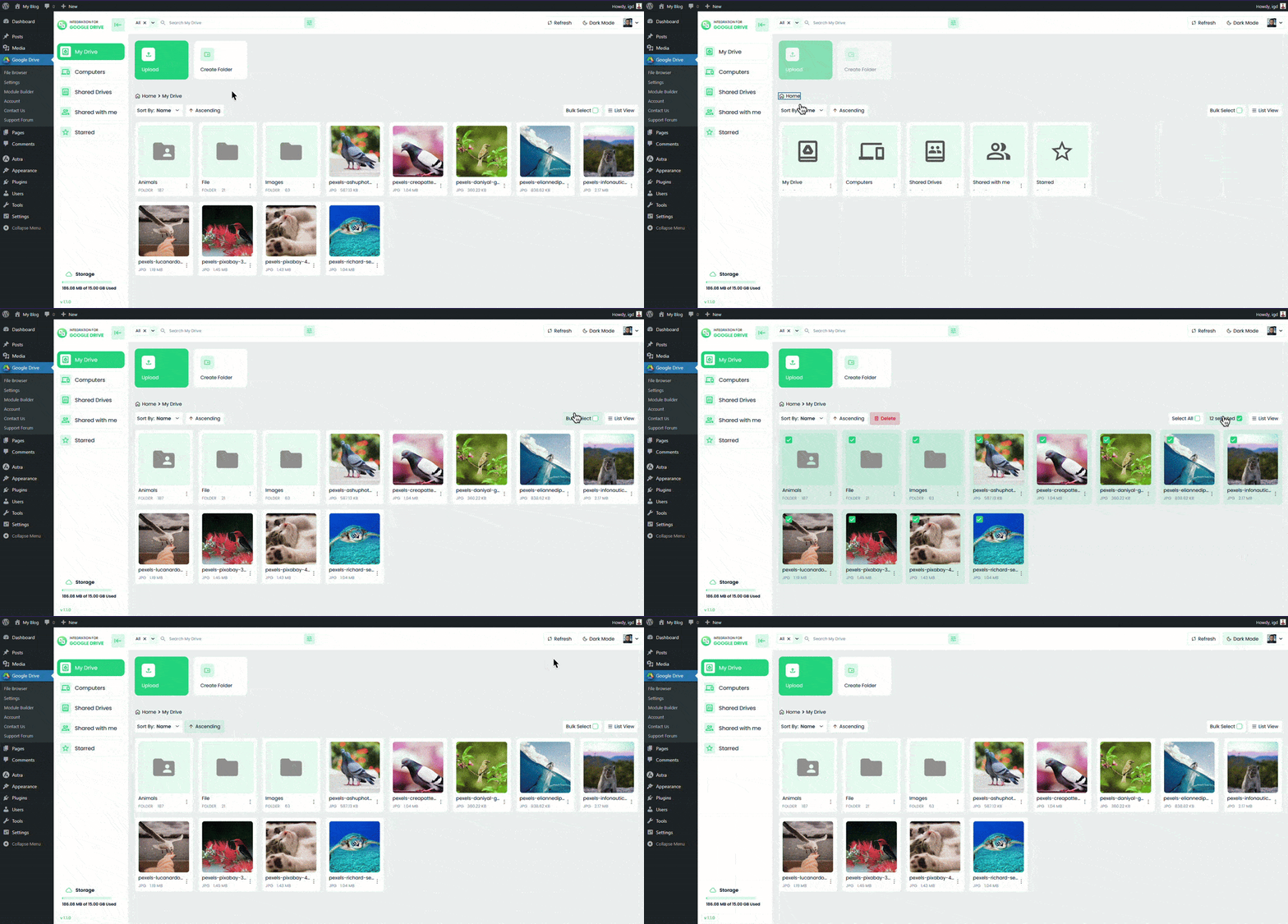
Using Media Library Integration
If you want to use Drive files anywhere WordPress uses the Media Library, enable this from the Integrations tab. After turning it on, you can select Google Drive files from inside the Media Library just like normal uploads.
This means you can use Drive images as featured images, gallery photos, background images in page builders, or anywhere else inside WordPress without storing them on your hosting.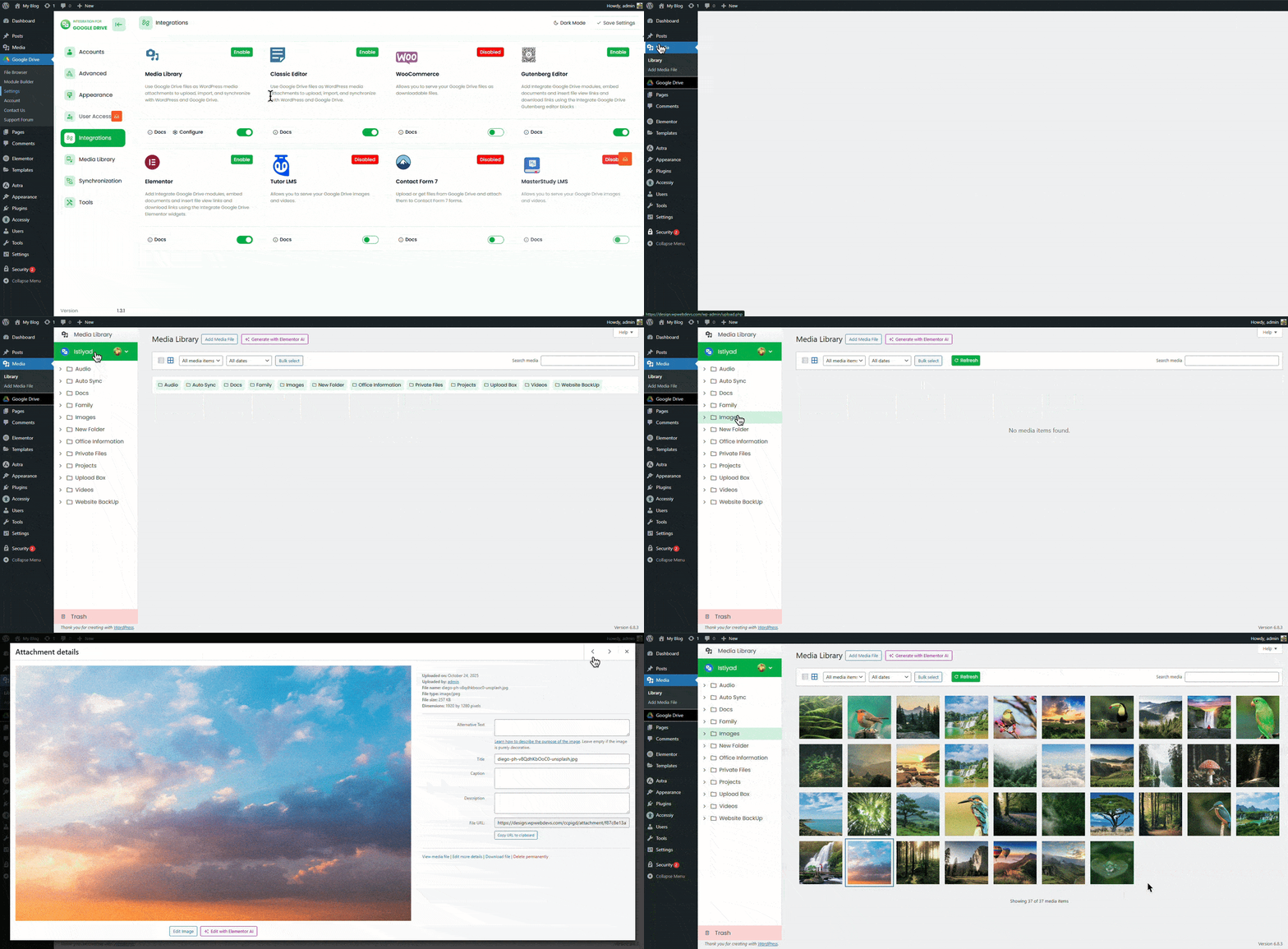
Using Gutenberg Blocks
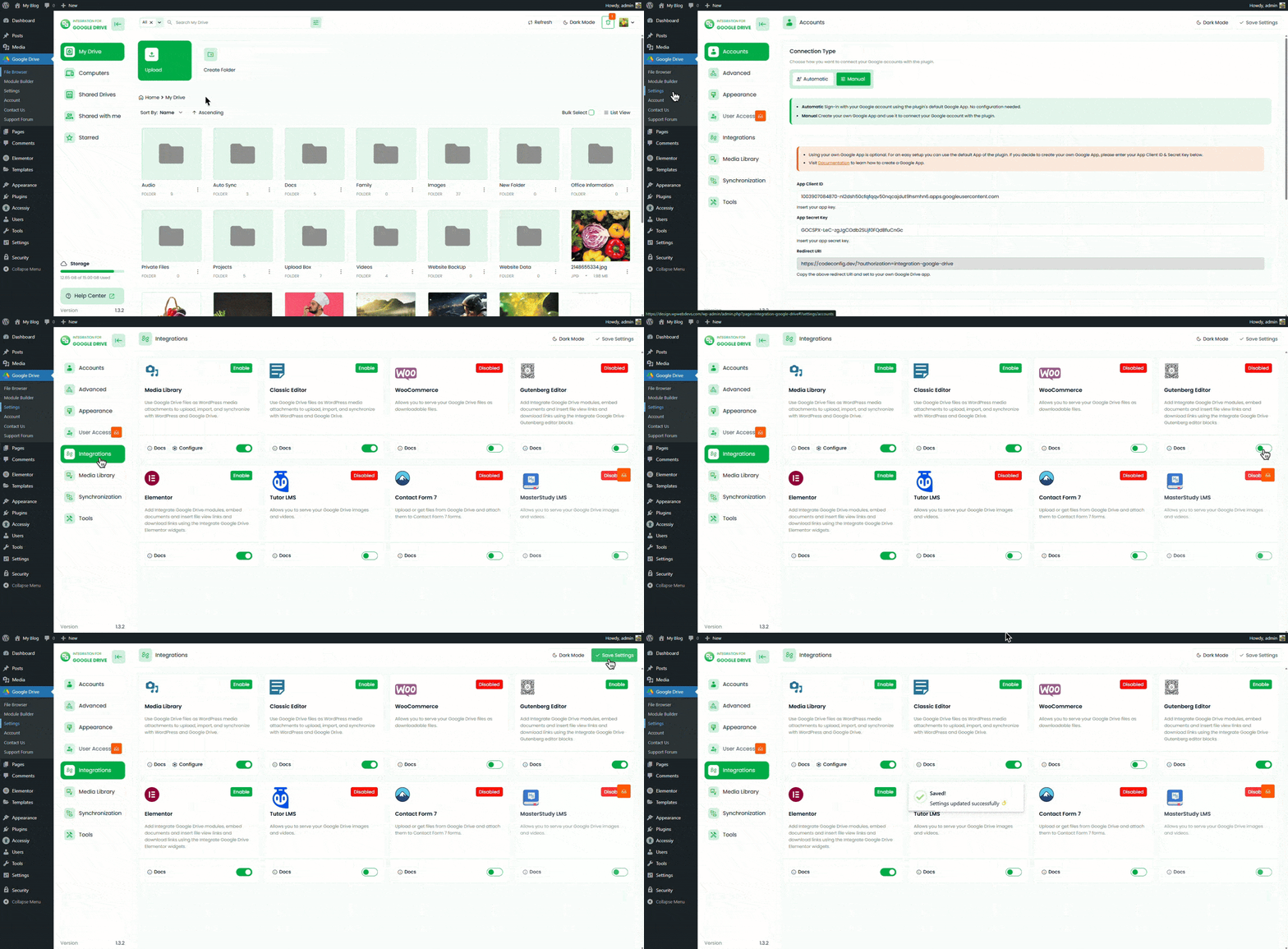
If you write posts or build pages using Gutenberg, this plugin gives you ready blocks for Drive content. Just enable Gutenberg Integration, and you’ll find Google Drive blocks like File Browser, Gallery, Slider Carousel, File List, Media Player, and many more.
- Add a block
- Select your Drive folder or file
- Insert it into your page
It keeps your pages clean and loads everything straight from Drive.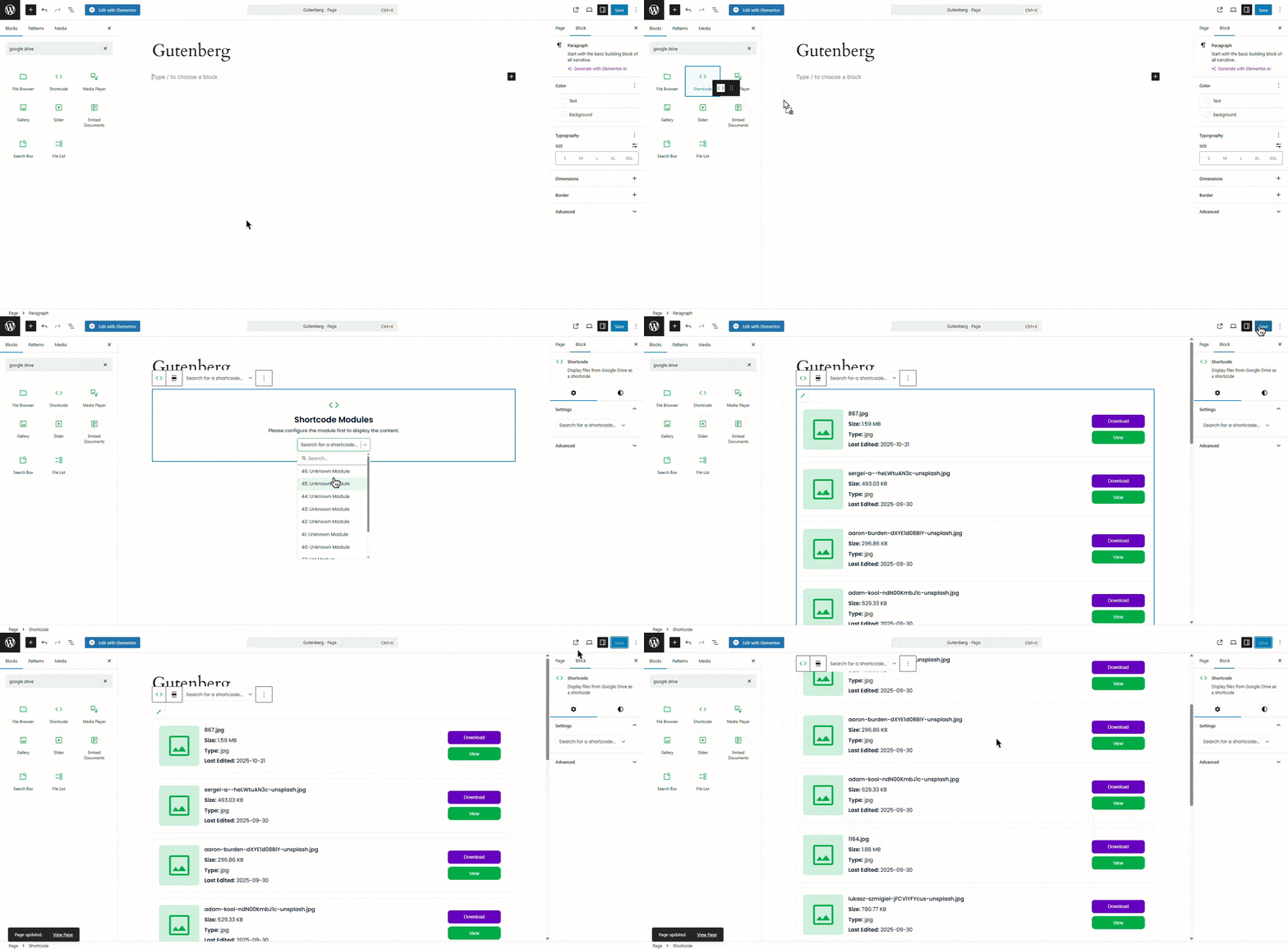
Using Elementor Widgets
If you’re using Elementor, you’ll find dedicated Google Drive widgets once you enable the integration. Drag a widget into your layout, choose your folder or file, and adjust the display settings. It’s quick and fits into any Elementor design.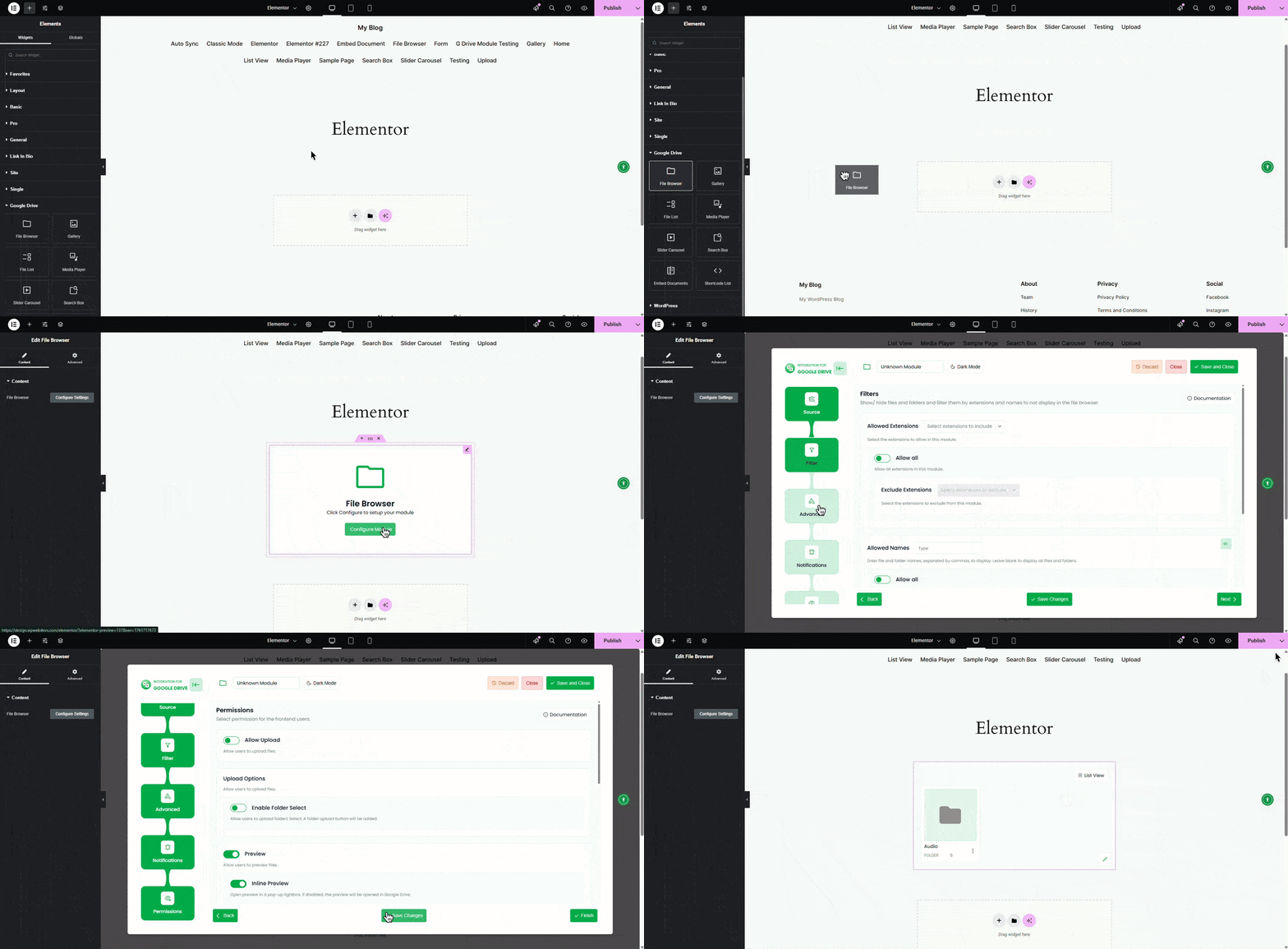
Embedding Google Drive Files Anywhere
The plugin also supports shortcodes so you can embed files in Classic Editor, page builders, or widget areas. You can generate shortcodes for galleries, video players, folders, or single files.
Just paste the shortcode where you want the file to appear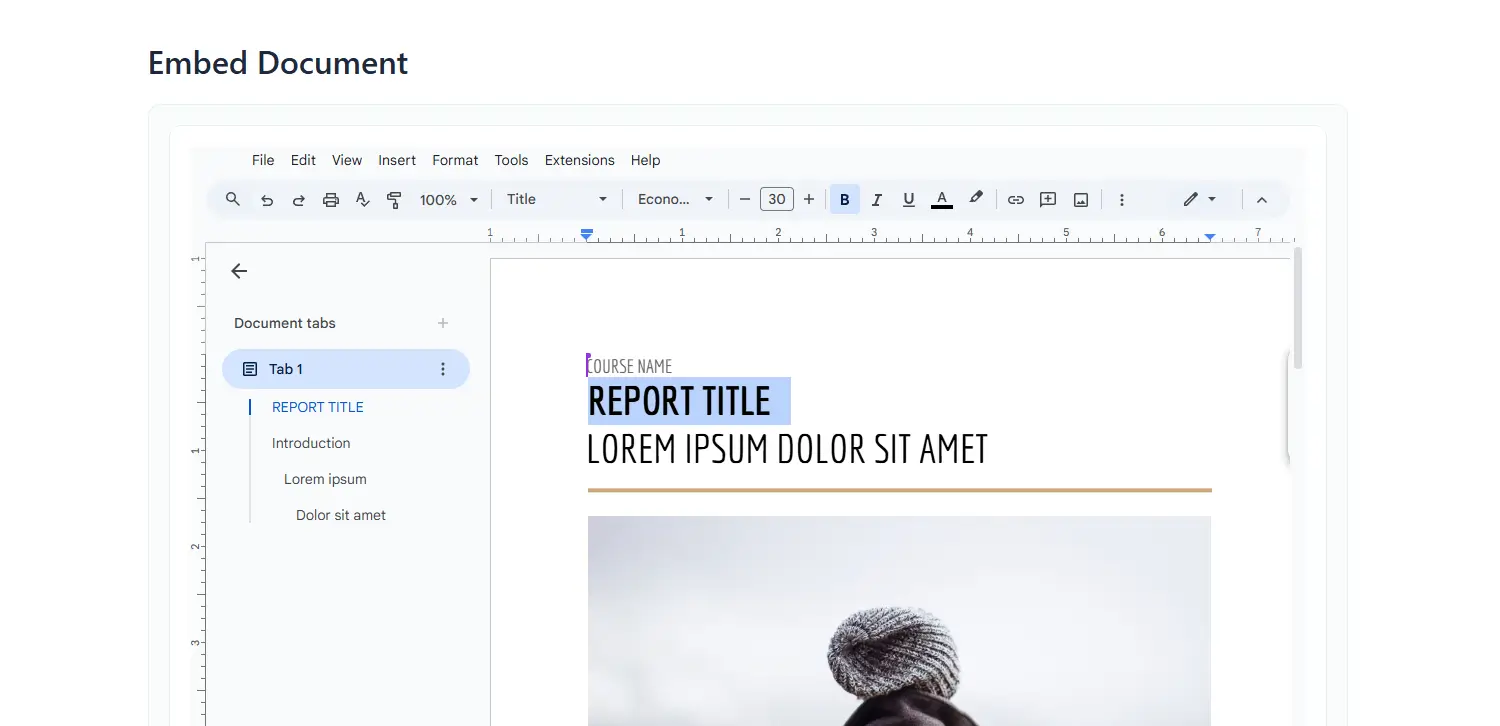
Advanced Features To Explore
- File preview inside WordPress
- Search inside Drive folders
- Video and audio streaming
- Control over download permissions
- Public or private sharing modes
These features make it flexible enough for both small sites and large projects
Real Use Cases
- Photographers displaying Google Drive galleries
- LMS owners streaming course videos from Drive
- Agencies sharing work files and resources
- Bloggers reducing media storage and page weight
- Online stores selling products from Google Drive
If your website uses a lot of files, this plugin keeps everything light and easy
Performance Benefits
Using Google Drive files directly helps your site run faster. Your hosting stays clean, your server handles less load, and your media is delivered through Google’s fast network. There’s no extra setup required to get the speed benefit. Search engines can index public Google Drive files if you want, and if you don’t, you can protect them. This also means it can work as a solid alternative to a traditional CDN.
Conclusion
Integration for Google Drive makes your WordPress workflow smoother and more efficient. It’s simple to set up, easy to use, and powerful enough for anyone handling lots of media. Once you connect your Google Drive, you can manage everything in one place and keep your site running fast













Written By
Ahanaf Istiyad
Hey, I'm Istiyad! As a UI/UX and product designer, I’m passionate about building sleek, user-friendly experiences that make navigating digital products feel effortless and fun!
Express Your Opinion