


- WordPress
The Importance of WordPress Security: Developer Guide, Hardening & Checklist
Saiful Islam5 min read
Loading page…
Loading page…
Loading page…
If you’ve ever had a WordPress site crash, gotten hit by a bad update, or accidentally deleted the wrong file, you know the panic that follows. Hours of work — gone in seconds. The fix isn’t complicated: back up your entire site automatically, store the backup somewhere safe (off your server), and be able to
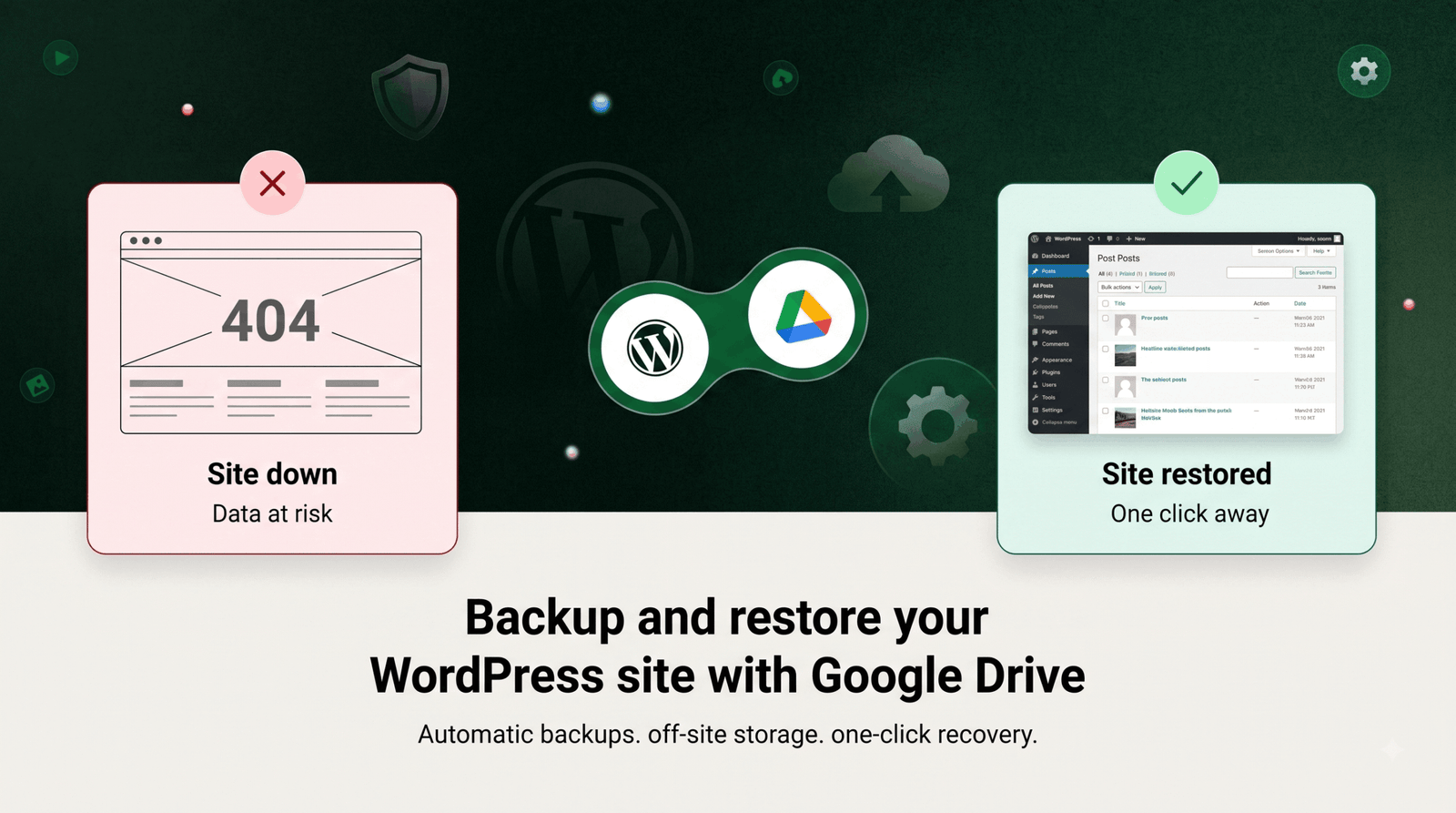
If you’ve ever had a WordPress site crash, gotten hit by a bad update, or accidentally deleted the wrong file, you know the panic that follows. Hours of work — gone in seconds.
The fix isn’t complicated: back up your entire site automatically, store the backup somewhere safe (off your server), and be able to restore it in one click when things go wrong. In this guide, we’ll show you exactly how to back up and restore your WordPress site using Google Drive, so you’re covered no matter what happens.
Instead of juggling multiple backup plugins, hoping your cron jobs run, or storing backups on the same server as your live site, this plugin gives you a single, reliable system for full-site protection.
It’s a beginner-friendly way to make sure a single bad update never costs you months of work.
Follow these steps to set up full backup protection in minutes.
Once connected, your Google Drive account is ready to receive backups directly from your WordPress dashboard.
Go to Integration for Google Drive → Backups → New Backup. From here you choose exactly what to include:
| Component | What It Covers |
|---|---|
| Database | Posts, pages, comments, settings, and user data |
| Plugins | Every plugin file and configuration |
| Themes | Your active theme and any custom themes |
| Media / Uploads | Images, videos, documents in your uploads folder |
| Languages & Must-Use Plugins | Translation files and mu-plugins |
Name your backup, pick what to include, and choose where to save it — local server, Google Drive, or both. Hit Create and watch the progress in real time.
No more forgetting to back up. Head to Schedules and configure:
Once set, your backups run in the background without you having to think about it.
Something went wrong? Head to All Backups or Migration, pick the backup you want, and restore. You can choose a performance level based on how much load your server can handle:
The restore process shows live status updates — downloading, validating, DB import, files, replace, and finalize — so you always know what’s happening.
Moving hosts? Use the Transfer feature to export a backup from one site and import it on another. There’s no need for FTP credentials or manual file transfers — just export, upload, and restore on the new site.
These benefits make automated, off-site backups essential for WooCommerce stores, LMS platforms, agencies managing multiple client sites, bloggers, and developers spinning up staging environments.
The most common issue is a failed or interrupted upload to Google Drive — this is usually caused by an expired connection. Reconnect your Google account under the Google Drive settings tab and try again. If a restore stalls partway through, switch to the Safe performance level, which uses smaller chunks and is gentler on limited server resources. For missing backups, check that auto-upload is enabled under Schedules. If problems continue, check the documentation or contact support.
A website backup isn’t optional — it’s essential. One bad update, one failed plugin, or one moment of human error can undo months of work. With the Integration for Google Drive Backup & Restore feature, protecting your site takes seconds, backups live safely off-site on Google Drive, and restoring is one click away.
Have questions about setting this up? Feel free to drop a comment below — happy to help!
This post is by Jakir, a member of the CodeConfig team who is always working to find solutions for our users and improve our services.
Thank you for reading and for your kind words and good wishes for us. We truly appreciate your support! ❤️
Whether you're just getting started or scaling fast, we've got you covered. Access helpful guidance.


