

- Release
- WordPress
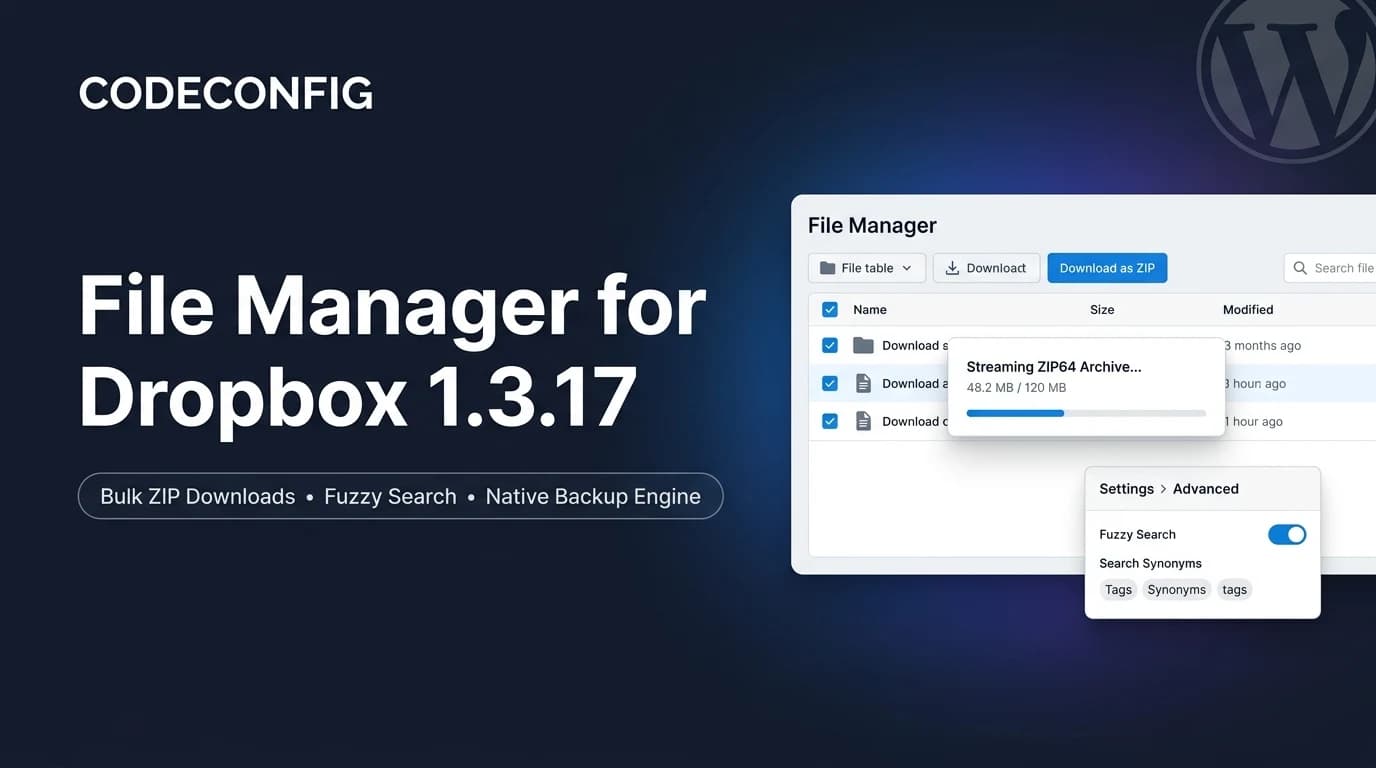
File Manager for Dropbox 1.3.18 Released – Gallery Bulk ZIP Downloads
Tanin Ahmed6 min read
Loading page…
Loading page…
Loading page…
Learn how to Embed Dropbox Files Into Elementor to solve common issues like file sharing, updating content, and improving website speed and user experience
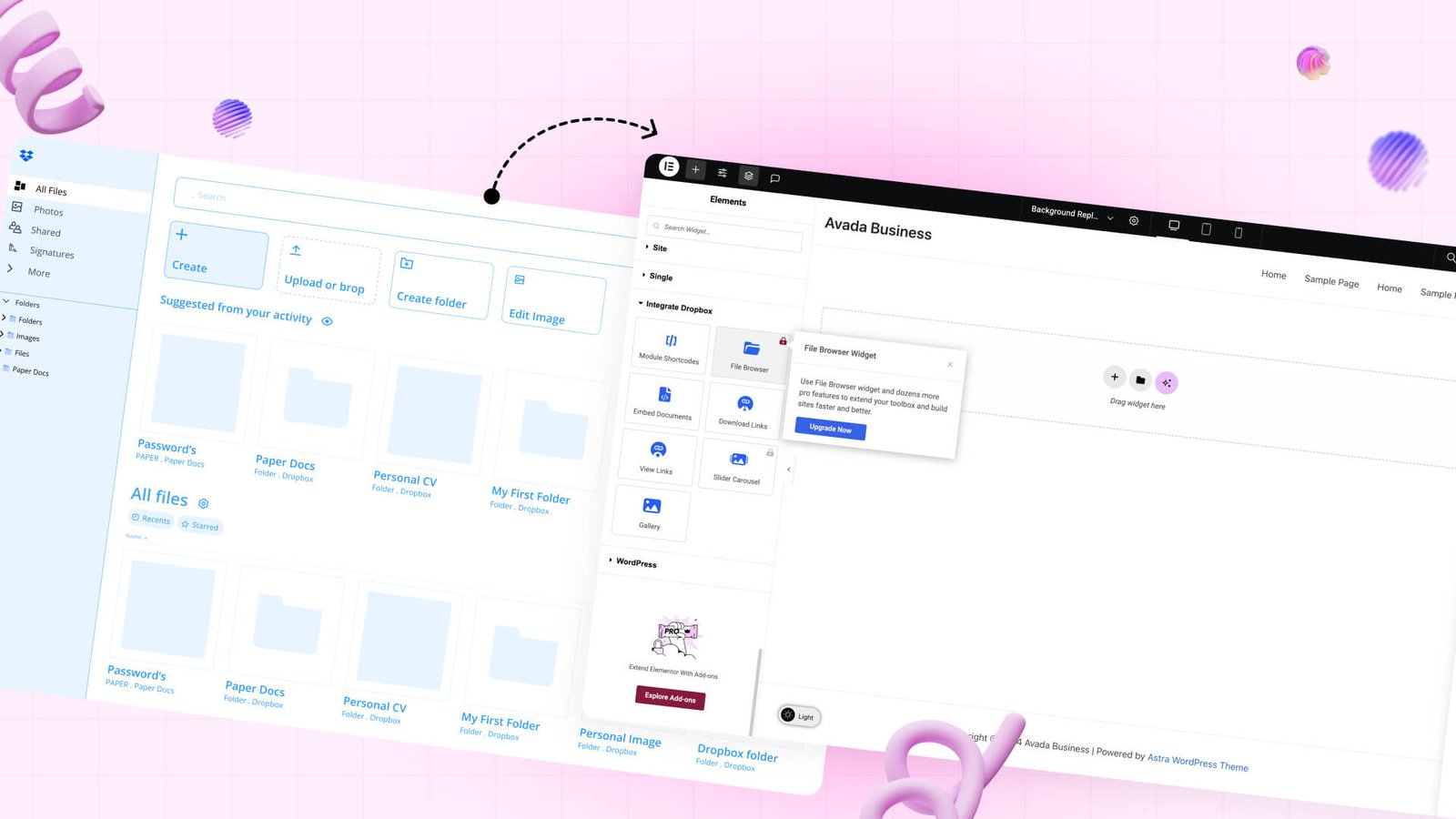
If you’re looking for a solution to the question of how to embed Dropbox files into Elementor, then you’re in the right place. Today, I’ll show you how easily you can embed your Dropbox files inside Elementor.
We’ll use the #1 Dropbox plugin for WordPress called File Manager for Dropbox. This plugin doesn’t just embed files in the Elementor editor. It lets you use your Dropbox files anywhere on your WordPress site, you can create beautiful galleries, smooth sliders, and a full file browser. Sounds good, right? So let’s dive in!

Using Dropbox with Elementor makes your website easier to manage and more useful for your visitors. It saves you time, keeps your site fast, and helps you share files in a smart way. If you want to make this even simpler, Try the File Manager for Dropbox plugin for WordPress. It’s the easiest way to get started.
It makes your site easier to manage, saves time, and keeps everything fast
Your files stay in Dropbox, so your hosting space stays free
Yes, big files like videos or PDFs load from Dropbox, so your site stays light
Yes, you can add images, videos, and documents directly without worrying about storage
Yes, if you change a file in Dropbox, it updates on your site automatically
You can control who can view or download each file, so it stays private and safe
Use the File Manager for Dropbox plugin for WordPress to connect Dropbox and Elementor in minutes
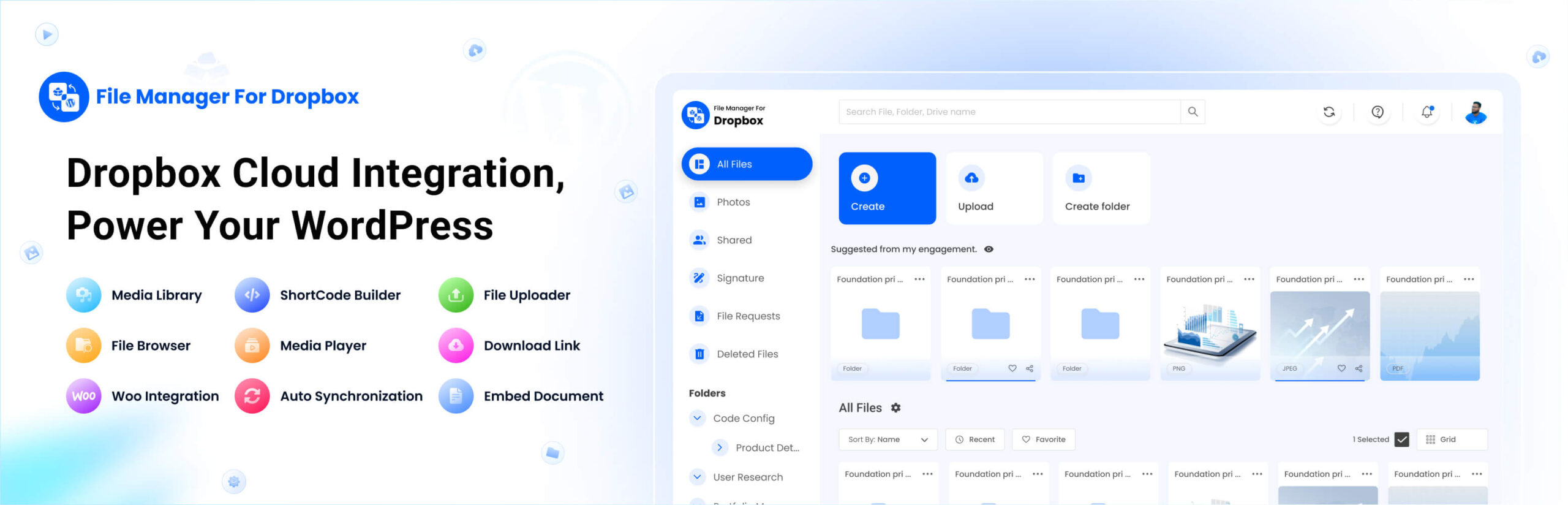
Introducing the File Manager for Dropbox plugin for WordPress (formerly known as Integrate Dropbox) is the perfect tool for seamless Dropbox integration with Elementor. This plugin offers an array of features, including file browsers, media players, and gallery views, all customizable within Elementor.
It connects your WordPress site to Dropbox with minimal setup. It allows you to manage your files right from your WordPress dashboard. This plugin allows you to sync your media library with your Dropbox account, so you spend less time re-uploading files and more time creating quality content.
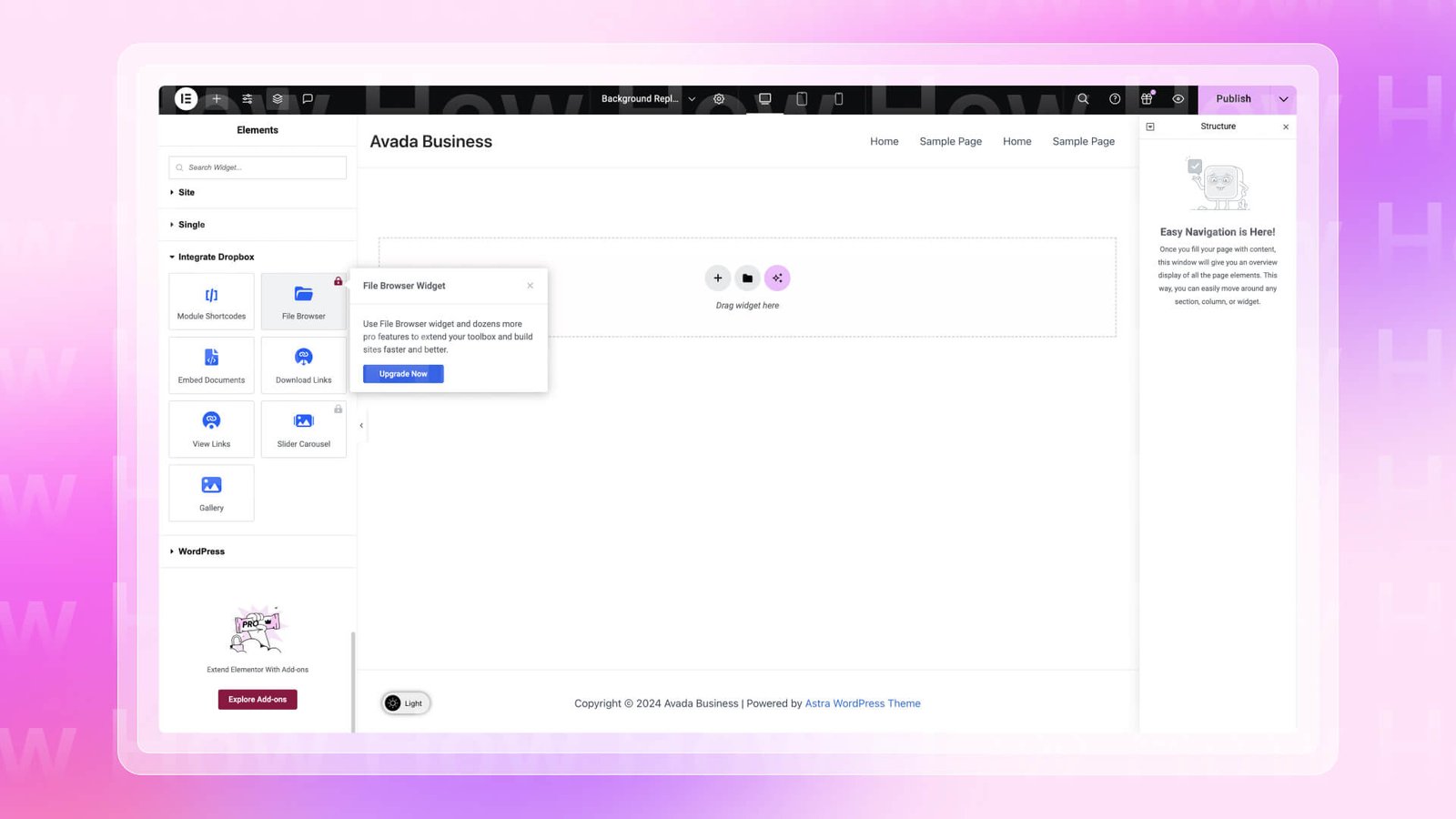
File Manager for Dropbox plugin (formerly Integrate Dropbox) provides Elementor Dropbox widgets that allow you to easily access and display Dropbox files on your website.
Prerequisites:
Go to your WordPress left sidebar, click on Plugins > Add New > Type File Manager For Dropbox in the search bar > Install and Activate File Manager for Dropbox.
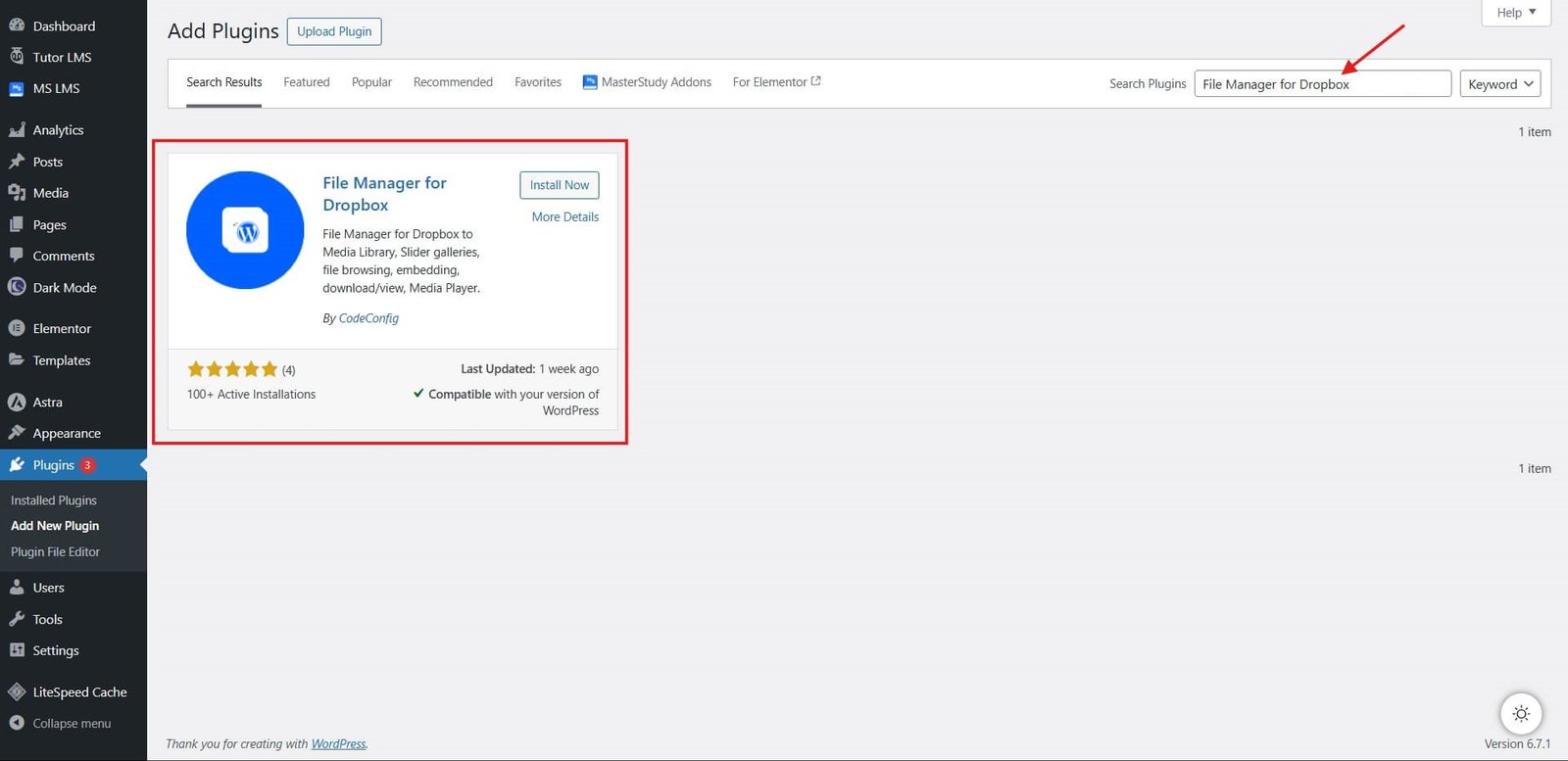
Important: When the plugin is installed then follow this doc to connect Dropbox with WordPress:
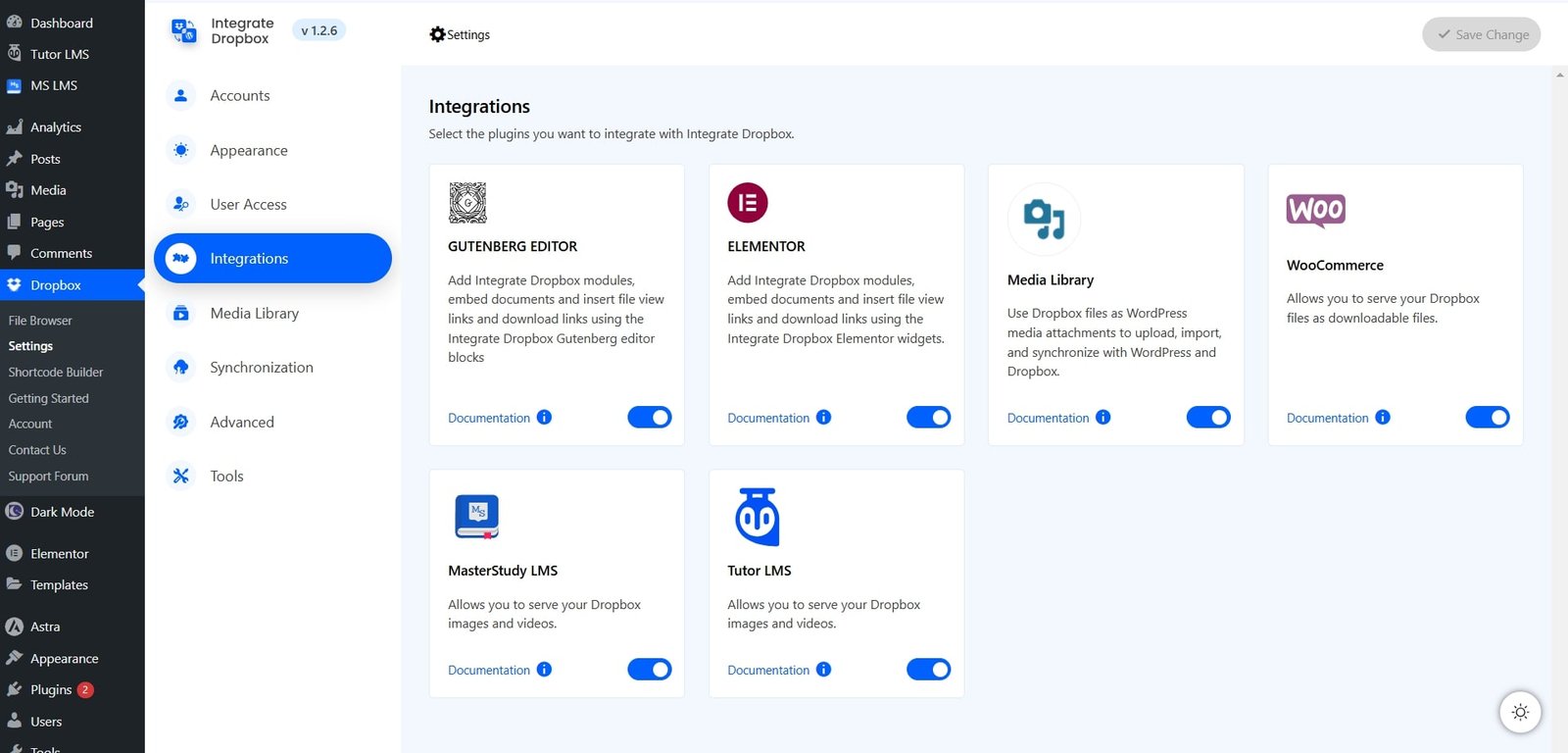
Make sure Elementor is enabled from File Manager for Dropbox plugin (formerly Integrate Dropbox) Settings > Integrations > Checked Elementor > Save Change.
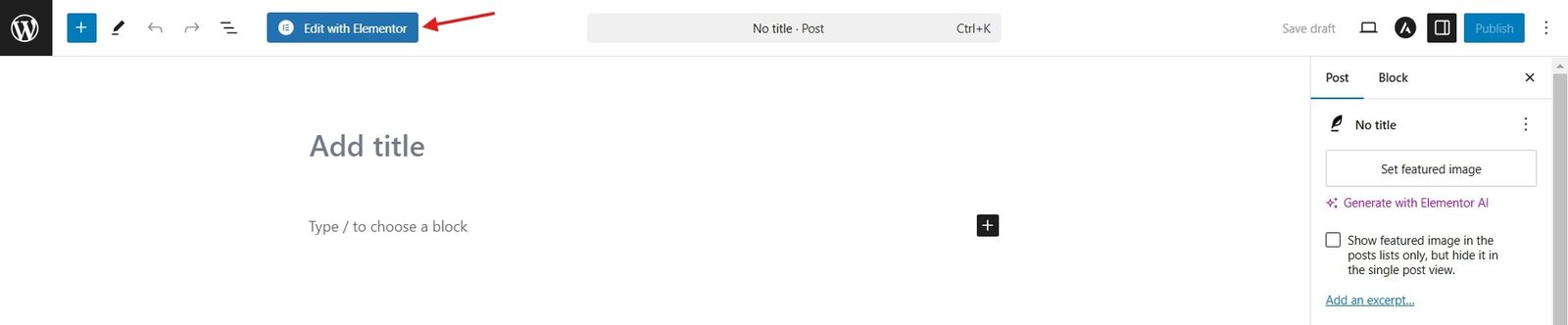
Create a new page or edit an existing one where you want to add modules. Then, click “Edit with Elementor” to start editing.
Open the Widgets Panel on the left sidebar, where all the Elementor widgets are listed. Search for “Dropbox”, click on the Embed Document widget, drag it, and drop it into the section where you want to display your files.
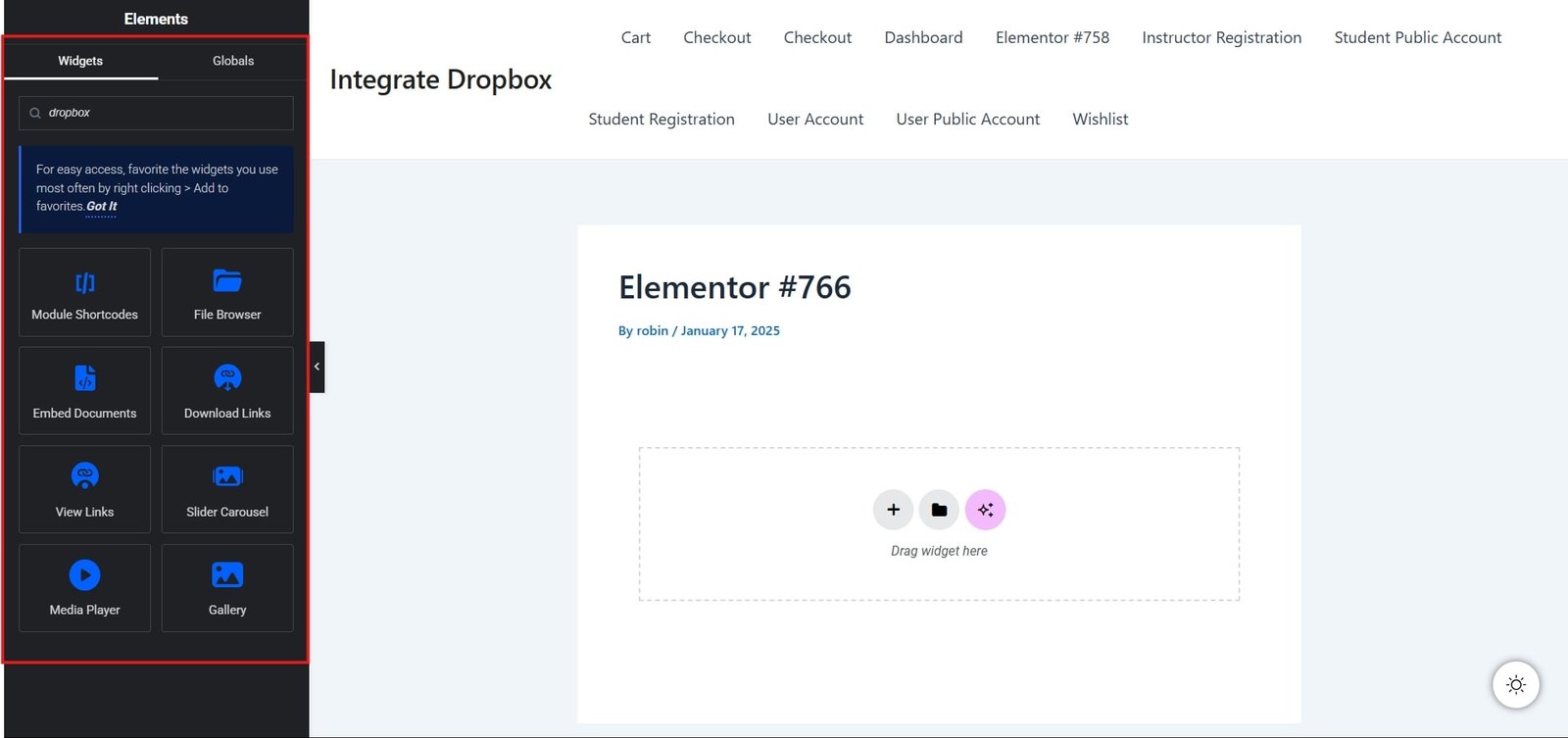
Display Dropbox-hosted documents directly on your site, making it easy for visitors to view, read, or even edit files like PDFs, presentations, or spreadsheets without downloading.
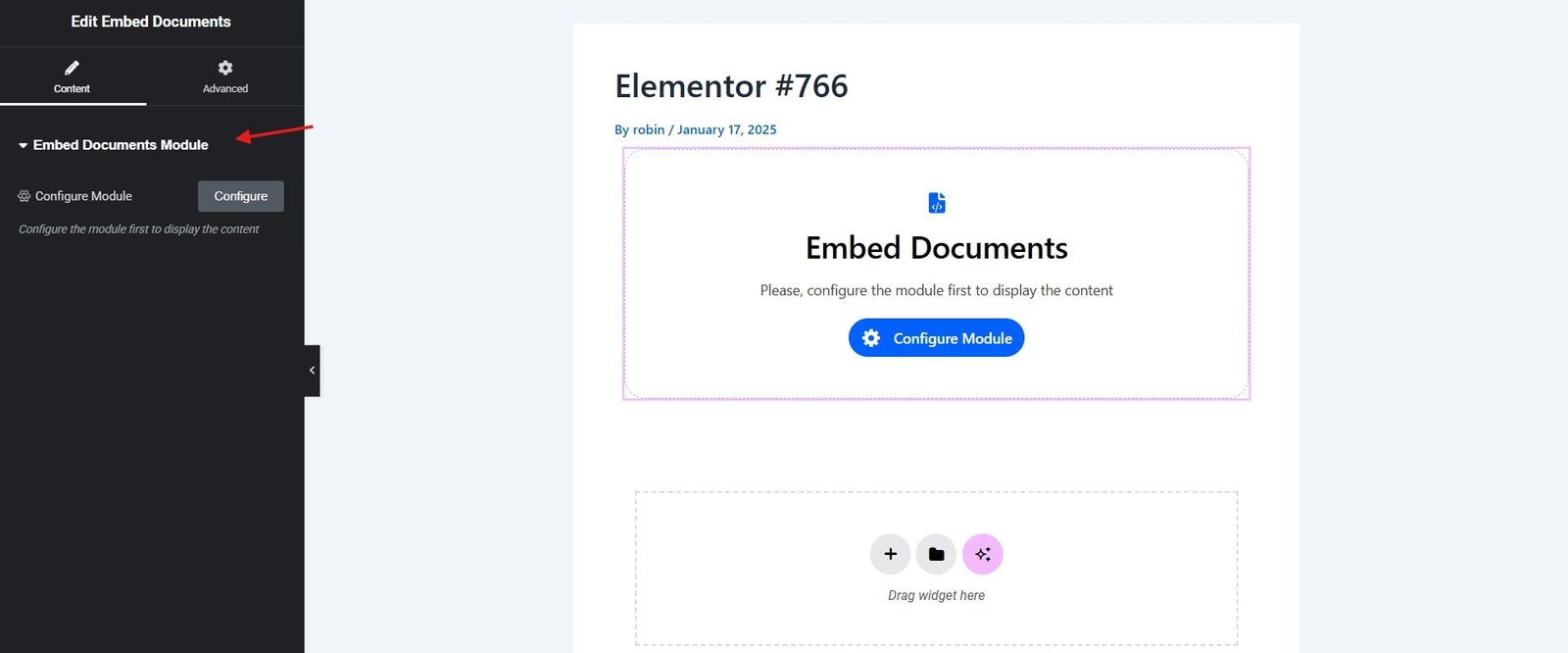
How to Use:
Search for Embed Documents, drag it and drop it in your specific area > Then click the Configure button > Select Dropbox documents (PDFs, Word, Excel, etc.) > Choose read-only or editable mode > Configure display settings as needed > Publish/Update the post or page.
Easily insert and display Dropbox files, folders, or widgets anywhere on your website using shortcodes—no coding required. Perfect for adding dynamic content within posts, pages, or sidebars effortlessly.
How to Use:
Create a New Page/Post or head over to your Existing Post/Page where you want to display modules > toggle to Widgets Inserter > search for Shortcodes Module, drag it and drop it in your specific area > Enter the shortcode for the Dropbox file, folder, or widget you want to display > Configure settings as needed > Publish/Update the post or page.
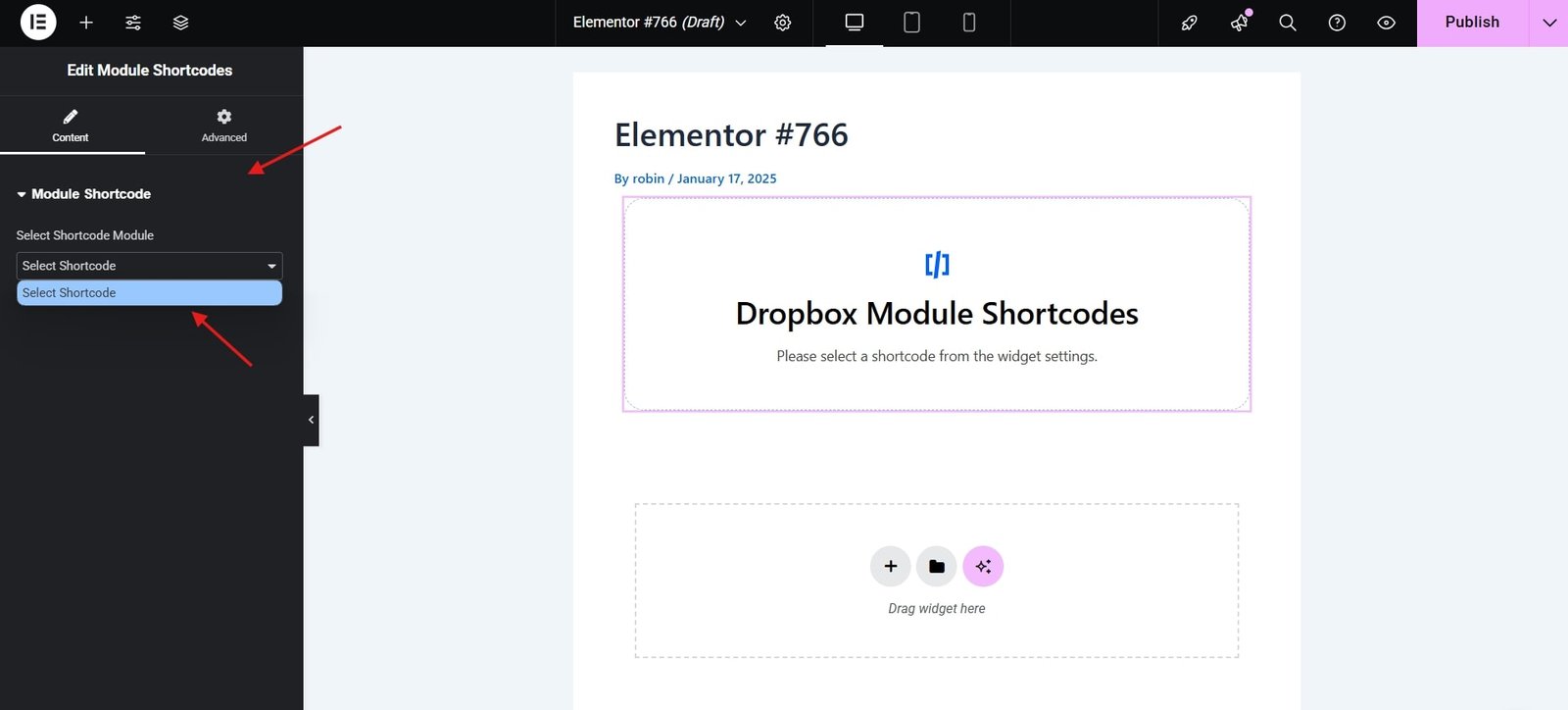
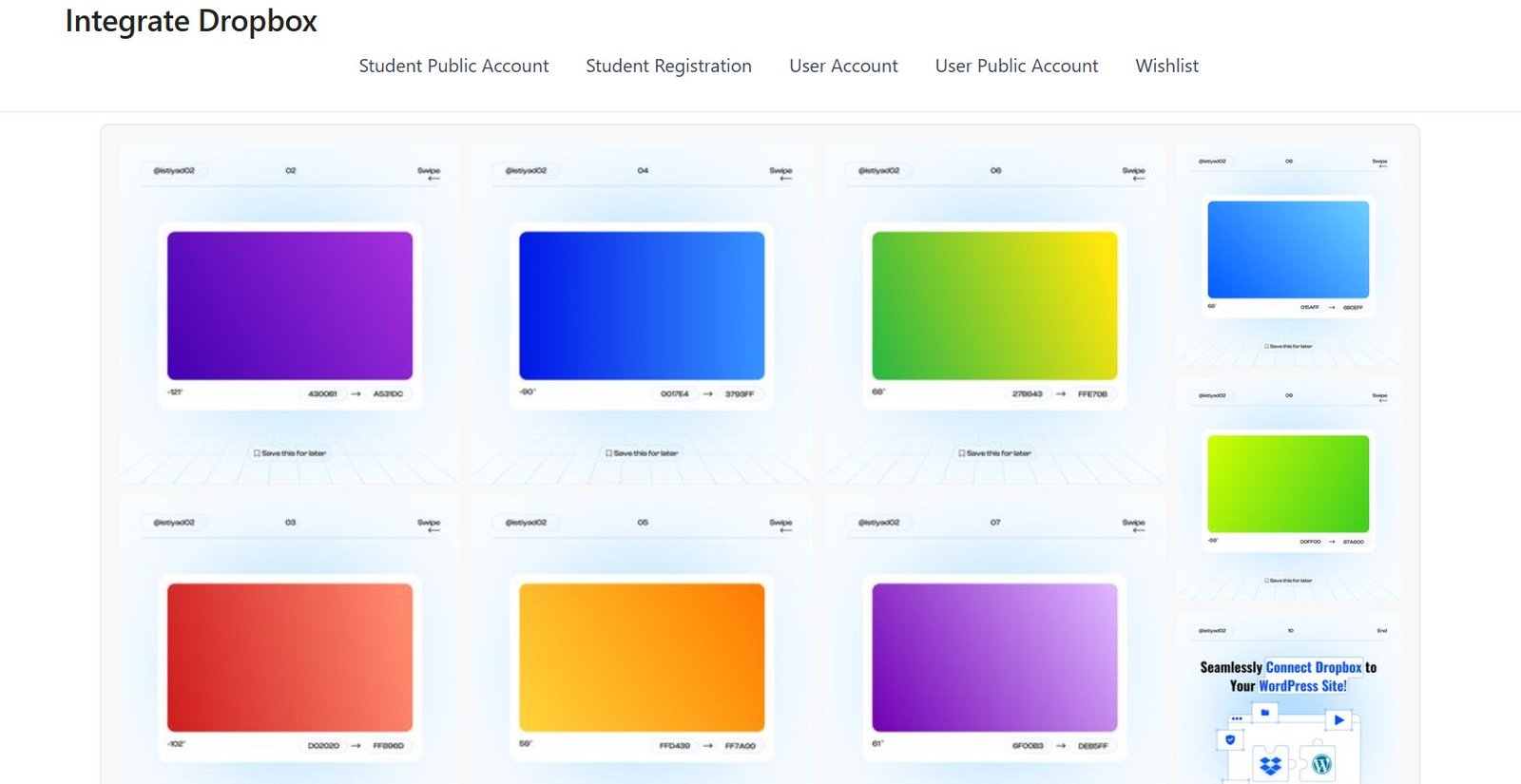
Now, simply use one of these shortcode, configure the settings as your need, and you’ll find the perfect result for your website.
Let visitors browse selected Dropbox files and folders directly on your website, ensuring easy access to organized content without needing to download files manually. Perfect for sharing documents, resources, or collaborative files effortlessly.
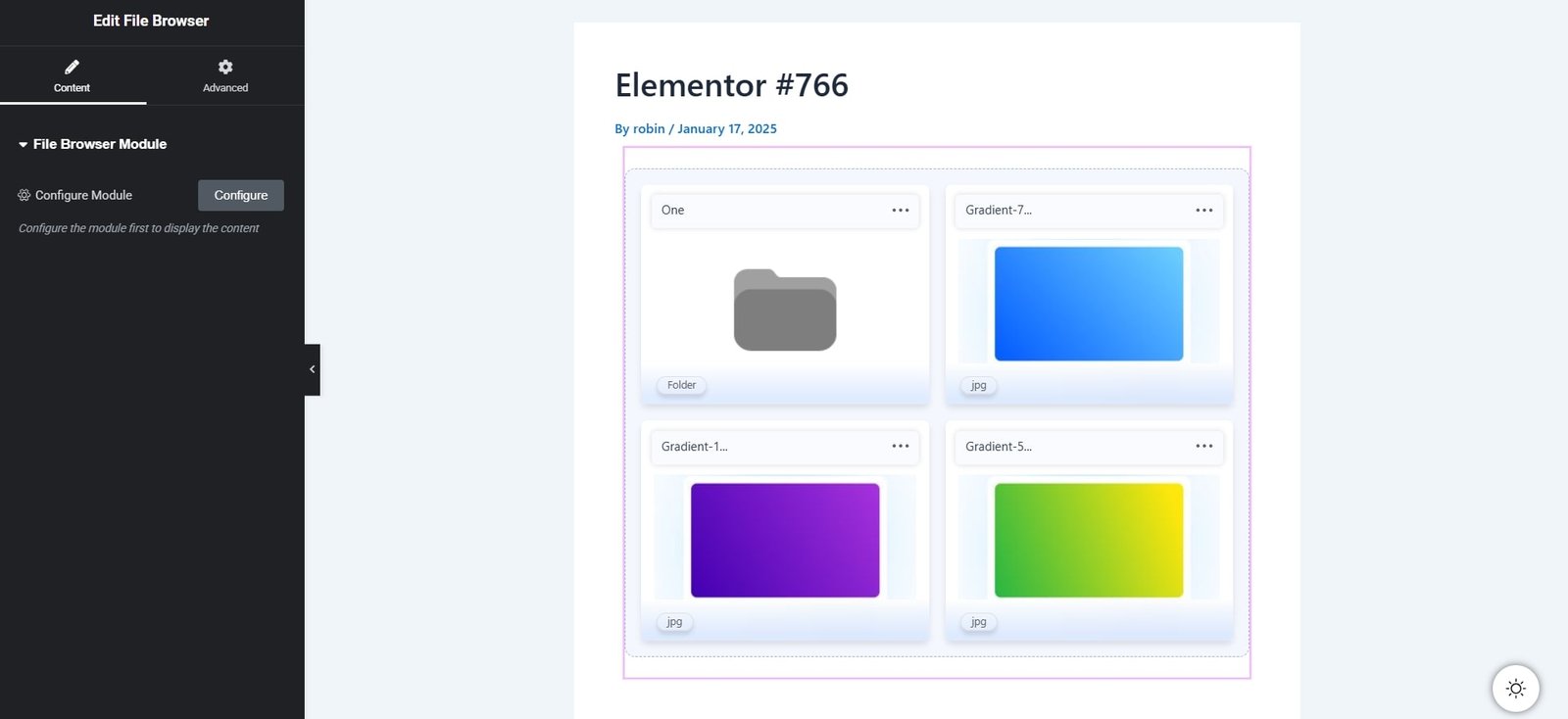
How to Use:
Create a New Page/Post or head over to your Existing Post/Page where you want to display modules > toggle to Widgets Inserter > search for File Browser, drag it and drop it in your specific area > Select the Dropbox folder you want to display > Configure access permissions and display settings as needed > Publish/Update the post or page.
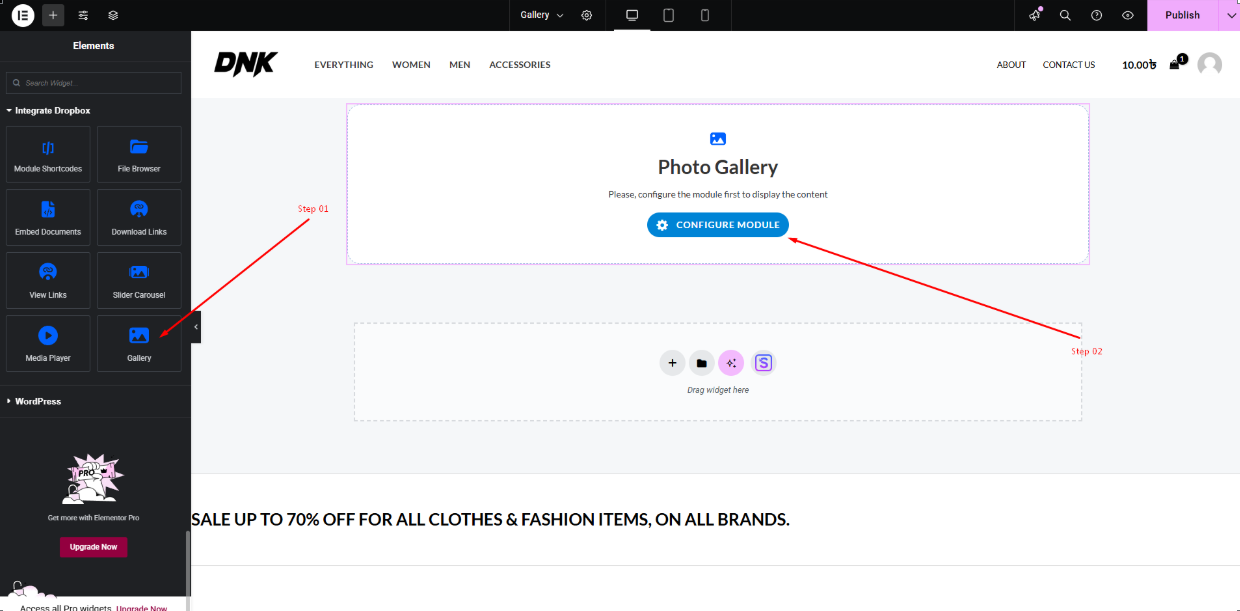
Automatic syncing ensures your website always displays the most up-to-date Dropbox files. Elementor offers an easy way to sync files once you configure your Dropbox account with File Manager for Dropbox.
Auto-Sync feature streamlines content management for Elementor website owners by automatically updating their galleries or file displays whenever new files are added to the selected Dropbox folder.
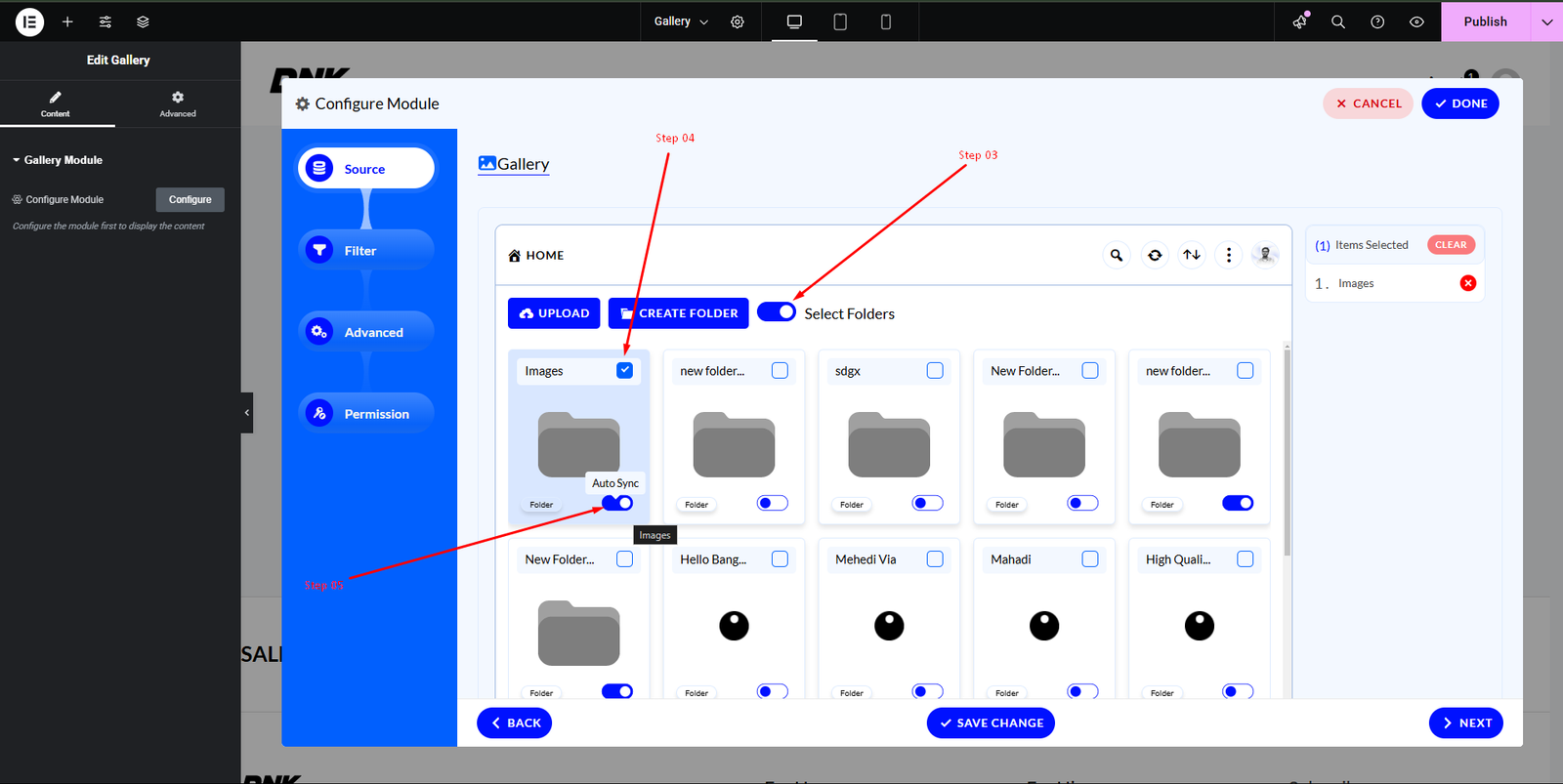
Allow users to instantly download Dropbox files with a single click, making it perfect for sharing eBooks, reports, software, or any downloadable resource.
How to Use:
Create a New Page/Post or head over to your Existing Post/Page where you want to display modules > toggle to Widgets Inserter > search for Download Links, drag it and drop it in your specific area > Select the Dropbox file you want to provide as a download > Configure button text and styling > Publish/Update the post or page.
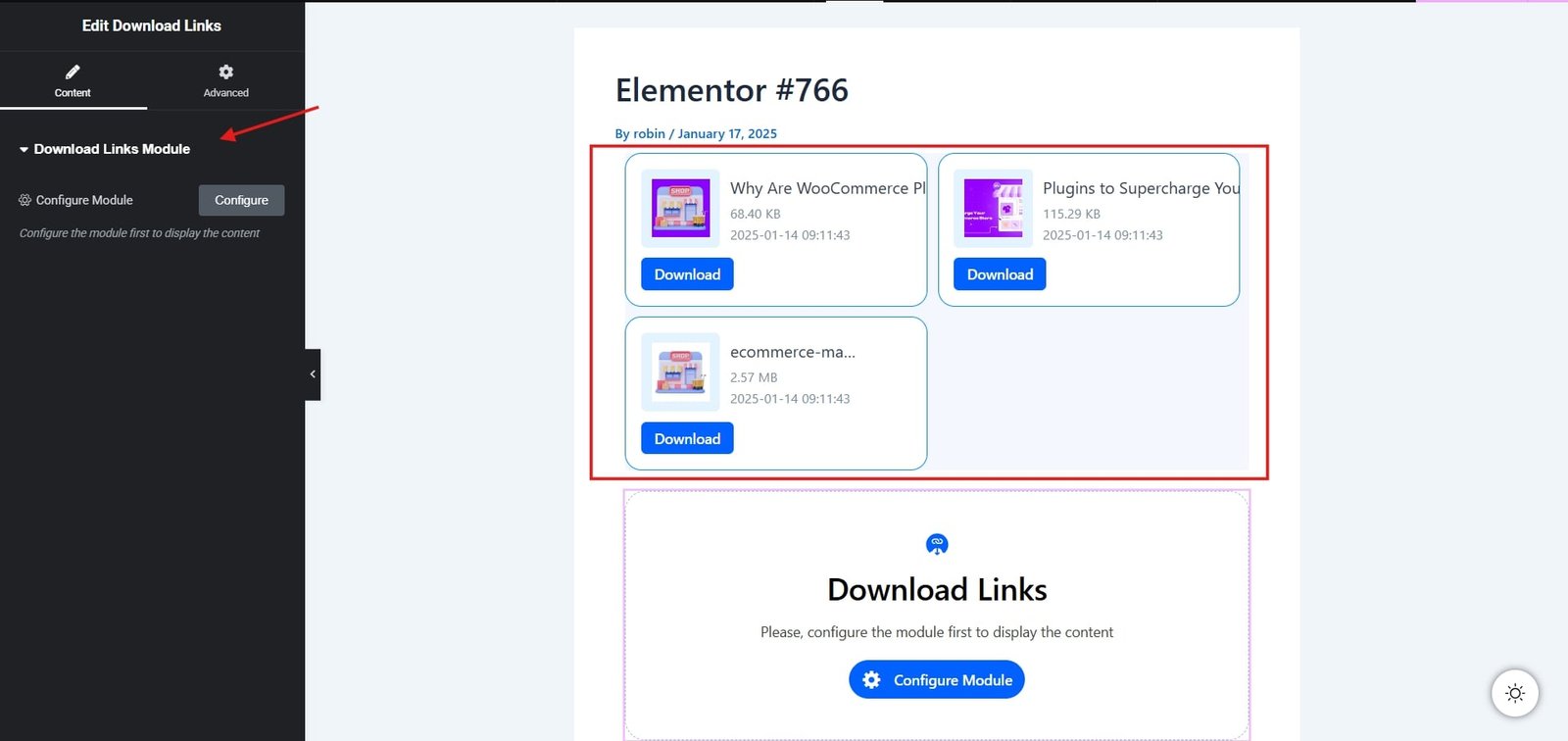
Play audio and video files stored in Dropbox directly on your site, eliminating the need for downloads. Perfect for music, podcasts, video content, or online courses.
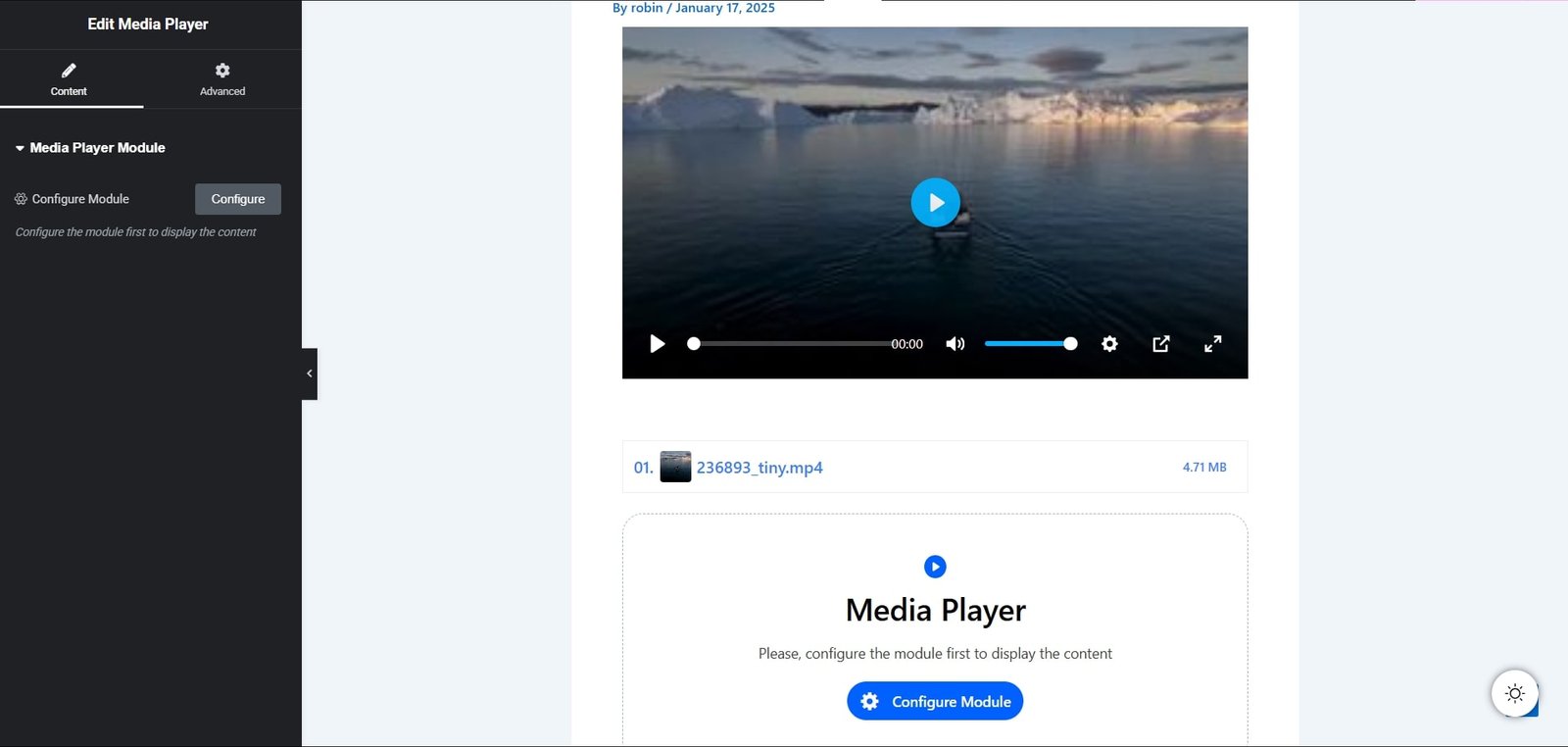
How to Use:
Create a New Page/Post or head over to your Existing Post/Page where you want to display modules > toggle to Widgets Inserter > search for Media Player, drag it and drop it in your specific area > Select audio/video files from Dropbox > Configure player controls, autoplay, and loop settings as needed > Publish/Update the post or page.
By integrating Dropbox with Elementor, you can effortlessly share and manage your files, whether it’s documents, images, or videos. With the right plugins and settings, your website can have a seamless and professional file-sharing experience.
This post is by Jakir, a member of the CodeConfig team who is always working to find solutions for our users and improve our services.
Thank you for reading and for your kind words and good wishes for us. We truly appreciate your support! ❤️
Whether you're just getting started or scaling fast, we've got you covered. Access helpful guidance.

