How to Connect Mailchimp to WP Media Player: 4 Easy Steps
Learning how to connect Mailchimp to WP Media Player enables your WordPress site to route video viewers straight into your email marketing funnel. Instead of losing potential subscribers after a video ends, an interactive email capture overlay lets you gather viewer emails at high-intent moments during playback.
With WP Media Player Pro, leads sync directly to your chosen Mailchimp audience list with first names and email addresses mapped accurately. Every submission is also backed up in your local WordPress database, guaranteeing complete data ownership.
Why Connect Mailchimp to WP Media Player for Video Lead Capture
Mailchimp email marketing is one of the most widely used newsletter and automation platforms in the world. When you connect Mailchimp to your video player, you turn video content into an automated subscriber engine.
Here is how connecting Mailchimp compares to standard manual export workflows:
| Capability | Manual Lead Exports | With Mailchimp Connected |
|---|---|---|
| Lead Ingestion | Manual CSV export and upload cycles | Instant API transmission in real time |
| Welcome Sequences | Delayed until admin uploads list | Automated Customer Journeys trigger immediately |
| Audience Segmentation | Generic lists without video source | Route specific videos to specific audiences |
| Data Accuracy | Prone to human import errors | Direct server-to-server validation |
| Local Backup | Manual files only | Permanent record inside WordPress database |
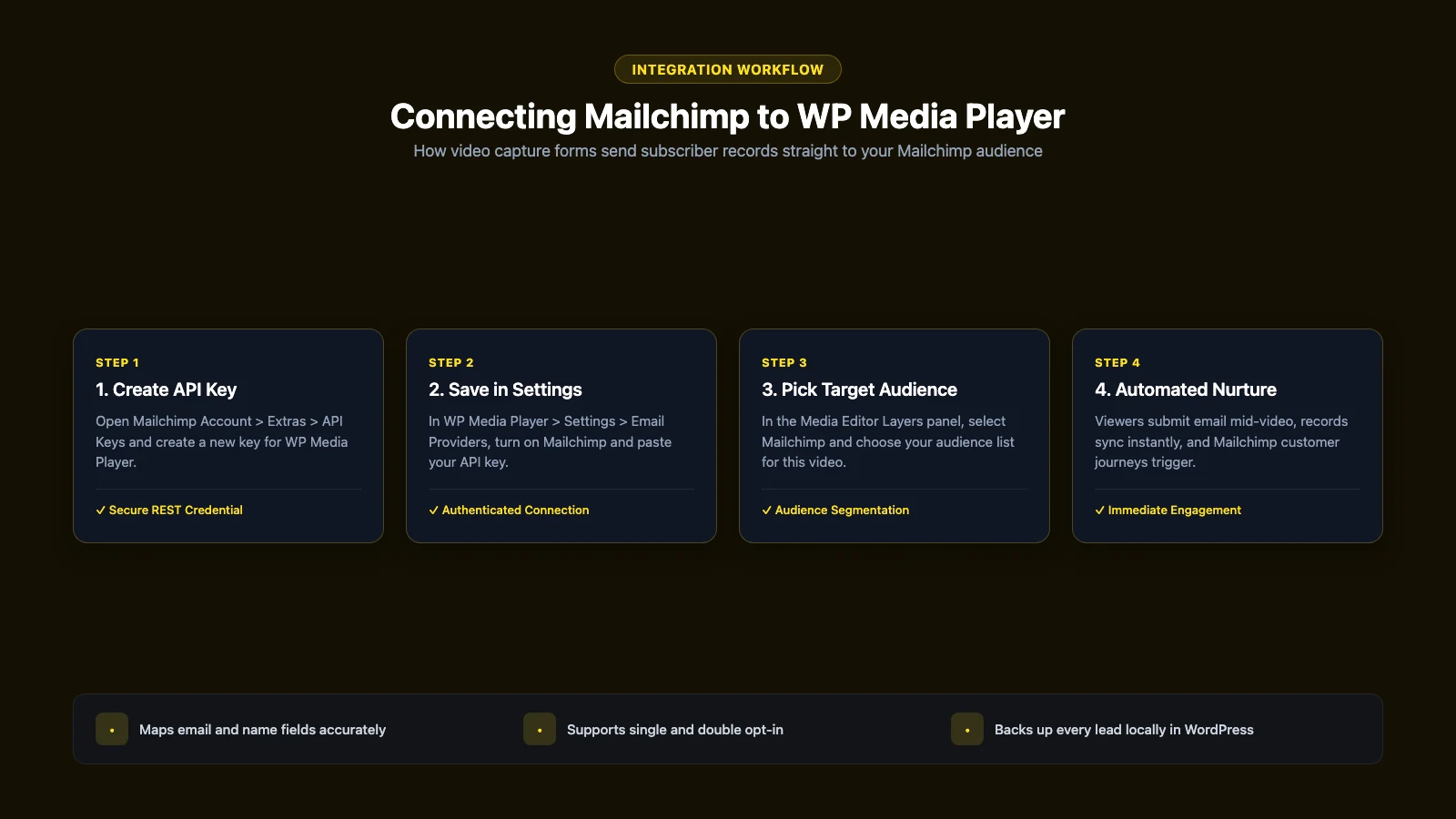
Step 1: Create Your Mailchimp API Key
To authorize WP Media Player to communicate with your Mailchimp account, generate a dedicated REST API key:
- Log into your account on the Mailchimp dashboard.
- Click your profile avatar in the lower left corner and navigate to Account & billing > Extras > API keys.
- Under the Your API keys section, click the Create A Key button.
- Enter a descriptive label (such as
WP-Media-Player) so you can identify the key later. - Click Generate Key, copy the generated API key to your clipboard, and keep it safe.
Step 2: Connect Mailchimp in WP Media Player Settings
Store your API credentials securely inside your WordPress dashboard options:
- In your WordPress administration sidebar, navigate to WP Media Player > Settings > Email Providers.
- Locate the Mailchimp integration card and switch the toggle to On.
- Click Configure on the Mailchimp card to open the connection modal.
- Paste your copied API key into the API Key field.
- Click Test Connection. The system verifies your key with Mailchimp and shows a green success prompt.
- Click Save Changes to store your credentials.
Step 3: Select Your Audience on the Email Capture Layer
Once connected, assign your Mailchimp audience to the specific video where you want to collect signups:
- Navigate to WP Media Player > Media and select the video you want to edit.
- Open the Layers section in the editor sidebar.
- Click Add Layer and choose Email Capture (or click to edit an existing capture layer).
- Under Email Providers, select Mailchimp from the dropdown options.
- Select your desired target Mailchimp audience list from the list dropdown.
- Set your display time, configure skip permissions, and click Save Changes.
Step 4: Test Form Submissions on the Front End
Always verify the integration by submitting a test entry on your live video player:
- Open the post or page hosting your video in an incognito browser window.
- Play the video until your email capture overlay appears.
- Enter a test email address and submit the form. The player resumes playback immediately.
- Log into your Mailchimp account and check your target audience under All contacts to confirm the new subscriber is present.
Choosing to connect Mailchimp to WP Media Player creates an automated subscriber pipeline directly from your video content. Follow these steps to build your email audience and trigger automated customer journeys effortlessly.