How to Create a File Browser Module In File Manager for Dropbox?
The File Browser module lets you embed a fully interactive Dropbox file browser anywhere on your site with full control over sources, filters, layout, permissions, and search.
Quick Start
- Go to Dropbox → Module Builder
- From Modules, choose File Browser and click Next
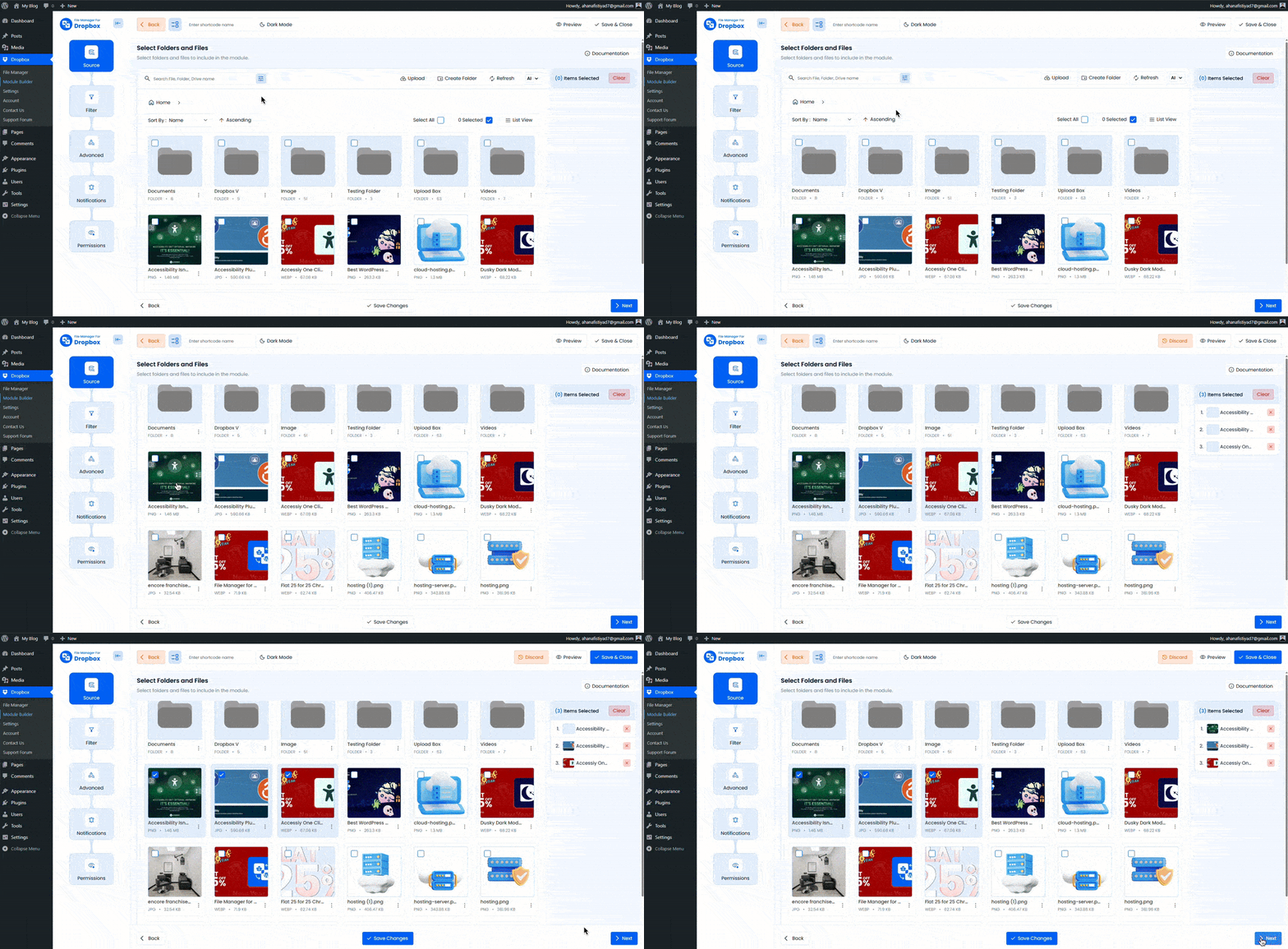
- In Source, select the folders or files you want to display, then click Next →
- Configure Filter, Advanced, Notifications, and Permissions as needed
- Click Finish to generate the module and place it anywhere on your site.
Step 1: Modules
Choose Module → Select the File Browser module from the Modules tab to begin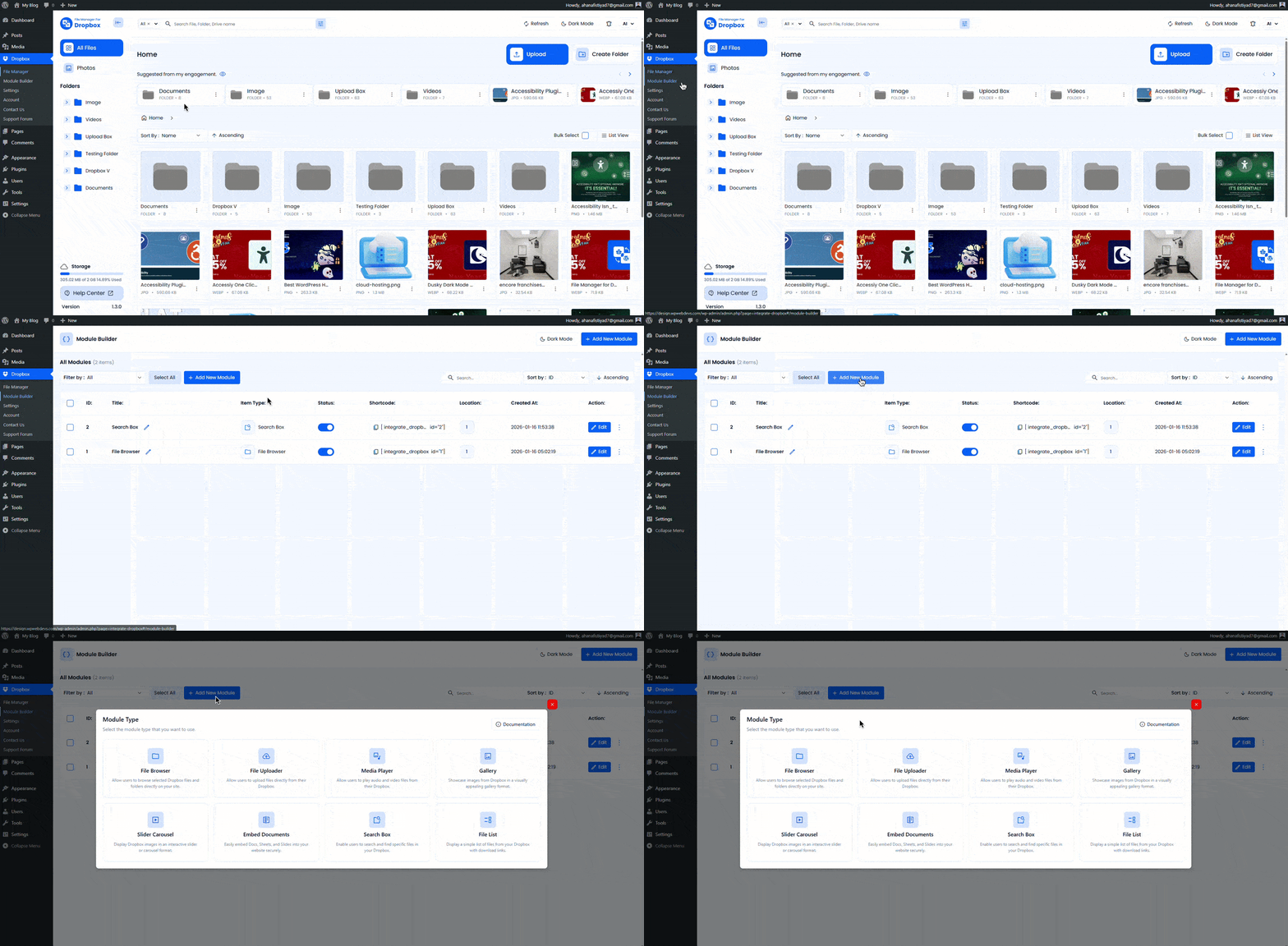
Step 2: Source
Select which Dropbox folders or files will be shown in the File Browser
Tip: Drag your mouse to select multiple items quickly
- Pick Folders: Click items to select them. Selected items appear in the right sidebar.
- Upload / Create Folder / Refresh: Available from the top toolbar
- Sort & View: Switch between Grid and List view and sort by Name, Size, Created At, or Updated At with Ascending or Descending order
Step 3: Filter
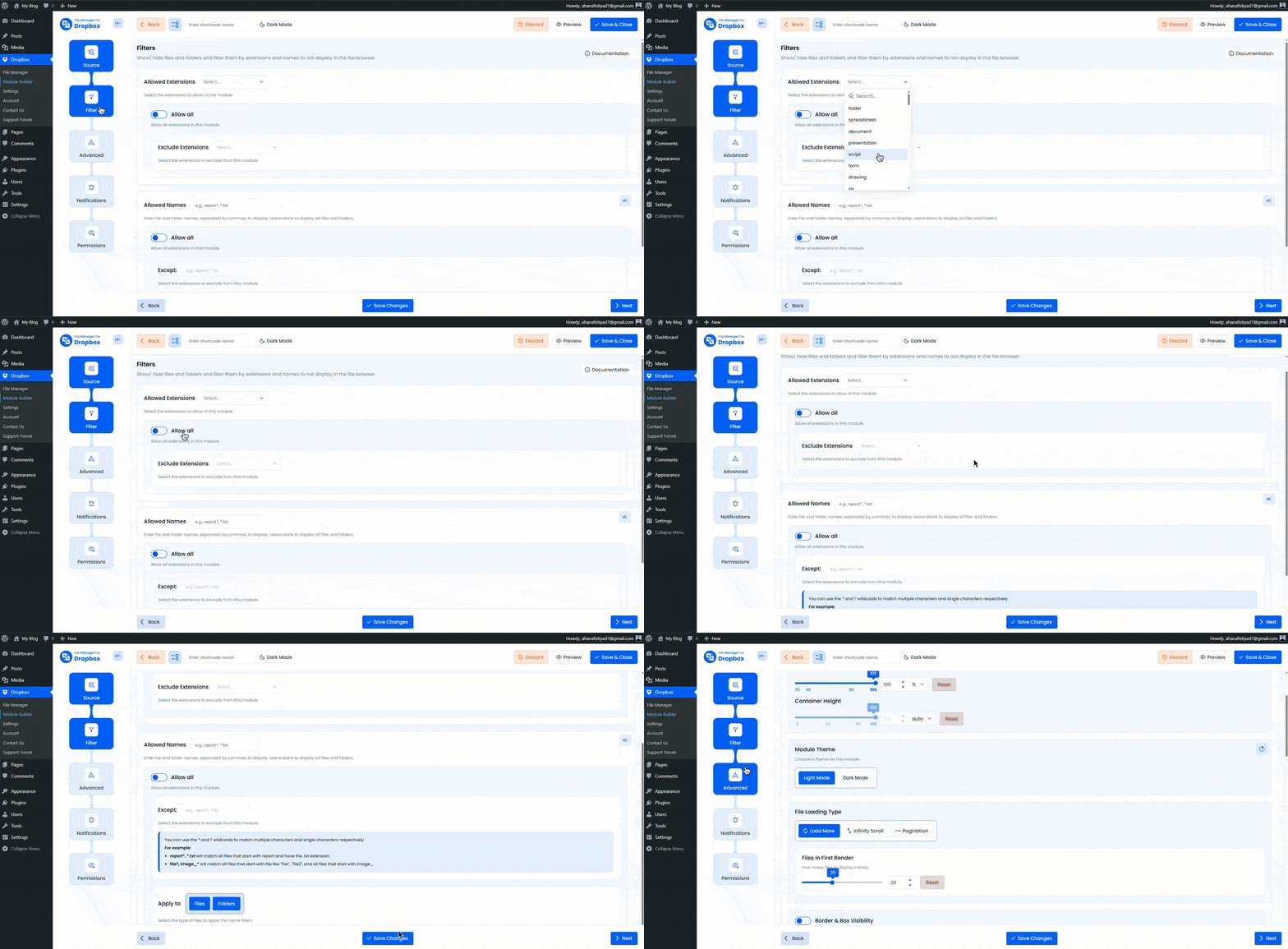
Control which files and folders are visible in the module
- Allowed Extensions: Display only specific file types such as pdf jpg or zip
- Exclude Extensions: Hide unwanted file types
- Allowed Names: Comma-separated list with wildcard support
report**.pdffile?image_*
- Apply To: Choose whether name filters apply to Files, Folders, or both
Want to download this plugin? Free Download
Learn Also: Connect Dropbox With WordPress
Step 4: Advanced
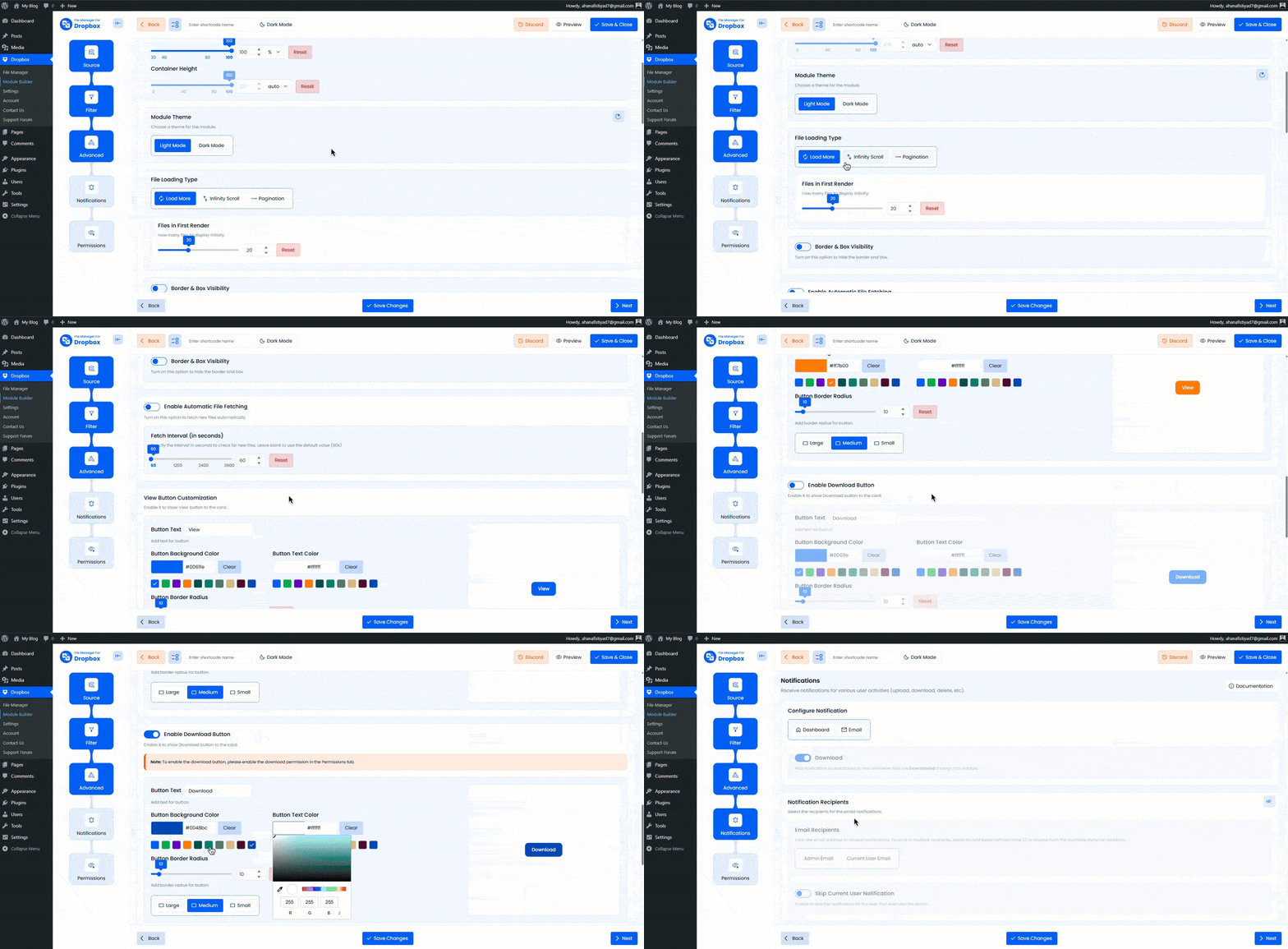
Module Settings
- Container Size: Set custom width or height, like
100%700pxor80vhLeave empty for default - Theme: Choose between Light and Dark mode
File Loading Type
- Load More button, Infinite Scrolling, or Pagination
- Files in First Render: Control how many files load initially
Header Controls
- Show Header: Enable or disable the header area
- Breadcrumbs: Show folder navigation path
- Refresh Button: Allow users to reload files manually
- Sorting: Let viewers sort files
- Default Sort: Name Size, Created At or Updated At with Ascending or Descending order
Step 5: Notifications
Send email alerts for actions performed inside the File Browser
- Email Notifications: Master toggle
- Download Notification: Email sent when files are downloaded
- Upload Notification: Email sent when files are uploaded
- Delete Notification: Email sent when files are deleted
- Email Recipients: Choose recipients such as admin, and optionally skip the current user
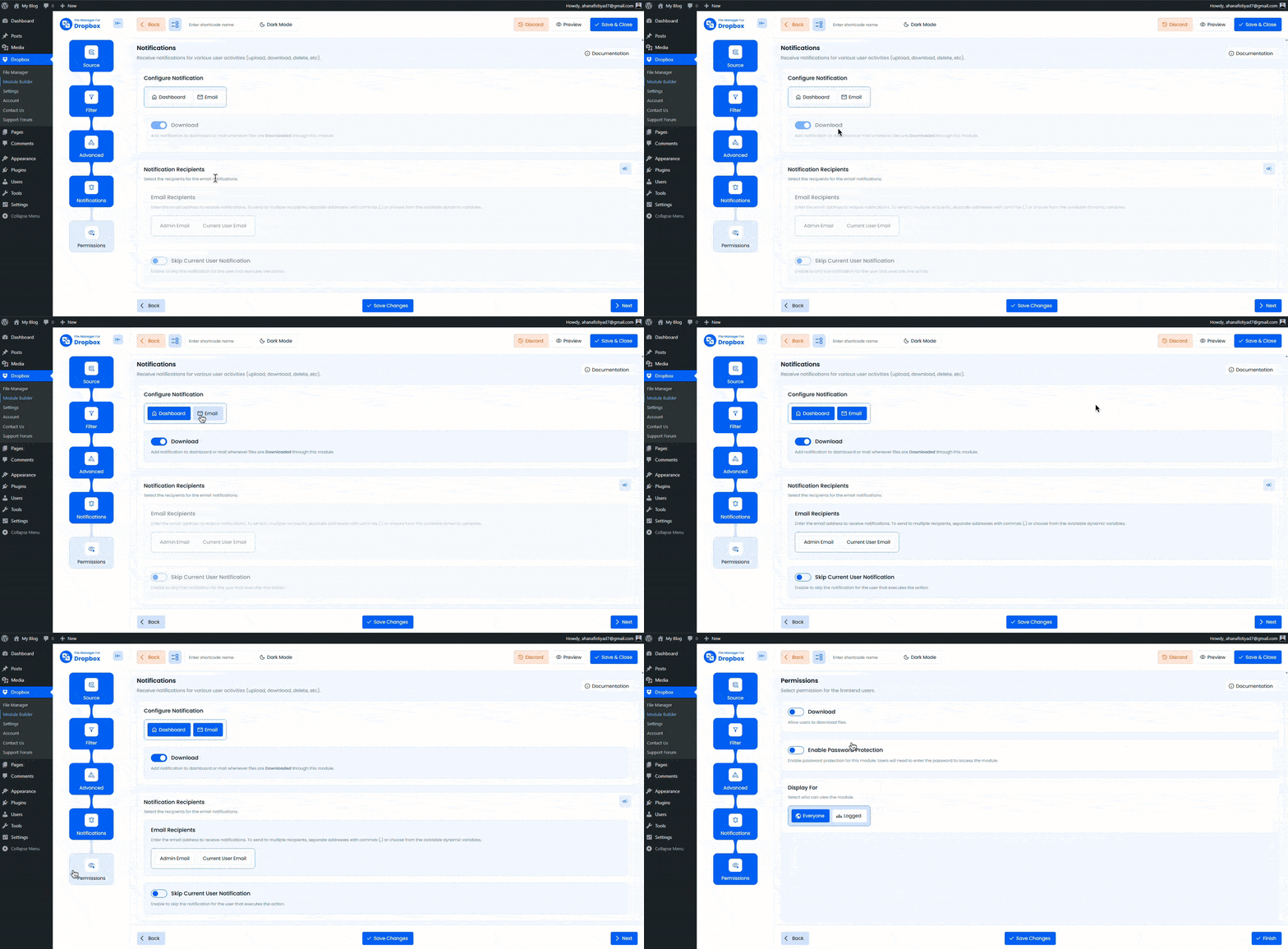
Step 6: Permissions
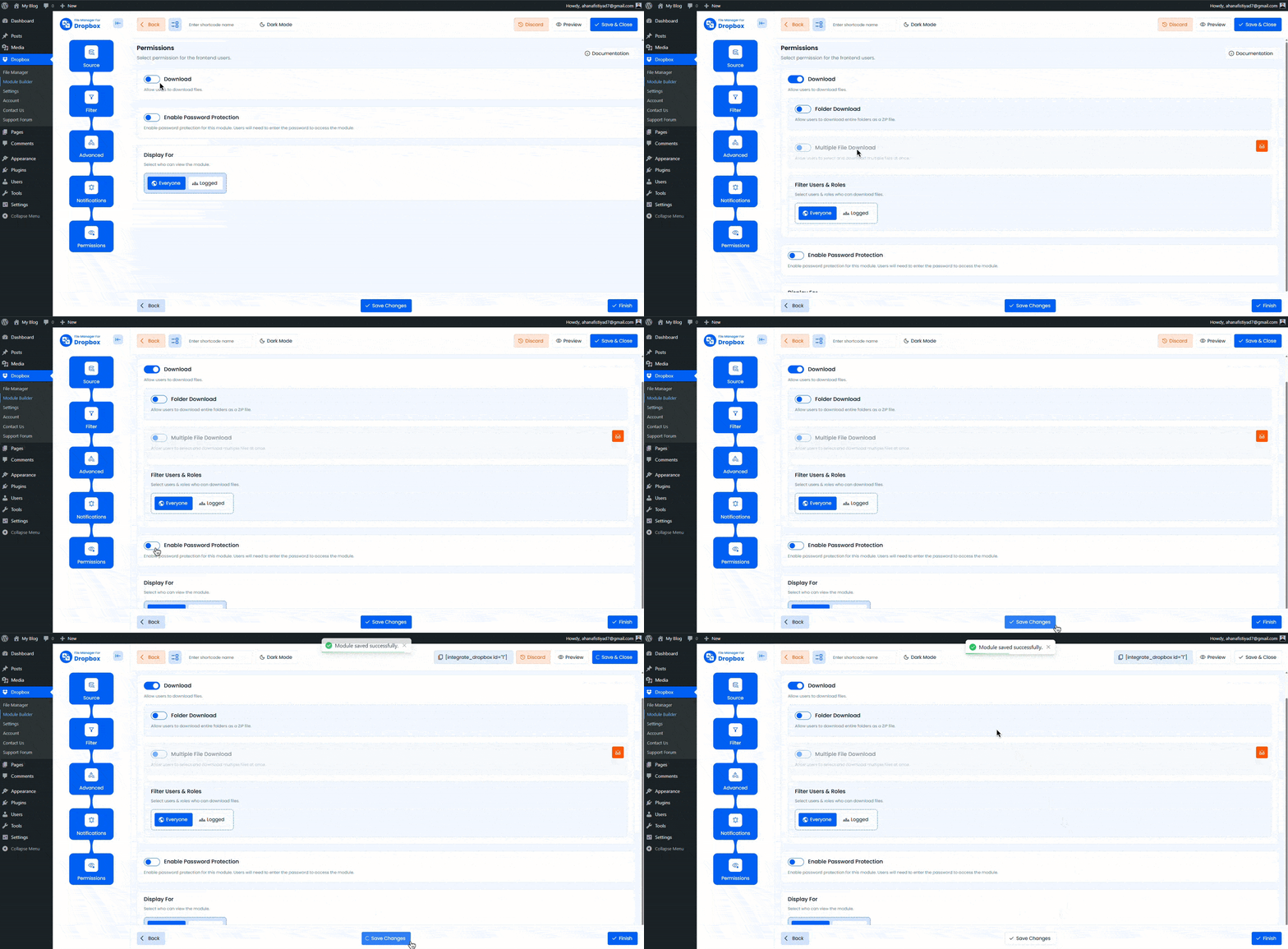
Control who can see the module and what actions they can perform
Action Permissions
- Allow Upload: Enable uploads for Everyone or logged users. Supports role-based and user-based targeting
- Preview: Preview files inside a modal
- Inline Preview
- Allow Pop out open in Dropbox
- Show Preview Thumbnails
- New Folder
- Rename
- Move / Copy
- Delete
- Download
- Folder Download
- Multiple Download
- Enable Password Protection: Require a password before accessing the module
- Password generator and strength rules, including length, lowercase, numbers, and symbols
6.1 Search
Allow users to search files by name
- Allow Search: Enable or disable search
- Search Location:
- Cache: Faster results using stored index
- Server: Live search directly from Dropbox
- Search Scope:
- Current Folder
- Global across all selected sources
- Filter Users and Roles: Everyone or Logged
Display For
- Everyone has public access.
- Logged only logged-in users.
User Access
- Role-Based: Assign access by WordPress roles.
- User-Based: Assign access to specific users.
Access Denied Message
- Show a message when a user does not have permission.
- Default: You do not have access to this module.
Use this shortcode to display the File Browser: "[integrate-dropbox id="1"]"
Best Practices
- Use Role-Based access for easier maintenance
- Enable Password Protection for internal or sensitive content
- Use Cache search for speed and Server search for accuracy
- Optimize performance by adjusting Files in First Render and using Infinite Scroll for large folders
Troubleshooting
- Files not visible: Check Source selection and Filter rules
- Actions disabled: Review Permissions and user audience settings
- Slow loading: Reduce first render count or switch loading type
- Search not finding files: Try Server search with Global scope and refresh the module
Output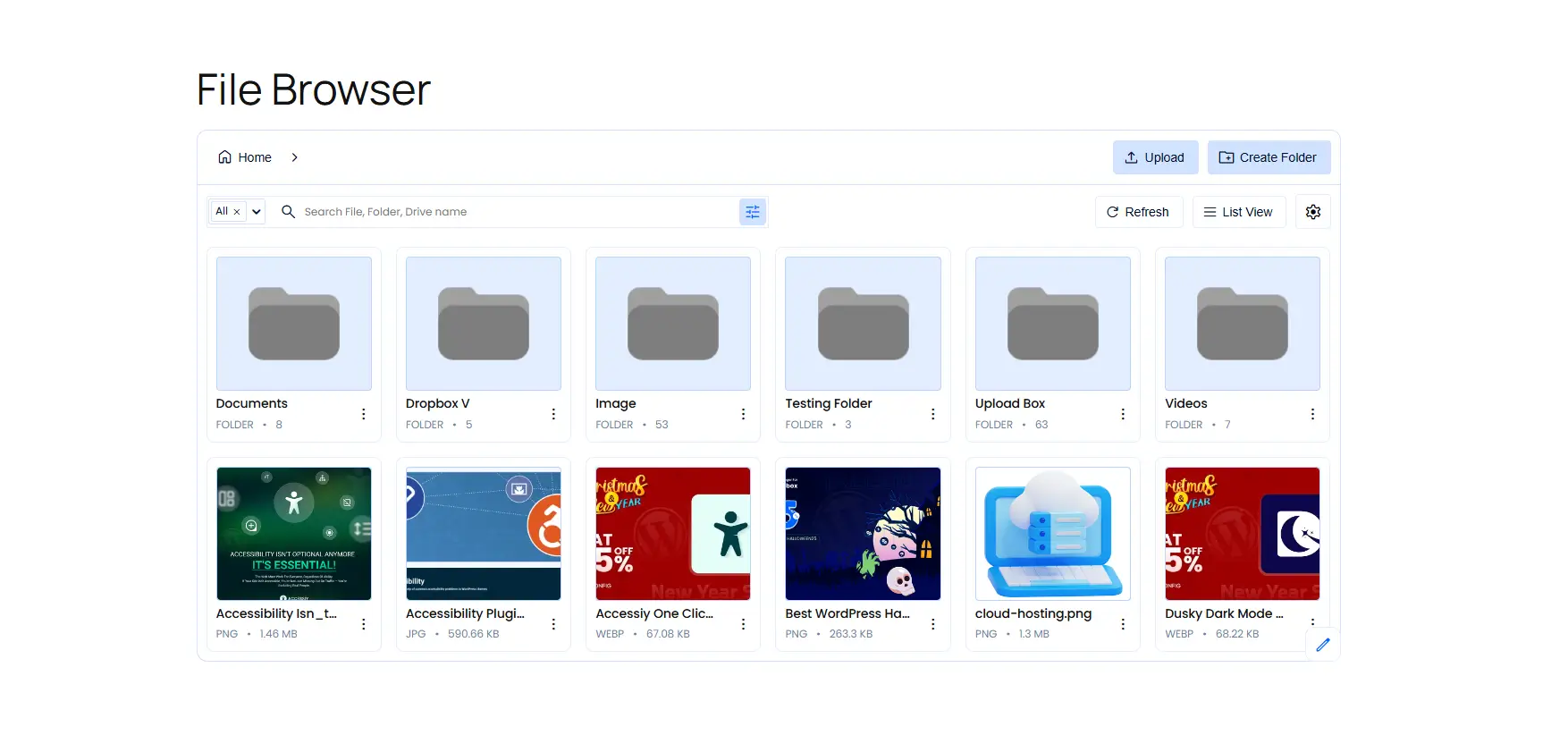
Still stuck? Contact us now!Last Updated: January 17, 2026