How to Create a Slider Carousel Using File Manager for Dropbox?
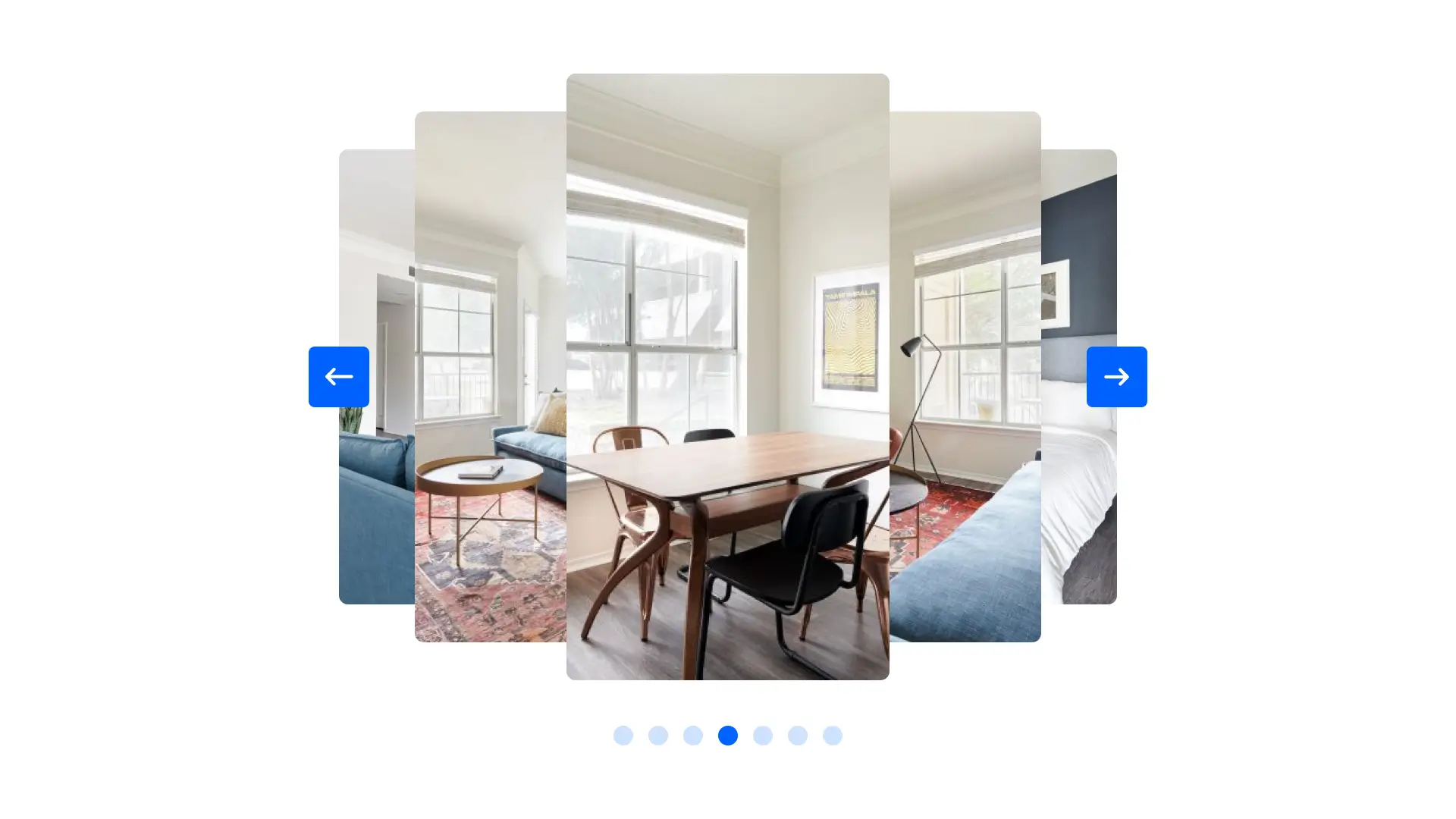
With the Slider Carousel Module in File Manager for Dropbox, you can showcase images or media files from Dropbox in a smooth, responsive carousel. This is perfect for portfolios, galleries, banners, or featured media sections.
Step 1: Choose the Slider Carousel Module
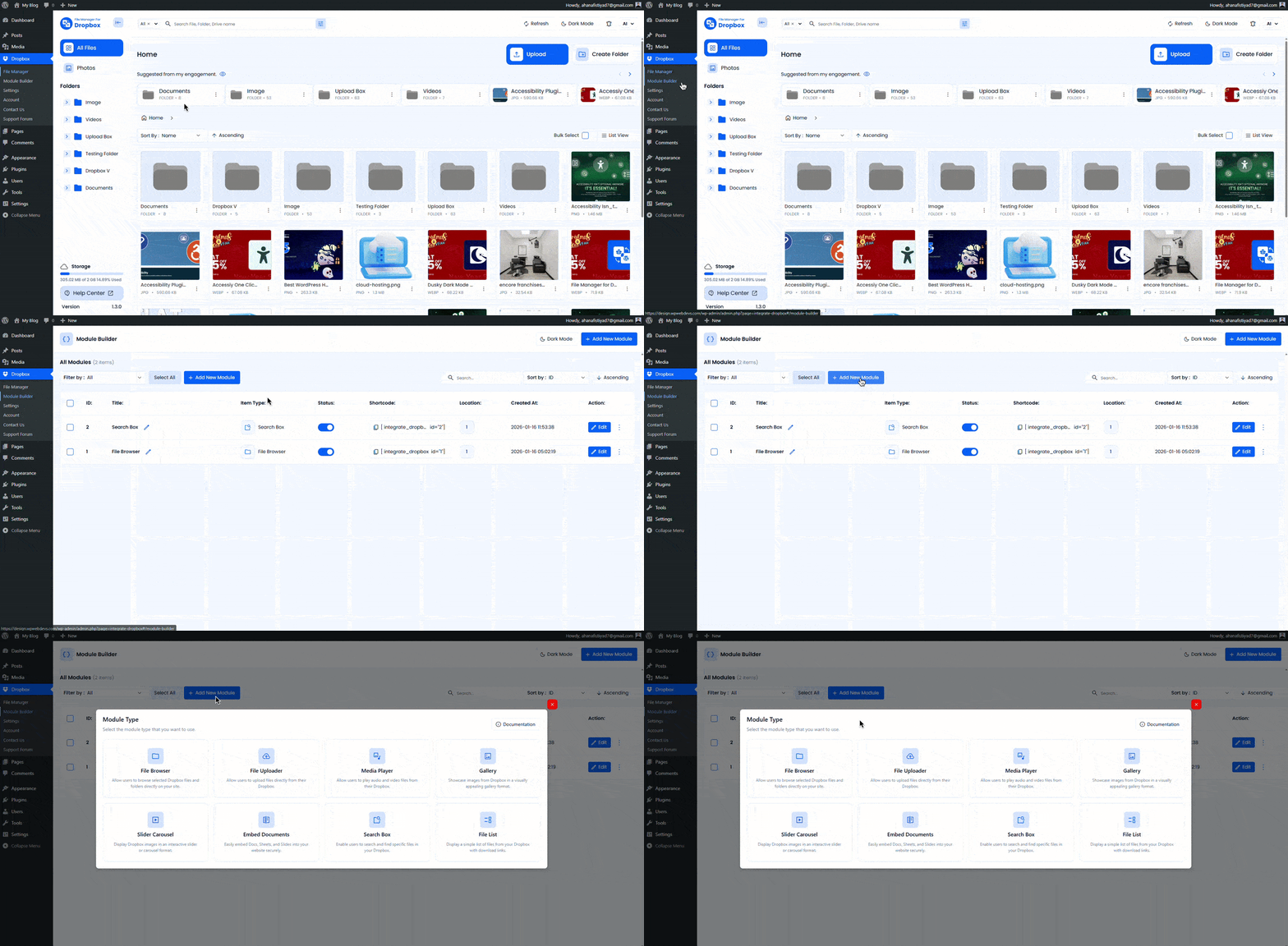
- Go to File Manager for Dropbox > Module Builder from your WordPress dashboard.
- Click Add New Module.
- Select Slider Carousel from the module list.
- Optionally, set a Shortcode Title to easily identify the module.
Step 2: Configure the Source Tab
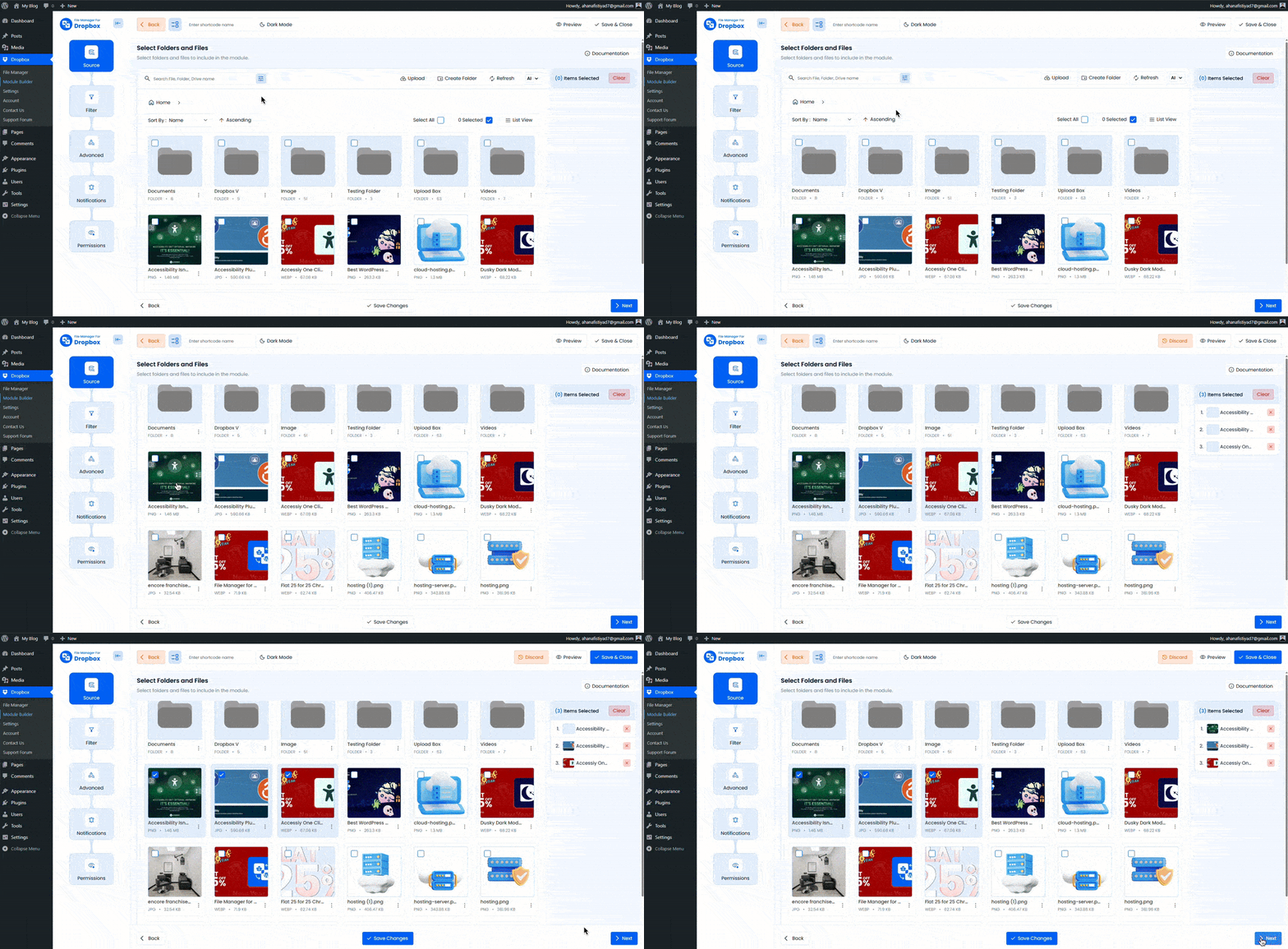
In the Source tab, select the Dropbox files or folders you want to display in the slider.
- Click the File button or use the Select Box to choose files or folders.
- You can also drag and select multiple folders using your mouse.
Want to download this plugin? Free Download
Learn Also: Connect Dropbox With WordPress
Step 3: Configure the Filter Tab
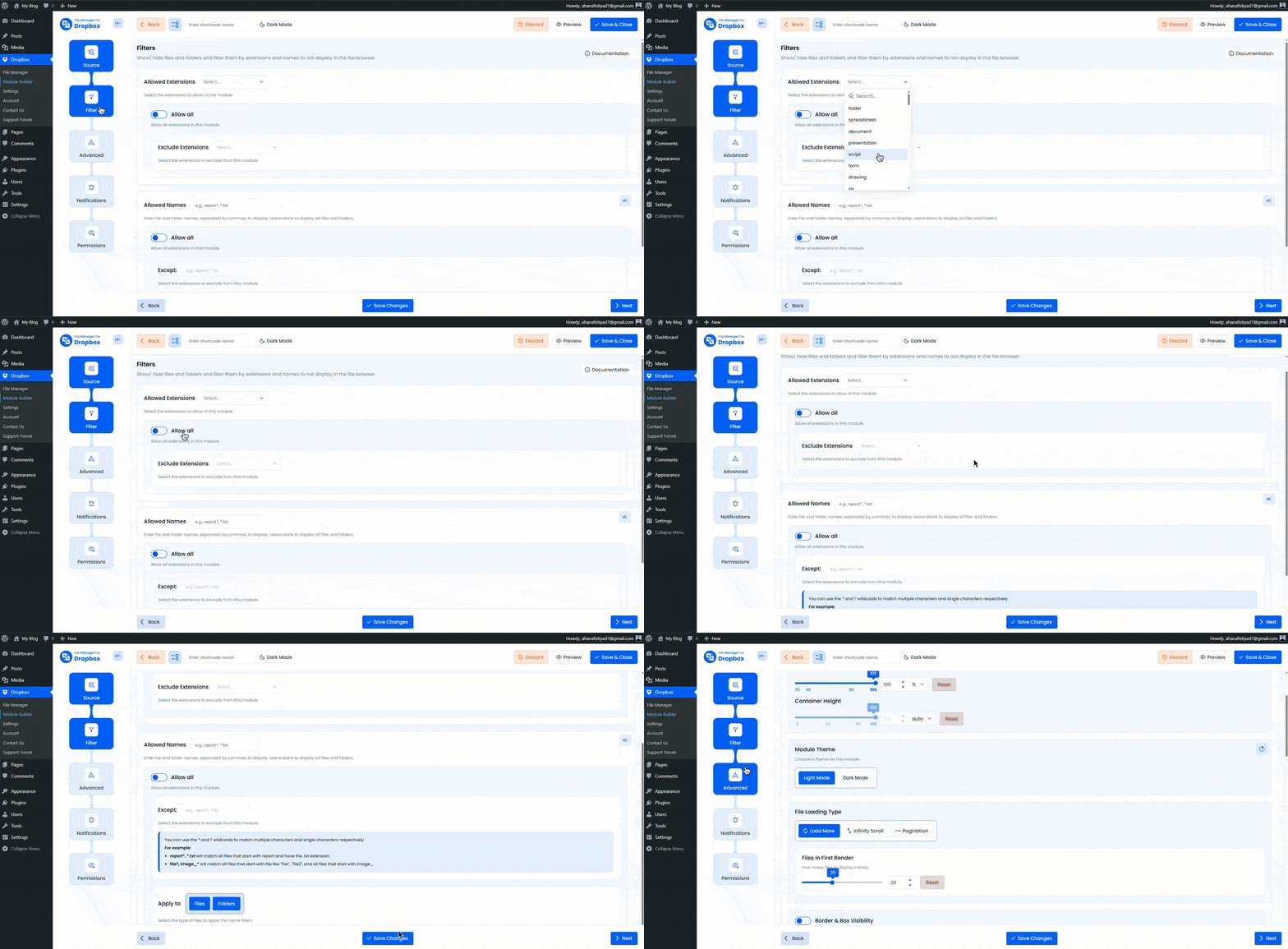
Use the Filter tab to control which files appear in the carousel.
- Allowed Extensions: Specify file types such as
jpg, png, gif. Leave empty to allow all file types. - Maximum File Numbers: Limit how many files are displayed in the slider.
Step 4: Configure the Advanced Tab
Customize the layout, animation, and behavior of the slider carousel.
- Container Size: Set the height and width using values like
360pxor80%. Leave empty for default. - Module Theme: Choose between light mode and dark mode.
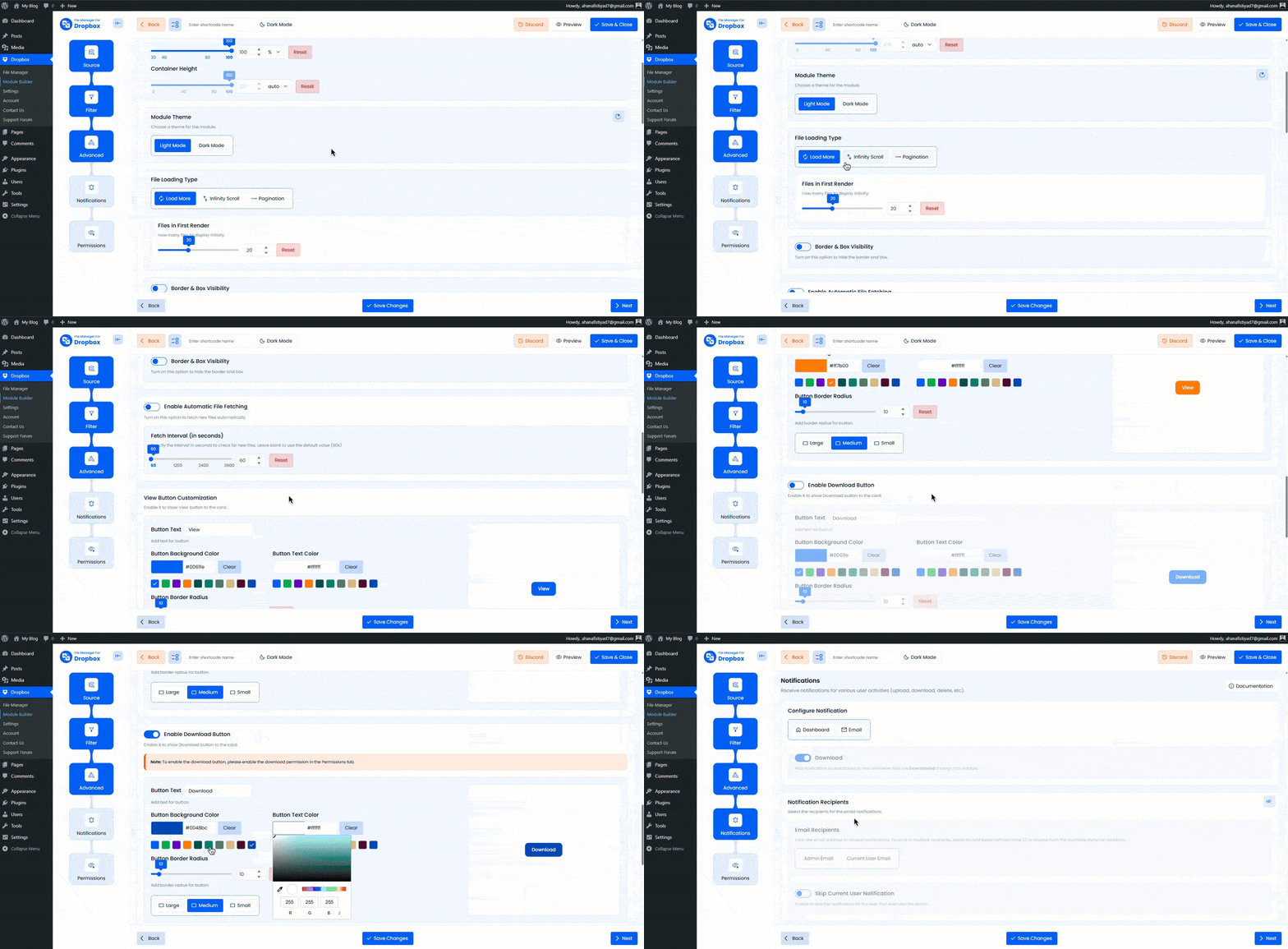
- File Loading Type: How many files to display initially.
- Border & Box Visibility: Turn on this option to hide the border and box.
- Enable Auto File Fetching: Automatically display newly uploaded Dropbox files.
- Slider Direction: Select the direction of the slider.
- Slider Type: Choose Horizontal or Vertical.
- Slider Effect: Select animation effects such as Slide, Fade, or Flip.
- Show Overlay: Show overlay on hover.
- Show Slider Caption: Show/ hide the slider caption.
- Navigation: Show Arrows, Dots, both, or disable navigation.
- Responsive Slide Display: Control how many slides show on desktop, tablet, and mobile.
- Image Quality: Select the quality between Original, Large, Medium, or Thumbnail.
- Gap: Set spacing between slides.
- Border Radius: Apply rounded corners to slider items.
- Autoplay Speed: Set the slide interval in milliseconds (for example, 3000).
- Loop Sliders: Enable automatic sliding.
- Mouse Control: Allow mouse or touch interaction.
- Sorting: Sort files by Name, Size, Created Date, or Updated Date in ascending or descending order.
Step 5: Configure the Permissions Tab
Control who can access and view the slider carousel.
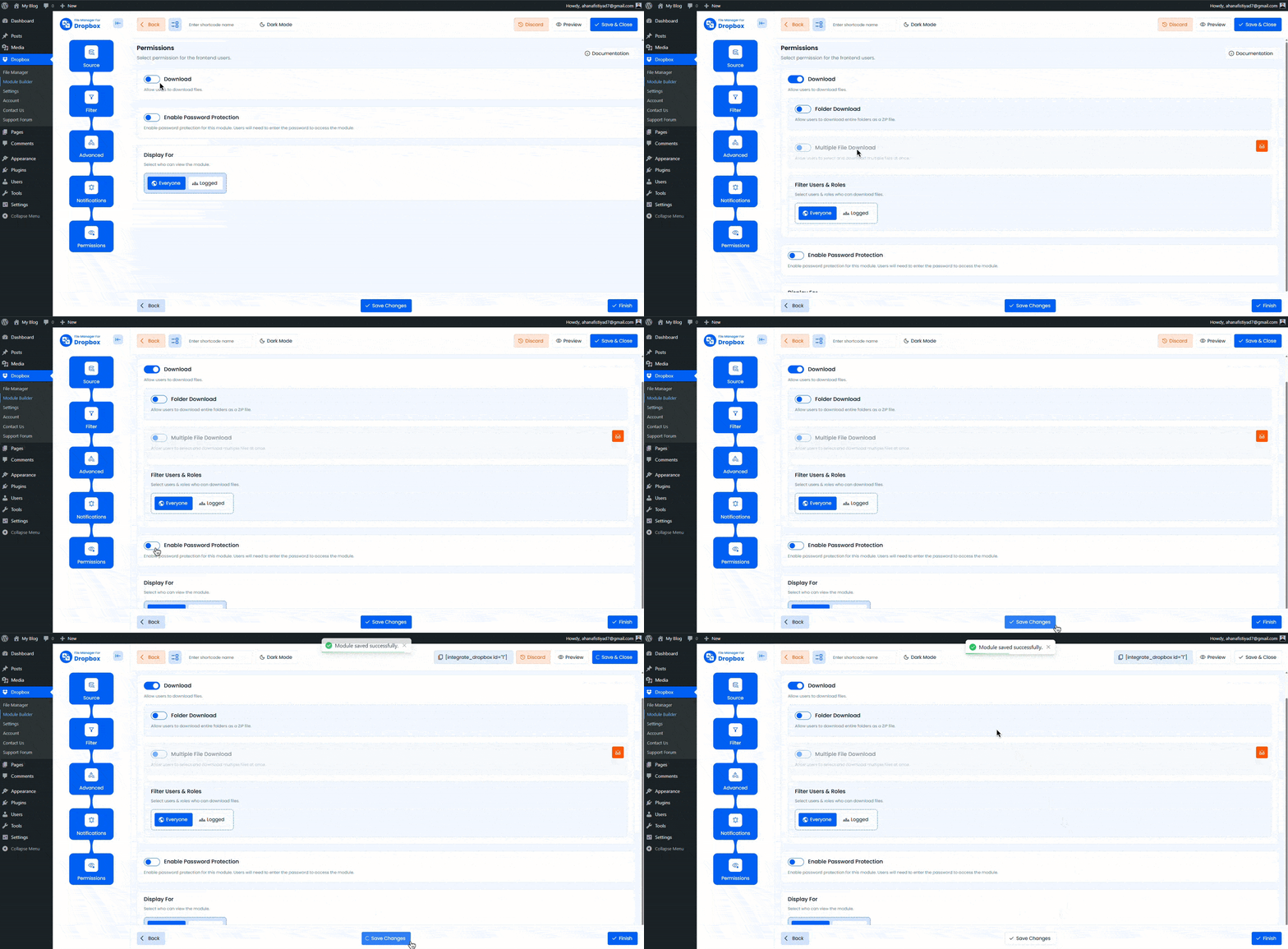
- Enable Password Protection: Require a password to access the slider.
- Password: Set a secure password.
- Display For: Choose visibility.
- Everyone: Visible to all visitors.
- Logged: Visible only to logged-in users.
- User Access: When Logged is selected, restrict access further.
- Role-Based Access: Allow access by user role.
- User-Based Access: Allow access for specific users.
- Show Denied Message: Display a custom message if access is restricted.
Output
After saving the module, copy the generated shortcode and paste it into any post or page.
Your selected Dropbox files will appear in a smooth, responsive slider carousel with full control over layout, animation, and access.