How to Browse Dropbox Files in WordPress Dashboard and Frontend?
With File Manager for Dropbox, you can browse, manage, and display your Dropbox files and folders directly from your WordPress dashboard and frontend. It works just like Dropbox, so you can view, upload, download, and organize files without leaving WordPress.
Get Dropbox Files and Folders in WordPress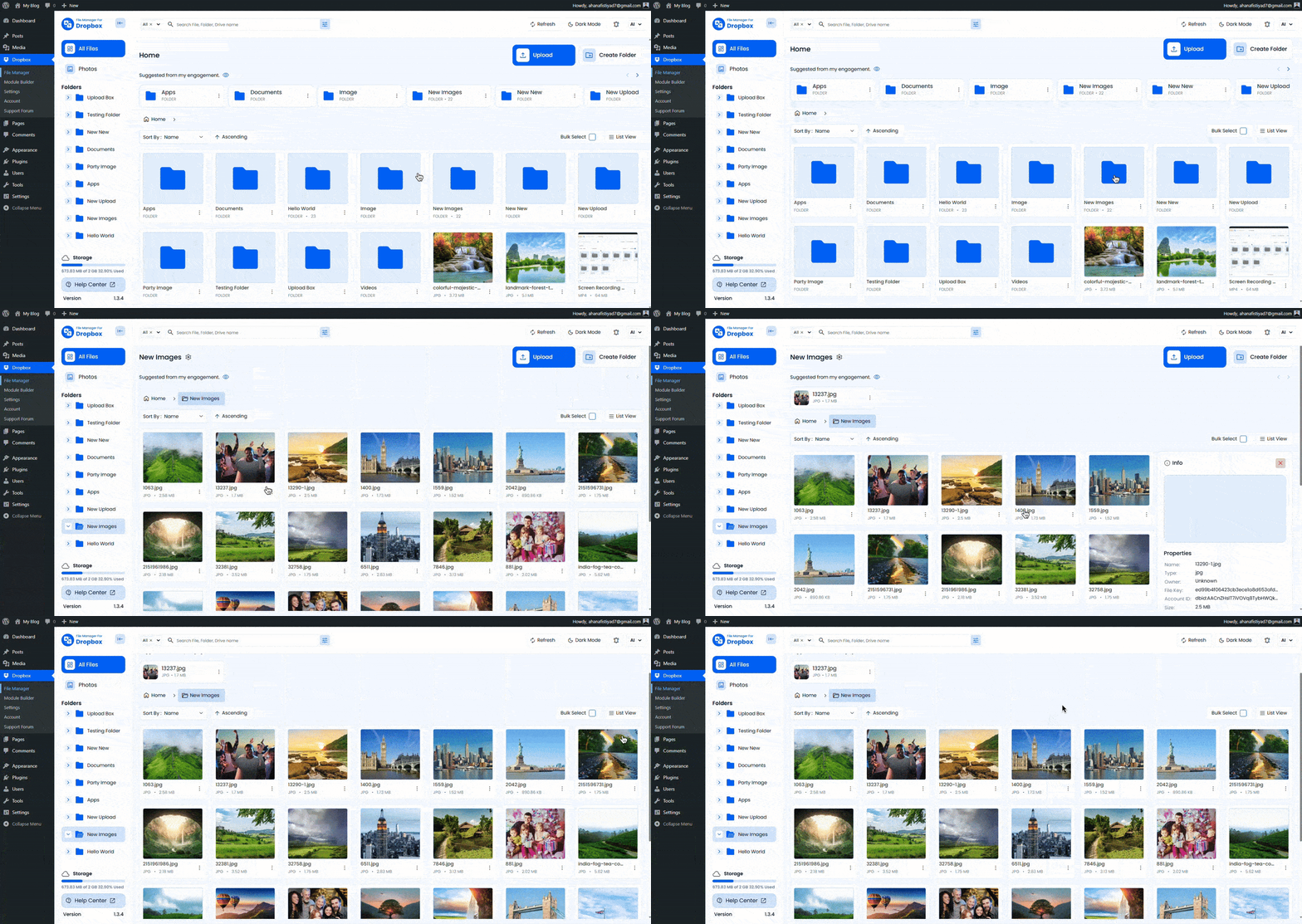
The plugin connects your Dropbox account to WordPress and syncs your files securely. Once connected, all selected Dropbox folders and files become accessible inside WordPress modules.
You can:
- Browse folders and subfolders
- View file details like name, size, and date
- Preview supported files
- Download files securely
Want to download this plugin? Free Download
Learn Also: Connect Dropbox With WordPress
Connect Your Dropbox Account
Before browsing files, you need to connect your Dropbox account.
- Go to File Manager for Dropbox from your WordPress dashboard.
- Open the Settings or Account section.
- Click Connect Dropbox Account.
- Log in to Dropbox and approve access.
Once connected, your Dropbox files will be available in the Module Builder and file picker.
Browse Dropbox Files in WordPress Dashboard
Inside the WordPress dashboard, you can browse Dropbox files while building modules.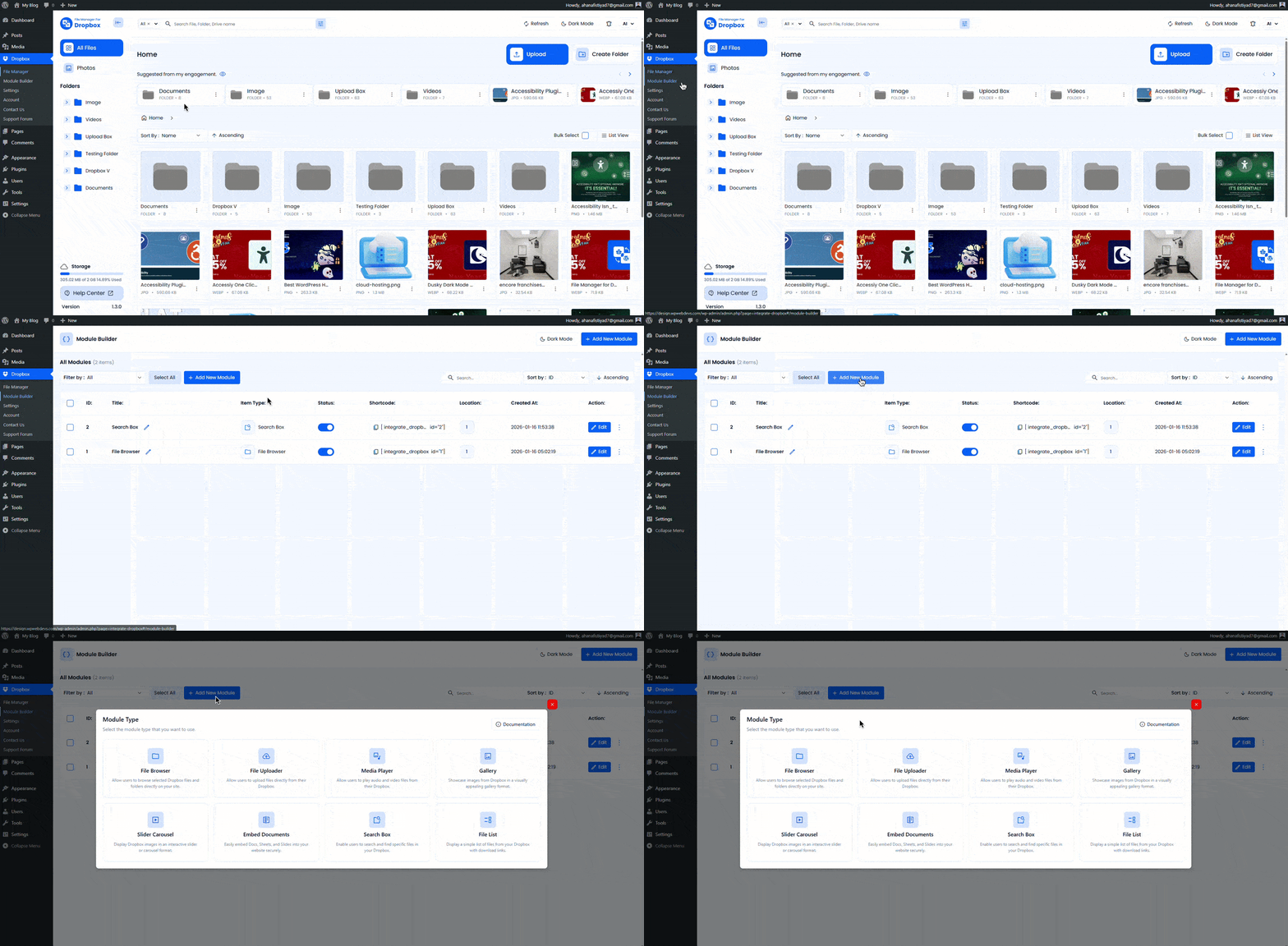
- Go to File Manager for Dropbox → Module Builder.
- Create or edit a module.
- In the Source tab, open the file picker.
- Browse folders, select files, upload new items, or create folders.
The interface feels familiar and works like the Dropbox file browser.
Browse Dropbox Files on the Frontend
You can also allow visitors to browse Dropbox files on the frontend using different modules.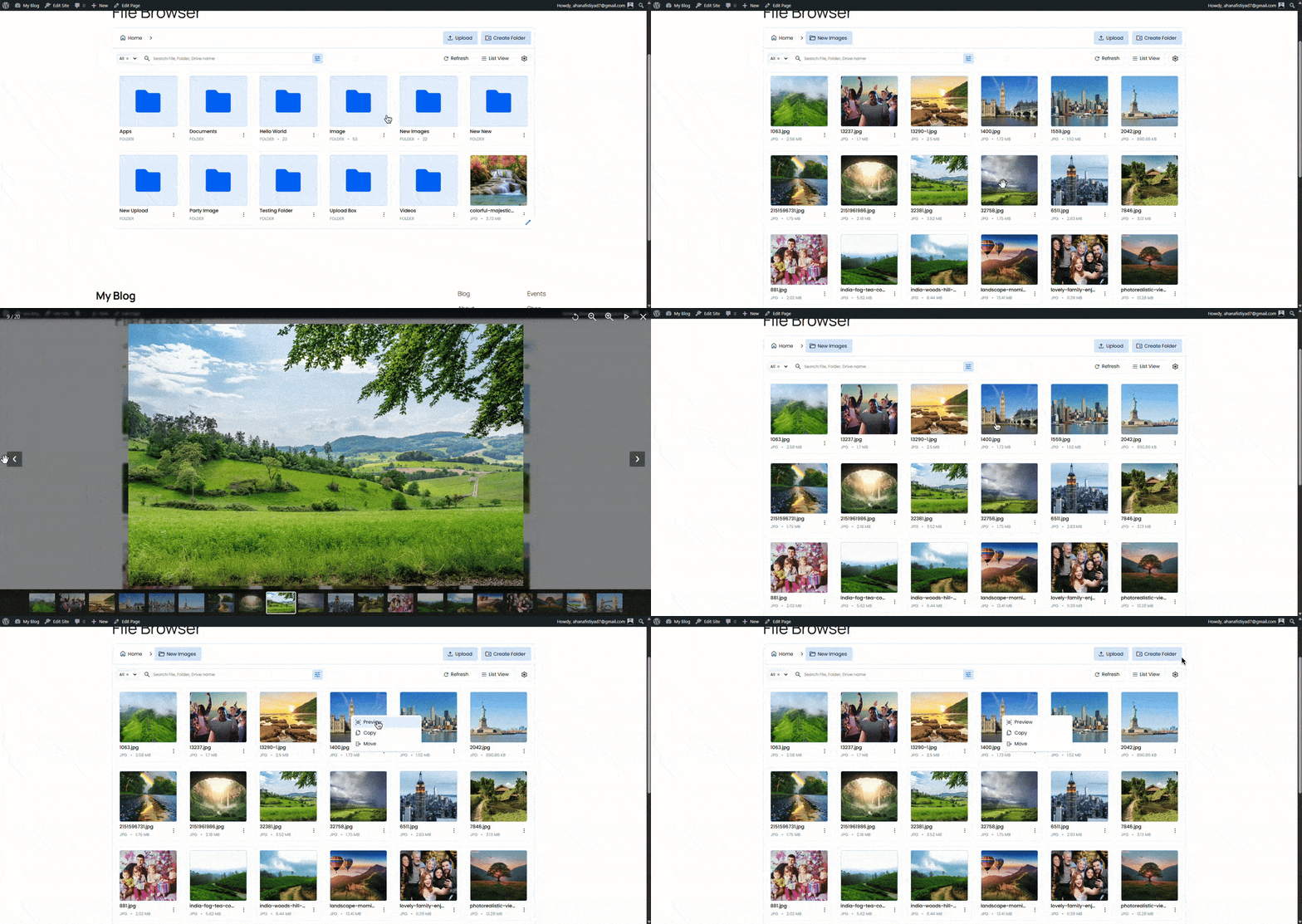
- File List: Show files in list or grid view.
- Image Gallery: Display images in a gallery layout.
- File Uploader: Let users upload files to Dropbox.
- Download Links: Share files with secure download buttons.
Access can be controlled using permissions, roles, passwords, or login requirements.
Manage Files Like Dropbox
With File Manager for Dropbox, you can perform common Dropbox actions directly from WordPress.
- Upload files and folders
- Download files
- Preview supported file types
- Rename files (if enabled)
- Control access and visibility
All actions stay synced with your Dropbox account in real time.
Why Use File Manager for Dropbox
- No need to manually upload files to WordPress
- Keep files stored safely in Dropbox
- Reduce server storage usage
- Full control over who can access files
Conclusion
File Manager for Dropbox makes it easy to browse and manage Dropbox files in both the WordPress dashboard and frontend. You get the same flexibility as Dropbox, combined with powerful WordPress controls for access, layout, and security.