


- Release
- WordPress
File Manager for Dropbox 1.3.18 Released – Gallery Bulk ZIP Downloads
Tanin Ahmed6 min read
Loading page…
Loading page…
Loading page…
Fix mixed content errors in WordPress permanently. Learn why Chrome blocks insecure images, how to safely search-replace serialized database rows, and how to restore your SSL padlock.
To fix the mixed content error in WordPress, you must ensure that every resource on your page—images, scripts, stylesheets, and fonts—is requested over HTTPS instead of insecure HTTP. In most cases, updating your site URLs in Settings → General and running a serialized-safe database replacement using WP-CLI (wp search-replace 'http://example.com' 'https://example.com' --all-tables --precise) or the Better Search Replace plugin permanently eliminates hardcoded HTTP URLs without breaking your widgets, ACF fields, or page builder layouts.
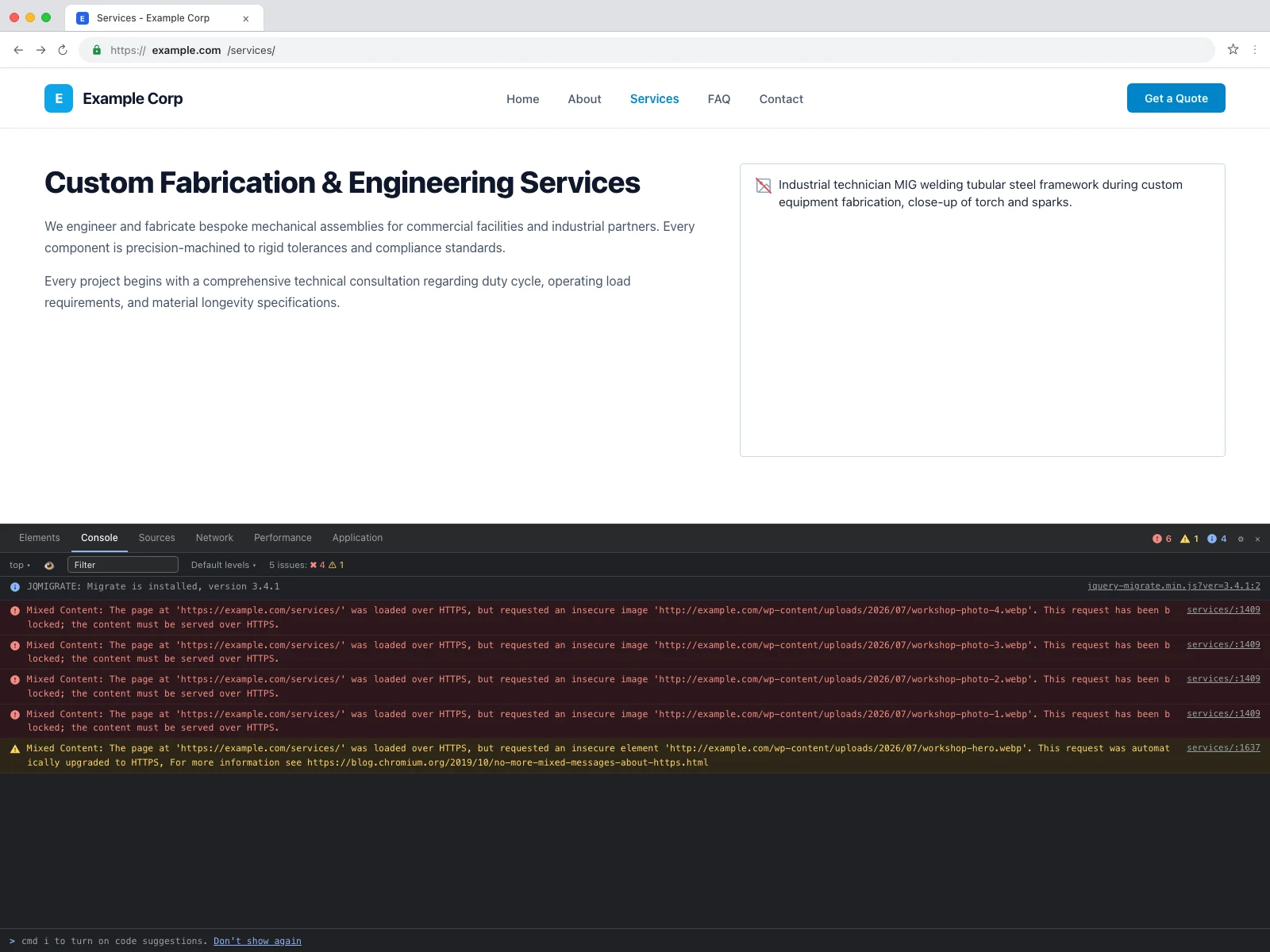
Just last week, I was troubleshooting a client site running an active WooCommerce store. They had installed an SSL certificate, their hosting dashboard showed a valid Let’s Encrypt certificate, and the homepage loaded with a green padlock. But when navigating to their service pages, the hero and gallery images failed to render. Visitors saw empty outlines and broken image icons with only alt text visible. Opening the Chrome DevTools Console revealed a cascade of red errors:
Mixed Content: The page at 'https://example.com/services/' was loaded over HTTPS, but requested an insecure image 'http://example.com/wp-content/uploads/2026/07/workshop-photo-4.webp'. This request has been blocked; the content must be served over HTTPS.Right below the blocked images, there was also a solitary yellow warning indicating that another image request “was automatically upgraded to HTTPS”. Why did Chrome upgrade one asset while outright blocking the others? And why does this happen even after you think your site has fully migrated to SSL? In this guide, I will break down the exact browser mechanics behind mixed content, explain why raw SQL queries corrupt your database, and walk through nine battle-tested ways to fix mixed content permanently.
Mixed content occurs when an initial HTML document loads securely over an encrypted HTTPS connection (via TLS/SSL), but subsequent subresources—such as images, videos, stylesheets, web fonts, or JavaScript files—are fetched over unencrypted, cleartext HTTP.
Because HTTP traffic travels across public networks without encryption, an attacker on the same local network or an untrusted ISP can inspect or tamper with unencrypted requests via a Man-in-the-Middle (MitM) attack. Modern web security specifications divide mixed content into two distinct categories:
<script> tags, <link rel="stylesheet">, <iframe> elements, fetch() or XMLHttpRequest calls, and @font-face web fonts. Browsers have blocked active mixed content outright for years because a tampered script or stylesheet allows an attacker to rewrite the entire webpage, harvest credentials, or steal session tokens.<img>), audio (<audio>), and video (<video>). Historically, browsers allowed passive content to load with a warning icon (a degraded padlock or an information chip) rather than breaking the page visually. However, this policy changed fundamentally in modern Chromium releases.Starting with Chrome 80 and refined through Chrome 84+, the Chromium team rolled out automated mixed content autoupgrades. When Chrome encounters an insecure HTTP image on an HTTPS page, it attempts to rewrite the URL scheme internally from http:// to https:// before firing the network request. If the server delivers the image securely over HTTPS, Chrome renders it and outputs a yellow warning in the DevTools console:
Mixed Content: The page at 'https://example.com/services/' was loaded over HTTPS, but requested an insecure element 'http://example.com/wp-content/uploads/2026/07/workshop-hero.webp'. This request was automatically upgraded to HTTPS.However, if the server fails to deliver the file over HTTPS—or if the autoupgrade cannot be safely negotiated—Chrome does not fall back to HTTP. Instead, Chrome immediately terminates the connection and prints the red blocked error. Furthermore, Chrome’s autoupgrade heuristics treat certain DOM constructs differently:
srcset & <picture>): WordPress automatically generates responsive image candidate sets using wp_calculate_image_srcset(). If your database contains hardcoded HTTP URLs for thumbnail crops, the rendered HTML includes HTTP URLs inside the srcset attribute. Chrome’s parser handles candidate lists strictly; when candidate URLs in srcset or <source> fail scheme verification or certificate handshakes, the browser blocks the subresource immediately rather than silently rewriting it.background-image: url('http://...') often bypass Chrome’s inline HTML autoupgrade logic. If the stylesheet was fetched over HTTPS but references an HTTP background, the browser flags it as an insecure resource.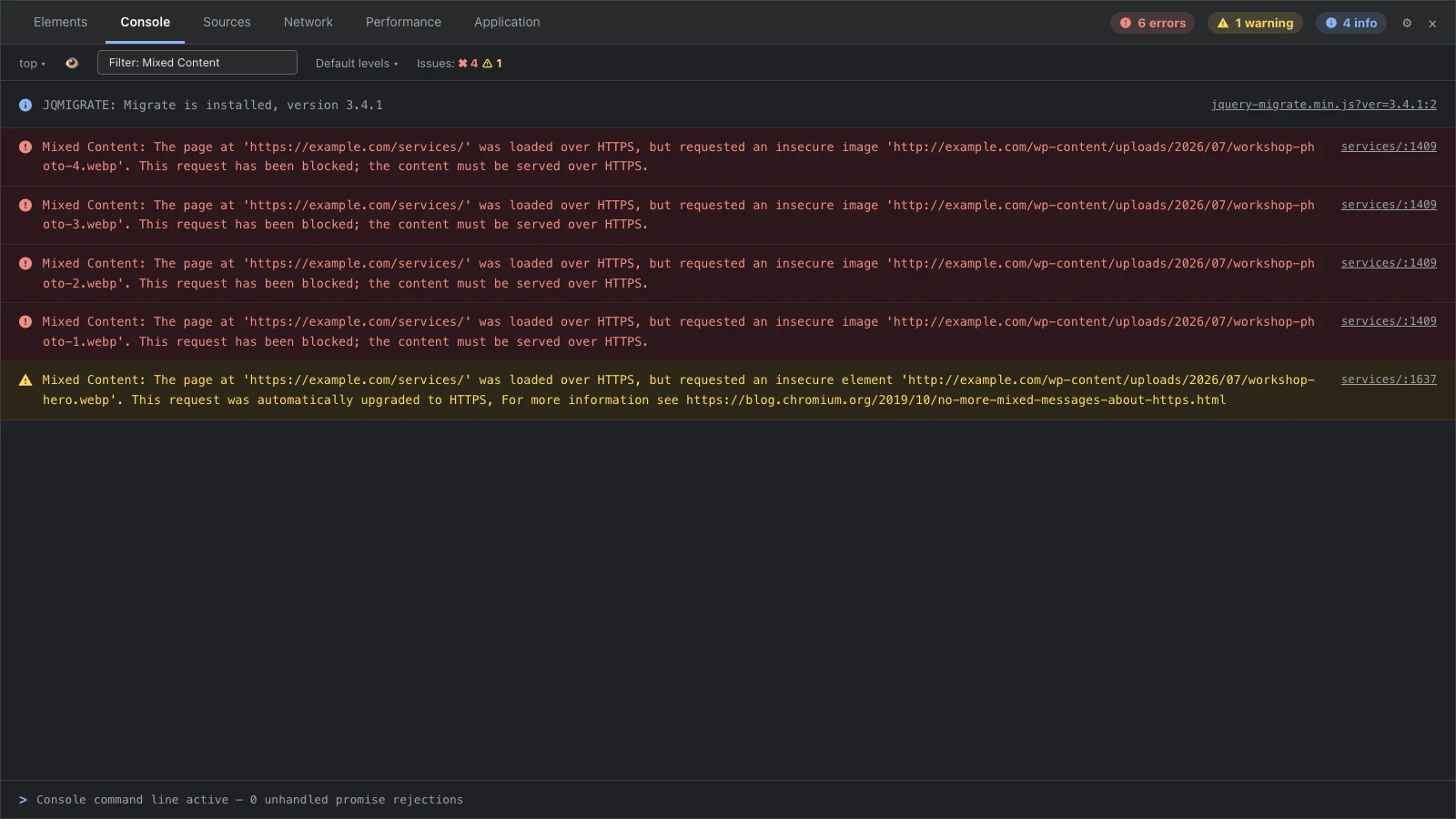
Why do WordPress sites still produce HTTP links when SSL is active? In my agency work, mixed content almost always traces back to one of these seven underlying root causes:
Under Settings → General, WordPress stores two primary configuration URLs: the WordPress Address (URL) (siteurl) and the Site Address (URL) (home). If these fields still use http://, core functions like wp_upload_dir(), plugins_url(), and wp_enqueue_script() will generate insecure HTTP links across all templates, even if the visitor arrives over HTTPS.
When you insert an image into the Block Editor (Gutenberg) or Classic Editor, WordPress saves the full absolute URL into the post_content column of the wp_posts table (e.g., <img src="http://example.com/wp-content/uploads/2026/07/image.webp">). Installing an SSL certificate after you have already published content does not magically rewrite existing database rows. Those absolute paths remain stored as plain HTTP strings.
Modern page builders like Elementor store layout structures, widget options, and image URLs inside the wp_postmeta table under _elementor_data as JSON-encoded and serialized strings. More importantly, Elementor compiles and saves static CSS files to disk in /wp-content/uploads/elementor/css/post-[ID].css. These compiled stylesheets cache absolute image URLs for section backgrounds. Even if you update your database, the compiled static CSS on disk will continue serving HTTP URLs until you regenerate the files.
Site logos, custom headers, background images, and favicon icons configured through the WordPress Customizer are saved in the wp_options table under theme_mods_[theme_name]. This option stores a complex PHP serialized array containing absolute HTTP URLs that were captured at the time the media was selected.
Sidebar and footer widgets—including widget_media_image, widget_text, and widget_custom_html—are also stored as serialized arrays in wp_options. Custom HTML widgets frequently contain hardcoded HTTP links to badges, partner logos, or tracking pixels.
If your website sits behind a reverse proxy, load balancer, or CDN (such as Cloudflare, AWS CloudFront, or an Nginx front-end proxy), the SSL termination often happens at the edge. The proxy connects to your origin server over unencrypted HTTP on port 80. By default, WordPress inspects $_SERVER['HTTPS'] to determine whether a connection is secure. If the proxy fails to forward the protocol header or WordPress does not inspect it, WordPress core function is_ssl() returns false. WordPress mistakenly concludes that it is serving plain HTTP and dynamically generates HTTP URLs for scripts, styles, and REST API endpoints.
Developers frequently build client websites on local staging environments (like http://example.test or http://staging.example.com) without active SSL. When migrating the database to the production server, flawed migration tools or incomplete search-and-replace scripts leave behind HTTP schemes.
When developers first realize their database contains hundreds of http:// strings, their first instinct is often to open phpMyAdmin or run a raw MySQL query:
-- DANGEROUS: DO NOT RUN THIS QUERY ON A WORDPRESS DATABASE!
UPDATE wp_postmeta
SET meta_value = REPLACE(meta_value, 'http://example.com', 'https://example.com');
Never do this. Running a raw SQL REPLACE() on a WordPress database will corrupt serialized PHP data and break your site. Here is the technical reason why:
WordPress relies heavily on PHP’s serialize() function to store arrays and objects in single text columns (such as wp_options.option_value and wp_postmeta.meta_value). A serialized string encodes data types and string lengths explicitly:
a:1:{s:3:"url";s:29:"http://example.com/photo.webp";}Notice the byte counter: s:29:"http://example.com/photo.webp". The prefix s:29: explicitly tells PHP’s deserializer that the subsequent string is exactly 29 characters long.
When you replace http:// (7 characters) with https:// (8 characters), the length of the string increases by one character to 30 characters: https://example.com/photo.webp. However, a raw SQL REPLACE() only modifies the characters; it has no understanding of PHP serialization structures and leaves the prefix unchanged at s:29::
a:1:{s:3:"url";s:29:"https://example.com/photo.webp";} -- CORRUPTED!When WordPress calls unserialize() on this column, PHP attempts to read 29 bytes, hits an unexpected character before the closing quotation mark, encounters a syntax violation, and returns false. Instantly, all serialized settings in that row vanish. Widgets reset to defaults, ACF field groups disappear, and Elementor pages render as completely blank templates.
Before applying a fix, you need to identify exactly which resources are failing. Here are the three most reliable diagnostic workflows:
F12 (or Cmd + Option + I on Mac) and click the Console tab. Type Mixed Content into the filter bar. The console will list each blocked asset, the originating line in your HTML source, and whether the resource was blocked or upgraded.scheme:http. You will instantly see all outgoing cleartext requests along with their HTTP status and initiator stack trace.Online scanners test your pages from an external browser environment without local cache interference:
If you have terminal access, you can search your database for insecure occurrences without modifying any data:
# Preview occurrences across all tables without making changes
wp search-replace 'http://example.com' 'https://example.com' --dry-run
This command queries every table, detects serialized strings, and outputs an ASCII table summarizing exactly how many rows in wp_posts, wp_postmeta, and wp_options contain insecure references.
Not all fixes are created equal. Some methods rewrite the underlying database permanently, while others apply dynamic runtime filters or edge proxy rules. Here is an honest comparison of the primary fix methods:
| Fix Method | Best For | Risk Level | Skill Level | Performance Impact |
|---|---|---|---|---|
| 1. Settings → General | Setting canonical site URLs | Low | Beginner | None (Zero overhead) |
| 2. WP-CLI search-replace | Permanent, clean DB migration | Moderate | Advanced | None (Fastest permanent fix) |
| 3. Better Search Replace | DB search-replace via admin | Low–Moderate | Intermediate | None (Database updated once) |
| 4. Really Simple SSL | Quick automated setup | Low | Beginner | Minor (Output buffer overhead) |
| 5. SSL Insecure Content Fixer | Third-party plugin hardcoded URLs | Low | Intermediate | Moderate (DOM parsing overhead) |
| 6. Elementor Tools | Elementor layouts & CSS files | Low | Beginner | None (Regenerates static assets) |
| 7. Cloudflare Rewrites | Sites using Cloudflare proxy | Low | Beginner | None (Processed at CDN edge) |
| 8. CSP upgrade-insecure-requests | Global browser-level safety net | Low | Intermediate | None (Browser handles upgrade) |
| 9. Reverse Proxy wp-config | Sites behind Nginx / ALB / Cloudflare | Low | Intermediate | None (Ensures accurate is_ssl()) |
Before touching your database or plugins, verify that WordPress knows its canonical URL uses HTTPS:
http://example.com to https://example.com.Note: If these fields are greyed out, they have been defined statically in your wp-config.php file. Open wp-config.php in your code editor and update the constants:
define( 'WP_HOME', 'https://example.com' );
define( 'WP_SITEURL', 'https://example.com' );If you have SSH access to your server, WP-CLI’s wp search-replace is the fastest, cleanest, and most reliable method available. It deserializes PHP data structures into memory, swaps the strings, recalculates the exact string byte lengths, and re-serializes the data before committing changes to MySQL.
Always take a full database backup before running any search-and-replace command. If you need a comprehensive backup routine, refer to our guide on how to backup and restore WordPress.
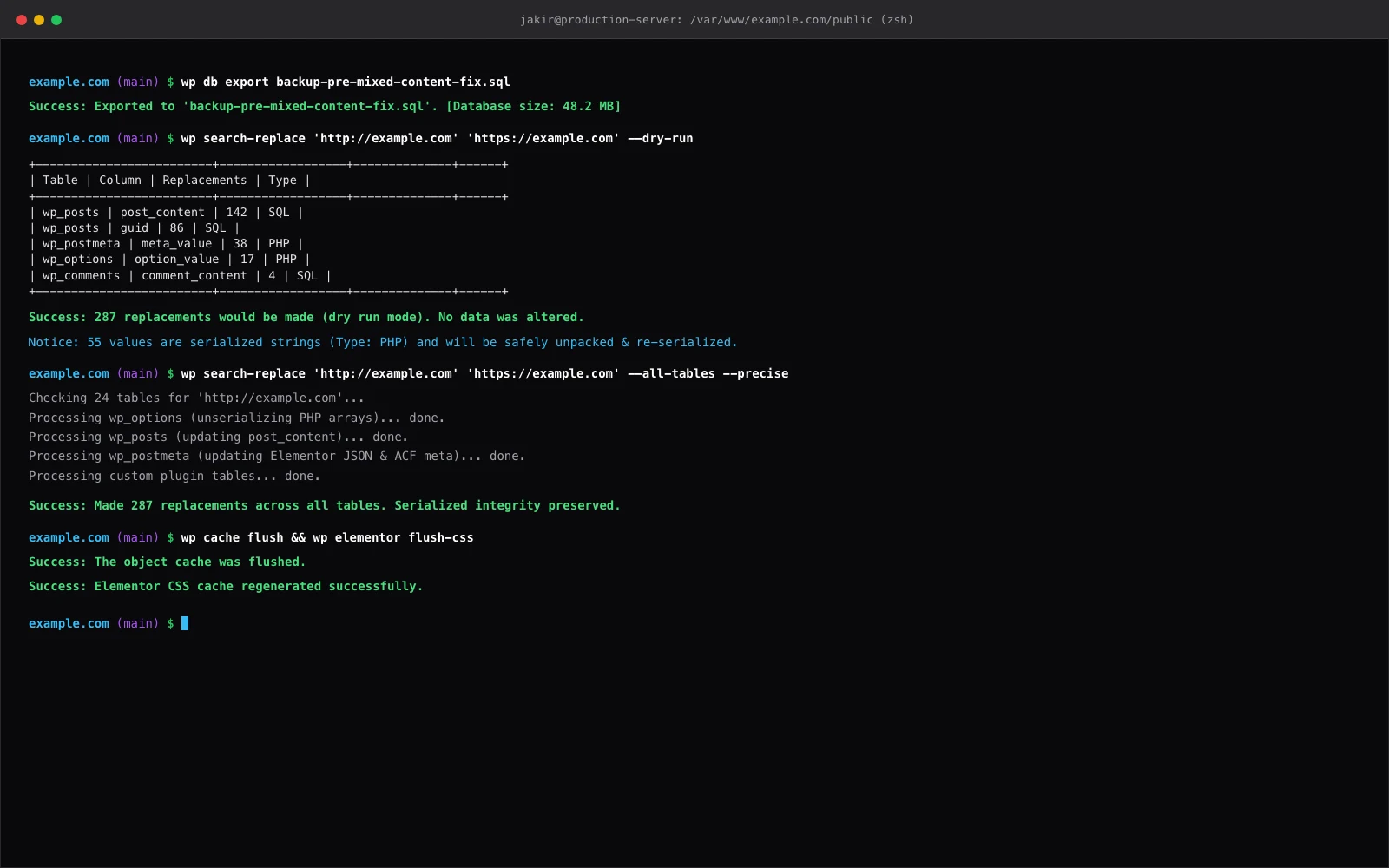
Execute the following four commands in your terminal from the WordPress root directory:
# Step 1: Export a safety database backup
wp db export backup-pre-ssl-migration.sql

# Step 2: Perform a dry-run preview to inspect affected tables
wp search-replace 'http://example.com' 'https://example.com' --dry-run

# Step 3: Run the replacement across all tables with precision serialization handling
wp search-replace 'http://example.com' 'https://example.com' --all-tables --precise

# Step 4: Flush the object cache and page cache
wp cache flush
Why --precise matters: By default, WP-CLI uses optimized regex replacement when possible. The --precise flag forces WP-CLI to use native PHP serialization algorithms across all tables, guaranteeing zero data corruption in complex serialized arrays from plugins like ACF Pro, WooCommerce, and Gravity Forms.
If you do not have SSH terminal access, use the free Better Search Replace plugin (developed by WP Engine):
http://example.com.https://example.com.Really Simple SSL is the most popular one-click SSL plugin in the WordPress repository. When activated, it automatically updates your Site URL, redirects incoming HTTP traffic to HTTPS via 301 redirects, and enables dynamic mixed content fixing.
The Developer Caveat: Really Simple SSL fixes mixed content at runtime using PHP output buffering (ob_start()). On every single page request, the plugin captures the HTML output before it reaches the browser, performs a regex replacement on http:// URLs, and serves the modified HTML. While effective for non-technical users, it is essentially a band-aid. It adds slight server overhead, and if the plugin is ever deactivated, your site instantly reverts to mixed content errors. For high-traffic sites, a clean database search-and-replace is far superior.
If your mixed content originates from a third-party plugin or an unmaintained theme that hardcodes HTTP links in its PHP template files, database search-replace cannot solve the problem because the URL is not in the database. In this scenario, SSL Insecure Content Fixer is the ideal tool.
It provides granular filter levels under Settings → SSL Insecure Content:
the_content and post excerpts.If your site uses Elementor, running a database search-replace is only half the battle. Elementor stores compiled CSS files in the /wp-content/uploads/elementor/css/ directory. These static files are not updated by database queries.
http://example.com) and new URL (https://example.com), then click Replace URL.If your domain routes through Cloudflare’s edge proxy, Cloudflare can resolve mixed content before requests even hit your origin server. If you are comparing performance and edge options, check our overview of the best free CDN options for WordPress.
http:// to https:// for known secure hosts.The W3C Content Security Policy specification includes a dedicated directive: upgrade-insecure-requests. When this header is present, the browser automatically treats all cleartext HTTP resource URLs as if they were HTTPS before making network requests.
You can enforce this header at the server level without touching WordPress PHP code. For Apache or LiteSpeed servers, add the following to the top of your .htaccess file:
<IfModule mod_headers.c>
Header always set Content-Security-Policy "upgrade-insecure-requests;"
</IfModule>
For Nginx servers, add this directive inside your server block:
# Enforce browser upgrade of insecure subresources
add_header Content-Security-Policy "upgrade-insecure-requests;" always;
Alternatively, you can inject it as an HTML meta tag inside your theme’s <head> section:
<meta http-equiv="Content-Security-Policy" content="upgrade-insecure-requests">Important limitation: This header instructs the browser to upgrade the request, but if the resource host does not support HTTPS (e.g., an outdated third-party image server), the request will fail and the image will break.
If your WordPress site is behind a reverse proxy (such as Cloudflare Flexible SSL, AWS Application Load Balancer, or an Nginx reverse proxy), WordPress may fail to detect SSL, resulting in infinite redirect loops (ERR_TOO_MANY_REDIRECTS) or continuous HTTP URL generation. Open your wp-config.php file and add this code snippet above the /* That's all, stop editing! */ line:
// Detect HTTPS termination behind reverse proxy / CDN
if ( isset( $_SERVER['HTTP_X_FORWARDED_PROTO'] ) && 'https' === $_SERVER['HTTP_X_FORWARDED_PROTO'] ) {
    $_SERVER['HTTPS'] = 'on';
}
This snippet instructs WordPress core to evaluate the X-Forwarded-Proto header passed by your proxy. When verified, WordPress sets $_SERVER['HTTPS'] = 'on', ensuring that is_ssl() evaluates to true and all dynamic resource paths are generated over HTTPS.
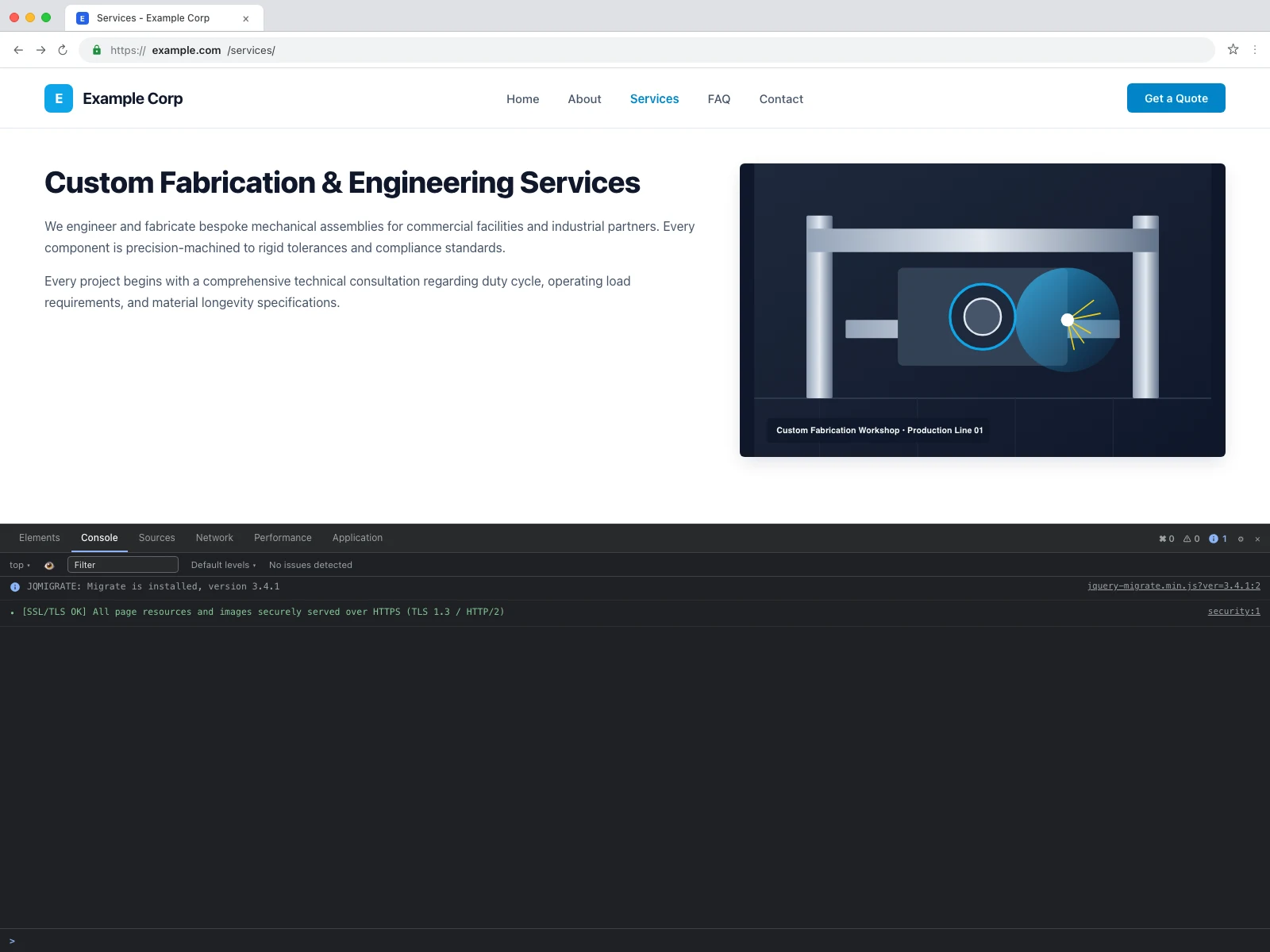
Fixing mixed content after a site is live wastes client trust and developer time. To prevent mixed content from occurring in the first place, adopt this deployment checklist on every build:
/wp-content/themes/mytheme/assets/...) or rely strictly on core helper functions like get_theme_file_uri()..sql files. Always use serialized-aware migration tools like WP-CLI, WP Migrate, or Duplicator Pro.This post is by Jakir, a member of the CodeConfig team who is always working to find solutions for our users and improve our services.
Thank you for reading and for your kind words and good wishes for us. We truly appreciate your support! ❤️
Whether you're just getting started or scaling fast, we've got you covered. Access helpful guidance.

