How to Create Download List Shortcode in the File Manager for Dropbox?
File Manager for Dropbox lets you create secure download links for your Dropbox files directly from your WordPress site. With Download Links, users can easily download files while you control access, permissions, and visibility. This is ideal for sharing documents, media files, or resources securely.
Step 1: Create a Shortcode for Download Links
Go to File Manager for Dropbox > Module Builder > Add New Module > Select the File List Module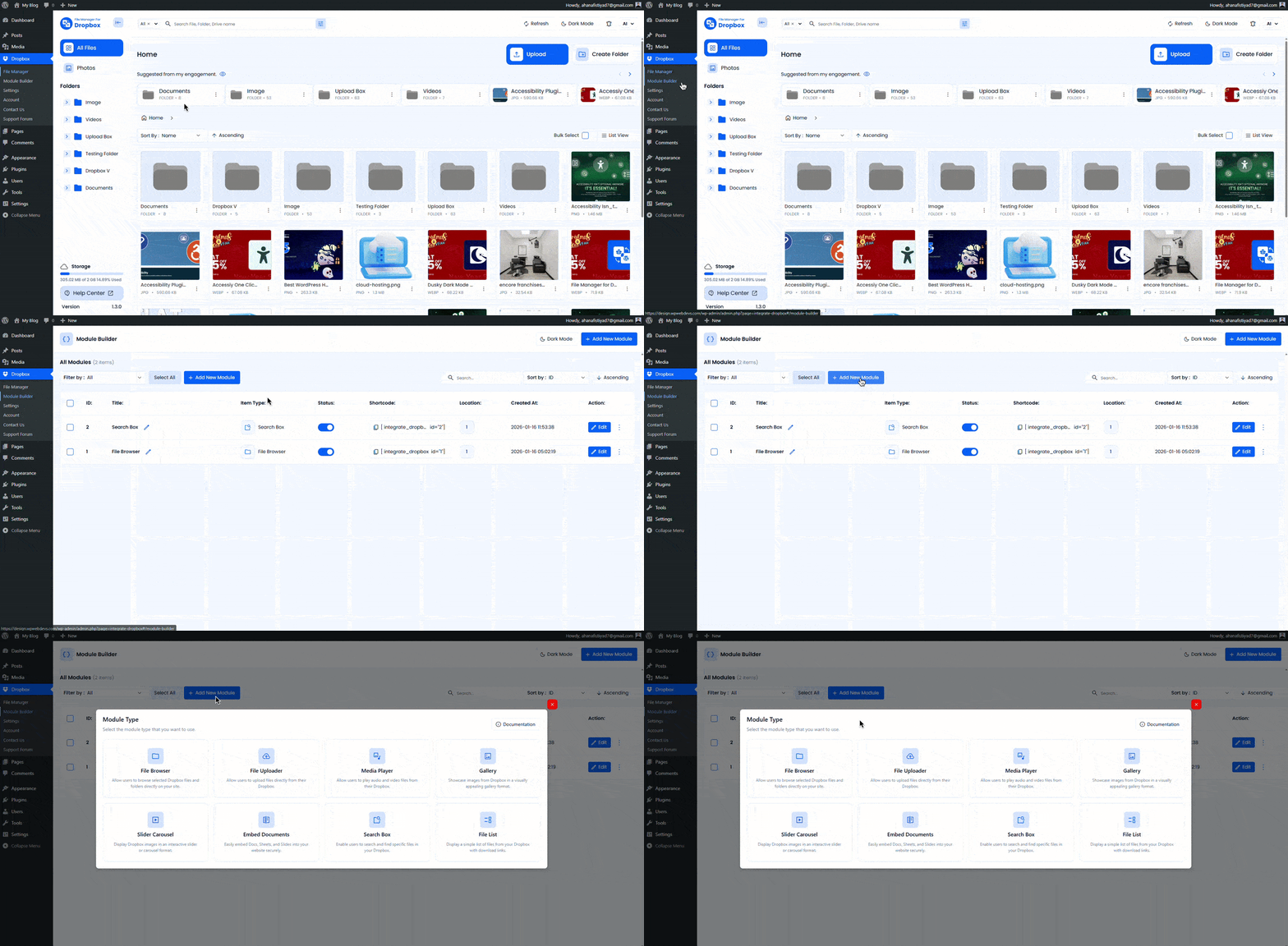
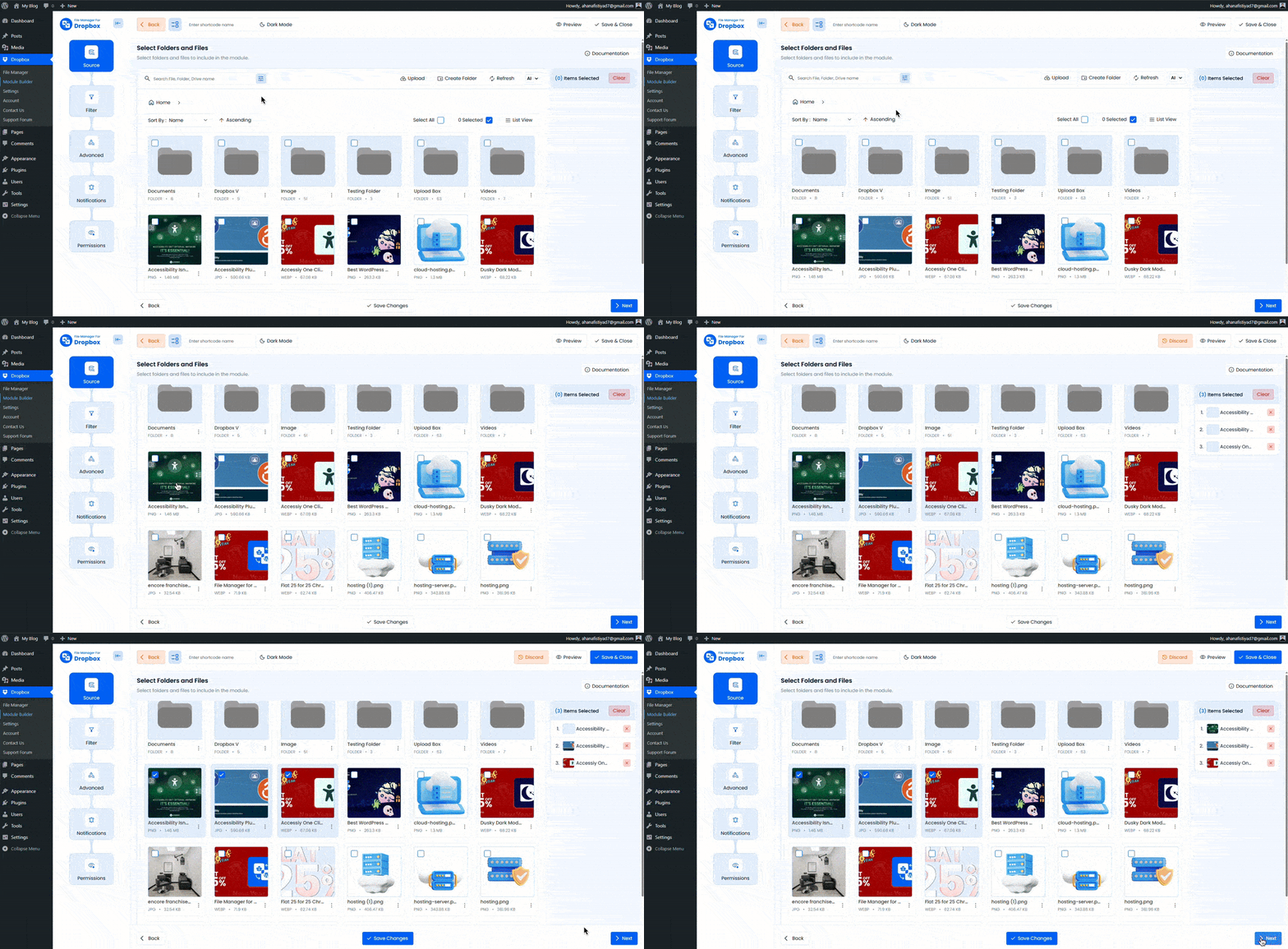
Step 2: Configure the Source
Choose the Dropbox folder that contains the files you want users to download, then click Next.
Want to download this plugin? Free Download
Learn Also: Connect Dropbox With WordPress
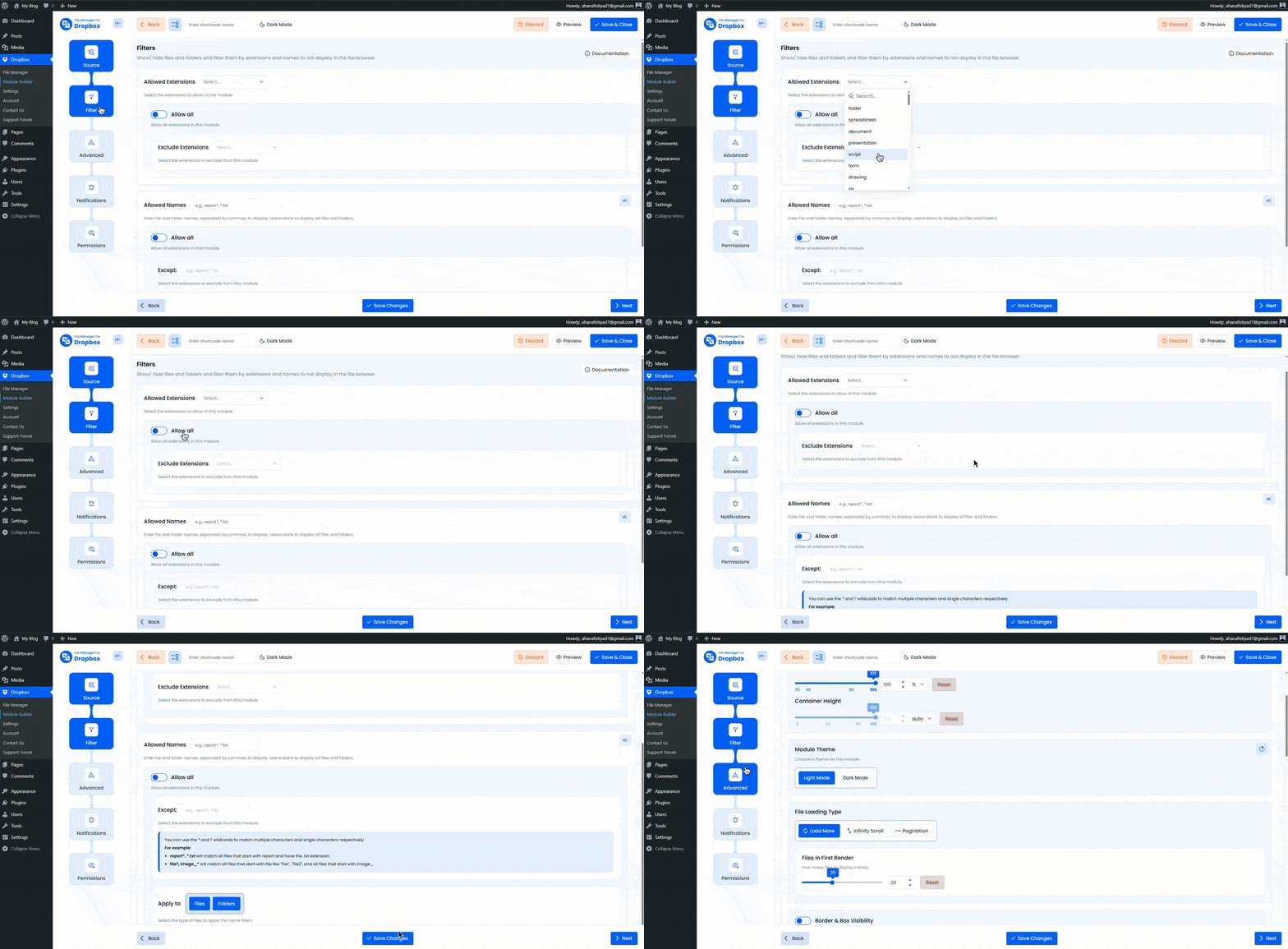
Step 3: Configure the Filter Tab
Use the Filter tab to control which files are available for download.
Allowed Extensions:
- Add comma-separated file extensions to allow, for example
pdf, zip, docx. Leave empty to allow all file types. - If Allow All is enabled, extension filters will be ignored.
Allowed Names:
- Enter specific file names to allow, for example
pricing, brochure, report. Leave empty to show all files. - If Allow All is enabled, name-based filtering will not apply.
Step 4: Configure the Advanced Tab
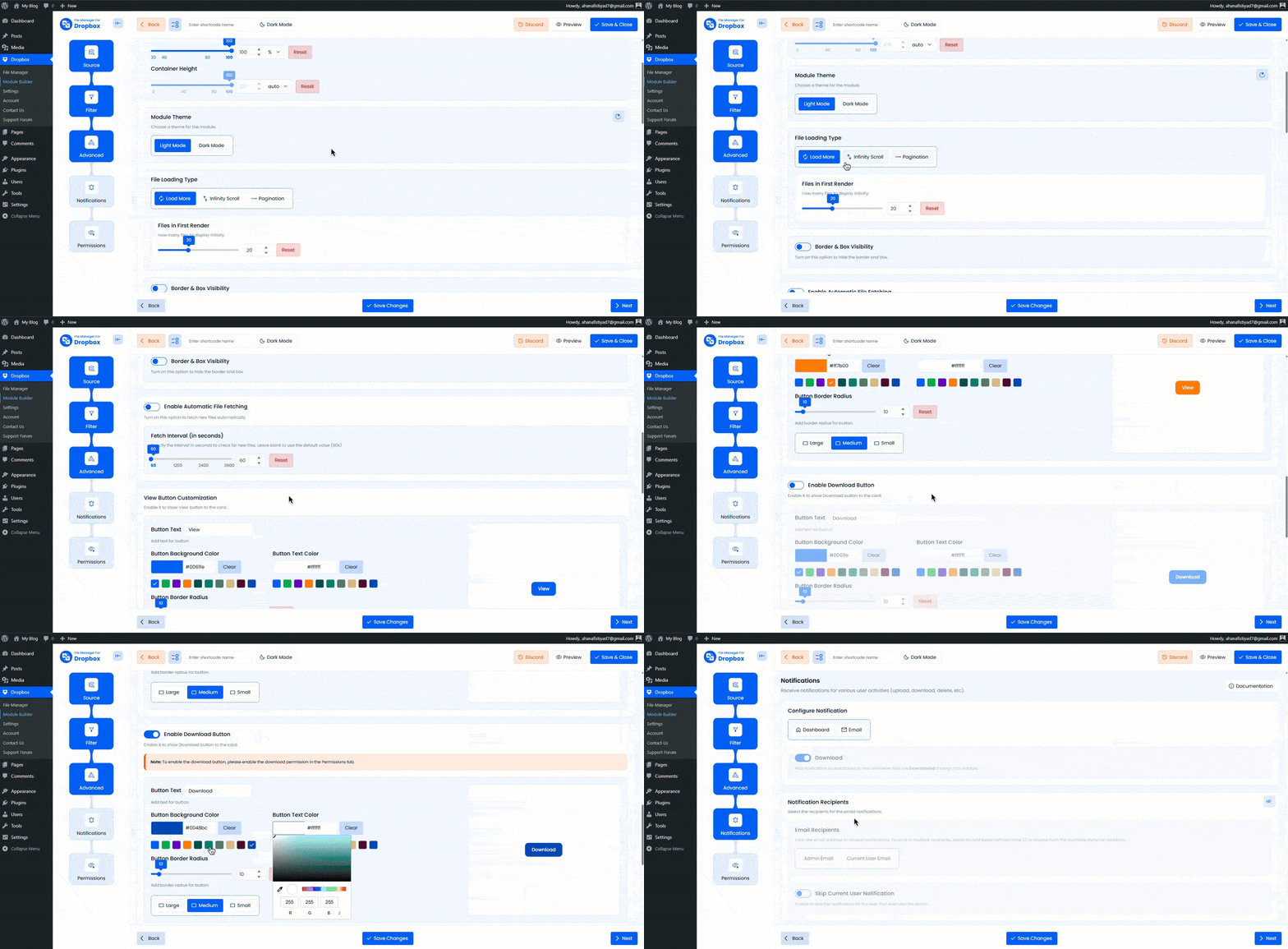
Customize how your download links look and behave.
- Container Width & Height: Set custom dimensions or leave empty for default size.
- Module Theme: Choose light or dark mode.
- File Loading Type: Load files using Load More, Infinite Scroll, or Pagination.
- Files in First Render: Control how many files appear initially.
- Download Button Customization: Customize the download button.
- Button Text: Set a custom label like Download or Get File.
- Button Background Color: Change the background color.
- Button Text Color: Adjust the text color.
- Border Radius: Match the button style with your brand.
- Button Size: Choose Large, Medium, or Small.
- Open in New Tab: Open download links in a new browser tab.
- Display: Set the number of columns for desktop, tablet, and mobile.
- Show File Size: Display file sizes next to download links.
- Show Time Stamp: Display upload or update date.
- Enable Auto File Fetching: Automatically show newly uploaded Dropbox files.
- Sorting: Sort files by name, size, created date, or updated date.
Step 5: Configure the Notifications Tab
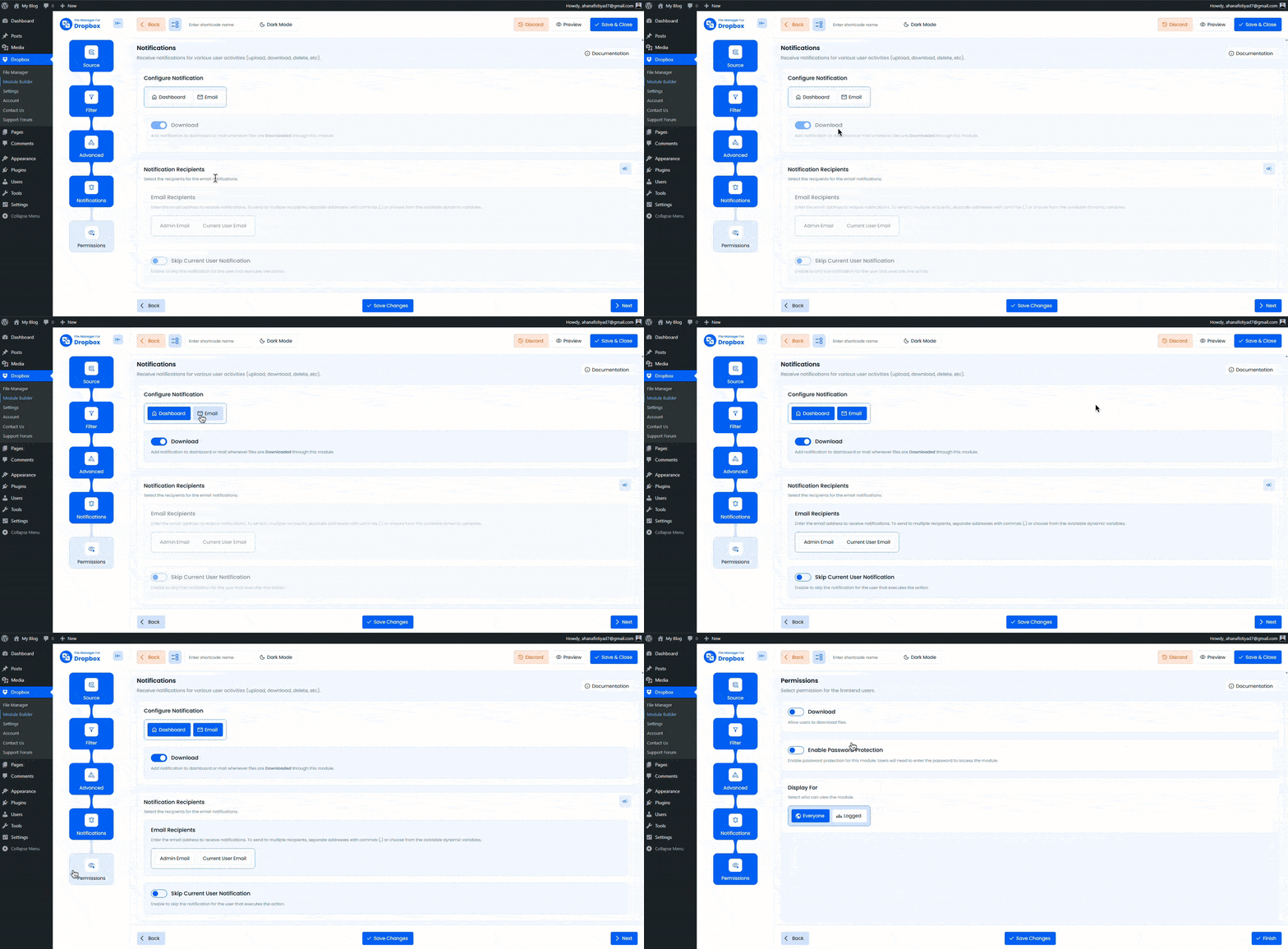
Get notified when users download files.
- Configure Notifications: Enable notifications via dashboard, email, or both.
- Download Notification: Receive an email when a file is downloaded.
- Notification Recipients: Add one or more email addresses separated by commas, for example
%admin_email%, %user_email%. - Skip Current User Notification: Do not notify the user who performed the download.
Step 6: Configure the Permissions Tab
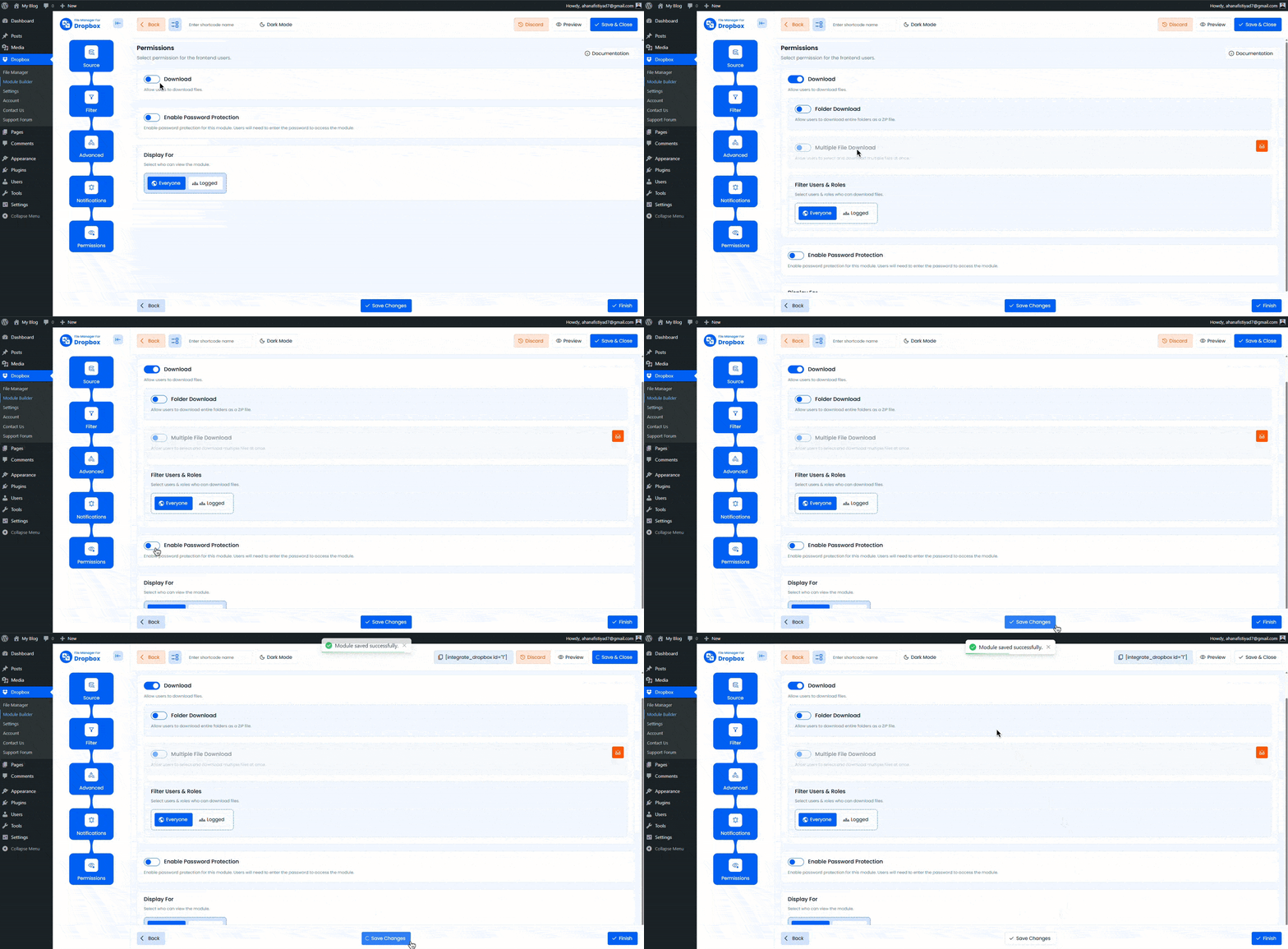
Control who can access and download your files.
- Download: Allow or restrict file downloads.
- Filter Users & Roles: Choose which users or roles can download files.
- Password Protection: Require a password before downloading files.
- Display For: Choose who can see the download links.
- Everyone: Visible to all visitors.
- Logged: Visible only to logged-in users.
- User Access: Limit access by user role or specific users.
- Show Denied Message: Display a custom message when access is restricted.
After finishing all steps, click Save Changes and copy the shortcode. Paste it into any post or page to display your Dropbox download links.
Output
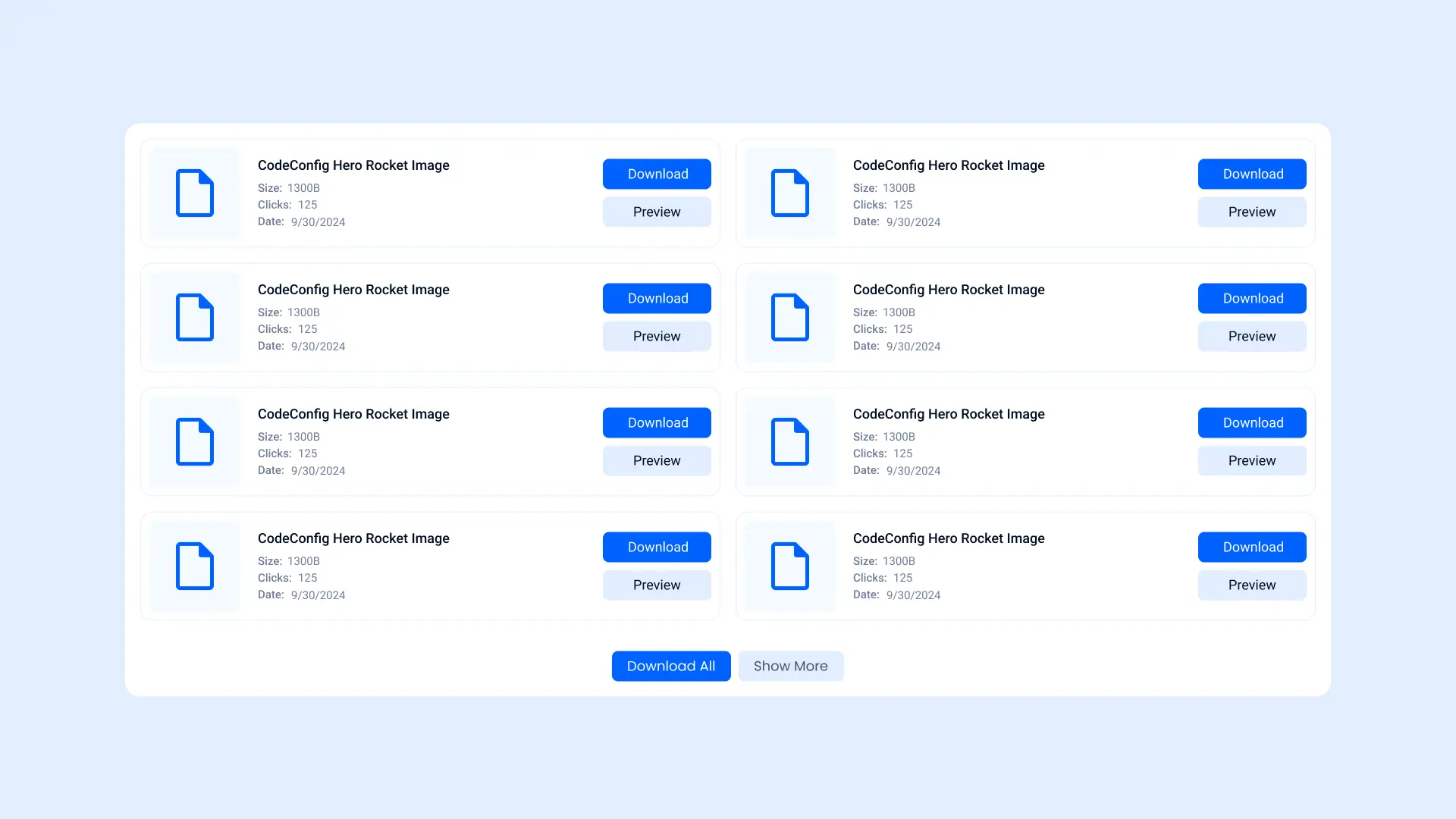
Your files will appear as clean, secure download links, with full control over access, permissions, and notifications.