How to Create a Media Player Using File Manager for Dropbox?
The Media Player Module allows you to play audio and video files directly from Dropbox on your WordPress site. Visitors can watch or listen to media without opening external links or downloading files. This helps keep users engaged while managing all media directly from your Dropbox account.
Want to download this plugin? Free Download
Learn Also: Connect Dropbox With WordPress
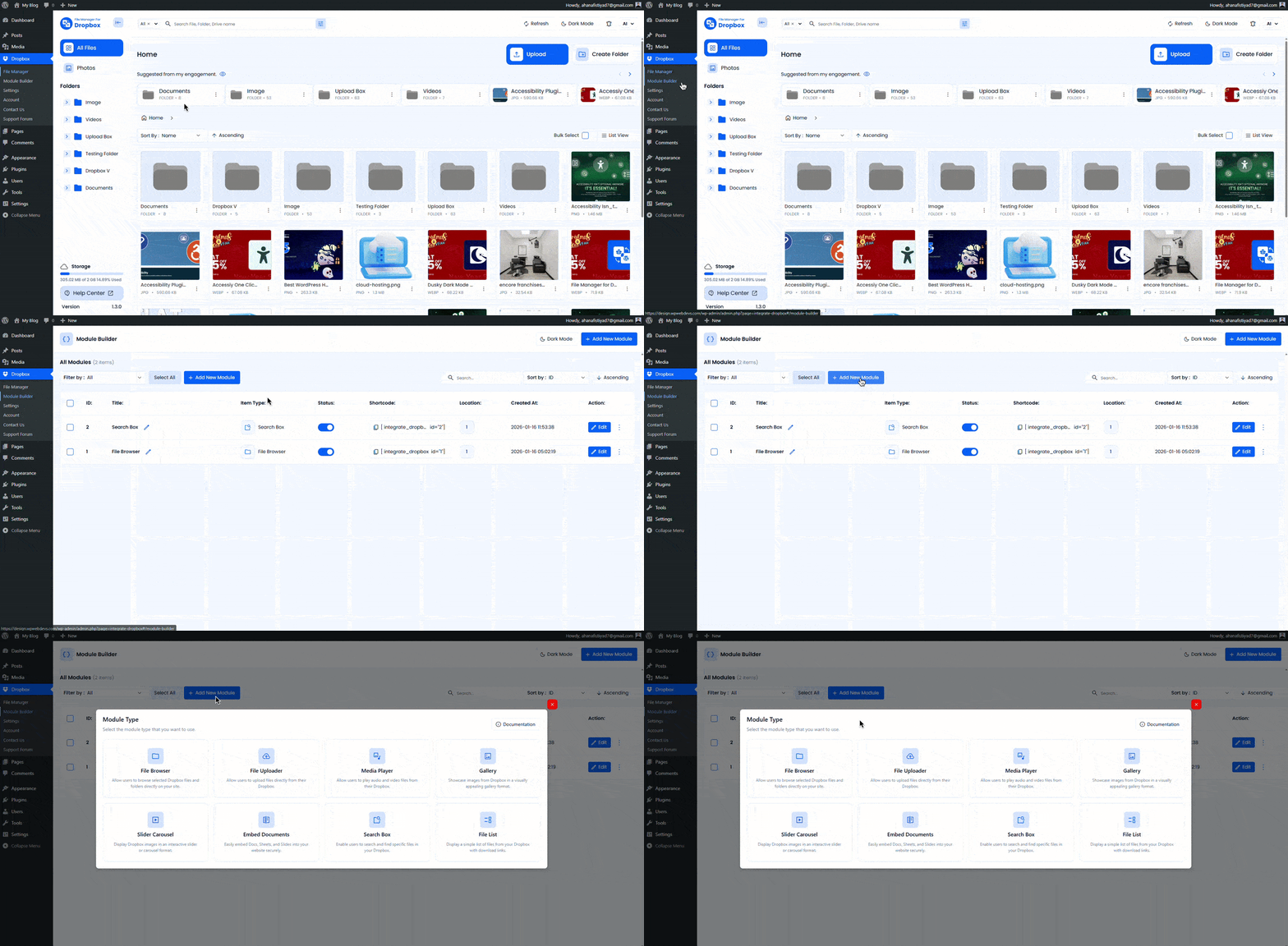
Step 1: Add the Media Player Module
- Go to Module Builder from your WordPress dashboard.
- Click Add New Module and select Media Player from the list.
- You can rename the module title from the top-left corner if needed.
Step 2: Configure the Sources Tab
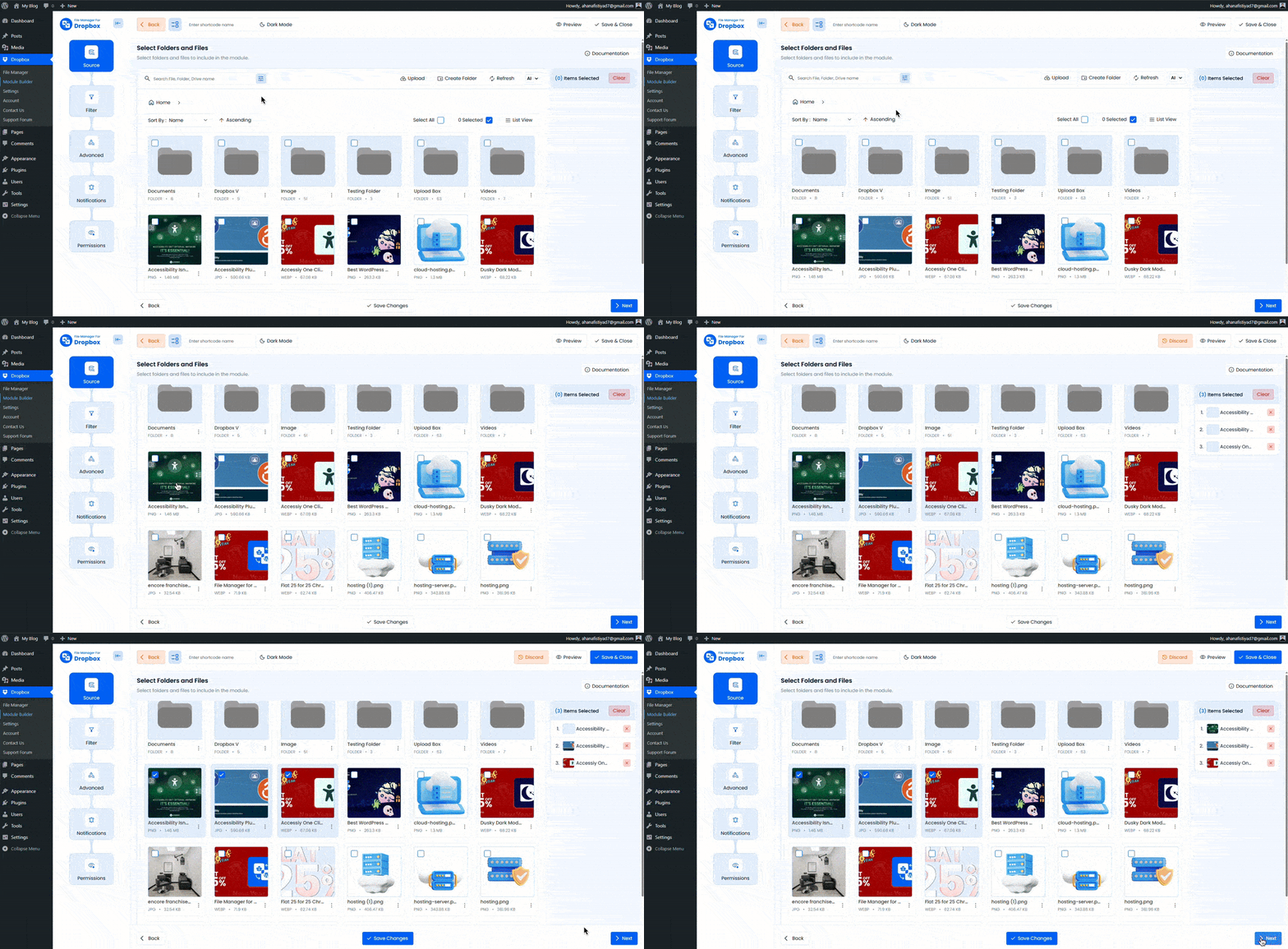
In the Sources tab, choose the audio or video files you want to display in the media player. Files are loaded directly from your connected Dropbox account.
- Click the File button or use the Select Box to choose a file or folder.
- You can also drag and select folders using your mouse.
Step 3: Configure the Advanced Tab
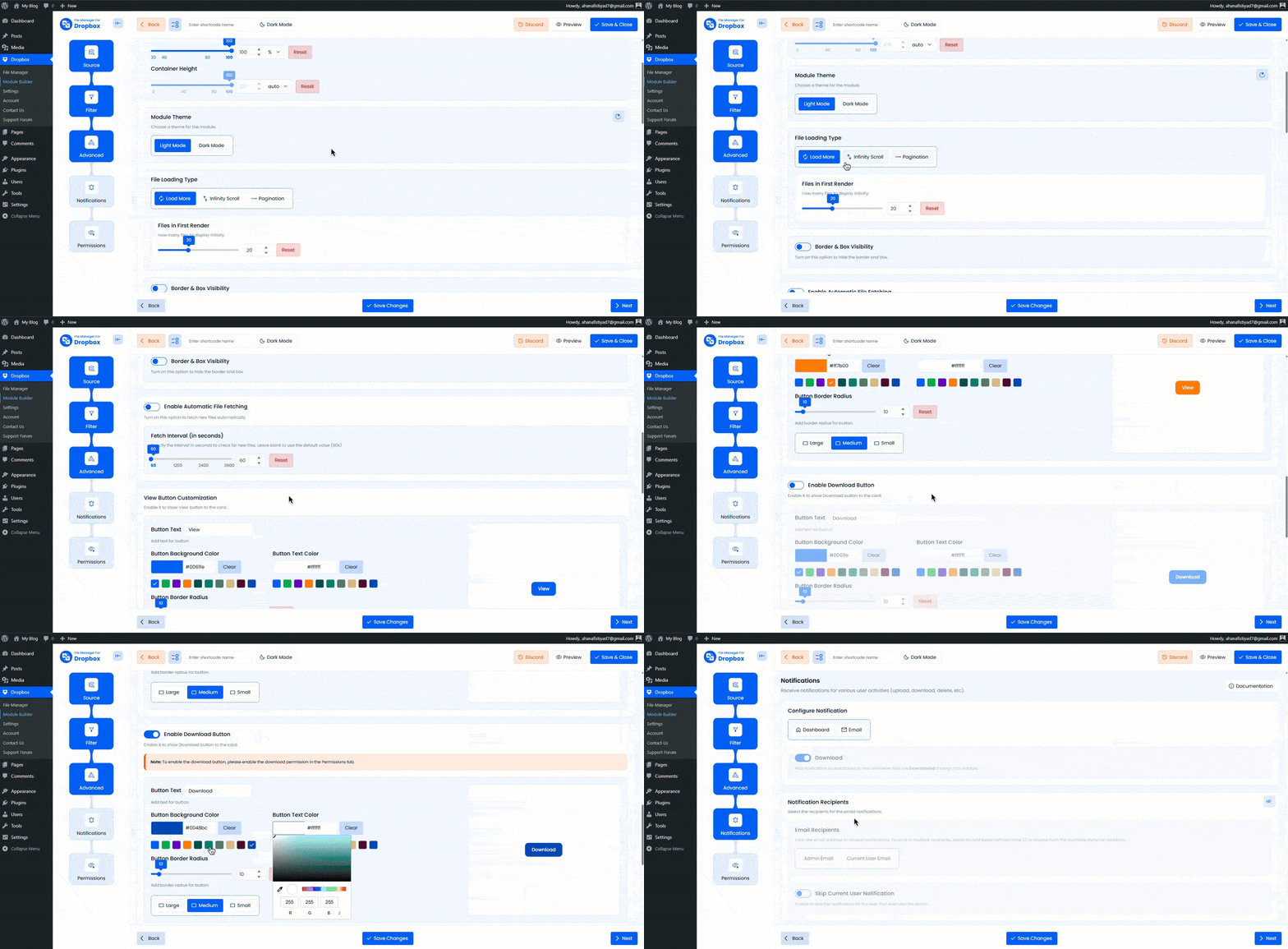
In the Advanced tab, you can control the layout, appearance, and behavior of the media player.
- Module Container: Set the width and height of the player. Leave empty to use default values.
- Module Theme: Choose between light mode and dark mode.
- File Loading Type: Control how media files load on the frontend.
- Files in First Render: Choose how many files load initially.
- Show Next & Previous: Enable or disable next and previous navigation buttons.
- Show / Hide Playlist: Enable or disable the playlist panel.
- Open Playlist: Select the playlist that opens by default.
- Show Playlist Toggle: Add a toggle button to show or hide the playlist.
- Show Number Prefix: Display numbering before playlist items.
- Show Thumbnail: Show file thumbnails in the playlist.
- Playlist Title: Set a custom title for the playlist.
- Playlist Position: Place the playlist on the left, right, or bottom.
- Select Video Ratio: Choose the preferred video aspect ratio.
- Enable Automatic File Fetching: Automatically load new files added to Dropbox.
- Sorting: Choose the sorting type and order.
Step 5: Configure the Notifications Tab
After completing the previous steps, you will be redirected to the Notifications tab. Here you can control when and how notifications are sent.
- Enable Notifications: Choose where you want notifications to appear: Dashboard, Email, or both.
- Download Notification: Receive a notification whenever someone downloads a file through this module.
- Notification Recipients: Enter the email address where notifications should be sent. You can add multiple email addresses by separating them with a comma (,).
- You can also use placeholder tags as recipients:
%admin_email%
%user_email%
%linked_user_email% - Skip Current User Notification: Enable this option to skip notifications for the user who acted.
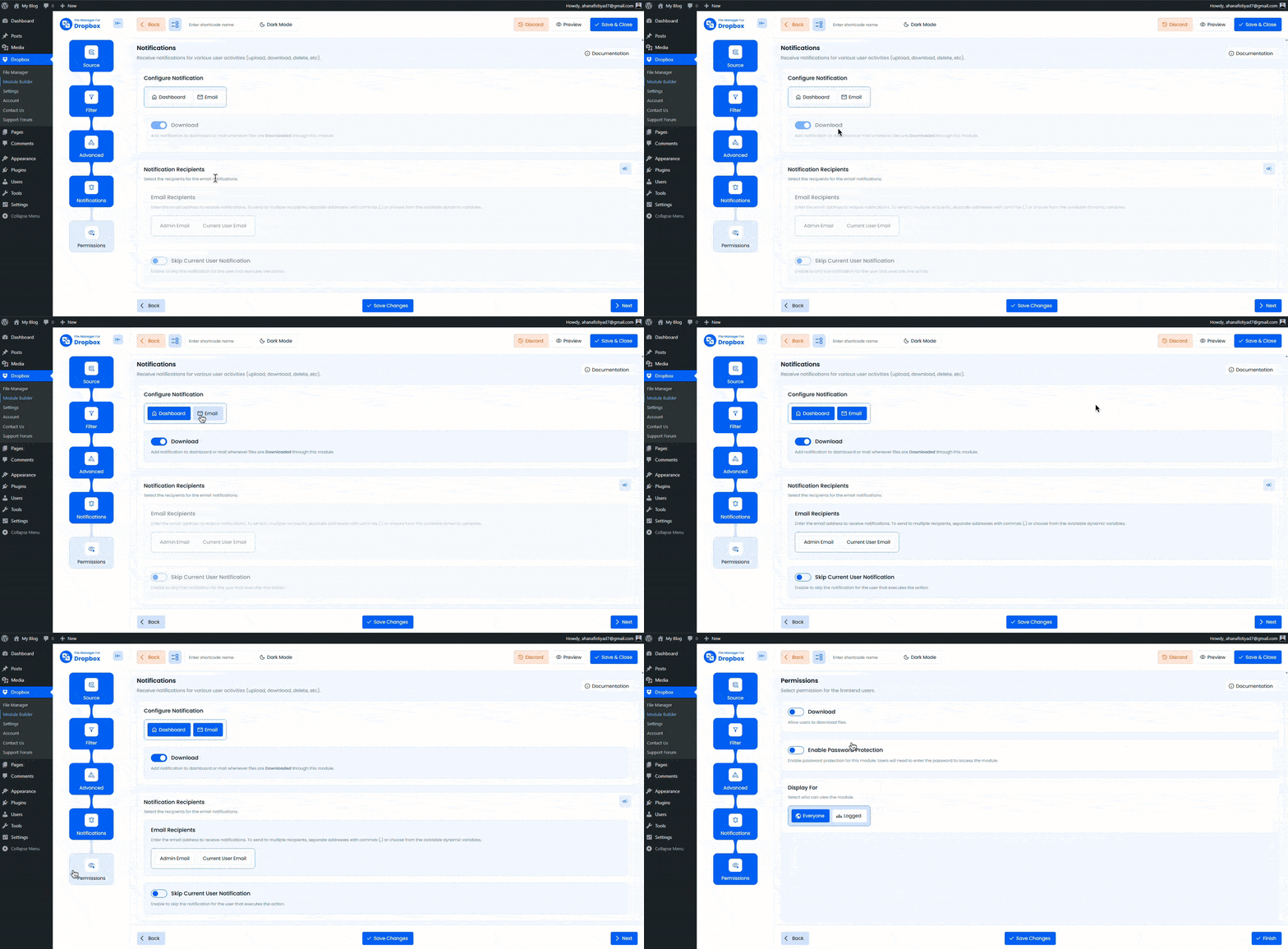
Step 6: Configure the Permissions Tab
In the Permissions tab, you can control who can view, play, search, or download files from the media player.
- Download: Allow users to download media files.
- Filter Users & Roles: Restrict downloads to specific users or roles.
- Preview: Allow users to preview media files. (Coming Soon)
- Allow Pop-out: Open files in Dropbox’s native viewer.
- Allow Search: Enable search inside the media player. (Coming Soon)
- Full-text Search: Search by file name, description, or tags.
- Initial Search Term: Set a default search keyword (supports placeholders like
%post_title%). - Filter Users & Roles: Choose who can use the search feature.
- Usage Limits: Control how often users can download files. (Coming Soon)
- Daily Downloads Limit: Set the total daily downloads limit per user.
- Daily Download Limit / File: Limit downloads per file per day.
- Daily Bandwidth Limit: Set a maximum daily bandwidth limit (MB).
- Exclude Users & Roles: Exclude specific users or roles from limits.
- Exclude All: Apply limits only to selected users or roles.
- Display For: Control who can see the media player. (Coming Soon)
- Everyone: Visible to all users.
- Logged In: Visible only to logged-in users.
- Filter Users & Roles: Show only to selected users or roles.
- Everyone except: Hide from selected users or roles.
- Show Denied Message: Display a message for restricted users.
- Display Login Screen: Show a login prompt if access requires authentication.
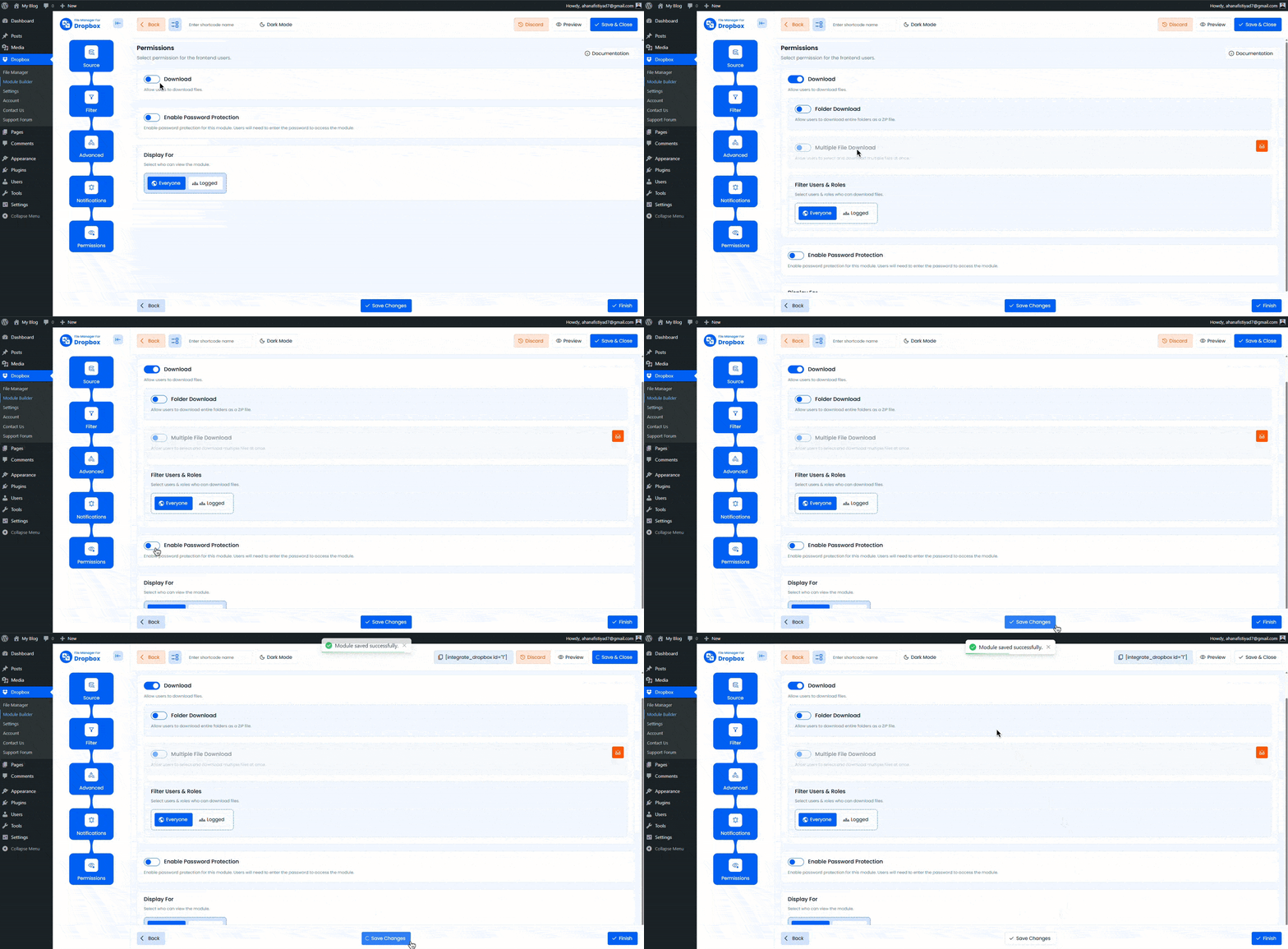
Once everything is configured, click Save Changes and copy the generated shortcode from the Module Builder. Paste the shortcode into any post or page where you want the media player to appear.
Output
After embedding the shortcode, the Media Player module will appear on your page. Visitors can play audio and video files directly from Dropbox using a responsive and user-friendly media player.