How to Migrate a Website Using Google Drive Backups?
Overview
The Integration for Google Drive plugin includes a built-in migration system that lets you move a website between hosts without FTP or manual file transfers. The system uses the plugin’s backup engine to create a portable archive (.zip or .igda), then restores it on the destination site.
Migration works in two directions:
- Live to local — restore a backup from a live site onto a local development environment.
- Local to live — create a backup locally, transfer it to a live site, and restore it there.
Two pages handle migration: Migration (restore from an external source) and Transfer (export a backup for use elsewhere).
Step 1: Create a Backup on the Source Site
Before migrating, create a backup on the source website.
- Navigate to Google Drive > Backups > All Backups in the WordPress admin.
- Click New Backup.
- Enter a name for the backup.
- Select the components to include:
- Database — all WordPress tables.
- Plugins — the entire
wp-content/pluginsdirectory. - Themes — the entire
wp-content/themesdirectory. - Uploads — the entire
wp-content/uploadsdirectory. - Other —
wp-content/mu-plugins,wp-content/languages, and other wp-content subdirectories.
- Optionally toggle Upload to Google Drive to store the archive in the connected Google account.
- Click Create Backup.
Wait for the backup to reach Complete status. The archive is saved locally on the server. If Google Drive upload was enabled, a copy is also stored in the “Integration Google Drive Backups” folder in the connected Google account.
Step 2: Get a Shareable Link (Optional)
If the source and destination sites do not share a Google account, use a shareable download link to transfer the backup.
- On the source site, navigate to Backups > Transfer.
- Under Get a shareable link, find the completed backup.
- Click Copy Link — this generates a signed download URL valid for 72 hours.
- Paste the link on the destination site’s Migration page.
Alternatively, click Download to save the .zip file locally, then upload it on the destination site’s Transfer page.
Step 3: Restore on the Destination Site
Navigate to Backups > Migration on the destination website. Choose one of three restore sources:
Restore from Google Drive
Restore a backup stored in the Google account connected to this site.
- Under Restore from Google Drive, click Refresh to load available backups.
- Each backup shows the source site name, file size, and creation date.
- Click Restore next to the desired backup.
- Confirm the restore in the dialog — this overwrites the current database and files.
Restore from URL
Restore from a direct download link — a “Copy Link” URL from another Integration for Google Drive site, a Google Drive share link, or any publicly accessible archive URL.
- Under Restore from URL, paste the download link into the input field.
- Click Restore from URL.
- Confirm the restore in the dialog.
The plugin automatically normalizes Google Drive and Dropbox share links into direct-download URLs. It also handles Google Drive’s large-file “virus scan warning” interstitial by resolving it to the direct download endpoint.
Restore a Local Backup
Restore from a backup archive already stored on this server.
- Under Restore a local backup, find the desired backup in the list.
- Click Restore.
- Confirm the restore in the dialog.
Upload a Backup File
If you downloaded the .zip to your computer, upload it directly.
- Navigate to Backups > Transfer on the destination site.
- Under Upload a backup file, click Choose Backup File.
- Select the .zip or .igda archive from your computer.
- Confirm the restore in the dialog.
The upload is chunked (1 MB per chunk), cancellable, and tracks progress in real time.
Step 4: Choose the Import Speed
Both the Migration and Transfer pages include an Import speed selector before you start a restore. This controls the restore performance profile:
| Profile | Time Budget | Chunk Size | Best For |
|---|---|---|---|
| Safe | 8 seconds per pass | 4 MB | Shared hosting, constrained environments, or when restores keep stalling. |
| Balanced | 15 seconds per pass | 8 MB | Most hosts — the default. |
| Fast | 25 seconds per pass | 16 MB | Dedicated servers with high memory limits. |
Larger chunks import faster but use more memory and take longer per worker pass. If your host is constrained or the restore keeps stalling, switch to Safe.
How the Restore Works
When you start a restore, the plugin creates a restore job and runs it through a series of steps, each executed in a time-budgeted worker pass so the request never times out.
Restore Steps
| Step | Status | Description |
|---|---|---|
| Download | DOWNLOAD | Fetches the archive from Google Drive or the provided URL using resumable HTTP Range requests. Chunked at 8 MB per request. |
| Validate | VALIDATE | Verifies the archive is a valid backup — either a ZipArchive zip or the plugin’s streaming archive format (.igda). Checks the manifest inside the archive. |
| Extract | EXTRACT | Unpacks the archive into a staging directory. Files are extracted in chunks sized by the performance profile. |
| DB Import | DB_IMPORT | Imports database.sql into temporary-prefixed tables (ccpigdtmp_). This lets the live site keep running during the import. Statements are split on real newlines — safe because the dumper escapes control characters inside string literals. |
| Replace | REPLACE | Runs search-replace across the imported tables to update URLs and paths from the source site to the destination site. |
| Files | FILES | Copies the uploads, plugins, themes, and other files from the archive into the WordPress installation. Existing files are overwritten. |
| Finalize | FINALIZE | Atomically renames the temporary-prefixed tables to their real names, completing the database swap in one step. Drops the temp tables. |
After Finalize, the restore job status becomes Complete. You will need to log in again because the database user credentials and salts may have changed.
Worker Pass Model
The restore runs as a series of short worker passes rather than one long request. Each pass:
- Acquires a worker lock (60-second TTL, self-healing).
- Runs the current step’s chunk loop until the time budget expires.
- Checkpoints progress to the database.
- Kicks off the next pass.
Three drivers keep the worker moving:
- Background loopback — a non-blocking request to the REST worker route.
- WP-Cron fallback — a single scheduled event that rescues blocked loopbacks.
- Admin tab polling — the open SSP polls backup status and nudges stalled builds.
Error Handling
Restore Failures
If a restore fails, a banner appears on the Migration page with the error message. The live site remains safe — the database swap only happens at the Finalize step, and partial imports use temporary table prefixes.
Common failure causes:
- Invalid archive — the uploaded or downloaded file is corrupt or not a valid backup archive.
- Timeout / memory exhausted — switch to the Safe performance profile or increase your PHP memory limit.
- Database errors — check the server error log. The DB import skips the backup’s own
integration_google_drive_backupstable so the restore job history survives. - Connection lost — the site is unreachable. The worker retries automatically; keep the tab open.
Failed Restore Cleanup
After a failed restore, staging directories and partial archives may be left in the imports folder. The plugin surfaces these as Restore Leftovers with a cleanup option.
Security
- Permission check — all backup and restore routes require the
manage_optionscapability. - Signed download tokens — shareable links use HMAC-signed tokens with an expiration timestamp. Invalid or expired links return HTTP 403.
- SSRF protection — the URL downloader blocks local and private network addresses (localhost, 127.0.0.1, 10.x, 172.16.x, 192.168.x, etc.) and resolves DNS to prevent rebinding attacks.
- Worker token — the internal worker route is gated by a secret token, not just the permission callback.
- Range validation — the download endpoint supports HTTP Range for resumable transfers but validates all range bounds before streaming.
Backup Archive Formats
The plugin supports two archive formats:
| Format | Extension | Produced When |
|---|---|---|
| ZipArchive | .zip | The PHP zip extension is available. |
| Streaming Archive | .igda | The PHP zip extension is unavailable. A pure-PHP streaming engine writes the archive. |
Both formats are valid restore sources. The streaming format is produced transparently — no user action is needed.
Cross-Site Migration Flow
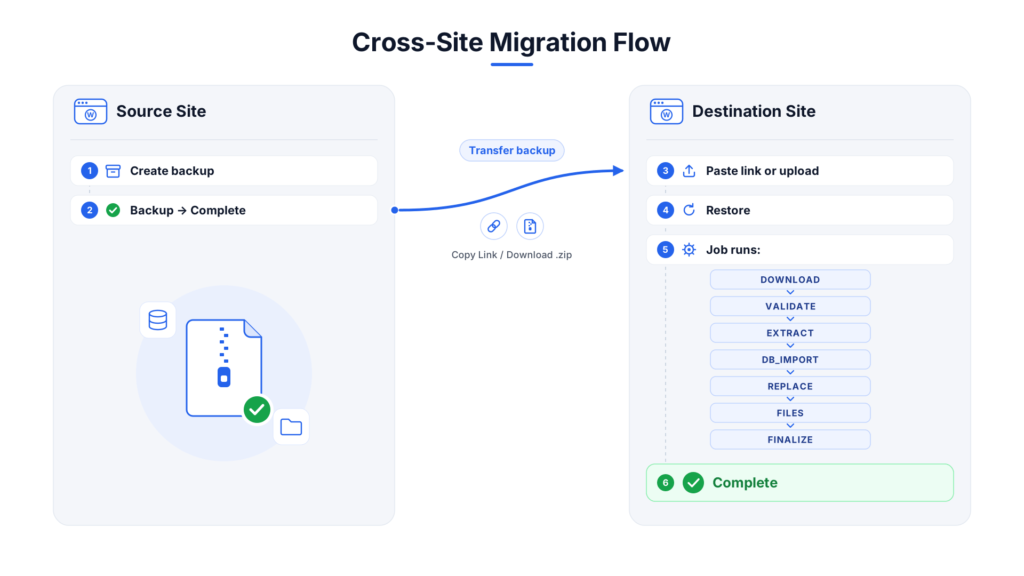
When both sites share a Google account, the backup can be listed directly on the Migration page under Restore from Google Drive — no manual link copying needed.