How to Enable Google Drive Direct Downloads for WooCommerce Memberships
WooCommerce Memberships direct downloads let active members download Google Drive digital products straight from product pages and shop loops without going through cart or checkout.
Integration for Google Drive PRO connects with WooCommerce Memberships so you can restrict direct downloads to specific plans per product, update dozens of products at once with Bulk Edit or Quick Edit, and deliver files using your Advanced download settings.
Step 1: Enable the WooCommerce Integration
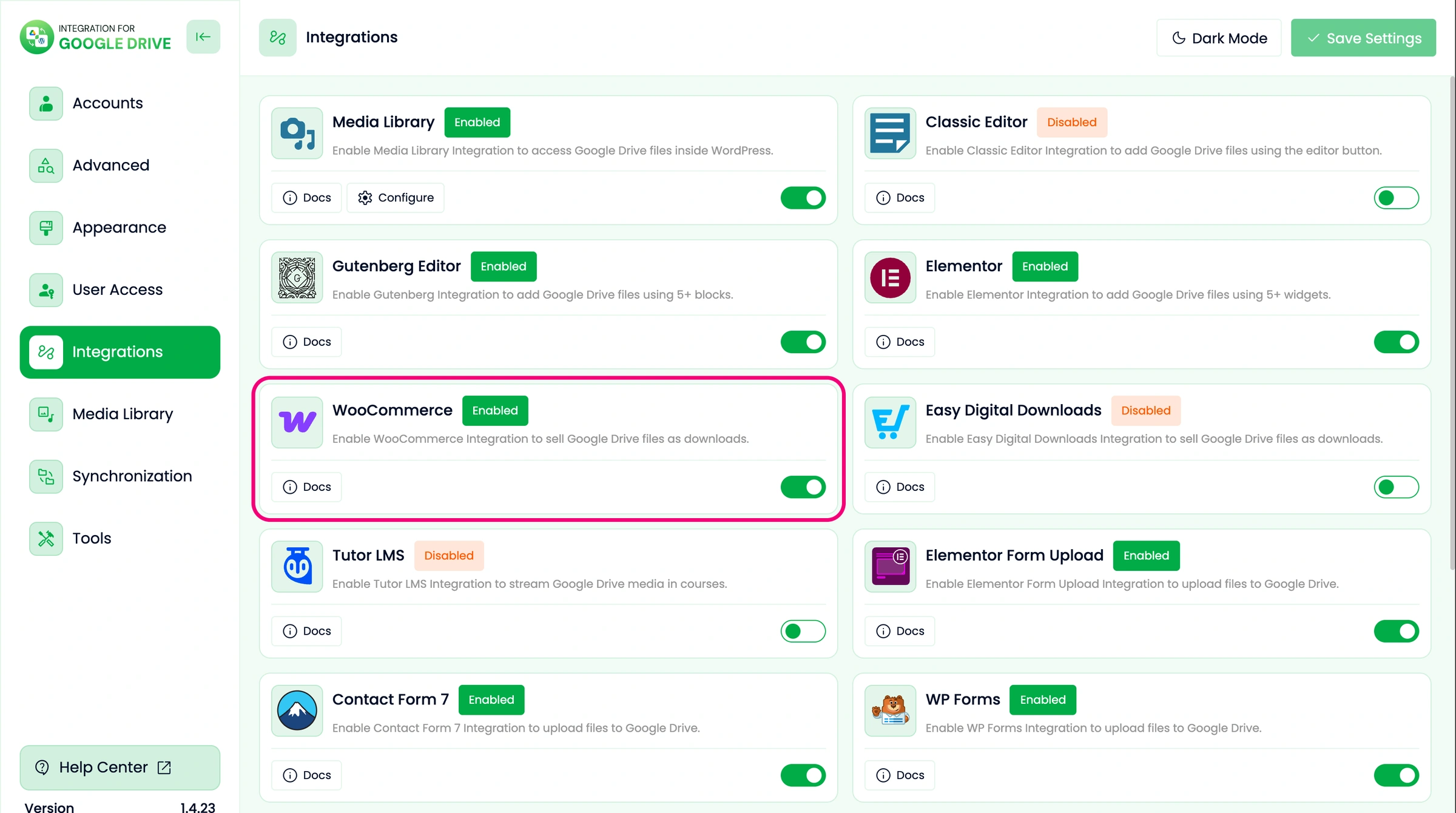
- Open the Integration for Google Drive dashboard in your WordPress admin.
- Go to Settings > Integrations and turn on the WooCommerce toggle.
- Click Save Settings in the top-right corner.
Step 2: Configure WooCommerce Memberships Direct Downloads Settings
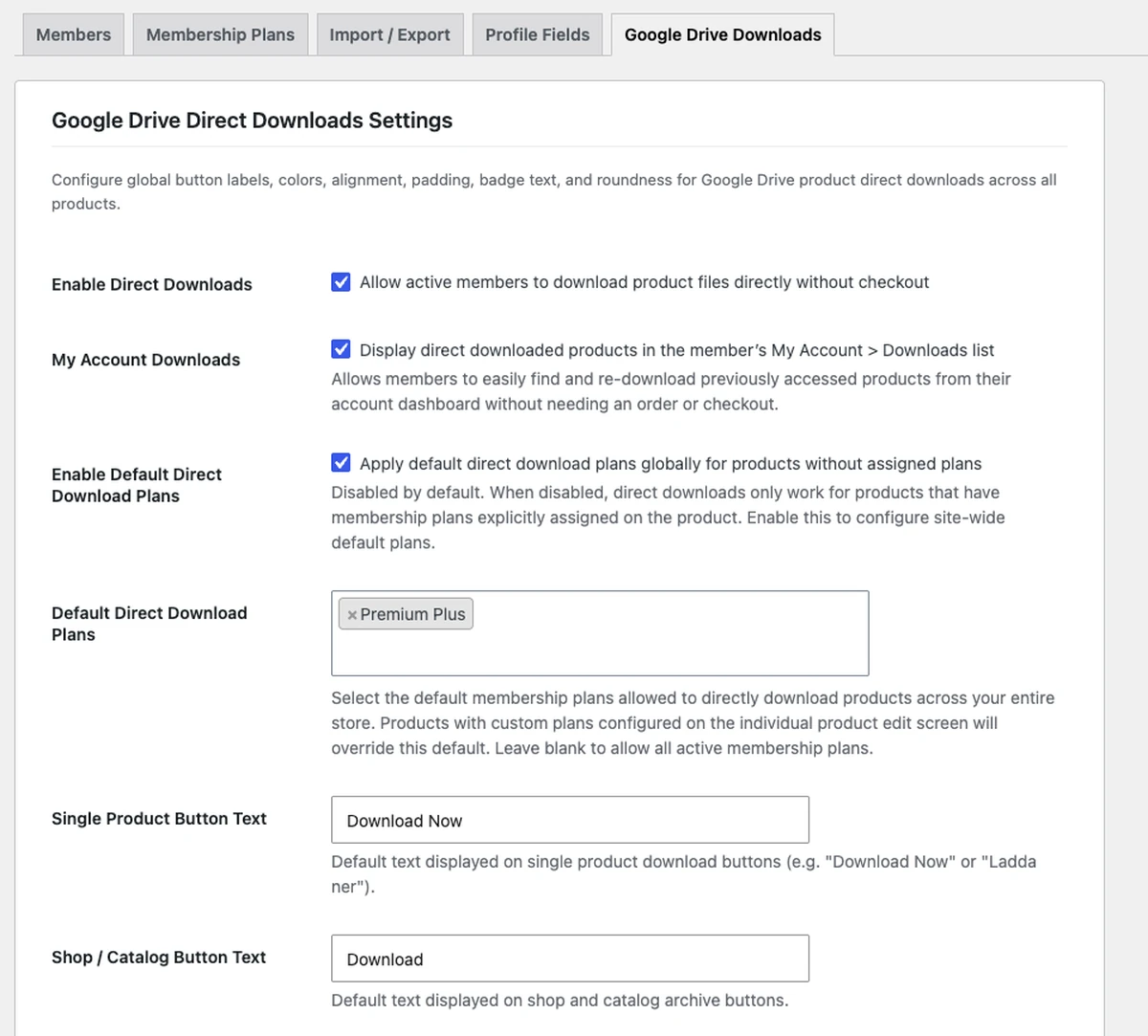
- Go to WooCommerce > Memberships in your WordPress sidebar and open the Google Drive Downloads tab.
- Review and configure your global settings:
- Enable Direct Downloads: Master toggle allowing qualifying active members to download product files directly without checkout.
- My Account Downloads: Lists direct-downloaded products automatically under the member’s
My Account > Downloadspage for easy re-downloading. - Enable Default Direct Download Plans: Disabled by default. When unchecked, direct downloads only appear for products that have membership plans explicitly assigned on the product. Check this option if you want unassigned downloadable products to fall back to site-wide default plans.
- Default Direct Download Plans: Shown when Enable Default Direct Download Plans is enabled. Select fallback plans for unassigned products, or leave blank to allow all active membership plans. Product-level plans always override this global fallback.
- Button Text & Membership Badge: Customize Single Product Button Text (default:
Download Now), Shop / Catalog Button Text (default:Download), and Membership Badge Text (default:Included with Membership; clear the field to hide the badge). - Button Alignment & Styling: Set Shop Button Alignment (Left, Center, or Right), button background/text colors, border radius, and vertical/horizontal padding.
- Click Save Settings.
Step 3: Assign Direct Download Plans on a Product
Assign allowed membership plans directly inside any downloadable product edit screen. Unless you enabled Enable Default Direct Download Plans in Step 2, leaving Direct Download Plans blank keeps the standard cart and checkout flow.
- Edit any product under Products (see our guide on adding Google Drive files as downloadable products for initial setup).
- In Product Data, check Downloadable and attach your file via Add Google Drive File > Choose File From Google Drive.
- Under the Direct Download Plans multi-select dropdown, choose every membership plan that should unlock direct downloads for this product.
- Click Update to save the product.
Step 4: Bulk Edit and Quick Edit Direct Download Plans
When managing a large catalog, you do not need to open each product individually to set or reset WooCommerce Memberships access. You can update dozens of products at once with Bulk Edit or tweak a single row inline with Quick Edit.
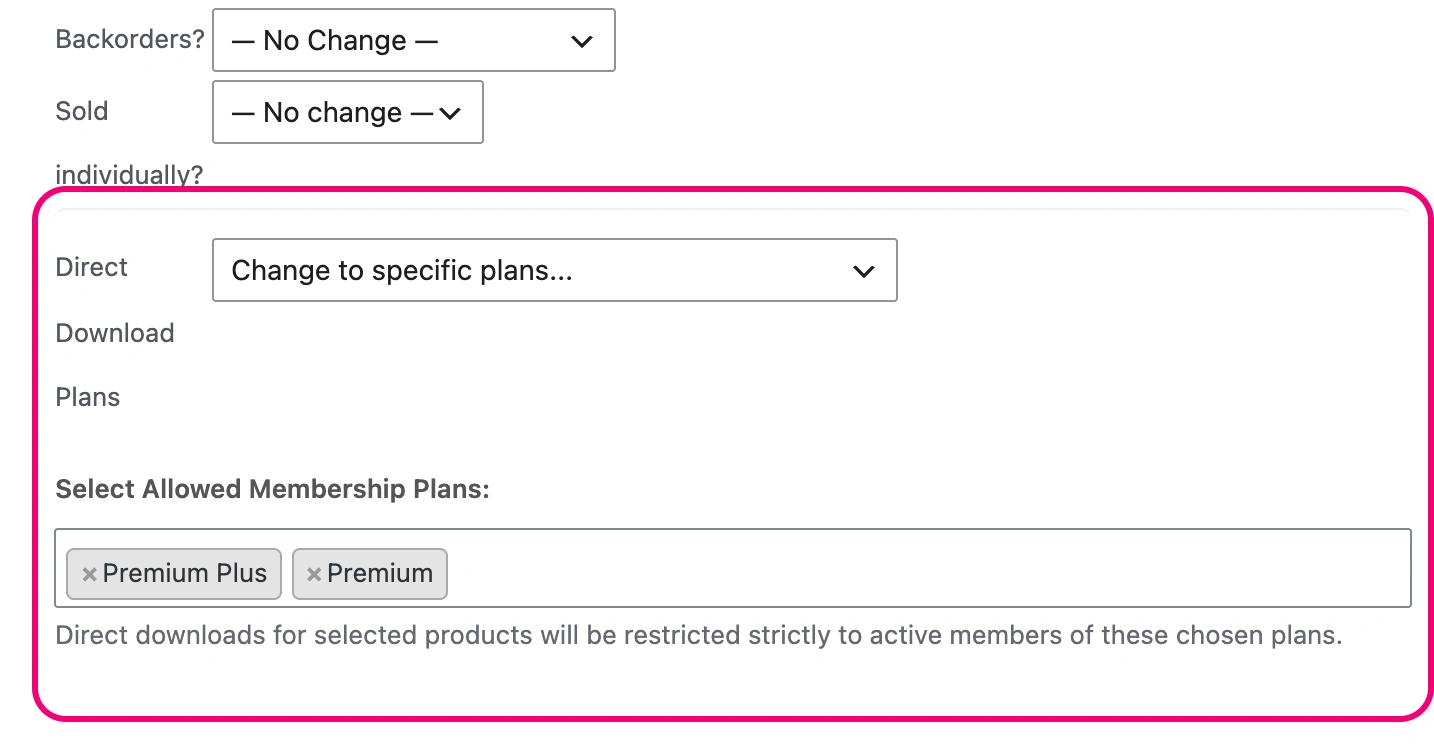
Bulk Edit Multiple Products
- Go to Products > All Products, check the products you want to update, choose Edit from Bulk actions, and click Apply.
- Locate Direct Download Plans in the right-hand Product data column and select an action:
- — No change —: Leaves each selected product’s existing Direct Download Plans untouched while updating other bulk fields.
- Change to specific plans…: Reveals the Select Allowed Membership Plans multi-select field so you can assign exact plans (such as Premium Plus and Premium) across every selected product at once.
- Clear Assigned Plans: Removes product-level plan overrides from all selected products. Depending on Step 2, the label reads Clear Assigned Plans (Disable Direct Download) or Clear Assigned Plans (Use Global Default).
- Click Update to apply changes to all selected products.
Quick Edit a Single Product Inline
Hover over any row under Products > All Products and click Quick Edit. The Direct Download Plans multi-select opens pre-populated with that product’s currently assigned plans so you can add, remove, or clear plans inline and click Update without leaving the list table.
Step 5: Download Delivery & Member Access Flow
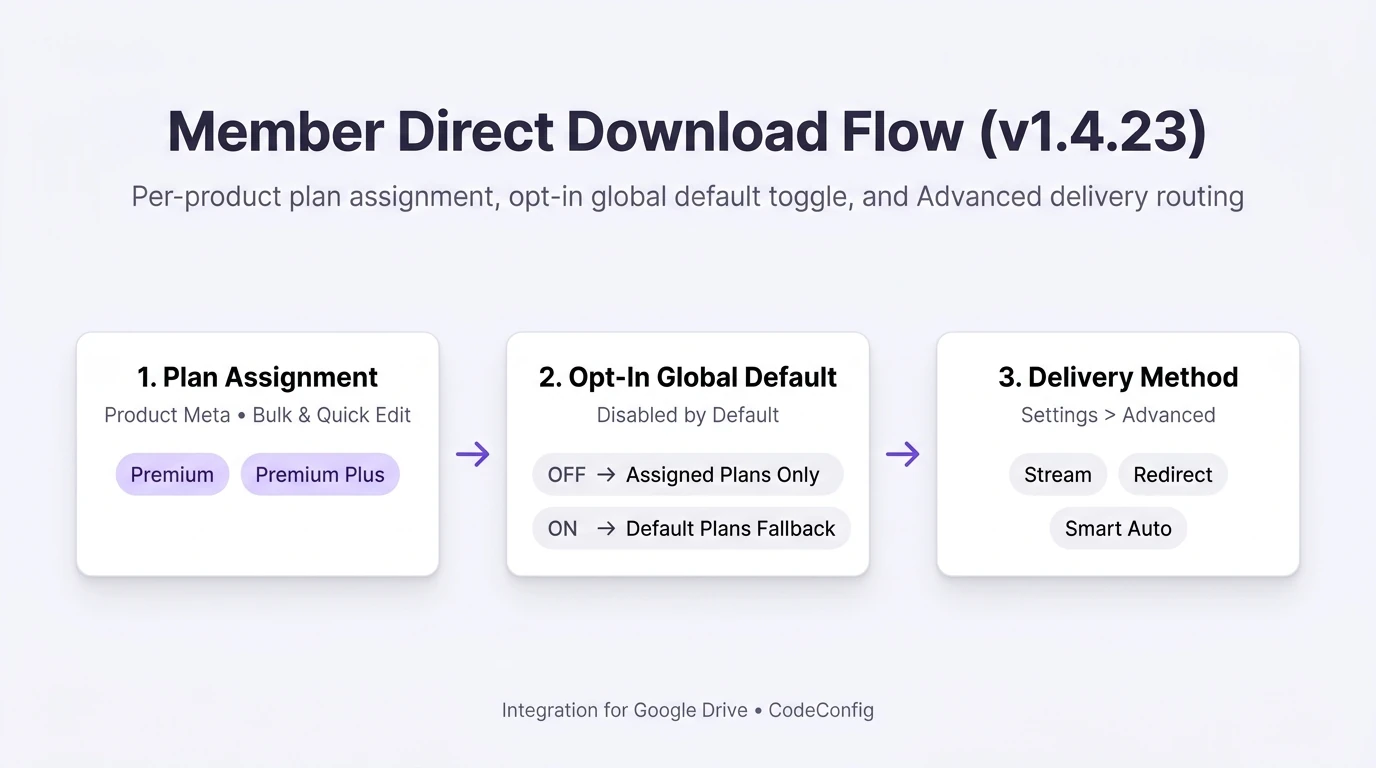
When an eligible member clicks a direct download button, the plugin checks their active WooCommerce Memberships status and serves the file according to your Download Method under Integration for Google Drive > Settings > Advanced:
- Stream / Smart Auto: Streams files through your WordPress site (or up to your configured Smart Auto size threshold) without exposing raw Google Drive URLs.
- Redirect with Streaming Fallback: Redirects directly to Google Drive when configured for redirects or above the Smart Auto threshold, falling back automatically to streaming if link generation fails.
Step 6: Output and Member Storefront Experience
- Single Product Page: Qualifying members see the price and “Add to Cart” button replaced with the
Included with Membershippill badge and styled download button (one button per downloadable file). - Shop & Archive Loops: Qualifying members see your catalog
Downloadbutton directly on product cards. - My Account Downloads: Direct-downloaded products appear under My Account > Downloads for future access while membership remains active.
- Non-Members, Other Plans & Expired Accounts: Logged-out visitors, non-members, expired members, and users whose plans are not allowed on that product see standard pricing and “Add to Cart” buttons instead.
To read more about the 1.4.23 improvements or browse related guides, review the Integration for Google Drive 1.4.23 release notes, visit our documentation hub, or test features live in the Interactive Demo.