How to Enable Google Drive Direct Downloads for WooCommerce Memberships
With WooCommerce Memberships direct downloads, active members can download Google Drive digital products directly from product pages and catalog loops—completely bypassing the cart and checkout process.
The Integration for Google Drive PRO plugin integrates with WooCommerce Memberships to offer instant access to downloadable files for your members. By enabling WooCommerce Memberships direct downloads, you eliminate cart abandonment for members while protecting paid access.
Step 1: Enabling WooCommerce Integration
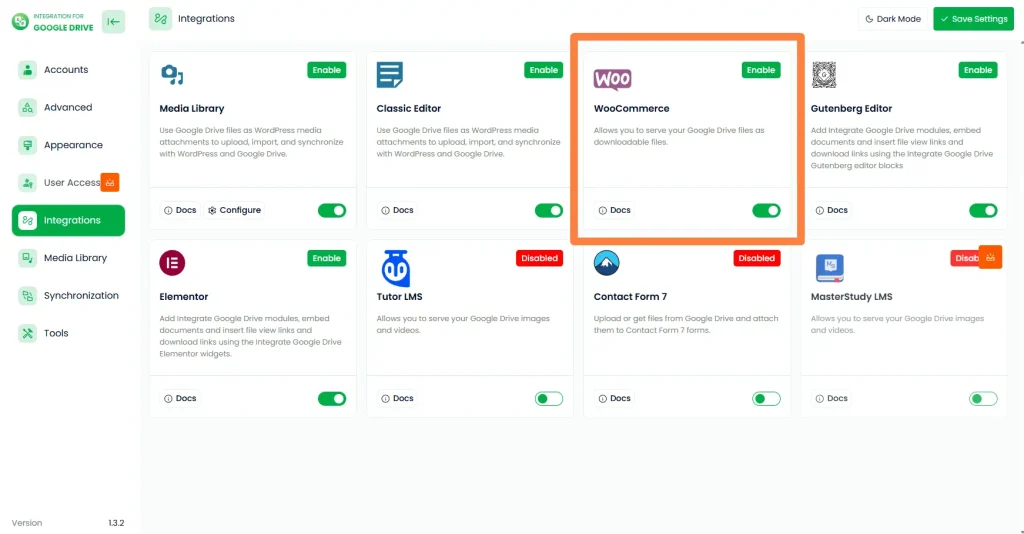
- Go to the Integration for Google Drive plugin dashboard in your WordPress admin.
- Navigate to Settings > Integrations.
- Enable the WooCommerce toggle.
- Click Save Changes from the top-right corner of the settings page.
Step 2: Configure WooCommerce Memberships Direct Downloads Settings
- Go to WooCommerce > Memberships in your WordPress admin menu.
- Click the Google Drive Downloads tab from the top navigation bar.
- Configure your global WooCommerce Memberships direct downloads preferences:
- Enable Direct Downloads: Master switch to enable direct file downloads for active store members.
- My Account Downloads: Automatically registers and displays downloaded cloud files under the member’s
My Account > Downloadspage. - Single Product Button Text: Enter custom label text for the single product page download button (default:
Download Now). - Shop / Catalog Button Text: Set the button label shown on product cards in shop catalog archives (default:
Download). - Membership Badge Text: Set the pill badge label replacing the price display (default:
Included with Membership). - Shop Button Alignment: Align the download button on product cards (Left, Center, or Right).
- Button Styling: Select custom background colors, text colors, border radius, and padding to match your store theme.
- Click Save Settings to apply your changes.
Step 3: Assign WooCommerce Memberships Direct Downloads to Products
- Go to Products from your admin sidebar and edit a downloadable product (or create a new product). Review our tutorial on adding Google Drive files as downloadable products if you need basic setup instructions.
- In the Product Data panel, check the Downloadable checkbox.
- Under the General tab, locate Downloadable Files:
- Click Add Google Drive File > Choose File From Google Drive.
- Locate the Direct Download Plans multi-select dropdown field.
- Select the membership tiers permitted to receive WooCommerce Memberships direct downloads (for example, VIP Membership or Pro Tier). If left empty, all active store members qualify for instant downloads.
- Click Update to save your product changes.
Step 4: Output and Member Direct Download Experience
Once saved, the frontend product display adapts dynamically based on user membership status:
- Single Product Page: Eligible members see the standard price and “Add to Cart” button replaced with the
Included with Membershipbadge and your customDownload Nowbutton. Clicking the button immediately validates active membership status and streams the file securely from Google Drive. - Shop / Catalog Loops: In shop archives and search result pages, eligible members see a clean direct download button directly on the product card.
- My Account Downloads: Accessed items are logged under My Account > Downloads, allowing members to re-download files anytime without revisiting individual product pages.
- Non-Members & Guest Visitors: Visitors without an active qualifying membership see regular store pricing and standard “Add to Cart” buttons to purchase products normally through WooCommerce checkout.
- Membership Expiration: When a user’s membership expires or cancels, access to direct downloads is immediately revoked on product pages and in My Account.
Still stuck? Contact us now!Last Updated: October 27, 2026