How to Add Image Gallery Module Using File Manager For Dropbox?
The Image Gallery module displays selected Dropbox images in a responsive gallery. You can configure sources, filters, layout, thumbnails, overlay options, and permissions to fit your needs.
Quick Start
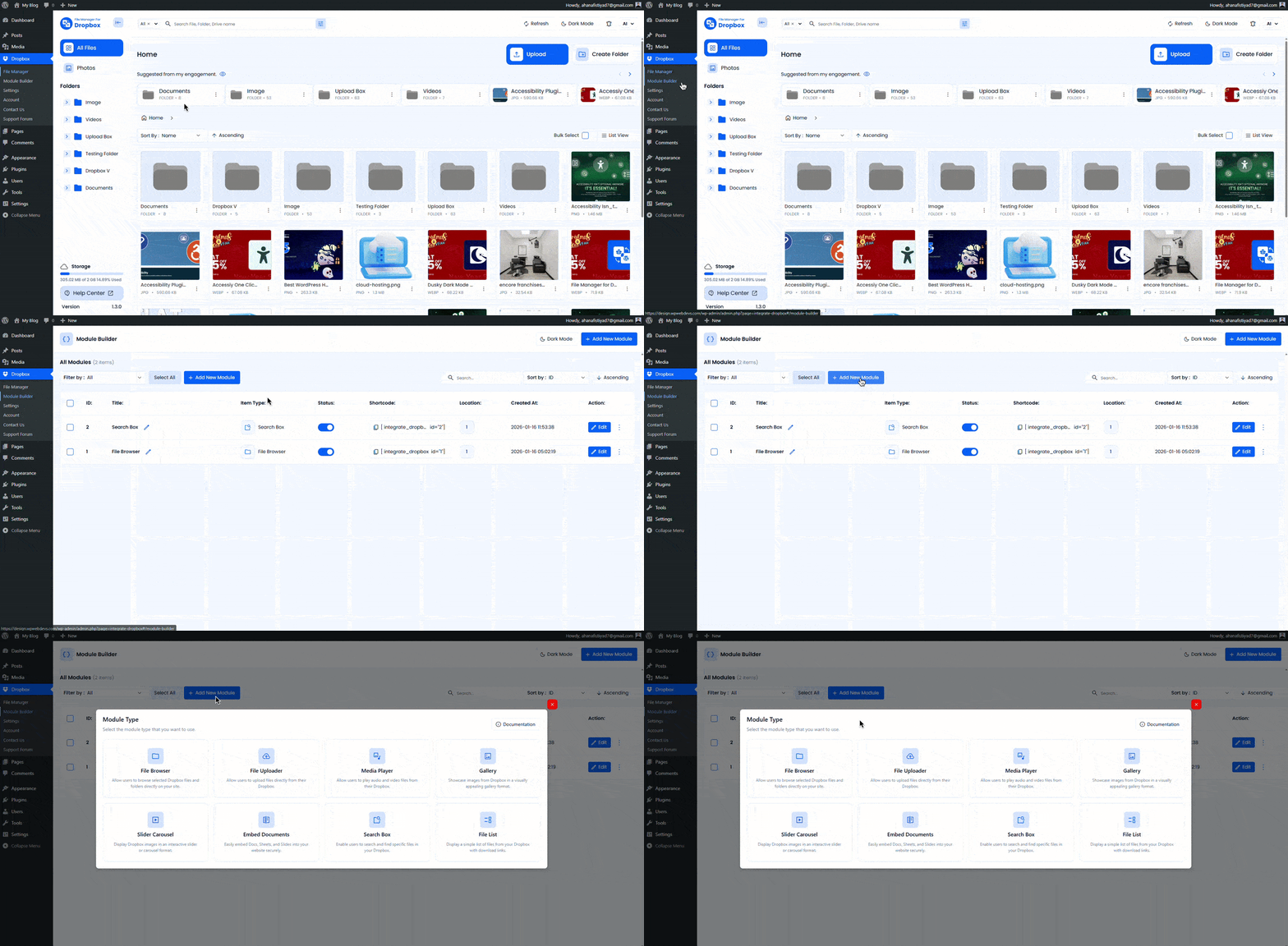
- Go to Dropbox → Module Builder.
- From Modules, select Image Gallery and click Next.
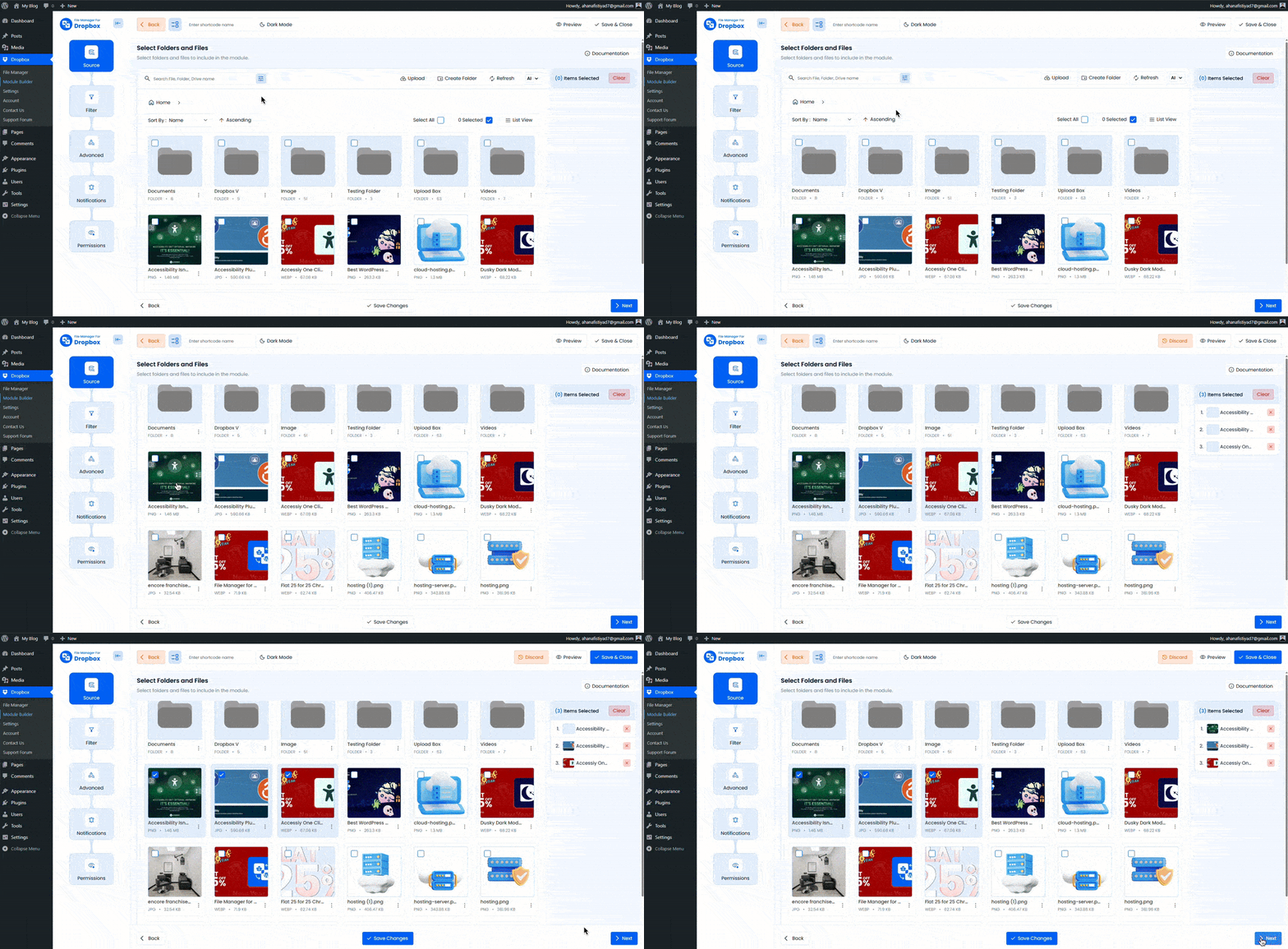
- In Source, choose folders or files to display, then click Save Changes → Next.
- Configure Filter, then open Advanced to adjust layout, thumbnails, and overlay options.
- Set Permissions and click Finish.
Tip: In the source picker, you can use Ctrl/Cmd + Drag to quickly select multiple files or folders.
Step 1 Modules
- Image Gallery — Displays Dropbox images in Justified, Grid, or Masonry layouts with optional captions and overlays.
Want to download this plugin? Free Download
Learn Also: Connect Dropbox With WordPress
Step 2 Source
Choose where your images come from.
- Pick Folders/Files: Click to select items. Selected items appear in the right sidebar.
- Toolbar: Upload, Create Folder, Refresh, Grid/List view toggle.
- Sort & Order: Sort by Name, Size, Created At, or Updated At with Ascending or Descending order.
Step 3 Filter
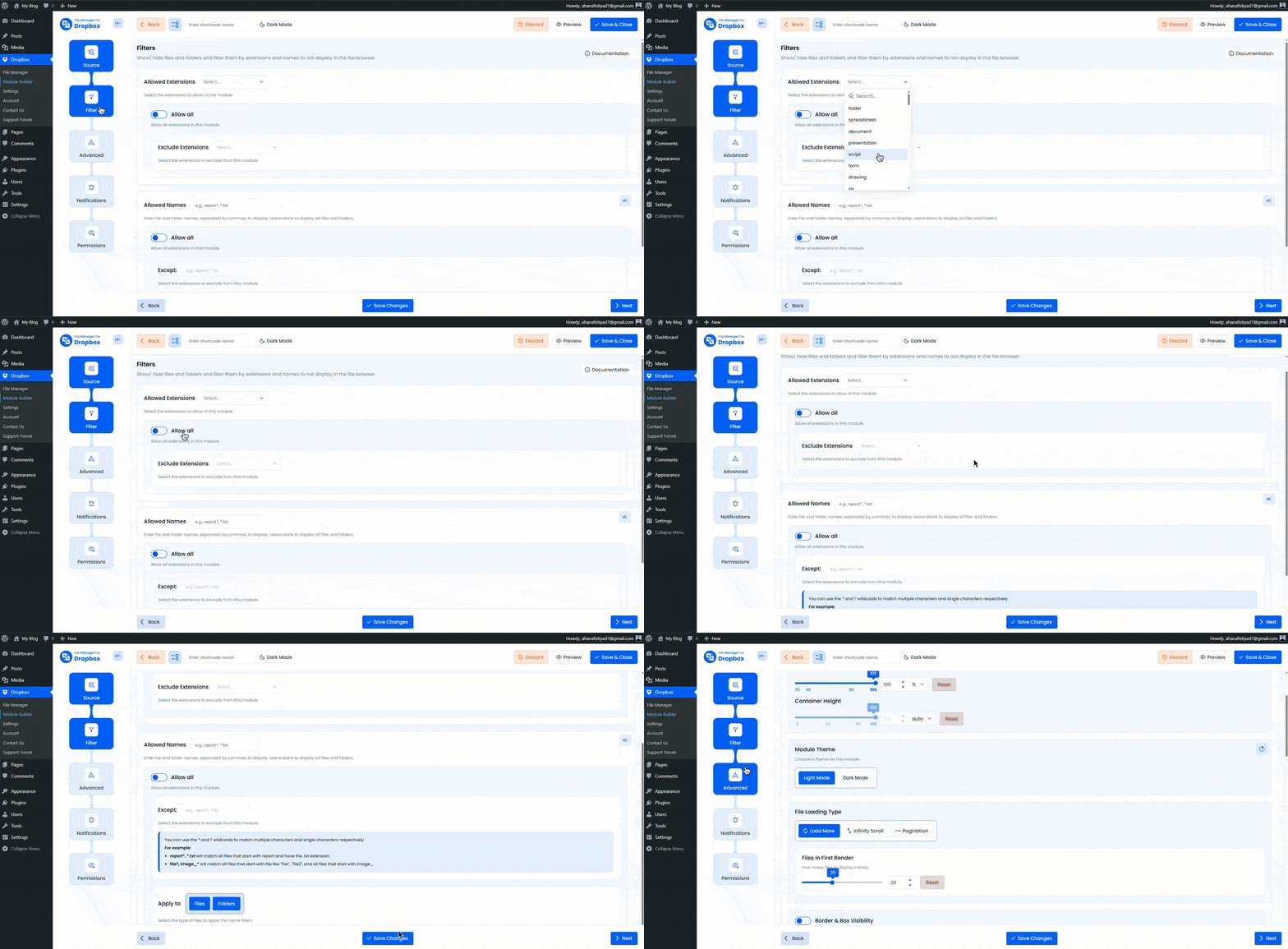
Control which images appear in the gallery.
- Allowed Extensions: Include image formats such as
jpg,jpeg,png,webp,gif. - Exclude Extensions: Hide unwanted file formats.
- Allowed Names: Comma-separated list with wildcard support, like
banner*,*.webp,img?,product_*. - Apply To: Apply name filters to Files or Folders.
Step 4 Advanced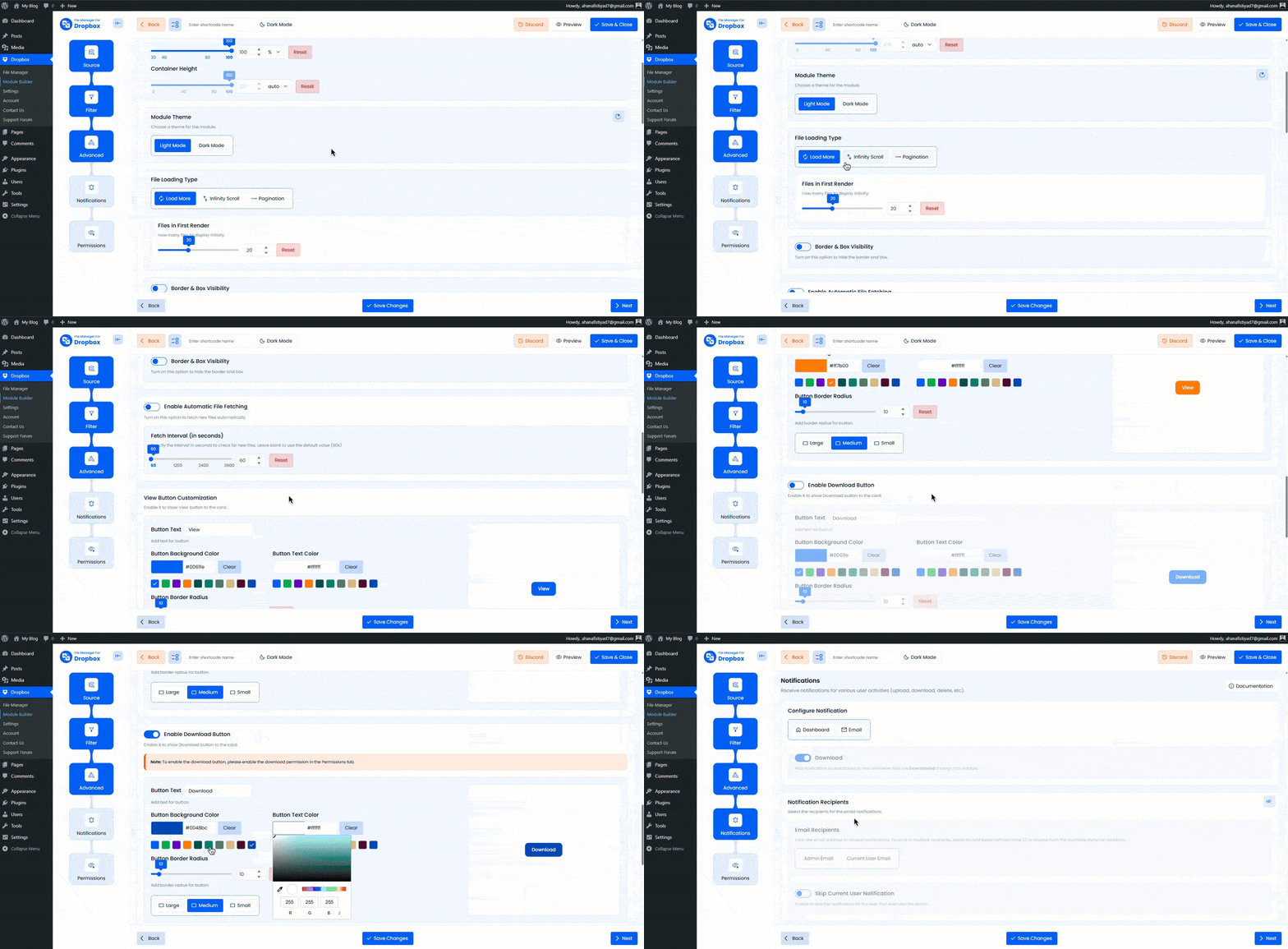
Module Settings
- Container Size: Set Width and Height (for example
100%,720px,70vh) or leave empty for default. - Module Theme: Choose Light or Dark mode.
File Loading
- Load Type: Load More, Infinite Scroll, or Pagination.
- Files in First Render: Number of images loaded initially.
Gallery Layout
- Layout: Justified, Grid, or Masonry.
- Row Height (Justified): Set the target row height in pixels.
Thumbnail
- Spacing: Space between thumbnails in pixels.
- Quality: Original, Medium, or Thumbnail.
- View Shape: Rounded or Square.
Overlay
- Show Overlay: Enable or disable image overlay.
- Display Type: Always visible or show on hover.
- Show Title / Description / Size: Choose which details appear on the overlay.
Automatic Fetch
- Enable Automatic File Fetching: Automatically detect new files added to Dropbox.
- Fetch Interval: Time interval in seconds (example
60).
Sorting
- Sort By: Name, Size, Created At, Updated At.
- Order: Ascending or Descending.
Step 5 Permissions & Access Controls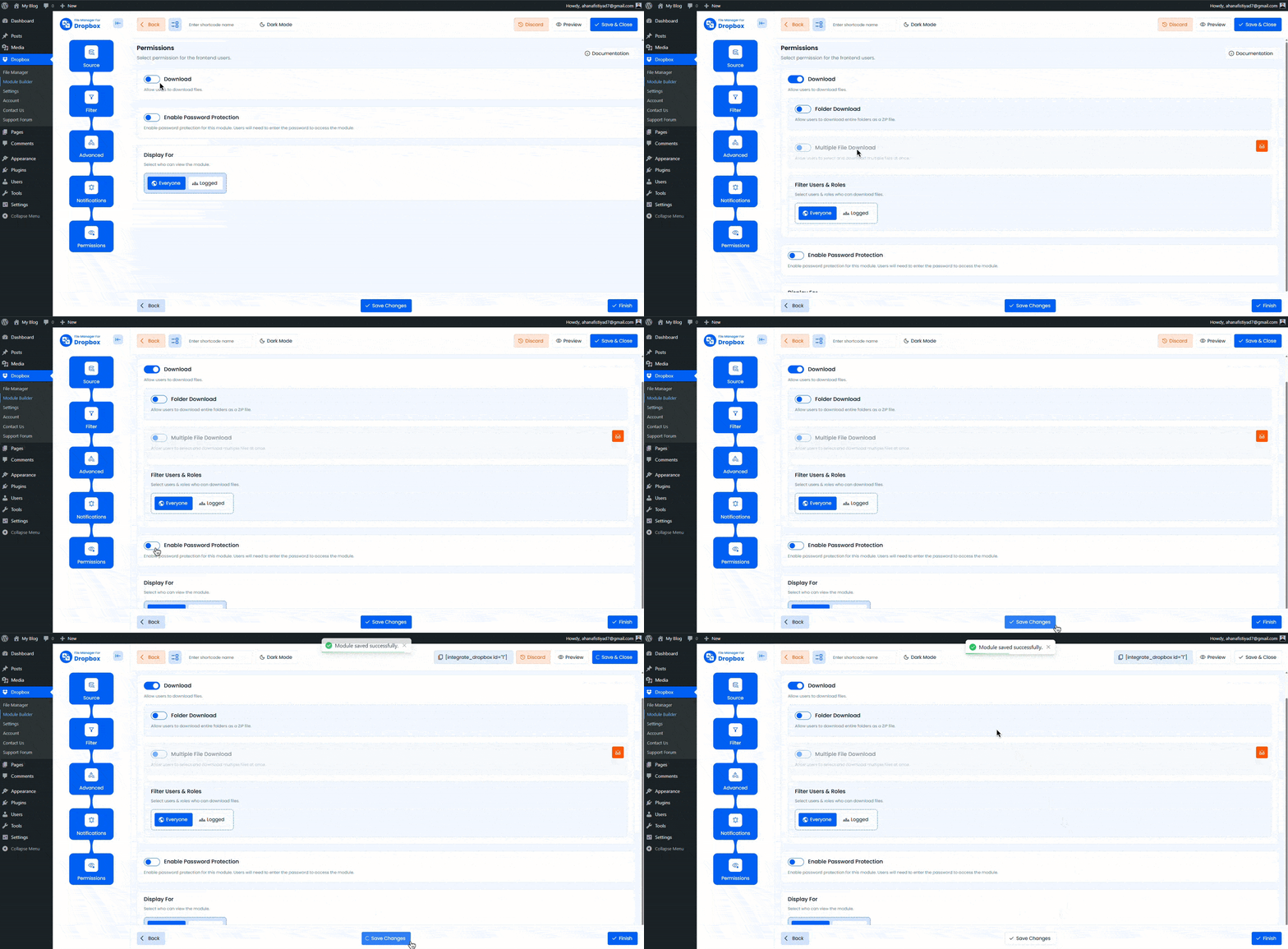
A. Preview Controls
- Preview: Allow or block image preview on the frontend.
- Inline Preview: Open images in a lightbox popup.
- Allow Pop-out: Open images in Dropbox’s native viewer.
- Show Preview Thumbnails: Show or hide thumbnails in the preview modal.
B. Filter Users & Roles
- Audience: Everyone or Logged In users only.
- User Access Modes:
- Role-Based: Allow access by user roles.
- User-Based: Allow access to selected users.
- Access Denied Message: Custom message shown when access is restricted.
C. Password Protection
- Enable Password: Protect the gallery with a password.
- Password Generator: Generate a strong random password.
Password Tips:
- 8 to 128 characters
- Use uppercase and lowercase letters
- Include at least one number and one symbol, like
!@#$% - No spaces allowed
D. Display For
Control who can see the gallery on the frontend: Everyone or Logged In users only.
Step 6 Usage
Embed the Image Gallery using the generated shortcode
[*integrate-dropbox id="123"]Best Practices
- Use Role-Based access for easier permission management.
- Select Medium or Thumbnail quality for better performance.
- For large galleries, reduce Files in First Render and enable Infinite Scroll.
- Use Justified layout for uniform rows or Masonry for mixed image sizes.
Troubleshooting
- No images showing: Check Source selection and Filter settings.
- Layout looks uneven: Adjust Row Height or switch layout type.
- Gallery loads slowly: Use smaller image quality and reduce the initial load count.
- Users cannot access the gallery: Review Display For and user permission settings.
Still stuck? Contact us now!Last Updated: January 23, 2026