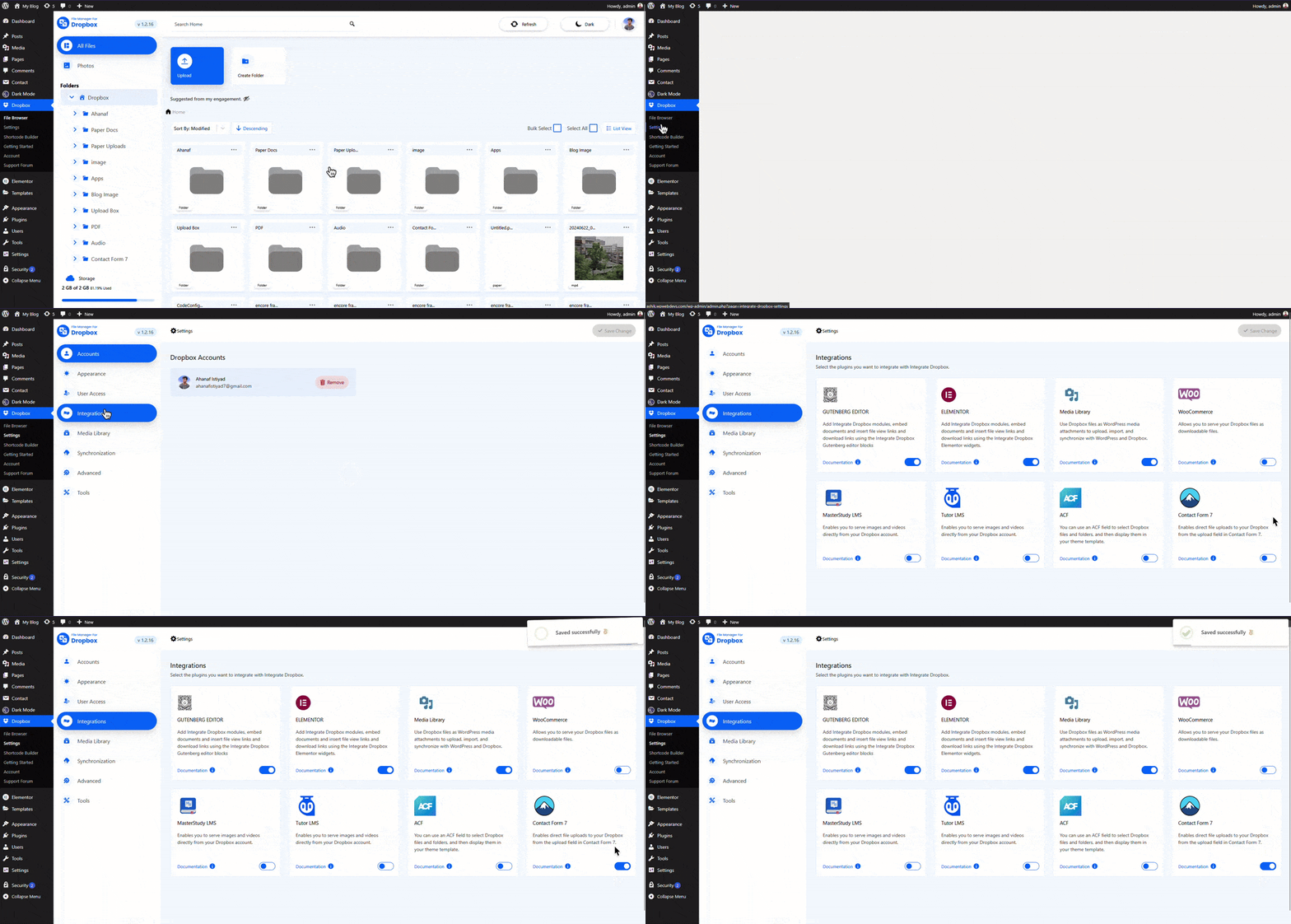
The File Manager for Dropbox plugin now supports integration with Contact Form 7 (CF7).
This allows users to upload files directly to your Dropbox account through a CF7 form, using your specified folder structure and naming format.
Step 1: Enable CF7 Integration
Go to Settings > Integration > Contact Form 7 inside the plugin dashboard.
CF7 integration is now active.
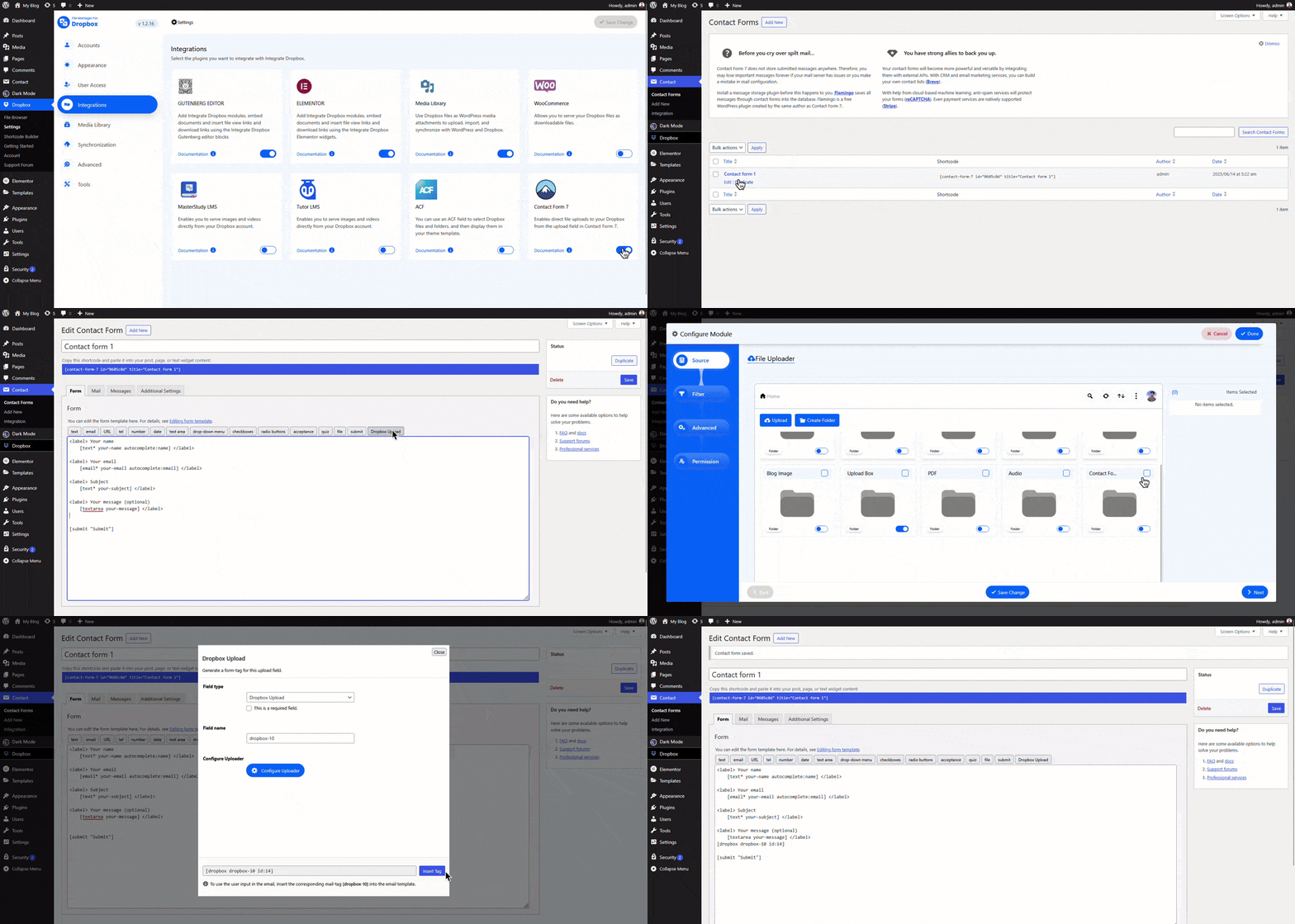
Step 2: Add a Dropbox Upload Tag in CF7
Edit your Contact Form 7 form and add the “Dropbox Upload” tag. Then click on “Configure Uploader” to set up the upload settings. You can choose target folders and configure various features.
Step 3: Configure Module Settings
Source: Select the Dropbox folder where files will be uploaded.
Filter:
Allow all Extensions: Specify accepted file types.
Max & Min File Size (MB): Define the allowed file size range.
Allow Multiple Uploads: Enable or disable multiple file uploads.
Advanced:
Enable Folder Upload: Allow users to upload entire folders.
Upload Immediately:(Important) If disabled, files upload first, then the form is submitted.
Naming Format: Define a custom naming convention for uploaded files.
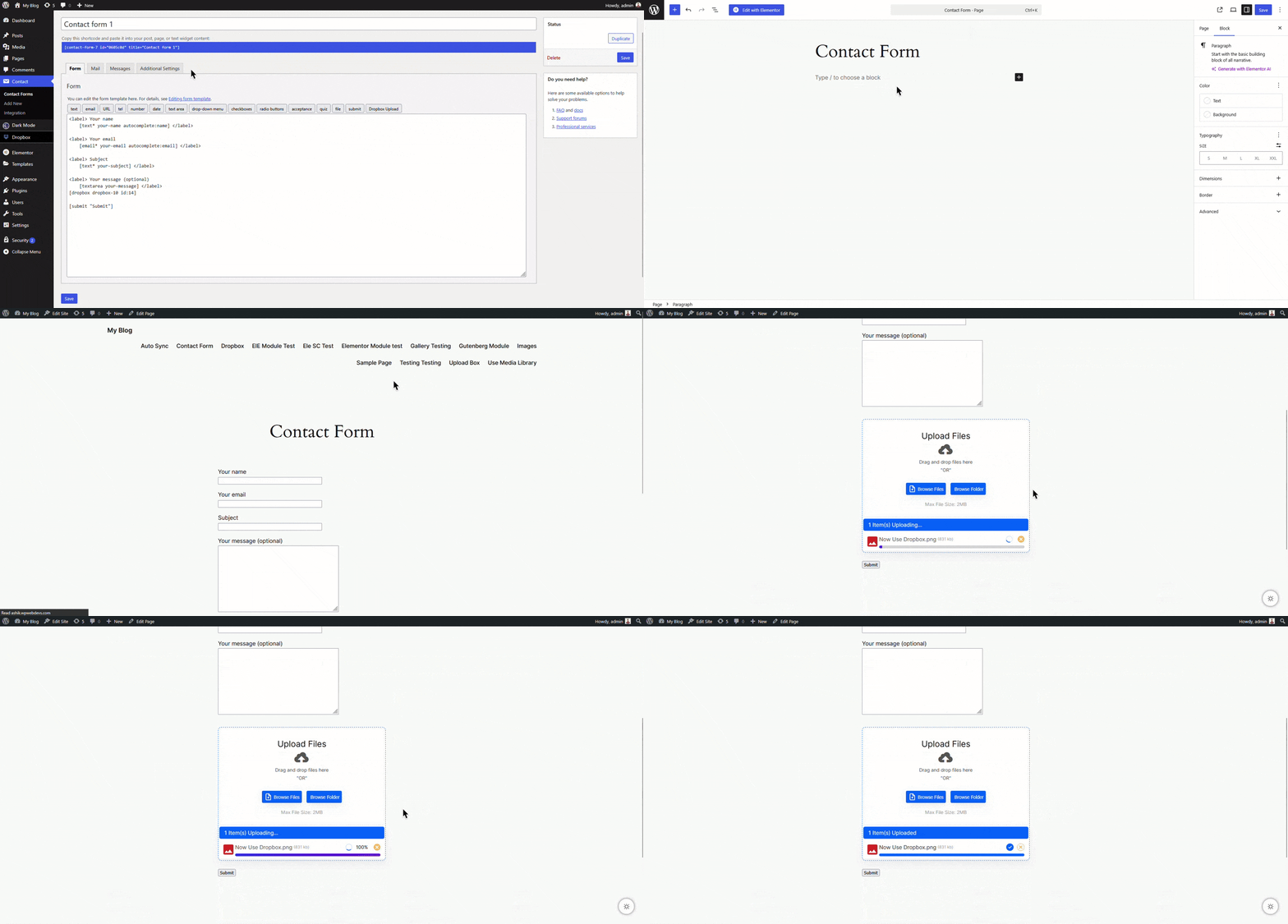
Copy the form’s shortcode and paste it into any page, post, or widget where you want the form to appear.
That’s it! Your Contact Form 7 is now integrated with Dropbox file uploads via the File Manager plugin for Dropbox.