How to Create View Links Shortcode in File Manager For Dropbox?
File Manager for Dropbox makes it easy to manage and share your Dropbox files right from your WordPress site. With View Links, your files remain accessible for viewing while you stay in full control. You can securely share important files like documents, images, or media.
Step 1: Create Shortcode For View Links
Go to File Manager for Dropbox > Module Builder > Add New Module > Select the File List Module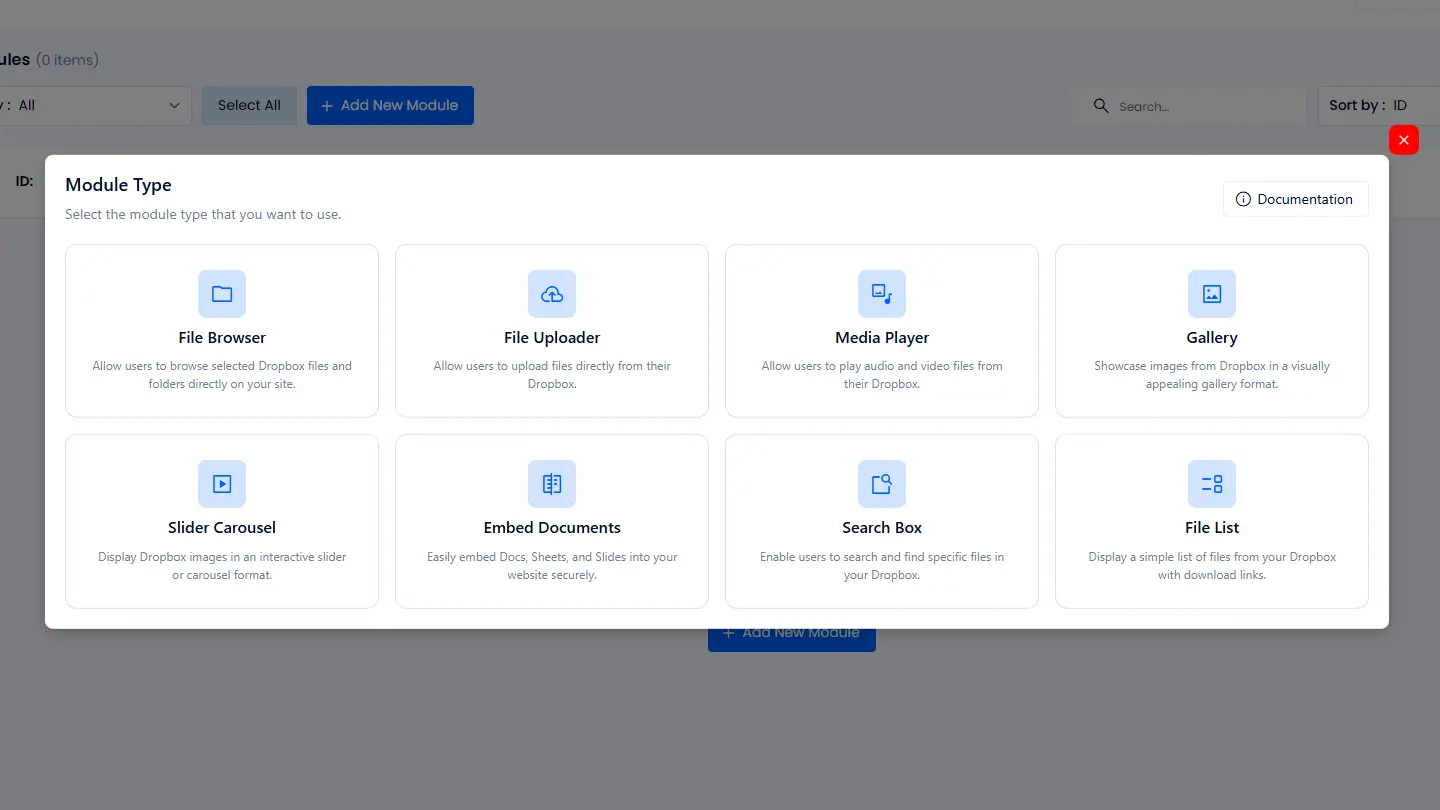
Step 2: Configure the Source
Select your folder in Dropbox where the uploaded files will be stored, and Next.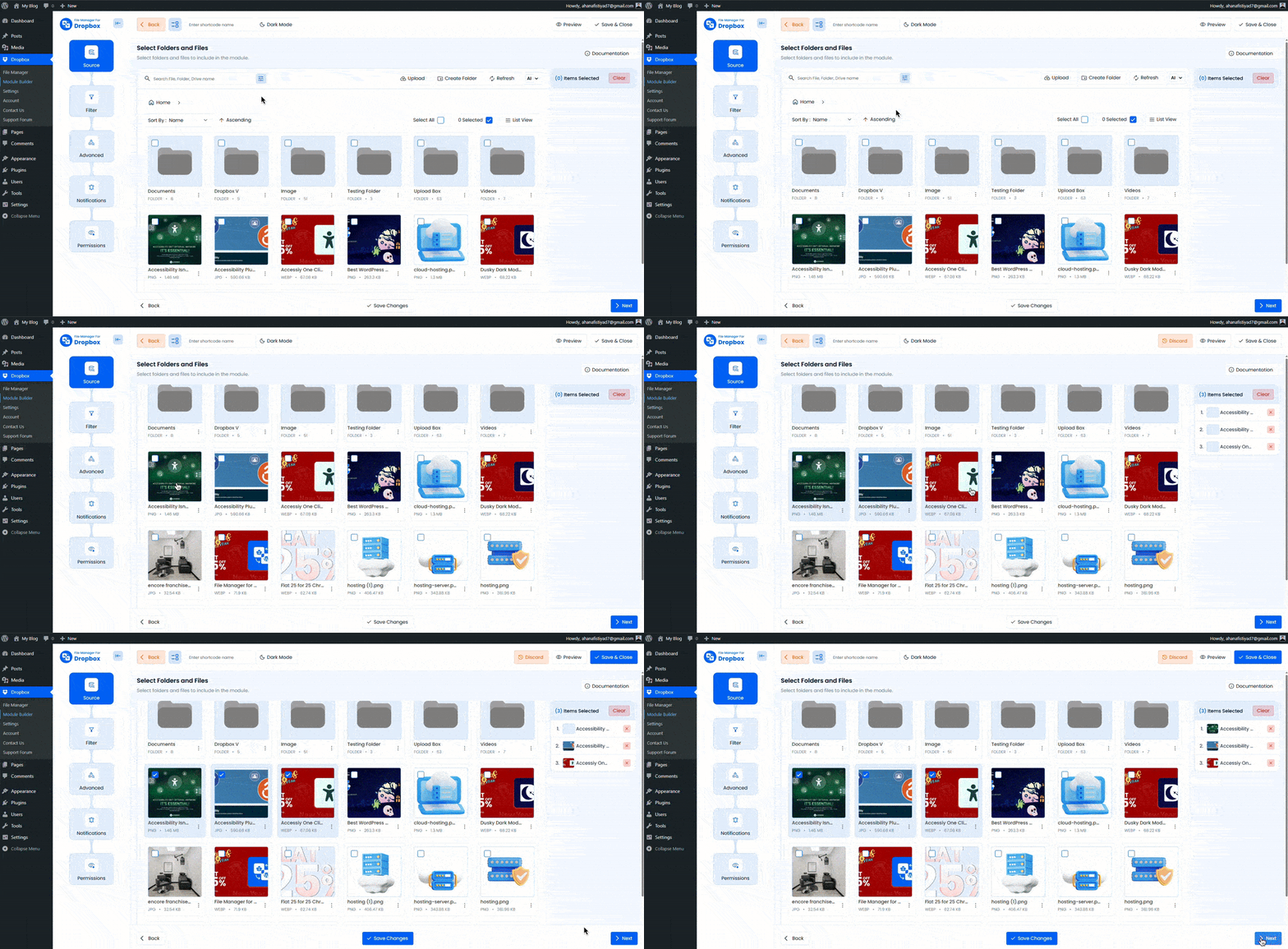
Step 4: Configure filter tab
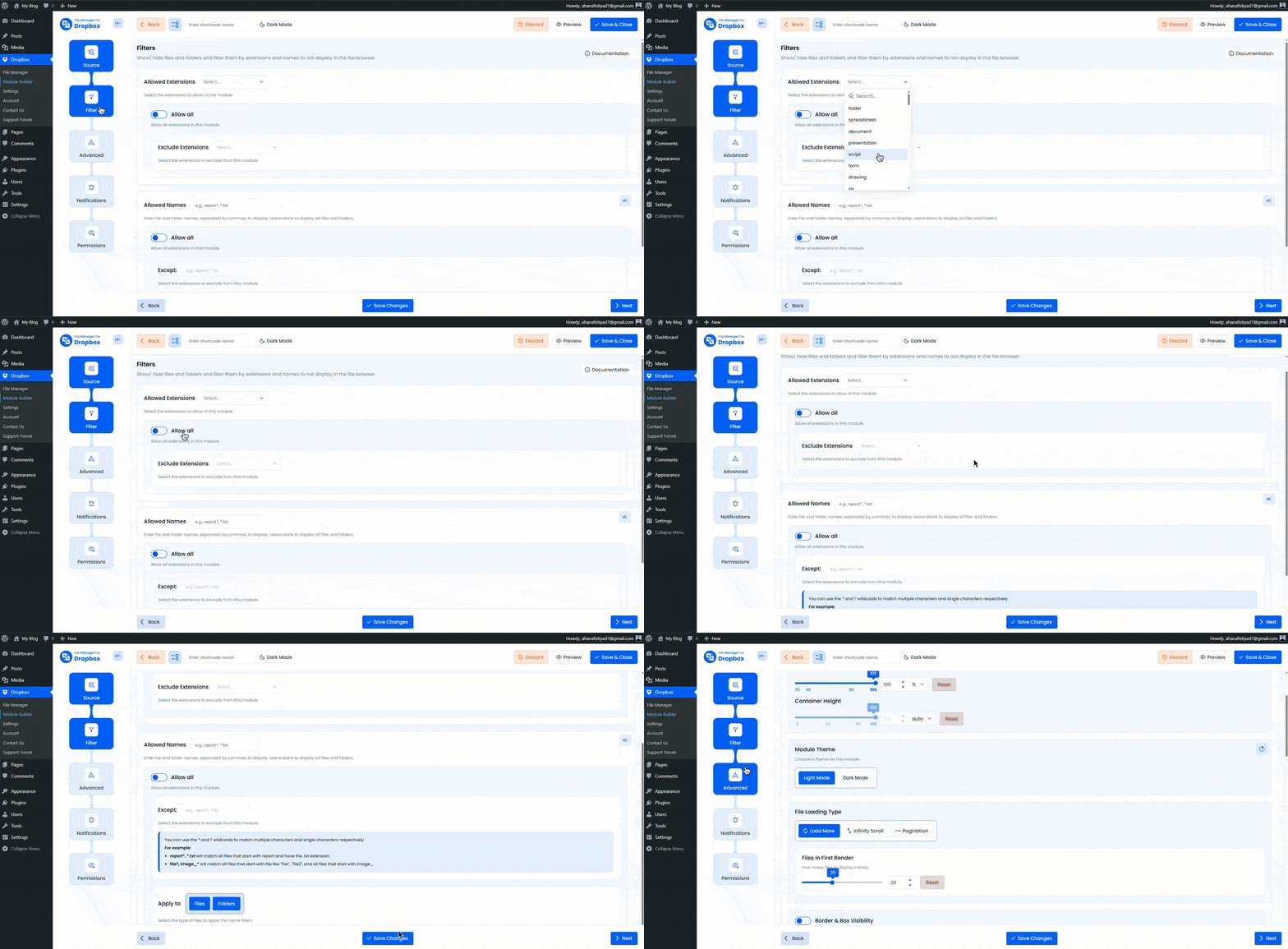
If you want to include or exclude specific files, this step will help. Below is a clear breakdown of what you can control from the Filter tab.
Allowed Extensions:
- Enter comma-separated file extensions you want to allow, for example
jpg, png, gifLeave this field empty to show files with all extensions - If Allow all is enabled, any exceptions you set will be ignored, and everything will be shown
Allowed Names:
- Enter comma-separated file names you want to allow, for example
image-1, banner, thumbnailLeave this field empty to show all files regardless of name - If Allow all is enabled, exceptions will not be applied here either
Want to download this plugin? Free Download
Learn Also: Connect Dropbox With WordPress
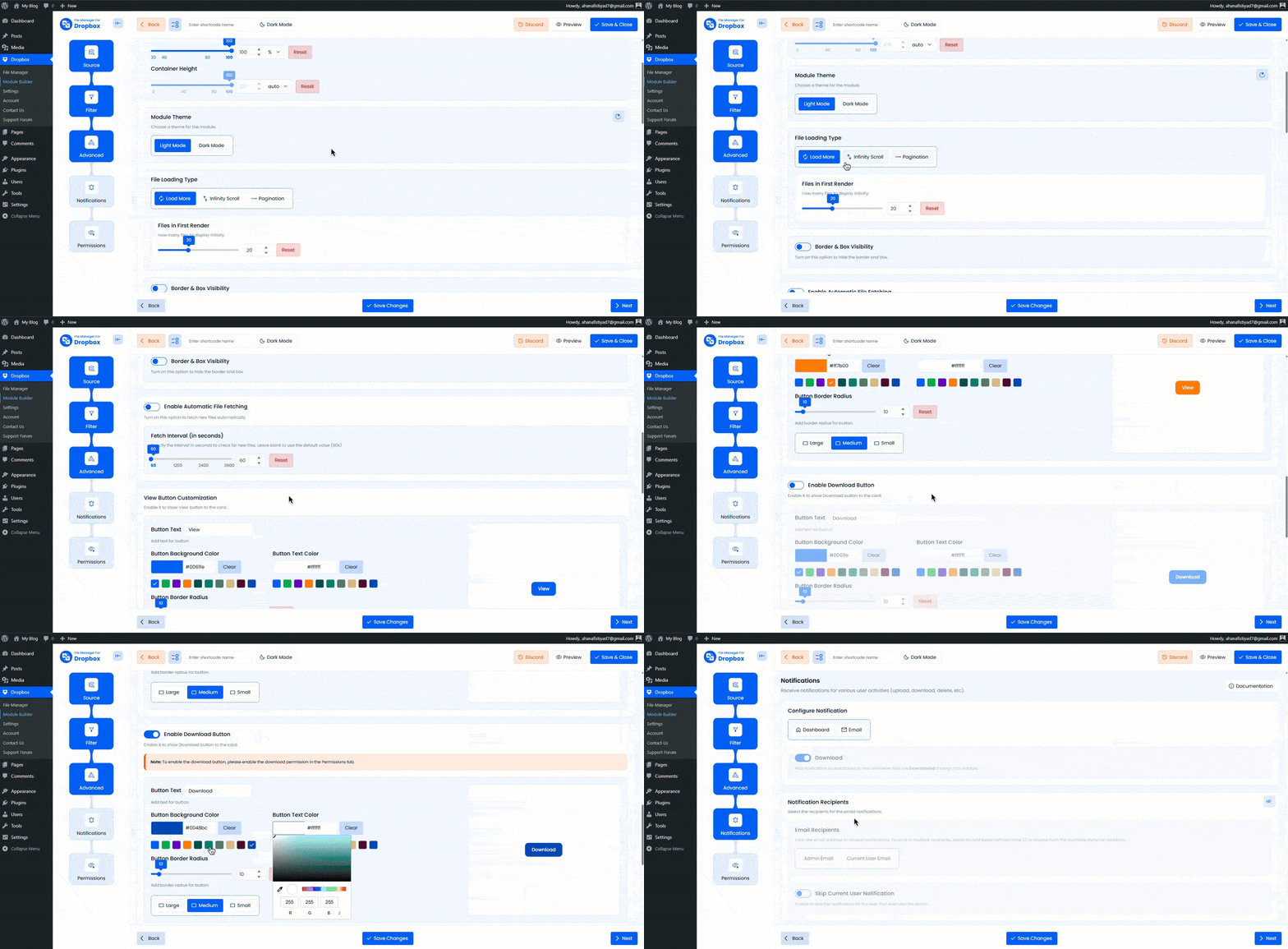
Step 4: Configure the Advanced Tab
Customize the module layout, appearance, and file display behavior.
- Container Width & Height:
Set the module width and height using values like 360px or 80%. Leave empty to use the default size. - Module Theme:
Choose between light mode and dark mode. - File Loading Type:
Select how files will load (Load More, Infinite Scroll, or Pagination). - Files in First Render:
Set how many files should appear initially. - View Button Customization:
Customize the view button.- Button Text: Set a custom label for the view button.
- Button Background Color: Change the button background color.
- Button Text Color: Customize the button text color.
- Border Radius: Adjust the border radius to match your brand.
- Button Size: Choose Large, Medium, or Small.
- Open in New Tab:
Enable this option to open file links in a new browser tab. - Download Button:
Enable and customize the download button.- Button Text: Set a custom name for the download button.
- Button Background Color: Change the button background color.
- Button Text Color: Adjust the text color.
- Border Radius: Set the button border radius.
- Button Size: Choose Large, Medium, or Small.
- Display:
For better responsiveness, customize the number of columns for desktop, tablet, and mobile. - Show File Size:
Toggle to display file sizes. - Show Time Stamp:
Toggle to display file date and time. - Enable Auto File Fetching:
When enabled, newly uploaded Dropbox files will automatically appear in the module. - Sorting:
Sort files by Name, Size, Created Date, or Updated Date, in ascending or descending order.
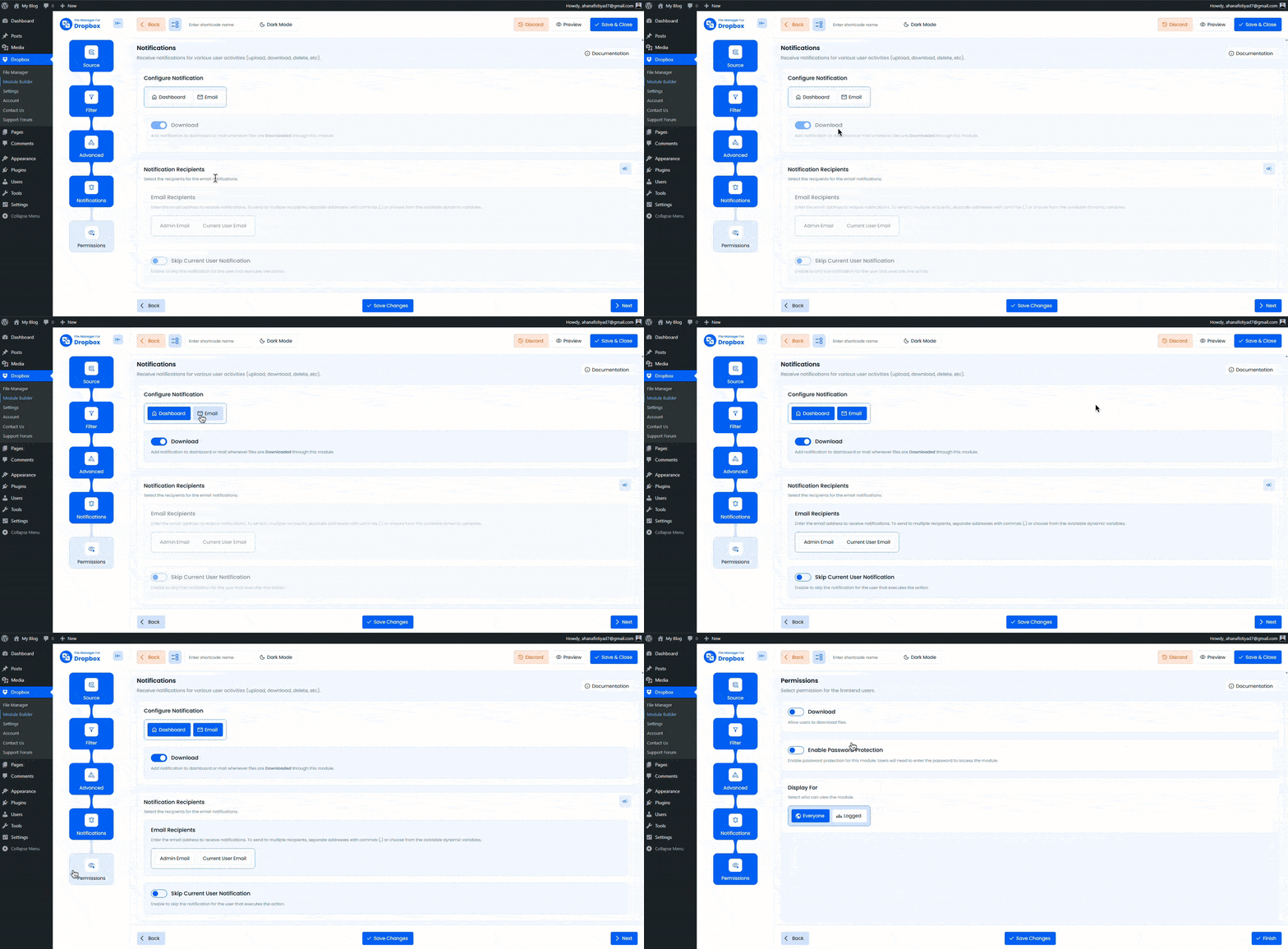
Step 5: Configure Notifications Tab
Set up notifications to stay informed about user activity.
- Configure Notifications:
Enable notifications via Dashboard, Email, or both. - Download Notification:
Receive email alerts when files are downloaded. - Notification Recipients:
Enter one or more email addresses separated by commas (for example%admin_email%, %user_email%). - Skip Current User Notification:
Disable notifications for the user’s action.
Step 6: Configure Permissions Tab
Control access and permissions for your Dropbox List Module.
- Download: Allow users to download files.
- Filter Users & Roles: Select which users or roles can download files.
- Enable Password Protection: Require a password to access the module.
- Password: Set the password for this module.
- Display For: Choose who can see the module.
- Everyone: Visible to all users.
- Logged: Visible only to logged-in users.
- User Access: When Logged is selected, configure access further.
- Role-Based Access: Allow access by user role.
- User-Based Access: Allow access for specific users.
- Show Denied Message: Display a custom message for users without permission.
After completing all steps, click Save Changes and copy the shortcode.
Paste the shortcode into any post or page to display your Dropbox List Module.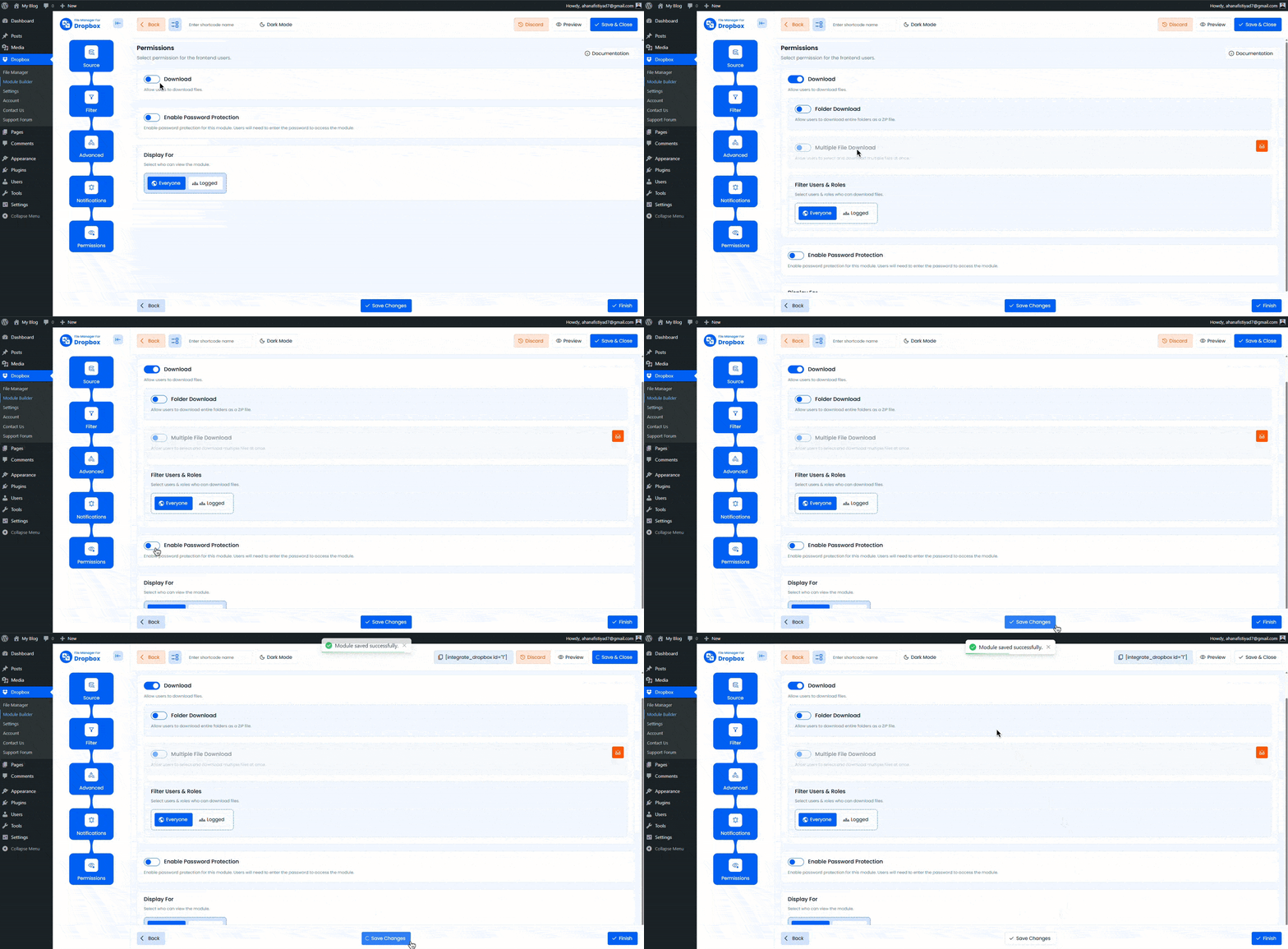
Output
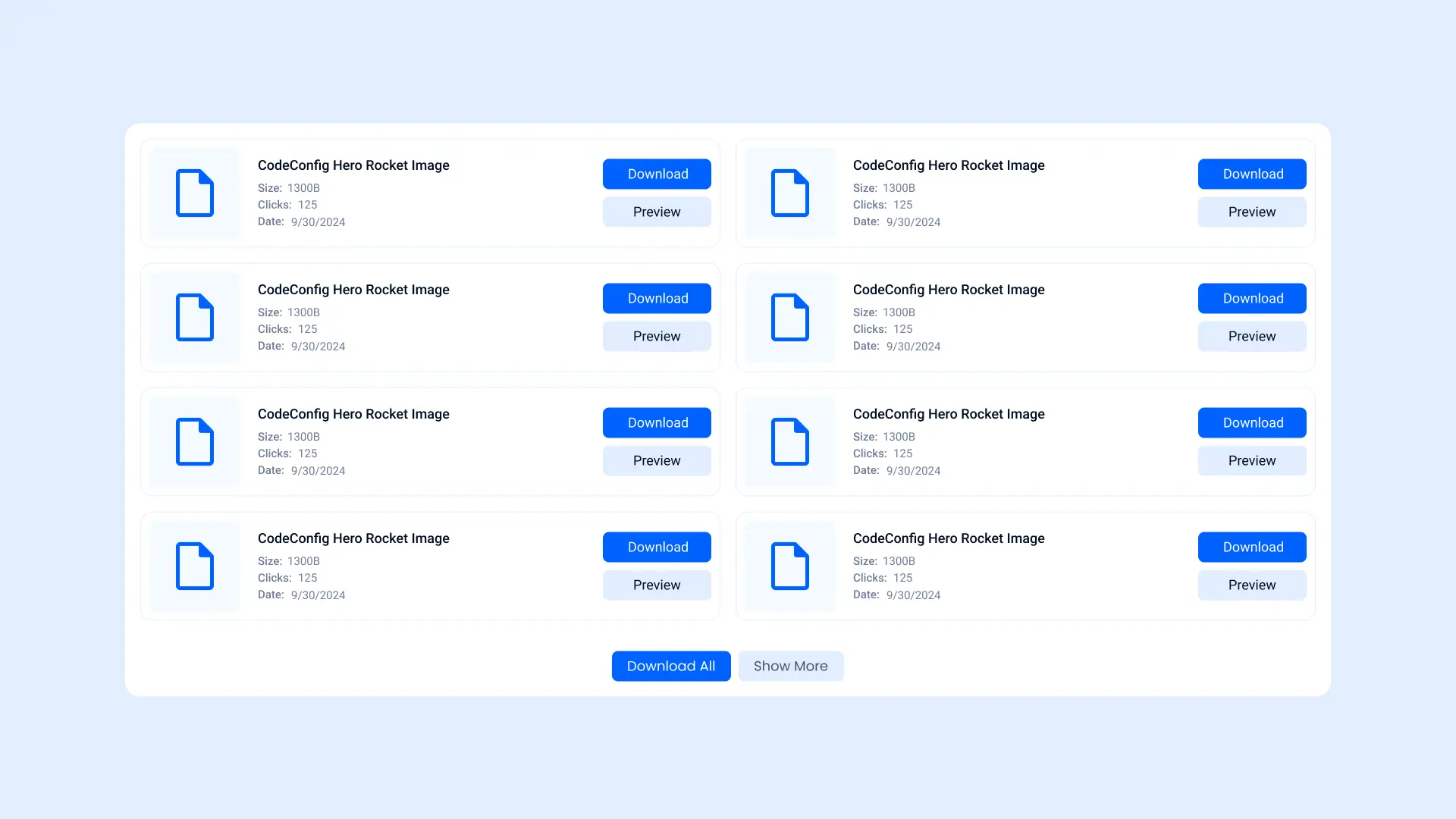
The List Module will now display your selected Dropbox files in a clean, structured list layout, with preview, download, and access controls based on your configuration.