How to purchase and add a license and activate in the File Manager for Dropbox
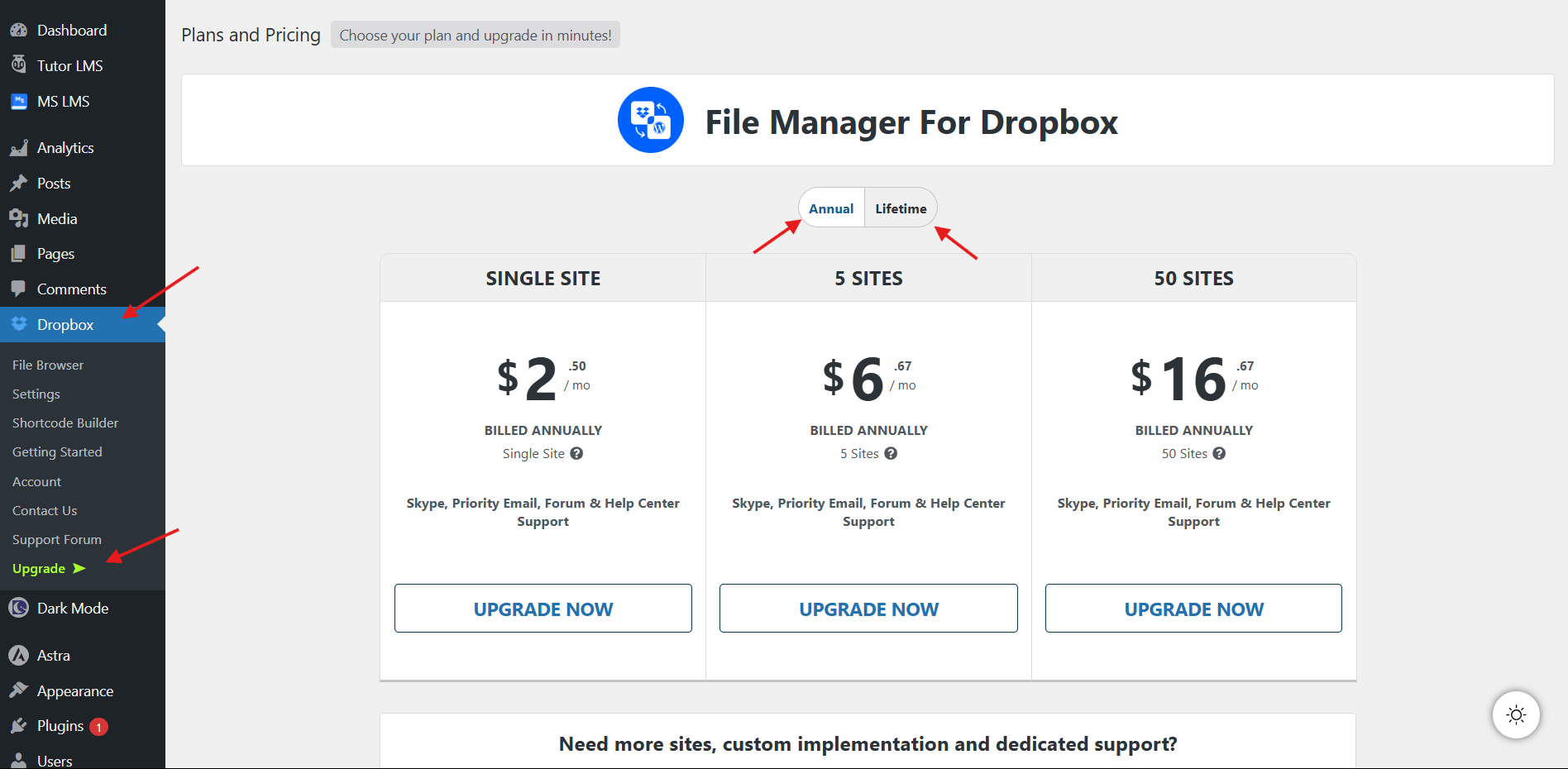
- Navigate to Dropbox → Upgrade from the left menu in your WordPress dashboard.
- Select a suitable plan, choose between a Monthly, Annual, or Lifetime subscription.
- Click Upgrade Now.
Enter Your Information
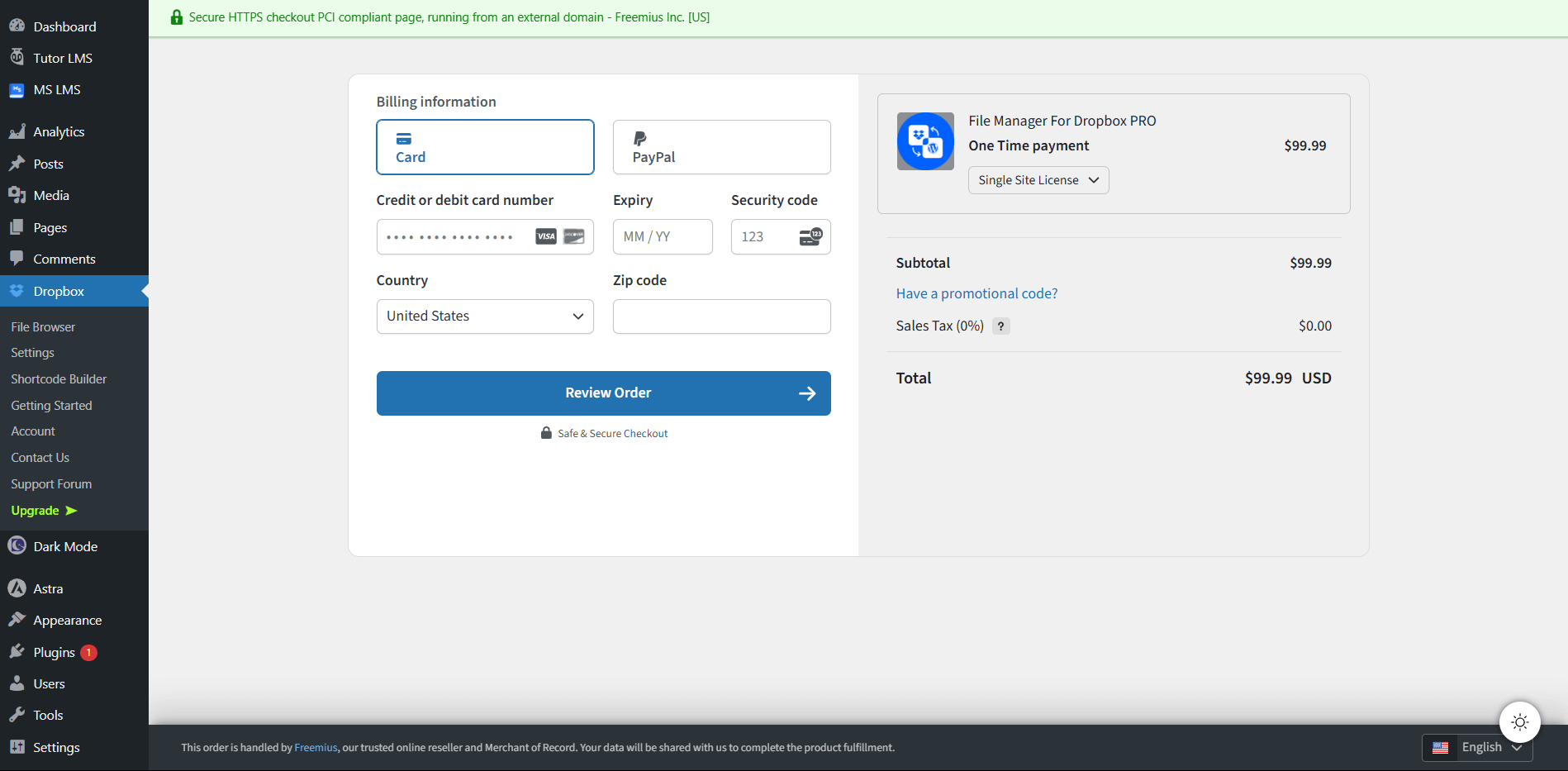
- After selecting a plan, the checkout page will appear.
- Fill in your billing details.
- Click Review Order and complete the payment.
Check Your Email for the Premium Version of the Plugin
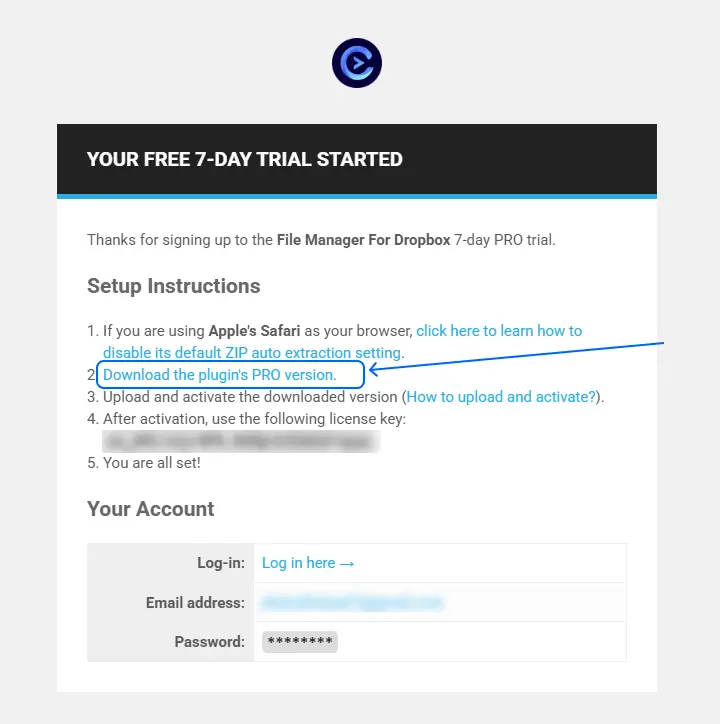
You will receive an email containing your license key and the Premium version of the plugin. Open the email and look for the option named Download the Plugin’s Pro Version. Click it and download the plugin file.
- Next, go to your WordPress dashboard and navigate to Plugins → Add New → Upload The Premium Plugin.
- Upload the downloaded Premium version and activate it.
Add and Activate the License
- After activating the plugin, a license activation pop-up will appear.
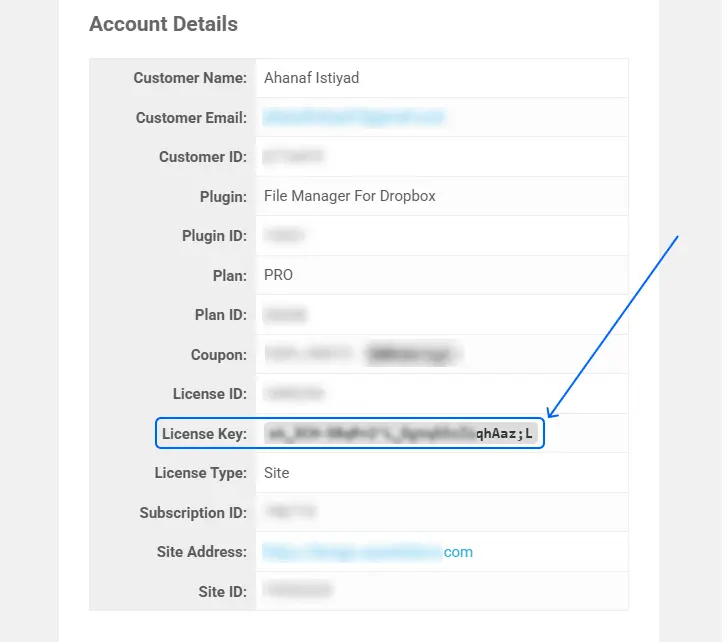
- Go back to the email, find your license key under the Account Details section, copy it, and paste it into the pop-up.
- Click Activate License.
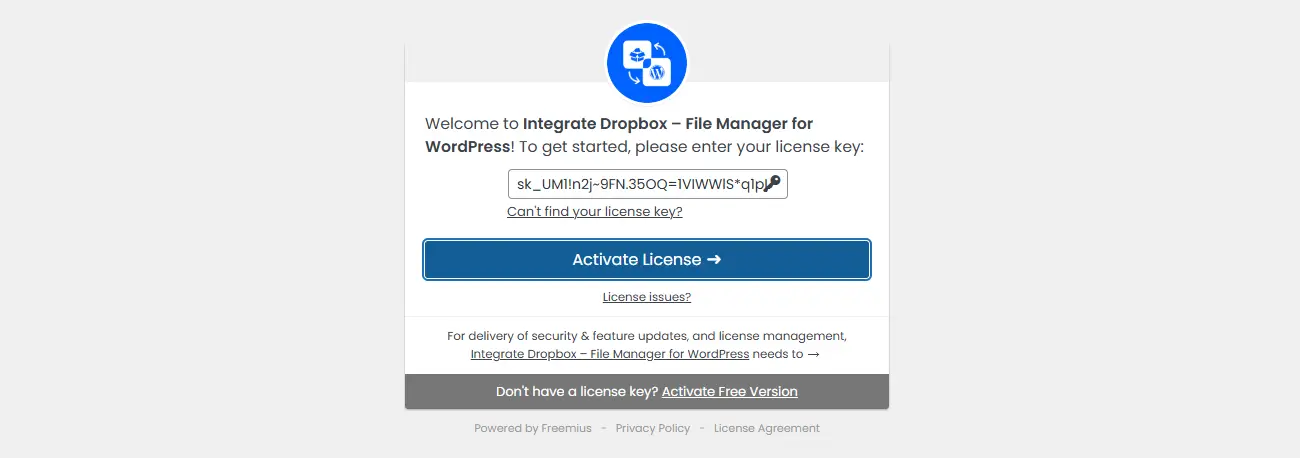
That’s it. Your license is now active, and you are a Pro user.
Note: If you face any issues while completing this process, please let us know. Our support team will assist you within 24 hours.
Still stuck? Contact us now!Last Updated: January 19, 2026